1
wall.
network connection (Ethernet - preferred or
WiFi) to use all of the features as designed. When
• Mount the HC-250 horizontally or vertically using
connected, the Controller can access web-based
one (1) standard double-gang back box (sold
media databases, communicate with other IP
separately). Install a standard double-gang back
devices in the home, and access Control4 system
box allowing the screws to protrude .08” from
the wall.
updates.
2
Mount options. The HC-250 can be mounted or
• Mount the HC-250 horizontally or vertically (see
placed behind a TV, mounted on a wall, placed
Figure 3) using four (4) screws (not provided)
in a rack, or stacked on a shelf. See “Wall Mount
placed directly into a wall stud or studs. Using
Options” below if mounting the HC-250 on a wall.
the mounting plate as a template, screw the four
Connect the HC-250 to the network.
(4) screws into a stud to align with the four (4)
• Ethernet. To connect using an Ethernet
center slots for vertical positioning or into two
3
connection, plug the data cable from the home
(2) studs to align with the four (4) corner slots
network connection into the Controller’s RJ-45
for horizontal positioning and allowing the screws
port (labeled “Ethernet”) and the network port
to protrude .08” from the wall.
on the wall or at the network switch.
• WiFi. To connect using WiFi, first connect the
NOTE: To check the fit of the screws, place the
unit to Ethernet, and then use Composer Pro’s
wall mounting plate over the screws before
System Manager to reconfigure the unit for WiFi.
attaching it to the bottom of the Controller.
You can find sample instructions in the Composer
Pro User Guide, “Configuring Speaker Point for
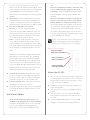
Figure 3. Screw Location
WiFi.”
Slots for mounting
Controller horizontally
WiFi LED. The LED blinks Orange and then Blue
during the boot process. When the operating
Holes for attaching
plate to Controller
system starts running, the WiFi driver changes
the LED color depending on the signal strength
of its connection to its associated access point.
Colors for signal strength: Orange=Fair to Good,
Slots for mounting
Controller vertically
Blue=Excellent, No Light=No connection or not
enabled, and Red=Poor signal strength.
4
Power up the Controller. Plug the power cord
into the Controller’s power plug port and then
into an electrical outlet. If you are powering the
Mount the HC-250
1
mounting plate to the bottom of the Controller.
Controller using PoE, you can skip this step.
5
6
Set up any external storage devices as described
in “Setting Up External Storage Devices” in this
document.
Wall Mount Options
• Mount the HC-250 horizontally using one (1)
standard single-gang back box (sold separately).
The wall mounting plate has four (4) horizontal
sets of slots. Install a single-gang back box
allowing the screws to protrude .08” from the
4
Ensure that the narrow end of the slots is on top
Connect system devices. Attach the devices as
described in “Connect the Devices.”
Use the four (4) screws (provided) to attach the
when the device is installed.
2
Arrange the wires to fit in the wire channels on
the mounting plate.
3
Line up the slots on the mounting plate with the
screws.
4
Press the device onto the screws and slide it
down until the screws are in the narrow end of
the slots.
5
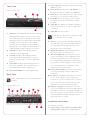
Connect all applicable devices to the HC-250
using the connection options described next.