1
Installation Planning Guide
Mica Live Video Production Systems
Mica 2000, 1000, 500 and Desktop
1000
2000
Desktop
500
Create Compelling Live Video
Mica Installation Planning Guide - Sept 2011
Page
1
This Installation Planning Guide is intended to help plan the purchase and installation of the Broadcast Pix
Mica 2000, Mica 1000, Mica 500 and Mica Desktop live video production systems.
© Sept 8, 2011 Copyright Broadcast Pix, Inc.
Broadcast Pix, Mica, Mica, Slate, Fluent, PixButtons, PixPad, iPixPad, iPixPanel, and SoftPanel are trademarks of Broadcast Pix, Inc.
Other trademarks are owned by their respective companies. Specifications are subject to change. Made in USA. Patented.
Mica Installation Planning Guide - Sept 2011
Page
2
Table of Contents
Page
Introduction
4
Standard Features
5
Mica 2000 User Interface
7
Mica 1000 User Interface
8
Mica 500 User Interface
9
Mica Desktop User Interface
10
2000 Panel Specifications
12
1000 Panel Specifications
14
500 Panel Specifications
15
Mica System
16
Mica Wiring Diagram
17
Fluent File Inputs
18
Fluent View
19
Team Operation
21
AutoAspect
24
Tally and GPI
25
Streaming Control
26
Audio-Follow-Video Option
27
Sony Camera Control Option
28
Panasonic Camera Control
30
Other Options
31
System Delay
34
Mica Specifications
35
Contact Information
37
Mica Installation Planning Guide - Sept 2011
Page
3
Introduction
The Broadcast Pix Mica™ 2000, 1000, 500 and Desktop live
integrated production systems include a switcher, clip store, CG and
device control.
Mica System
All Mica system is native 1080i and provide leadership integration,
as it runs Broadcast Pix Fluent software.
The system has has 8 HD/SD SDI video inputs, plus 1 SDI key cut
input, plus 7 channels of clips, animations and graphics. Each SDI
input self--detects for 1080i, 720p and SD, and has a frame
synchronizer. They are 6 keyers each of which has a DVE, and all 6
are standard on the 2000, and 3 are standard and 3 more are
optional on the other Mica models. They are 6 HD/SD SDI outputs
and 2 DVI outputs.
Mica System
The switcher is integrated with Mica’s clip store, animation stores,
graphics stores, Harris Inscriber Character Generator, Fluent View
monitoring of video and files on up to two monitors, watch-folders
to streamline file import, and file-based macros. Device control
software is included for AJA KiPro recorders and ViewCast
streamers, and may be optionally added for audio mixers, robotic
cameras and video servers.
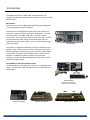
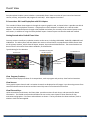
Four Models for Choices of Control Surface
The Mica Desktop is controlled with a mouse, or by adding a touchscreen. The Mica 500, 1000 and 2000 each add a control panel, as
shown below.
Mica Desktop
Keyboard and mouse.
(monitors not included).
500 Control Panel
Mica Installation Planning Guide - Sept 2011
1000 Control Panel
2000 Control Panel
Page
4
Standard Features
Switcher
Inputs:
8 SDI inputs for cameras and other external sources, plus 1 SDI key cut input, plus 7 channels of internal clips,
animations and graphics.
Multi-Format, with Auto-Detect:
The SDI connectors enable any combination of video formats including: 1080i/59.94,1080i/50, 720p/59.94, 720p/50,
486i (NTSC) and 576i (PAL). The system is selectable between 50 and 60 Hz, and between 16:9 and 4:3. When each
SDI cable is connected, the switcher auto-detects its format, between 1080i, 720p and SD, and sets the format. Any
input may be synchronous or asynchronous. The aspect ratio of each SD input can be adjusted to 4 different aspect
treatments, Box, 14:9, Crop or None.
HD Processing:
1.5Gb/s HD, 10-bit 4-4-4, YPrPb processing.
Outputs:
6 SDI outputs, plus 2 DVI-D outputs will be activated. The 6 SDI outputs are 1080i program, 1080i cleanfeed, one
pair of outputs for MD program and MD cleanfeed, and a second pair of outputs for MD preview and PowerAux.
Each of these two output pairs can be set to 1080i, 720p or SD. Each DVI output is 1080i and may be set to mirror
one of the SDI 1080i outputs.
PowerAux Output
The PowerAux output can output any source, and keys can be composited on top of it. It also processes the format.
The background can be an external source, any internal source including the clip store, or program or preview. The
PowerAux can maintain an output format (1080i, 720p or SD) and aspect ratio no matter what source it displays.
Up to 6 Keyers:
On the Mica Desktop, 500 and 1000, 3 keyers are standard and 3 more are optional. On the Mica 2000 all 6 keys are
standard. Each key has a 2 dimensional DVE, with reposition and cropping capabilities. One Chromakey/Luminance
key is standard (upgradable to 8), with clip, gain, hue and spill suppression. An external CG can input one channel
using video number 8 and the dedicated key cut input.
Tally:
The Mica switcher includes tally for each of its inputs with open collector outputs. For more see the tally page.
Clip Store, Graphics and CG
HD Clip Store:
1 channel clip store that supports compressed H.264 or ProRes video with audio, with auto start, stop, advance, plus
mark points and looping capabilities. Play up to 30 hours (depending on compression settings) of .mov or .mp4 files,
and play out image sequence animations files with key and audio. See file inputs section for more specifics.
HD Animation Stores:
1 or 2 animation store with auto start/stop/cut, mark points and looping capabilities, and audio. Play out a
QuickTime animation file, or a folder of image sequence animations files with key. Create animations on the internal
CG, or on an external system like Aftereffects, Apple, etc. Animations can be up to 800MB long compressed .tga or
up to 100 frames uncompressed (including QT animations) with 1 animation store, which is how the system ships, or
it can be set to 2 animation stores each with one half the capacity. See file inputs section for more specifics.
HD Still Stores:
2 channels of still store can support a wide-variety of still graphic formats from .TGA, .BMP, .GIF, .JPG, .PNG and
.TIFF. Either 24 bit or 32 bit HD full screen graphics or a keyable graphic with an alpha channel
HD Character Generator:
2 channel HD character generator is a Harris® Inscriber® TitleMotion GS. Supports rolls/crawls, 2D & 3D animations,
on-air graphic changes with .scribe editing, many pre-loaded templates and anti-aliased resolution of <16nS. The 2
channels of CG store can also hold graphics input to the system, like the still stores. A Chyron CG is optional.
Mica Installation Planning Guide - Sept 2011
Page
5
Standard Features, Continued
Fluent Features
Fluent View:
Customizable Multi-View showing internal file inputs and external SDI inputs in motion with tally status and under
monitor displays, plus view all keyer assignments and internal clip and graphic libraries. Supports one or two
monitors. See the Fluent View section of this guide for more on it.
Fluent Macros:
Save and recall switcher panel snap shots and sequences. Macros remember not only setups, but the exact file
names of clips, graphics and metadata (mark points, auto start/stop/rewind, loop and roll/crawl speed). Sequence
macros can automate your production to quickly recall and play out pre-saved sequences including keys, DVEs,
specific clips and graphics, camera moves, audio follow, etc. Fluent Macros can be created and executed from the
control panel and/or from a Macro window on one of the systems' monitors.
Fluent Watch-folders:
Streamline the flow of clips and graphics files to the Mica Server from other systems like Final Cut and Photoshop.
Add files to the show through standard network connections even when on-air.
Control Surface
Desktop Control:
On the Mica Desktop model the control surface is the desktop. Use a mouse or add a touch-screen monitor to
control the system from its Fluent View display. All Mica systems, including the three following ones with control
panels, may be controlled with desktop control as an alternative to using a panel.
Mica 500 Panel:
The Mica 500 model includes the Broadcast Pix 500 panel which has 9 direct input source buttons, 9 shifted input
source buttons for a total of 18 map-able inputs. Program/preview architecture with classic next transition section,
and a device control section. The contents of the sources, keys and device controls on the 500 panel are shown on
the Fluent View display.
Mica 1000 Panel:
The Mica 1000 model includes the Broadcast Pix 1000 panel which has 9 direct input source buttons, 9 shifted input
source buttons for a total of 18 map-able inputs. Program/preview architecture with classic next transition section,
and a device control section. The 1000 panel features PixButtons, as described below.
Mica 2000 Panel :
The Mica 2000 model includes the Broadcast Pix 2000 panel which has 16 direct input source buttons, and a
dedicated Fluent Macros section. Program/preview architecture with classic next transition section. Key priority
controls on the control panel enable the layer priority of keys to be changed. The 2000 panel features PixButtons, as
described below.
PixButtons™:
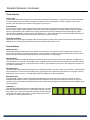
The 1000 and 2000 panel feature s unique push buttons that have
built in displays that show an icon of the device selected (camera,
clip, graphic, etc.), the channel number selected, and the exact file
name selected of clips and graphics. Always know what content
will appear; no other switcher has this.
Mica Installation Planning Guide - Sept 2011
Page
6
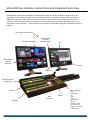
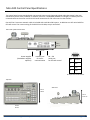
Mica 2000 User Interface: Control Panel and Integrated Fluent View
The Mica 2000 control panel combines a 1M/E switcher layout, with a bank of device controls that can be
assigned to control a wide variety of internal and external devices. The device controls include a PixPad of
PixButtons, a Joystick, knobs, motion controls and a display. The monitors are an integral part of the user
interface. The monitor layouts may be customized, as each element can be moved, resized and most can be
replicated for team operation. A typical monitor configuration is shown below using the included dual monitor
support .
Two Fluent View monitors
Preview and Program
Clip & Graphic
Libraries
with Metadata
CG
Video and File
Sources
with tally
6 Keyers
Macros
Key & PowerAux
assignments
Macros
Device Controls
Next
Transition
16 inputs
Mica Installation Planning Guide - Sept 2011
Keyers
- Clips
- Animations
- CG
- Stills
- Logo
- Wipe effects
- Keyers
- Robotic camera
- External Server
- ViewCast Streamer
- AJA Recorder
Page
7
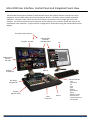
Mica 1000 User Interface: Control Panel and Integrated Fluent View
The Mica 1000 control panel combines a 1M/E switcher layout, with a banks of device controls that can be
assigned to control a wide variety of internal and external devices. The device controls include a PixPad of
PixButtons, a Joystick, knobs, motion controls and a display. The monitors are an integral part of the user
interface. The monitor layouts may be customized, as each element can be moved, resized and most can be
replicated for team operation. A typical monitor configuration is shown below using the standard dual monitor
support.
Two Fluent View monitors
Program, Preview,
Clip & Graphic
Libraries
with Metadata
CG
Video and File
Sources
with tally
3 Keyers
(6 optional)
Macros
Device Controls
Key & Aux
assignments
9 inputs
(18 with shift)
Next
Transition
Mica Installation Planning Guide - Sept 2011
Keyers
- Clips
- Animations
- CG
- Stills
- Logo
- Macros
- Wipe effects
- Keyers
- Robotic camera
- External Server
- ViewCast Streamer
- AJA Recorder
Page
8
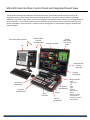
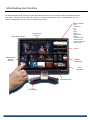
Mica 500 User Interface: Control Panel and Integrated Fluent View
The Mica 500 control panel combines a 1M/E switcher layout, with a banks of device controls that can be
assigned to control a wide variety of internal and external devices. The device controls include a PixPad of
PixButtons, a Joystick, knobs, motion controls and a display. The two Fluent View monitors are an integral part of
the user interface. The monitor layouts may be customized, as each element can be moved, resized and most
can be replicated for team operation. A typical monitor configuration is shown below using the standard dual
monitor support.
Two Fluent View monitors
Clip & Graphic
Libraries
with Metadata
PixPad
follows the
one on the
panel
Program, Preview,
CG
Video and File
Sources
with tally
3 Keyers
(6 optional)
Device Controls
Key & Aux
assignments
2D Joystick
(3D optional)
9 inputs
(18 with shift)
PixPad
Next
Transition
3 Keyers
(6 optional)
Mica Installation Planning Guide - Sept 2011
- Clips
- Animations
- CG
- Stills
- Logo
- Macros
- Wipe effects
- Keyers
- Robotic camera
- External Server
- ViewCast Streamer
- AJA Recorder
Page
9
Mica Desktop User Interface
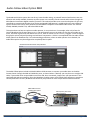
The Mica Desktop uses the powerful, interactive Fluent View as its control surface, where all operations can be
controlled. The operator can either use a mouse, or a touch-screen can be used. It is shown below in a one
monitor configuration, but two monitors may be used as well.
Device Controls
Fluent View monitor
- Clips
- Animations
- CG
- Stills
- Logo
- Macros
- Wipe effects
- Keyers
- Robotic camera
- External Server
- ViewCast Streamer
- AJA Recorder
Preview and
Program
PixPad
Video and File
Sources
with tally
3 Keyers
(6 optional)
Next
Transition
Key assignments
CG
(On Task Bar)
Mica Installation Planning Guide - Sept 2011
Page
10
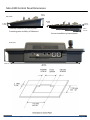
Mica 2000 Control Panel Specifications
The control panel comes standard with two redundant internal power supplies that use standard IEC power cords
(included). In addition, there are 2 redundant 100BASE-TX Category 5 network ports for communication to the server
and an RS-232 serial connection for fail-safe control to the switcher.
One 10ft Cat 5 crossover network cable is included with each Mica 2000 system , in addition to a 10ft serial cable for
fail-safe control. For custom wiring of the RS-232 serial cable, see pinout below..
Rear View of 2000 Control Panel
DP 9-pin Serial Cable Pinout:
Redundant
power supply
test point
Redundant
RS-232
network ports serial port
for server
for fail-safe
communication
Cut-Out for 2000 Control Panel
Pin
Function
2
RXD
3
TXD
5
GND
26.68 in
67.77 cm
11.11 in
28.22 cm
Mica Installation Planning Guide - Sept 2011
Page
11
Mica 2000 Control Panel Dimensions
7.12”
18.08cm
4.55”
11.56cm
2.45”
6.22cm
1.31”
3.33cm
0.52”
1.32cm
27.5”/ 69.85cm
1.9 in
4.8 cm
26.68”
67.77 cm
1.07”
2.72cm
12.56”
31.9cm
11.11”
28.22cm
9.42”
23.93cm
2.9”
7.37cm
0.39”
0.99cm
0.41”
1.04cm
Mica Installation Planning Guide - Sept 2011
0.41”
1.04cm
Page
12
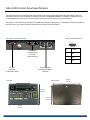
Mica 1000 Control Panel Specifications
The control panel comes standard with one external power supply (upgrade to dual redundant power) that uses
standard IEC power cords (included). In addition, there are 2 redundant 100BASE-TX Category 5 network ports for
communication to the server and an RS-232 serial connection for fail-safe control to the switcher.
One 10ft Cat 5 crossover network cable is included with each Mica 1000 system , in addition to a 10ft serial cable for
fail-safe control. For custom wiring of the RS-232 serial cable, see pinout below..
Rear View of 1 M/E Control Panel
DP 9-pin Serial Cable Pinout:
Redundant
network ports
for server
communication
RS – 232
Serial port
for fail-safe control
Pin
Function
2
RXD
3
TXD
5
GND
Power supplies
(Redundant supplies
optional)
Top View
Bottom View
18.5 in
47 cm
12.5 in
31.8 cm
12.5 in
31.8 cm
18.5 in
47 cm
Mica Installation Planning Guide - Sept 2011
Page
13
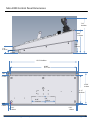
Mica 1000 Control Panel Dimensions
5.5 in
14 cm
Side Views
0.79 in
2 cm
1.25 in
3.2 cm
5.9 in
15 cm
2.8 in
7.2 cm
Tabletop installation of control panel:
Provides greater visibility of PixButtons.
Cut-out installation of control panel
Rear View
1.9 in
4.8 cm
9.5 in / 23.9 cm
5.36 in
13.6 cm
1.9 in
4.8 cm
17.5 in
44.5 cm
Cut-out Dimensions
Mica Installation Planning Guide - Sept 2011
Page
14
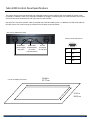
Mica 500 Control Panel Specifications
The control panel comes standard with one external power supply (upgrade to dual redundant power) that uses
standard IEC power cords (included). In addition, there are 2 redundant 100BASE-TX Category 5 network ports for
communication to the server and an RS-232 serial connection for fail-safe control to the switcher.
One 10ft Cat 5 crossover network cable is included with each Mica 500 system , in addition to a 10ft serial cable for
fail-safe control. For custom wiring of the RS-232 serial cable, see pin-out below..
Rear View of 500 Control Panel
1.8 in
4.5 cm
6.7 in 17 cm
Power supplies
(Redundant supplies
optional)
network port
for server
communication
RS – 232
Serial port
for fail-safe control
Pin
Function
2
RXD
3
TXD
5
GND
DP 9-pin Serial Cable Pinout:
Top View
Side View
9.3 in
24 cm
4.5 in
11.4 cm
15.2 in
39 cm
Mica Installation Planning Guide - Sept 2011
Page
15
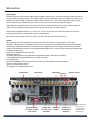
Mica System
Input/output
The Mica System receives external video inputs via BNCs, plus they are 7 channels of file inputs from the internal
clip, animation and graphic stores. The external inputs include 8 HD/SD SDI inputs and 1 SDI key cut input, each
of which self-detects 1080i, 720p or SD and has a frame synchronizer. There are 6 HD/SD SDI outputs, plus 2
DVI-D outputs using an HDMI connector which can be set to mirror two of the 1080i SDI outputs.
While Mica has a powerful internal CG, some users wish to connect an external CG, with its video and key cut
cables. The key fill cable should be connected to input 8 and the key cut cable to input K.
The Ref input accepts black burst or Tri-Level sync. If no ref is connected to it then the system runs from an
internally generated sync, and the Ref connector outputs black.
Mica has two audio outputs, which are for the clip store and one of the animation stores.
System
The switching is done on Broadcast Pix boards, which are connected to an Intel computer, which runs:
•Software: Windows XP for Embedded, Service Pack 3, and comes pre-installed with the appropriate software,
including the BPSwitcher application from Broadcast Pix. (Applications from vendors other than Broadcast Pix
should not be added to the system, unless approved by Broadcast Pix, or they will hurt system performance and
invalidate the warranty.)
•Intel® Core™ 2 Quad 2.66 GHz processor
•4 GB Ram memory
•250 GB system hard drive (for applications and graphic storage), with back-up software
• Removable 250 GB video hard drives (for clip store storage)
•(1) DVD/CD R/W
•(2) 10/100/1000BASE-TX Ethernet ports (one used for private Broadcast Pix control panel)
•(2) front-mounted USB 2.0 ports
•(6) rear-mounted USB 2.0 ports
•(2) USB ports for keyboard and mouse
6 SDI Outputs
7 DVI Outputs
RS-232 Serial Ports
for camera control &
server control
Mica Installation Planning Guide - Sept 2011
8 SDI Inputs
External Key
8 Fill* Cut
Network Port Fluent View
for control panel Displays
connection
Reference In/Out
Network Port
for connection
to editing…
* If no external key
inputs are used,
input 8 may be
used for another
external input
Page
16
Mica Wiring Diagram
Inputs
Outputs
Mica
HD/SD SDI
Inputs
(Cameras,
servers, etc.)
Black burst
or
Tri-Level
File transfer for
clips/graphics
(also Remote Panel)
Panel
500, 1000, 2000
In 1
In 2
In 3
In 4
In 5
In 6
In 7
In 8*
In K (key cut)
Ref
Out 1
Out 2
Out 3
Out 4
Out 5
Out 6
DVI Out 1
DVI Out 2
Ref Out
House Network
10/100/1000BASE
Audio Out1
Audio Out 2
BP Control
100BASE
Tally/GPI
DVI-I
Keyboard
Mouse
Keyboard USB
Mouse USB
DisplayPort
HD/SD-SDI Outputs**:
Program 1080i
Cleanfeed 1080i
Program MD
Cleanfeed MD
Preview MD
PowerAux MD
DVI-D: 1080i
(Mirror an SDI output)
Black output,
If no Ref in
To Mixer:
Clip Audio
Animation Audio
Fluent View 1
(VGA adaptor included)
Fluent View 2
(DVI-D adaptor included)
* Use for key fill, if using an external
keying device, otherwise it is input 8
Mica Installation Planning Guide - Sept 2011
** Each of the two pairs of MD outputs
may be set to 1080i, 720p or SD.
Page
17
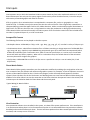
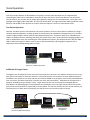
File Inputs
One important way in which the Broadcast Pix Mica system stands out from other traditional switchers is its filebased architecture. Not only can the system support a wide-variety of live SDI video formats, it can also accept a
wide-variety of standard graphic and video file formats.
A file is a graphic, clip or animation that is encapsulated in a computer file, such as a .tga graphic or a .mov
QuickTime clip. It includes not only the content, but also the name of the file. Files are generally created from a
computer/editing system like Apple Final Cut Pro, Adobe Premiere, Avid or an animation program like Artbeats or
Digital Juice. The files are then sent over a 1 Gig network in either pre-production or during a production using
Fluent Watch-Folders and stored internally in the Mica system. Files can also be created with the included Harris
Inscriber CG, optional Chyron CG, as a CG or animation.
Accepted File Formats
The following file formats can be played on the Mica system:
• HD Graphics Stores: 1920x1080, or 720p, or SD: .tga, .bmp, .jpg, .png, .gif, .tif, Inscriber's .scribe, of Chyron Lyric
• HD Animations Stores: a QuickTime animation file or a folders containing an image sequence of 1920x1080 files:
.tga, .bmp, and .png. Capacity is up to 800MB long compressed .tga or up to 100 frames uncompressed (which
includes QT animations) with 1 animation store, which is how the system ships, or it can be set to 2 animation
stores each with one half the capacity. When set for 1 animation store, the second channel of the animation
store may be used for single frame graphics.
• HD Clip Store: 1920x1080 files at 29.97 or 25 fps .mov or .mp4 files in H.264, or .mov in ProRes (PX, LT and
422/normal)
Fluent Watch-Folders
Fluent Watch-Folders greatly streamlines your live production workflow by enabling clips and graphics to be sent
over a network from your favorite edit stations and graphics systems. For example, a Final Cut operator can send a
clip into a Fluent Watch-Folder for the 6 o’clock news program, and it will automatically appear in the Mica
system’s Fluent Clip Store for the 6 o’clock news. Late breaking news can even flow into Watch-Folders during the
middle of a live show. When it arrives the status bar on the Fluent View lets the operator know it has arrived, and
it shows up on the PixPad on both the Fluent View and the control panel.
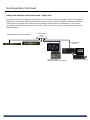
Typical Wiring for Watch-Folders
Final Cut
Photoshop
Mica System
1 GB Network Switch
Virus Protection
Virus protection software is not installed in the system, as it does affect system performance. If the installation is
in an environment where there is a lot of network activity than it is recommended that virus protection software
be added, and turned off before each show. The AVG and Avast products have been tested by Broadcast Pix and
work well, and are easy to turn off and on.
Mica Installation Planning Guide - Sept 2011
Page
18
Fluent View
Every Broadcast Pix Mica system includes a customizable Fluent View to monitor all your internal and external
sources, all keys, and preview and program for each M/E. Mica supports 2 monitors.
2 Connections: DVI-I and DisplayPort with DVI Adaptor
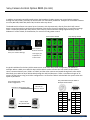
The standard 2 Fluent View support is through the system’s graphics card, as shown below. It provides one DVI-D
connecter and one DisplayPort connecter. A DisplayPort to DVI-D adaptor is included, as is a DVI-D to VGA
adaptor. This standard output is through a dual-headed card where you can easily create custom layouts across
two screens, in addition to using the factory default layouts. Custom layouts can then be saved and recalled.
Getting Started with a Default Fluent View
You may connect virtually any resolution monitor to the server, including: 1920x1080, 1366x768, 1680x1050 and
1280x1024. The Mica system will auto-detect the monitor size and launch a comprehensive default Fluent View
on the primary monitor, which shows all inputs, outputs, keys and two PixPad libraries. The second monitor can
be used for the CG and for Fluent Macro windows, as shown below.
Typical Wiring for Two Monitors
.
Fluent View
Dual Monitor Support
on Mica System
DVI
OR VGA
CG and Macros
DisplayPort to DVI
with adaptor
View Program, Preview,…
The Fluent View displays windows for 4 compositions, such as program and preview, clean feed or PowerAux.
View Sources
The 4 graphic inputs channels and 2 animation channels are displayed as still images. Up to 8 moving sources from
cameras and other external sources and the internal clip store are monitored in full motion.
View Files and Keys
Unlike conventional multi-views, the Fluent View provides monitors of each keyer, and extensive file-based
information. The PixPad corresponds and follows the one on the control panel to show libraries of clips,
animations and graphics. File names and attributes are shown. The key windows also show attributes, such as
whether a DVE has been applied.
Mica Installation Planning Guide - Sept 2011
Page
19
Fluent View, Continued
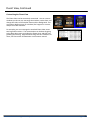
Customizing the Fluent View
The Fluent View can be extensively customized. You can remove
windows you do not use, rearrange the windows, resize them, and
change the colors of the window frame and the background. You
can make a duplicate copy of a window, like Program or a source,
and put it on both monitors.
For example, you can rearrange the standard Fluent View across
two large wall monitors. The customization can be done by going
to the drop down menu, unlocking the Fluent View, and then just
grabbing and resizing. Alignment and sizing tools are included. For
more, see Fluent View Customization in the owners manual.
Mica Installation Planning Guide - Sept 2011
Page
20
Team Operation
One of the unique features of all Broadcast Pix systems is control room operations are so integrated that
compelling live video can be created by a minimal staff, even one person. A technical director can switch and
control cameras, key on lower thirds, update guest graphics, change over-the-shoulder boxes, roll in opens and
packages, plus trigger audio commands, all from one control panel. This tight interaction makes productions more
efficient, and enables a solo operator to create a show that requires a team in a conventional studio.
Two Person Operation
However, the Mica system is not limited to one person operation. There are times when in addition to having a
complex switched production, multiple graphics and clips need to be updated and changed on the fly. The Mica
system is highly scalable, and can easily accommodate multiple users. A common setup up for a Broadcast Pix
studio is a technical director switching and calling the camera shots, plus a second operator changing graphics and
clips as needed. Both users are controlling the same Broadcast Pix system, the technical director with the 2000,
1000 or 500 control panel or with a touch-screen on the Mica Desktop, and the graphics operator with a
keyboard, mouse and dedicated graphics monitor.
Technical Director
(Shown on a 1000 control panel
Graphics/Clips Operator
SoftPanels for Larger Teams
Through the use of SoftPanels, which are virtual control panels, users enter an IP address and have access to any
part of the control panel to assist the director in various show needs. You may have as many SoftPanel licenses
installed on your system as you wish, and they can easily be added on as an option. Each control panel/SoftPanel
uses one license, the Mica comes with 3 licenses, but more may be beneficial. SoftPanels can be opened on a
laptop or Android by using a wireless router. Larger teams can also use remote panels, and Apple apps as
described on the following pages. Since SoftPanels are Flash-based, users can right-click and zoom into various
parts of the control panel for a custom look, as shown below. This not only focuses the user on their section, but
also limits access to other parts of the panel, that the director may not want anyone to control.
Network
Switch
Technical Director
(Shown on 2000 control panel)
Mica Installation Planning Guide - Sept 2011
Graphics Operator
Clips Operator
on SoftPanel
Page
21
Team Operation, Continued
Adding Team Members with a Remote Panel – Option #110
1RU remote panel for controlling aux outputs and macros. Great for remotely changing an output, like program or
PowerAux, or for remotely executing Fluent Macros. Connect to the network connector on the Mica System that
is also used for connecting to the control panels, by adding a network switch, as shown below. In this case the
control panel should also be connected to this switch, rather than use the cross over cable as this will streamline
software updates.
Typical Wiring for 2 Remote Panels
1 GB Network
Switch
Connect to Mica
System
Technical Director
(Shown on 1000 control panel )
Mica Installation Planning Guide - Sept 2011
Graphics/Clips Operator
Page
22
Team Operation, Continued
Expand the Team with an iPhone or iPod
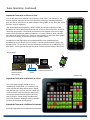
You can also add a team member on an iPhone or iPod Touch. For example, if the
primary switcher operator has his or her hands full switching a complex production,
they can have an assistant use an iPod to find the next graphic or clip. Since the iPod is
wireless, it can be anywhere.
The iPixPad application replicates a Slate’s PixPad, the bank of 12 buttons on the
Broadcast Pix control panel that allows the user to fire off macro memories, as well as
select clips and graphics. The iPixPad can also be used to augment control of a larger
production by providing an additional operator, or even the director, with a wireless
controller that can be used to run macros or select graphics or clips. Each Mica system
has its own IP address, so iPixPad can control a specific system.
Installation: Go the Apple apps store and download the free iPixPad app from
Broadcast Pix to your iPhone (or iPod Touch). Connect the Mica Content Server to a
wireless router. On the iPhone start the iPixPad app, and enter the IP address for the
Mica Sever. For long production you may wish to attach a power cable to the iPhone.
iPixPad app
iPhone Wiring
iPhone
Technical Director
(Shown on 2000
control panel)
Wireless Network Graphics/Clips Operator
Switch
iPixPanel app
Expand the Team with an iPixPanel on a iPad
The iPad is large enough to hold an entire
Broadcast Pix 1 M/E panel. It is installed in the
same way that the above iPhone app is, expect
that the iPad app is not free, but has a small cost.
It can be used to control anything a 1M/E panel
can control except knob and joystick functions,
and is handy for a wide variety of applications,
from team members helping to using its wireless
freedom of movement during set-up
Expand the Team with a SoftPanel on Android
A standard SoftPanel can be opened on an Android.
Mica Installation Planning Guide - Sept 2011
Page
23
AutoAspect™
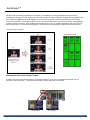
Whether you are creating a widescreen 16:9 show, or a traditional 4:3 show, AutoAspect solves the many
challenges of mixing 4:3 and 16:9 content in the same production. Now 16:9 and 4:3 inputs, clips and graphics can
be used interchangeably and mixed together in the same live production, while maintaining the native aspect
ratio of each element. Conventional switchers can only stretch video when crossing aspect ratios, causing people
to look too wide or too thin. Mica enables each input to be set to one of 4 aspect treatments: Box, Crop, 14:9 or
None (anamorphic). And each clip and graphic in the libraries can be separately treated in the same four ways.
AutoAspect Input Treatment
AutoAspect Controls
Simultaneous 16:9 and 4:3 Aspect Outputs
On Mica, you can also set each output for an aspect treatment, so you can for example output 16:9 and 4:3
versions of the same show. To set the output aspect, use the Video I/O set-up menu.
16:9 output
Mica Installation Planning Guide - Sept 2011
4:3 output
Page
24
Tally
Standard Tally
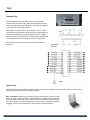
The standard tally uses the Tally connector on the Mica
System which is marked Tally /GPIO These outputs are open
collector driver circuits that can either sink current to ground
or provide a TTL level logic interface.
Tally outputs 1-8 are on pins 1-8, Ground is on pin 13. They
sink current to ground when active and have a weak pullup to
+5V when off so they can either be used to turn on a light or
activate a circuit by sinking current to ground or could be used
in an environment that is looking for a 0 to + 5V logic level.
GPI and GPO connections are also on the Tally connector
as shown.
Tally/GPIO
Interface
Optional Tally
While standard tally will suffice in many studios, if you need to provide a stronger electric pulse to your cameras,
then the following tally options should d be used:
#28 – Tally Box 8: Adds relay contacts to tally up to 8 sources. Connects to the
server through a USB connection. Voltage needs to be supplied to the tally box
from your camera controls units or other source for the tally to open and close
the contact points. This option also supports up to 8 GPIs, useful when needing
to trigger macros in the Broadcast Pix system from an external device.
Mica Installation Planning Guide - Sept 2011
Page
25
Control a Streaming Appliance
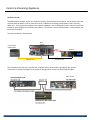
Streamer control:
Included software enables control of a ViewCast streamer from the Mica control panel. On the panel, select the
streamer with the device controls, then select up to 12 different streaming groups (MPEG, Flash, AVI, Real,
WM2, etc.). Each group name appears on the panel’s PixButton. Start or stop each stream, and view status from
the panel. Even integrate control with Fluent Macros. The control is over a TCP/IP network, so the streamer can
be remote from Mica.
A simple installation is shown below.
Mica
System
Control Panel
(1000 shown)
Video
TCP/IP Control
Streamer
TCP/IP Control
The installation may also use a network hub, as shown below, which makes it possible to add network
connections to various computers in the studio for bringing in file content via Fluent Watch-folders.
Mica System
Mica Installation Planning Guide - Sept 2011
Page
26
Audio-Follow-Video Option #880
The Broadcast Pix Mica system does not do any internal audio mixing, as powerful external audio mixers are cost
effective and readily available, however any Mica system can remotely control external audio mixers through the
MIDI (Musical Instrument Digital Interface) protocol. This method provides more control and options for the user,
compared to conventional switchers that use the antiquated ESAM protocol, as MIDI works with many different
types of audio mixers and is more powerful and affordable. Examples of controllable audio mixers are: Yamaha
O1V96, DM2000, Mackie TT24, and Roland RSS M-400.
This option does not have to replace an audio operator, it can assist them. For example, when a clip from the
internal Broadcast Pix clip store plays on air, it can automatically turn on the sliders for the clip store audio on the
mixer, and when it goes off air the sliders turn off. Or, when an anchor on set is on air, it triggers a scene change to
bring up his volume, adjust EQ settings and add some compression. All this is accomplished with the Audio-FollowVideo option from Broadcast Pix. For less demanding productions, when an audio operator is not desired, the
audio follow option may be configured to completely take his place.
Broadcast Pix Audio-Follow Setup Window
The Audio-Follow option includes a M-Audio MIDI to USB converter to connect your audio mixer to the Mica
Content Server through the MIDI In & MIDI Out ports, as shown below. If desired, you may also use a straight USB
cable, if your audio mixer accepts MIDI control over USB. Once connected, simply enter your parameters in the
command grid and start switching. Since the Broadcast Pix Mica system is file based, these settings are saved on a
show by show basis so every Broadcast Pix show that you produce can have unique Audio-Follow commands.
Audio Mixer, Rear View
MIDI-USB Converter
Included with option
Mica Installation Planning Guide - Sept 2011
Mica System, Rear View
USB connection
Page
27
Sony Camera Control Option #800 (RS-232C)
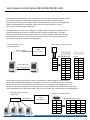
In addition to remotely controlling audio mixers the Broadcast Pix Mica system can control robotic cameras
through the Sony VISCA™ protocol, for the ultimate ‘one-man-band’ production. Examples of controllable cameras
are: Sony BRC-300, BRCZ-330, BRCH-700, EVI-HD1 and many others.
The Broadcast Pix software can control up to 9 cameras, with 6 presets each, directly from the 2 M/E control
panel. It uses the joystick to pan/tilt/zoom and knobs in the Device Control to adjust focus, iris and other settings.
There is a total of 6 presets per Sony camera. Each camera, preset and menu settings appear directly on the
PixButtons™ of the PixPad, as shown below, for ease of use and greater control.
Sony Settings PixPad
Camera Select PixPad
3-Axis Joystick
4 Knobs for control of:
Focus, Iris and CCU Settings
Positions Camera:
• Left-right: pan
• Up-down: tilt
• Twist: zoom
A typical installation for the Sony VISCA cameras uses an RS-232C daisy chain configuration, see below for
example. Where a DB 9-pin to Mini Din 8-pin VISCA cable is used to connect the first camera to the content
server’s communications port ( COM 1 or COM 2) and the other cameras are looped through each other with a
Mini Din 8-pin to Mini Din 8-pin VISCA cable through the VISCA In/Out ports. There is a maximum length of 15
meters (50 feet) when using an RS-232C configuration. A 10 foot test cable is included with the system when this
option is purchased.
Sony VISCA Mini Din 8-pin Male to
DB 9-pin Female Pinout:
Sony VISCA RS-232C Daisy
Chain Configuration:
Mica Server
DB 9-pin to 8-pin VISCA cable
Com 1 or Com 2
8-pin to 8-pin
Sony VISCA Cable
Mica Installation Planning Guide - Sept 2011
Pin
Function
Pin
Function
1
DTR
6
DSR
2
DSR
4
DTR
3
TXD
2
RXD
4
GND
5
GND
5
RXD
6
TXD
6
GND
1
n/a
7
n/a
7
n/a
8
n/a
8
n/a
9
n/a
Page
28
Sony Camera Control Option #811/814/818 (RS-422)
For installations needing longer runs you may also use an RS-422 configuration, which extends
the maximum length to 1,200 meters (4,000 feet). Note, not all Sony VISCA cameras
support RS-422 communication. When using an RS-422 connection, there are 3 configuration
options, and depending on installation needs, you may connect cameras in a daisy
chain, star or star/daisy chain combination.
The single camera or daisy chain configuration, (option # 811) includes a DB 9-pin RS-232 to
screw terminal RS-422 converter, which plugs into the server in either COM 1 or COM 2.
From the screw terminal you may connect your first camera using the 9-pin connector plug
provided with the camera. From the same connector you may loop communication to the
rest of your cameras. See below for wiring diagram.
RS-422 Pinout to Connector Plug:
Sony VISCA RS-422 Daisy
Chain Configuration:
Mica
422 Serial Cable
Com 1 or Com 2
BRC-300/BRC-H700
EVI-70
Function
Pin
Function
Pin
Function
TXD (A) -
7
RXD (B) +
3
RXD (B) +
TXD (B) +
6
RXD (A) -
4
RXD (A) -
Serial Cable using
RXD (A) -
9
TXD (B) +
1
TXD (B)+
9-pin connector plug
RXD (B) +
8
TXD (A) -
2
TXD (A) -
GND
5
GND
5
GND
1
6
2
7
3
8
4
9
If controlling more than one camera, there is an optional 4 or 8 port Edgeport serial extender
(option #814 or #818) which plugs into a USB port on the server. It provides either 4 or 8 DB 9-pin
RS-422 connectors to accommodate a star configuration or a star/daisy chain configurations. This
method is useful when needing to run long home run to various studios, from which you can then daisy
chain. Depending on your installation needs, this may save in cable runs. See below for the wiring diagram.
Sony VISCA RS-422 Edgeport
Configuration:
Edgeport
USB A-B Cable
Mica Installation Planning Guide - Sept 2011
DB 9-Pin Serial Cable Pinout:
Mica
BRC-300/BRC-H700 EVI-70
Any USB Port
Pin
Function
Pin
Function
Pin
Function
3
TXD (A) -
7
RXD (B) +
3
RXD (B) +
7
TXD (B) +
6
RXD (A) -
4
RXD (A) -
8
RXD (A) -
9
TXD (B) +
1
TXD (B)+
4
RXD (B) +
8
TXD (A) -
2
TXD (A) -
5
GND
5
GND
5
GND
Page
29
Panasonic Camera Control Option #802 (RS-422)
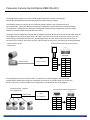
The Broadcast Pix system can control a wide-range of Panasonic cameras, including the
AW-HE100, AW-PH400 and other Panasonic pan-tilt camera control systems.
This software option can control up to 12 different robotic cameras, each of which may have
up to 100 presets. Typical installations use a RS-422 configuration, which extends the maximum length
to 1,200 meters (4,000 feet). All cameras are configured in a daisy chain configuration where all control
cables are connected back at the Broadcast Pix server.
The single camera configuration, (option # 811) includes a DB 9-pin RS-232 to screw terminal RS-422 converter
which plugs into the server in either COM 1 or COM 2. From the screw terminal you may connect your first
camera using a standard RJ-45 connector, which Plugs directly into the camera. You may connect up to 2
convertors for 2 cameras, since there are only 2 RS-232 ports on the server. See below for the wiring diagram.
Single Panasonic RS-422
Configuration:
RS-422 Terminal Connector to RJ-45 Pinout:
AW-HE100
Mica
422 Serial Cable
Com 1 or Com 2
Function
Pin
Function
TXD (A) -
3
RXD (B) +
TXD (B) +
6
RXD (A) -
RXD (A) -
4
TXD (B) +
RXD (B) +
5
TXD (A) -
GND
1
GND
2
7
8
If controlling more than one camera, there is an optional 4 or 8 port Edgeport serial extender
(option #814 or #818) which plugs into a USB port on the server. It provides either 4 or 8 DB 9-pin
RS-422 connectors to accommodate a star configuration. See below for the wiring diagram.
Panasonic RS-422 Edgeport
Star Configuration:
Edgeport
USB A-B Cable
Mica Installation Planning Guide - Sept 2011
DB 9-Pin Serial Cable to RJ-45 Pinout:
Mica
Any USB Port
Pin
Function
Pin
Function
3
TXD (A) -
3
RXD (B) +
7
TXD (B) +
6
RXD (A) -
8
RXD (A) -
4
TXD (B) +
4
RXD (B) +
5
TXD (A) -
5
GND
1
GND
Page
30
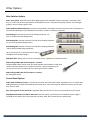
Other Options
Mica Switcher Options
#126 – Keys 4/5/6: (Standard on the Mica 2000) Increases the standard 3 keyers to 6 keyers, each with a DVE.
Keys 4, 5 and 6 can not be transitioned in the Mix/Effect section. This option is typically used for ‘set and forget’
graphics, such as a logo or game clock.
#140: Additional Advanced Keyers: Increases the standard 1 Chromakey and Luminance key to 8. Chromakeys are
source-based allowing for up to 8 different parameters, useful for creating a virtual set.
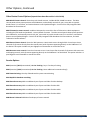
#131 Analog In: External converter from Analog composite, Y/C,
YUV, to SD SDI (Ensemble Designs BE2)
#132 Analog Out: External converter from SD SDI to Analog composite,
Y/C and YUV (Ensemble Designs BE11)
#133 Analog Out: External converter from HD SDI to Analog composite
and SD SDI (Ensemble Designs BE92-M)
Up to 6 converters fit in 1RU with rack kit option
available from Ensemble Designs.
#240 Rack Rails: Sliding rack rails for the standard server, included in the Premium Server.
#262 Locking HDMI cable for DVI outputs - 2 meters:
Standard HDMI cables may be used, but these optional ones enable the cable to be
locked in the Mica Switcher for a secure connection. Depress a button on the
connector to unlock. The other end of the locking connector is HDMI.
#266 Locking HDMI cable for DVI outputs - 6 meters
See description above.
Control Panel Options
#100 / #103: SoftPanel Licenses: Increase the 3 licenses that come with a Mica, with packs of 1 or 3. Useful when
adding SoftPanels, iPixPads and iPixPanels for remote users. Every control panel, SoftPanel, iPhone, iPod or iPad
uses 1 license each.
#31: 3 Axis joystick for the 500 Panel : Upgrades 500 panel to from a 2 axis to 3 axis joystick for X/Y/Z control
#201 Redundant Power for 1000 or 500 Panel: with this option, a second external redundant power supply is
included for the 1000 or 500 control panel on the Mica 1000, 500. (standard on the 2000 panel).
Mica Installation Planning Guide - Sept 2011
Page
31
Options, Continued
Mica CG Options
#161 – Additional Inscriber CG license: Add another license of the Inscriber TitleMotion GS software to any PC to
share graphic creation duties across your facility, without tying up the Mica Server. This option requires an
additional PC provided by the user.
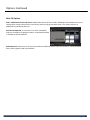
#172 Fluent Rapid CG: to connects on-air CG to a database,
and/or to streamline CG graphic creation. A separate datasheet
is available on Fluent Rapid CG.
#162 Chyron CG: Chyron users can enjoy the familiar workflow of Chyron Lyric Pro version 8. Create powerful
titles, motion graphics and 3D animations.
Mica Installation Planning Guide - Sept 2011
Page
32
Other Options, Continued
Other Device Control Options (beyond those describes earlier in this Guide)
#801 Hitachi Camera Control: Control up to 9 Hitachi cameras, includes RS232->RS485 converter. The Mica
control panel selects preset positions with PixButtons, and manually controls tilt, pan, zoom with its joystick.
Knobs control iris and focus, and motion buttons control pedestal height. Control can be fully integrated with
Broadcast Pix Fluent Macros.
#803 Telemetrics camera control: enables a Mica panel to control the line of Telemetrics robotic equipment
including Pan/Tilt heads and pedestals. Use any brand of camera. The Mica control panel selects preset positions
with PixButtons, and manually controls tilt, pan, zoom with its joystick. Knobs control iris and focus, and motion
buttons control pedestal height. Control can be fully integrated with Broadcast Pix Fluent Macros, and with
Telemetrics Studio software.
#823 External Server Control: Control a 360 Systems or Harris Nexio server through VDCP. Control up to three
channels of clip stores directly from the control panel, with clip names appearing directly on the PixButtons™ of
the PixPad. This option includes a 4 port Edgeport serial extender to control the server.
#824 Omneon server control: Control an Omneon server. Control up to four channels of clip stores with auto-start
and looping controls, with clip names appearing directly on the PixButtons™ of the PixPad. This option includes a 4
port Edgeport serial extender to control the server.
Service Options
#601 (Americas)/603 (International) On site Training: Day 1 First day of training
#602 (Americas)/ 604 (International) On site Training: More additional consecutive day(s)
#605 Commissioning: One day of Broadcast Pix system commissioning
#610 Rapid CG Database consulting
#640 Extend warranty: Adds an additional year of parts and labor for Mica Desktop
#641 Extend warranty: Adds an additional year of parts and labor for Mica 500
#642 Extend warranty: Adds an additional year of parts and labor for Mica 1000
#643 Extend warranty: Adds an additional year of parts and labor for Mica 2000
#680 Owner’s Manual: Additional hard-copy of owners manual
Mica Installation Planning Guide - Sept 2011
Page
33
Very Low System Delay
Mica systems are ideal for HD image magnification (IMAG) productions, like projection, as they have only 1
frame of delay (33 ms in NTSC and 40 ms in PAL) with gen-locked cameras, even with format conversion
between 1080i, 720p and SD on inputs and on outputs, aspect ratio conversion on input and output, and video
inside a picture in picture box.
In contrast, conventional switchers usually add delay to convert an input format, convert an output format,
change an aspect ratio, or show video inside a picture in picture box. When several of these steps are done,
conventional switchers add a lot of delay, yet Mica adds none.
The only circumstance where a Mica system adds delay is when asynchronous sources are used, such as an
inexpensive camera without gen-lock, when to a frame of delay is added.
Mica Installation Planning Guide - Sept 2011
Page
34
Mica Specifications
Mica Processing
Processing
HD 4-4-4 YPrPb, 10-bit 1080i
Reference Input
525 line or 625 line
Black-burst or Composite video, 75 ohm BNC
Or Tri-Level reference: 60 Hz syncs supported 480i29.97 (NTSC),
720p59.94, 1080i59.94 and 50 Hz syncs supported: 576i25 (PAL),
720p50, 1080i50
Or use Mica’s internal sync generator (and then Ref will output black)
Standards
50 or 60Hz, switchable
Aspect Ratios
4:3 & 16:9, switchable, and each input and output may be set
HD/SD-SDI I/O
SDI Formats
Auto-Detection and setting to: 1080i/60/59.94, 720p/60/59.94,
1080i/50, 720p/50, 486i/59.94 and 576i/50
Standards
SMPTE 296M, SMPTE 274M, ITU-R BT601-5, SMPTE 259M and SMPTE
292M
Type of Connector
75 ohm BNC
Max cable length
100 meters (325ft)
Number of inputs/outputs
8 video, plus 1 key cut (there are also 7 channels of internal file inputs)
DVI-D Outputs
Formats
Set to the same as an SDI 1080i output: 1920x1080i 59.94/50
Type of connector
HDMI (optional locking cables available)
Number of outputs
2
Analog inputs and outputs are also available as options (Option #131 and 132)
Mica Installation Planning Guide - Sept 2011
Page
35
Audio I/O
Format
Balanced line level analog
Type of connector
XLR
Number of outputs
2 channel Stereo (Left/Right), for clip and animation playout
Mica System Specifications
Dimensions
inches 22.5 x 19 x 7
Centimeters 100 x 42 x 14
Rack units
4 RU
Weight
44 Lbs / 20 Kg
Power
150 watts
500 Control Panel Specifications
Dimensions
15.2x9.3x4 inches / 39x24x10 centimeters
Weight
5 Lbs / 2 Kg
Power
(2) 50 watt power supply, internal (redundant)
1000 Control Panel Specifications
Dimensions
18.5x12.5x85.5inches / 47x32x14 centimeters
Weight
7 Lbs / 3 Kg
Power
(1) 50 watt power supply, external (redundant one optional)
2000 Control Panel Specifications
Dimensions
27.5x12.5x7 inches / 70x32x18 centimeters
Weight
16. 2Lbs / 7.3 Kg
Power
(2) 50 watt power supply, internal (redundant)
Mica Installation Planning Guide - Sept 2011
Page
36
Contact Information
Toll Free:
+1-866-914-9484
Phone:
+1-978-600-1100
Technical Support:
+1-978-600-1098
Fax:
+1-978-663-2811
Website:
www.broadcastpix.com
Support E-mail:
[email protected]
Corporate Mailing Address:
Broadcast Pix
3 Federal Street
Billerica, Massachusetts 01821
USA
Sales Regions:
North American Regions:
Eastern
1-415-310-2646
Central - Chicago, IL
1-630-886-7116
Western - Las Vegas, NV
1-562-480-0060
South American Region
Rio De Janeiro, Brazil
+55-21-2541-3022
Europe, Africa, and Middle East:
Frankfurt , Germany
+49-6163-82-90-71
Asia Pacific Region
Singapore
Mica Installation Planning Guide - Sept 2011
+65-8499-3337
Page
37