1
Swap Channels
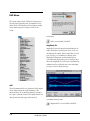
The Swap Channels command reverses the the left and
right channels in a stereo selection.
To swap channels for a stereo selection:
1. Select the audio that you wish to reverse. If you
wish to select the entire document, choose Select
All from the Edit menu (-A), or place the
insertion point at the beginning of the stereo
audio document.
2. Choose Swap Channels from the DSP menu. Peak
swaps the left channel for the right channel and
the right channel for the left channel. To hear the
results, start playback.
Swap Channels is not available in Peak LE.
Threshold
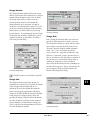
The Threshold command allows you to split up an
audio document into its component parts by analyzing
the amplitude levels in the audio document and
setting a cutoff or threshold amplitude. For instance,
you might use the Threshold command on an audio
document that contains successive notes from a
musical instrument to split them up, or on a drum loop
to break it up into its component parts. You can save
the segments with Markers, or as Regions.
To use the Threshold command:
1. Select the audio you wish to process and choose
Threshold from the DSP menu. After Peak analyzes
the amplitudes in the selection, the Threshold
dialog will appear, allowing you to select a
threshold amplitude for both attack and release
values.
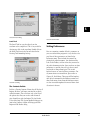
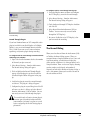
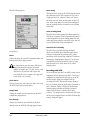
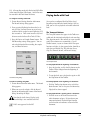
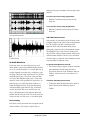
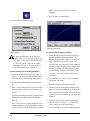
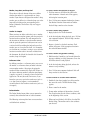
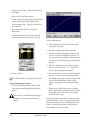
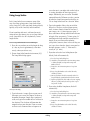
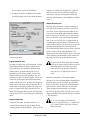
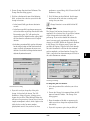
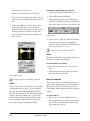
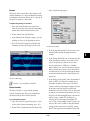
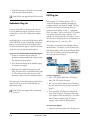
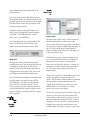
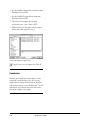
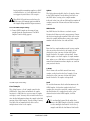
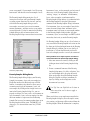
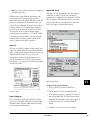
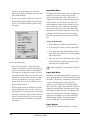
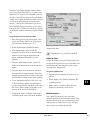
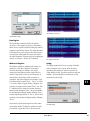
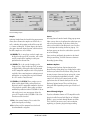
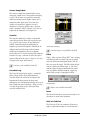
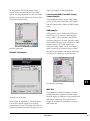
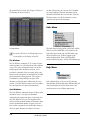
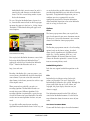
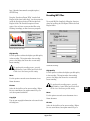
The Threshold Regions dialog
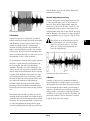
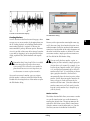
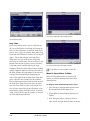
2. Drag the threshold indicator left or right to set the
threshold amplitude. As you drag the indicator,
new markers will appear in the audio document
forming markers or regions, depending on your
settings. The Offset sliders allow you to “nudge”
the onsets of markers or regions by plus or minus
0 to 512 samples.
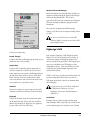
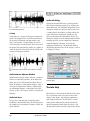
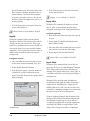
3. Select Create Regions to create regions instead of
markers. The separate Release Threshold, attack
and sludge settings affect the region end points,
allowing you to eliminate silence from the region
end points.
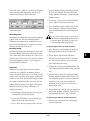
4. Adjust the Attack value. This setting sets the
amount of time that audio must stay above the
given threshold to qualify as a new marker or
region.
5. When you have finished, click OK.
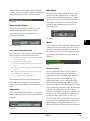
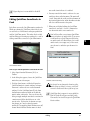
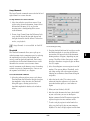
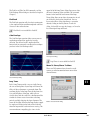
6. After the audio document has been “thresholded”
to your satisfaction, you can use the Export
Regions command in the File menu to export the
separated regions into new windows or files.
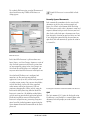
7. To select and play regions in order from left to
right, press the Page Up key on your computer
keyboard. To select and play regions in order from
DSP
111
7