1
SERVSWITCH™
6. Press the Enter key on the PC’s keyboard. (If your keyboard does not have an
Enter key, press the Return key instead.) LED 3 will go dark briefly while the
ServSwitch reboots itself and runs its new firmware. The Switch should then
light LED 4 and send some diagnostic information about itself. (In particular,
make sure that the firmware-revision level it reports matches the revision level
of the new firmware.) It should then send the message:
Hit enter to continue
(If you get an error message at any time during this phase, call Black Box for
technical support.)
7. Press the Enter (or Return) key again. The Switch should return to normal
operation with port 1 selected (LED 1 lit).
This completes the terminal-emulation version of the firmware-upgrade
procedure. Your Switch should now be ready for continuous operation.
4.4.3.B Upgrading the Firmware with the DOS COPY Command
Alternatively, you can, if you choose, upgrade a unit’s firmware with the DOS COPY
command. Use caution: The ServSwitch will attempt to send text messages back to
you during this process, but DOS has no way of properly receiving and displaying
them; what’s more, this “unexpected” serial data could cause your computer to
crash. If you want to use this method anyway, take these steps:
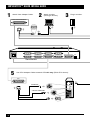
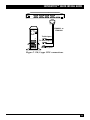
1. Connect one of your PC’s serial ports to the Switch’s RS-232 port as described
in Section 4.4.1.
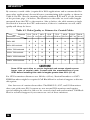
NOTE
Normally only three wires are necessary to the ServSwitch: transmit,
receive, and ground. However, when you use DOS to copy the
configuration file to the Switch, DOS must see a high DSR signal input
(Pin 6 on PC COM ports, whether they are DB9 or DB25 type) in order for
the COPY command to work. The Switch provides this signal using the
DTR (Pin 2) output from its RS-232 Port; you can use standard cable and
our standard FA043 or FA044 adapter to make this connection.
2. If the MODE command in your version of DOS supports data rates as high as
57,600 bps, send a MODE command to set the data rate of the PC’s serial port
to 9600 or 57,600 bps and its data format to 8 data bits, no parity, and 1 stop
bit. For example, if you are using port COM1:, you would issue the command
“MODE COM1:9600,8,N,1” or “MODE COM1:57600,N,8,1”.
If your DOS version’s MODE command doesn’t natively support 57,600 bps,
you will have to either upgrade at 9600 bps or get one of the several thirdparty utility programs that either extend the MODE command or provide
some other means of setting your serial ports to higher data rates. Call Black
Box for technical support if you have difficulty finding such a utility program.
48