1
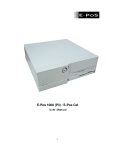
Suppermarket Model
Su
1
# Table of Contents
Page No
Table of Contents
-
2
Introduction
-
3
Do’s & Don’ts
-
4
Accessories
-
5
General Information
-
5
Specifications
-
6
Connection Diagram
-
8
Jumper Settings
-
10
Hardware Installation
-
13
FAQ’s
-
17
Warranty Card
-
22
Locations
-
23
2
Dear Valued Customer,
Thanks for your business!
In our constant endeavor to offer you the best in Retail Technology, E-PoS International
have always been introducing products of high standards designed to meet all the Retail
needs,
We assure you that the product enclosed is being thoroughly tested and is assured quality.
In order to ease the installation of E-PoS hardware; we have enclosed the Technical
documentation, complete set of Drivers, Installation Manual and FAQ’s for your reference.
Also enclosed is the Warranty Card, which outlines our commitment towards our product.
Should there be any technical queries to be answered, we have a highly trained staff to
take care of all your after sales service needs.
Assuring you of our best Service at the times.
Yours truly,
Managing Director.
3
# Do’s & Don’ts
(Integrated circuits on All E-PoS System’s are sensitive to static electricity; hence to avoid
damaging any of the Components on the System, Read these following precautions and
other instructions before getting started and save them for later reference).
i.
ii.
iii.
iv.
v.
vi.
vii.
viii.
ix.
x.
xi.
xii.
Do not remove the computer from the anti-static Packaging until you are ready for
installation.
Make sure the voltage of the power source is correct before connecting the computer to the
power outlet, (110~220 volts).
Connect Rubber Legs provided to avoid damaging Cabinet Cover and Door, (where
provided).
Do not change any Hardware Devices online when System or the device is on and running,
because the sudden surge of power may ruin any sensitive components. Also make sure the
computer is properly grounded.
Turn off the computer before cleaning. Always clean with a damp or dry cloth only. Do
not spray any liquid cleaner on screen directly.
The power outlet socket used to plug in the computer power cord must be located near the
system and easily accessible. Do not use outlets on the same circuit of the system that
regularly switch on and off.
If the computer is sharing an extension cord with other devices, make sure the total ampere
rating of the devices plugged into the extension cord does not exceed the cord’s ampere
rating.
Do not expose the power cord, extension cord and power outlet to moisture.
The openings on the computer enclosure are for the cabin ventilation to prevent the
computer from overheating. DO NOT COVER THE OPENINGS.
Do not connect any devices to Powered COM Ports (5V/12V), other then the devices that
take power from Powered COM Ports to avoid damaging the Device.
Any Hardware upgrades or changes to be made are to be informed, and do not tamper with
Serial Nos. and Warranty Seals, to avoid Warranty being Void.
xiii.
If the computer is not equipped with an operating system. An operating system must be
loaded first before installing any software into the computer.
If the computer is equipped with a touch panel, avoid using sharp objects to operate the
xiv.
touch panel. Scratches on the touch panel may cause mal-calibration or non-function to the
panel.
The LCD panel display is not subject to shock or vibration. When assembling the computer,
make sure it is securely installed.
xv.
Choose an Ideal dust free location and reliable surface for the System with proper
ventilations.
4
# Accessories
Hardware Description
List of Accessories per Hardware
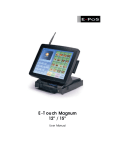
1. E-PoS Magnum System
2. 12” LCD Color Monitor
3. Star SP 542 Printer
4. ECD 7303
- Power Cord, Driver Bank CD, Keys.
5. ECH 460A Cash Drawer
6. Programmable Keyboard
78 Keys.
– Keys (2Nos).
– Manual, Power Cord, VGA Cable, Stereo Cable.
– Power Cord, Printer Interface Cable, Ribbon
– VFD & Cable, Base Unit, Poles, Adapter, Serial
Cable.
– Floppy Disk, Keys (3Nos), Numeric Keys, Key Caps,
Expansion Keys, Converter (PS/2).
# General Information
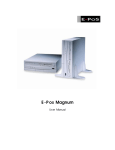
The E-POS MAGNUM is an Intel Celeron / Pentium III (Socket
370) Multimedia ATX motherboard with LCD/VGA controller, Ethernet 100/10, AC97
sound, and IDE flash disk. By integrating single chip, SiS630ST, the
E-POS MAGNUM provides a high performance / low cost desktop solution.
Highly integrated, the E-POS Magnum can adapt Intel. Celeron (66MHz) and
Pentium III (100/133MHz) CPU. Onboard features include four serial ports, two
multi–mode Parallel ports, a floppy drive controller and a PS / 2 keyboard PS / 2
mouse interface. The built-in high speed PCI IDE controller supports both PIO and ATA
100 mode. Up to four IDE devices can be connected, including large hard disks,
CD-ROM drives and other IDE devices.
The full PC functionality coupled with its multi-I/Os stand ready to accommodate
a wide range of PC peripherals. Compact in size and with its highly integrated
multimedia and networking functions, the E-POS Magnum is the most powerful PC
engine to build any small footprint all-in-one PC system for integration into any
space-constricted embedded applications. Fully configurable and with its modular
design, the E-POS Magnum is an ideal platform for any consumer computing
applications where space is a premium.
5
# Specifications
E-POS MAGNUM:
Multimedia I ntel Celer on/Pentium I I I F LEX AT X Mother boar d with XGA, LCD,
T V- out, Dual dis play, Ether net & Audio I nter face
CPU:
I ntel S ocket 370
I ntel Tualatin FCPGA up to 1.26GHz
I ntel Pentium I I I FCPGA 66/100/133 up to 1GHz
Celer on FCPGA 66/100 up to 1.3GHz
Main Chipset: S iS 630S T
Super I/O:
Winbond W83697HF & W83627F
• W83697HF: UART 1, UART 2, Par allel Por t 1 FDC, Game/MI DI , I R/CI R,
Har dwar e Monitor
• W83627F: UART 3, Par allel Por t 2, UART 4 (Pin 1/9 power s uppor t)
System BIOS: Awar d PnP Flas h B I OS
System Memory:
2 x 168 pin DI MM s ockets s uppor ting S DRAM up to 1GB
L2 Cache: CPU built- in
Standard I/O
• S er ial por ts x 4: COM 1 ~ 4, COM 2 & 4 with + 5V/12 power output on pin
#9
• Parallel por t x 2: S uppor t S PP/E PP/ECP;
• AT A 100/66 I DE x 2: s uppor ts up to 4 I DE devices
• FDD x 1: s uppor ts up to 2 floppy dis k dr ives
• PS /2 Keyboar d I nter face x 1
• I nter nal Keyboar d I nter face x 1
• PS /2 Mous e I nter face x 1
• US B I nter face x 4: 2 inter nal and 2 ex ter nal
6
• GAME/MI DI por t
Ethernet
• 100/10 B as e- T E ther net with RJ- 45
Display
• LCD contr oller
• I ntegr ated 2D/3D gr aphics engine, 4X AGP
• S har e s ys tem memor y ar chitectur e able to utilize the dis play memor y s ize
up to 64MB
• Max imum r es olution for video chips et: 640x 480, 800x 600, 1024x 768,
1280x 1024, 1600x 1200, and 1920x 1200, tr ue- color
• S uppor ting LCD/VGA dual dis play mode
(Under Windows 98 and Windows ME)
2nd Display Board (optional): S iS 301
• S uppor ting VGA/LCD (panel link) or VGA/T V or VGA/VGA,1 among 3
• LCD: Digital flat panel, s uppor ting panel link
• Video: S - Video or RCA
• When the 2 nd dis play is ins talled, the pr imar y dis play will be changed to
VGA only
Audio Function
• Full duplex and independent s ample r ate conver ter for audio r ecor ding &
playback
• S uppor ts Micr os oft Dir ectS ound
• 3D pos itional audio effects
• Hi- per for mance, mix ed- s ignal, s ter eo
• MI C- I n, S peaker - Out, Line- I n
• Pin header for CD- audio in
Hardware Monitor
• Monitor ing pr oces s or & s ys tem
• Monitor ing 5VS B , VB AT, 1.5V, 3.3V, + 5V, + 12V, - 12V, and pr oces s or
voltages
• Monitor ing pr oces s or, chas s is fan s peeds
• Contr olling pr oces s or and chas s is fan s peed and failur e alar m
• Automatic fan on/off contr ol
• Read back capability that dis plays temper atur e, voltage and fan s peed
7
• S uppor ting I ntel pr oces s or ther mal diode output (r eal pr oces s or
temper atur e)
• Watchdog timer (64 level time inter vals )
• Digital I N x 2 Digital OUT x 2
Expansion Bus: PCI * 1 & AMR* 1
Power: AT X power
Form Factor: FL EX AT X
Dimension: 229* 191 mm (9“x 7.5”)
*Specifications are subject to change without notice.
# Connection Diagram
8
9
# Jumper Settings
T he E - POS Magnum is configur ed to match the needs of s pecific
application by pr oper j umper s ettings . T he onboar d
Connector s link the E- POS Magnum to ex ter nal devices s uch as
a har d dis k, a floppy dis k or a pr inter. T he following figur e helps you to
locate all j umper s and connector s .
10
T he following figur e s hows the location of the r ear s ide
Connector s .
11
T he table below lis ts the function of each j umper. T he
Coming s ections indicate how to s et j umper s to configur e the E - POS
Magnum. T hey als o indicate the E - POS Magnum’s default configur ation and
options for each j umper.
JP4: COM2/COM4 Pin9 Power selection
JP5: Clear CMOS
12
# Hardware Installation
PS/2 Mouse Connector
T he PS /2 Mous e a 6- pin female connector.
PS/2 Keyboard Connector
T he connector is for a s tandar d keyboar d us ing a PS /2 Plug. For s tandar d
AT keyboar d plug, a AT - PS /2 adapter is needed for the connection.
Ethernet Connector
T he E - Pos Magnum featur es with a 32- bit PCI - bus Ether net
I nter face with RJ- 45 connector. T his high per for mance L AN inter face is
s uppor ted by all maj or networ k oper ating s ys tems .
T her e ar e two LED’s indicating the networ king s tatus .
13
USB Connectors
T he E- Pos Magnum pr ovides two ex ter nal US B ( Univer s al S er ial B us ) por ts
to connect to US B devices . I t als o pr ovides two inter nal US B inter face for
mor e US B device connection. T he two inter nal US B inter faces have to be
acces s ed thr ough the 8- pin CN4.
Parallel Port Connector
T he E- Pos Magnum pr ovides a 25- pin female ex ter nal par allel connector
(L PT 1). I t als o pr ovides a 26- pin inter nal par allel header connector (L PT 2).
I f the 2 par allel por t is needed, a 26- pin to 25- DUB par allel cable is
pr ovided to connect LPT 2 for par allel device
connection.
nd
14
Serial Port Connector
T he E - Pos Magnum pr ovides four onboar d s er ial por ts for connection to any s er ial devices
s uch as car d r eader, touch s cr een and fax modem. COM 1 is a 9- pin male ex ter nal s er ial
connector (COM1). COM 2, COM 3 and COM 4 ar e 10- pin inter nal s er ial header connector s .
10- pin to 9- DUB s er ial cables ar e pr ovided to connect
I nter nal COM por ts for mor e s er ial device connection. COM 4 is equipped
with + 5V/12V power output on pin 1 and pin 9. For COM 4 power s etting,
CRT VGA Connector
T his connector is for output to a VGA compatible device.
Game/MIDI Connector
15
T he game/MI DI is a gold 15- pin connector. T he us er can connect game
j oys ticks or game pads to this connector for playing computer games .
Audio Connectors
T he E- Pos Magnum’s audio connector s include Speaker-out, Line in and
MIC-in. T he s peaker - out is to output the audio to ex ter nal devices s uch as
s peaker s or ear phones . T he line- in is us ed to input audio fr om an ex ter nal
audio device s uch as a CD player, tape r ecor der or a r adio. T he
micr ophone- in is us ed to connect to an ex ter nal micr ophone to r ecor d
s ound or voice.
ATA 100/66 IDE Connectors
T he E- Pos Magnum pr ovides 2 40- pin I DE header connector s able to
s uppor t up to 4 I DE devices . I t als o pr ovides a AT A 100/66 I DE har d dis k
r ibbon cable and a 40- pin to 40 pin I DE cable for I DE device connection. I f
two I DE dr ives ar e us ed, the s econd dr ive mus t be configur ed to S lave
Mode by s etting its j umper s
Accor dingly. You can configur e two har d dis k dr ives to be both Mas ter s with
two I DE cables , one for pr imar y I DE and the other
for s econdar y I DE connector.
16
FDD Connector
T he E - Pos Magnum pr ovides a 34- pin header type connector (FDC), able to
attach two floppy dr ives . A 34- 34- r ibbon cable is needed to connect the
onboar d FDD to floppy dis k dr ives .
# General FAQ’s
Q1.
There are no dipswitch settings for the LCD customer display
you provided. We cannot control the display.
Q2.
What is the maximum current of a COM port?
Q3.
Windows cannot detect CD-ROM sometimes.
Q4.
What are VGA, SVGA, and XGA?
Q5.
How to solve the conflict between PS/2 Mouse and LAN?
Q6.
How to set CPU-SDRAM Frequency under Bios for E-Pos
Magnum (Super Market Model)
Q7.
What command do I use to open the Cash Drawer through
the Printer using, a). Star Emulation and b). Epson (esc/pos)
Emulation?
Q8.
What use the Purple Ribbon?
Q9.
Why does my Receipt Printer print Question Marks at the
Beginning of a Print Run?
Q1. There are no dipswitch settings for the LCD customer display
you provided. We cannot control the display.
A1. Please refer to the following table for dipswitch settings.
a. Command type selection
SW1
ON
OFF
ON
OFF
ON
OFF
SW2
ON
ON
OFF
OFF
ON
ON
SW3
ON
ON
ON
ON
OFF
OFF
17
Command type
POS7300
ESC/POS
ADM 787
DSP800
AEDEX
UTC/P
ON
OFF
OFF
OFF
OFF
OFF
UTC/S
CD5220
b. International character set
SW4 SW5 SW6 SW7 Character set Code table ( 80H-FFH )
PC-437 (USA, Standard
ON ON ON ON
U.S.A.
Europe)
OFF ON ON ON
FRANCE
PC-850 (multilingual)
ON OFF ON ON GERMANY
PC-850 (multilingual)
OFF OFF ON ON
U.K.
PC-850 (multilingual)
ON ON OFF ON DENMARK I
PC-850 (multilingual)
OFF ON OFF ON
SWEDEN
PC-850 (multilingual)
ON OFF OFF ON
ITALY
PC-850 (multilingual)
OFF OFF OFF ON
SPAIN
PC-850 (multilingual)
ON ON ON OFF
JAPAN
Katakana
OFF ON ON OFF NORWAY
PC-850 (multilingual)
ON OFF ON OFF DENMARK II
PC-850 (multilingual)
OFF OFF ON OFF SLAVONIC
ON ON OFF OFF
RUSSIA
OFF ON OFF OFF
U.S.A.
PC860 (Portuguese)
ON OFF OFF OFF
Not used
OFF OFF OFF OFF
User define pattern from EEPROM
c. Baud rate selection
SW8
ON
OFF
ON
OFF
SW9
ON
ON
OFF
OFF
Baud rate (bps)
4800
9600
19200
38400
d. Parity check selection
SW10
ON
OFF
Parity check
None-parity
Even-parity
e. Demo mode selection
SW11
ON
OFF
Show demo string
Enable
Disable
f. DIP switch setting selection
SW12
ON
OFF
DIP1~DIP11 Switch
Power on select hardware DIP SW setting
Power on select software EEPROM setting
18
g. Software status setting
When system POWER ON, there is no need to turn off to modify
Command Type, Baud Rate, Parity, Demo Mode and International
Character. To re-set DIP Switch to various Command Type under
the following list of Command to modify the setting. The setup value
will store in the EEPROM. When DIP Switch is OFF. Next time the
system POWER ON previous setup value will be the default value
and no need to modify. The followings are examples for software
status setting
Step1 Initial port:
Step 2 Command Control
C:\mode com1 (~4): 9600, N, 8,
1
Result: Status for device com1:
--------------------------------Baud: 9600
Parity: None
Data Bits: 8
Stop Bits: 1
Time Out: Off
XON/XOFF: OFF
CTS handshaking: OFF
.
.
RTS circuit: ON
C:\debug
-0 3f8 1B ----¡Ö ESC code
-0 3f8 71 ----¡Ö q
-0 3f8 65 ----¡Ö a
-0 3f8 41 ----¡Ö ASCII41="A"
-0 3f8 42 ----¡Ö ASCII42="B"
-0 3f8 43 ----¡Ö ASCII43="C"
-0 3f8 D ----¡Ö End
code="Enter"
output
----¡Öshown in the display
"ABC"
Q2. What is the maximum current of a COM port?
A2. 0.5 A.
Q3. Windows cannot detect CD-ROM sometimes.
A3. This can occur if the computer is installed with a dual-channel
integrated device electronics (IDE) controller. Please follow these
steps:
1. Click Start, point to Settings, click Control Panel, and then
double-click System.
2. Click the Device Manager tab.
3. Click the Hard Disk Controllers branch to expand it, click your
IDE controller and Properties.
4. Click the Settings tab.
5. In the Dual IDE Channel Settings box, click Both IDE Channels
Enabled, and click OK.
6. Click OK, and then restart your computer.
7. Please visit Microsoft website as
http://support.microsoft.com/default.aspx for further information.
19
Q4. What are VGA, SVGA, and XGA?
A4. These are computer resolution standards defined by Video
Electronic Standard Association (VESA). It is an industry standard
for resolutions of personal computers. VGA is 640 x 480, SVGA is
800 x 600, and XGA is 1024 x 768
Standard Resolution
VGA
SVGA
XGA
640 x 480
800 x 600
1024 x
768
Refresh
Rate
Horizontal
Frequency
Pixel
Frequency
60Hz
31.5KHz
25.175MHz
72Hz
37.9KHz
31.500MHz
75Hz
37.5KHz
31.500MHz
85Hz
43.3KHz
36.000MHz
56Hz
35.1KHz
36.000MHz
60Hz
37.9KHz
40.000MHz
72Hz
48.1KHz
50.000MHz
75Hz
46.9KHz
49.500MHz
85Hz
53.7KHz
56.250MHz
43Hz
35.5KHz
44.900MHz
60Hz
48.4KHz
65.500MHz
70Hz
56.5KHz
75.000MHz
75Hz
60.0KHz
78.750MHz
85Hz
68.7KHz
94.500MHz
Q5. How to solve the conflict between PS/2 Mouse and LAN?
A5. Please follow these steps:
1. If there is an IRQ12 conflict between LAN and PS/2 Mouse, the
latter will always occupy IRQ12 because of BIOS priority.
2. To solve the problem, you need a reserve IRQ for LAN.
3. Adjust the BIOS option (IDE, comX, etc. Disable) to get the extra
IRQ.
4. Test until every device works property.
Q6. How to set CPU-SDRAM Frequency under Bios for E-Pos Magnum
(Super Market Model)
A6. If any changes or Bios Defaults are set, then the System will run on
a 100 MHz Frequency for CPU and SDRAM, to ensure Correct CPU
and SDRAM Type & Speed, follow these steps,
20
Boot up the E-Pos Magnum and press "DEL" key to enter CMOS
Bios Setup screen, Select "Frequency/Voltage Control" CPU
Host/SDRAM/PCI Clock: Default Press Enter to change For
example: if your CPU and SDRAM external frequency is 133Mhz
Then set it as 133/133/33 (Our PCI Clock is 33 MHz)
After set CPU & SDRAM & PCI Clock Save & Exit Setup Reboot
and check boot up screen, then you will see correct CPU type and
frequency.
Q7. What command do I use to open the Cash Drawer through the
Printer using a). Star Emulation or b). Epson (esc/pos) Emulation?
A7. a). chr(28)
b). chr(27)+chr(112)+chr(0)+chr(50)+chr(250)
Q8. Why use the Purple Ribbon?
A8. Quite simply the dye based purple ribbon has a longer life; i.e. can
print more characters, than the pigment based black ink. However
the advantage of using black ink is that it has more impact and is
therefore more visible.
Q9. Why does my Printer print Question Marks at the Beginning of a
Print Run?
A9. Printers communicate via either serial or parallel ports. All serial
printers use DIPswitches to configure the various serial
communication parameters. The serial communication parameters
set on the printer must match those set on the computer in order for
their communication to be successful. When the serial parameters
on the printer do not match those on the computer the printer will
illustrate this by printing questions marks whenever a print-job is
Initiated. The problem can be corrected by matching the serial
parameters as set on the printer to those set on the computer to
which it is connected. By default all Star serial printers are
configured at 9600 BAUD, 8 Data-Bits, No Parity, and 1 Stop-Bit.
21
WARRANT
NTY
Y CA
CARD
RD
T hank you for pur chas ing
E- PoS pr oduct. Dur ing the
war r anty per iod, your unit is
fully war r anted agains t
defective mater ials under
nor mal us e or manufactur ing
faults . I n cas e of defect,
pleas e contact your local
dealer.
Model No
War r anty
Date of Pur chas e
Pur chas er ’s Name and Addr es s
Dealer’s Name and Address
T he dealer s hould duly complete
this war r anty car d on the date of
pur chas e.
E-PoS International L.L.C.
Please note:
1. T he war r anty will be r ender ed null or Void if
♣
T he War r anty Car d is los t or mis placed
♣
Any amendment is made to the car d
♣
T he unit is damaged in natur al dis as ter
♣
T he unit in tr ans it or mis us e after your pur chas ing
♣
Any unauthor iz ed r epair or modification has been
Car r ied out on the unit
♣
S er ial No
War r anty S ticker on the unit is tamper ed or r emoved
2. Any cos t of tr ans por t ar e on account of the Pur chas er
3. T his war r anty does not cover the damage done to other
Equipment us ed in conj unction with this unit
22
# Locations
Corporate Head Quarters
Middle East
E-PoS International LLC
P.O.Box 12608
Dubai, UAE
Tel: +9714-3523288 / 3512861
Fax: +9714-3513396
Email: [email protected]
South East Asia Head Quarters
South
Asia
East E-PoS International
Nasik-Pune Road
Ayodhya Nagri
Nasik, Maharasthra
India
Tel: +91-253-2411806
Fax: +91-252-2415295
Email: [email protected]
23