1
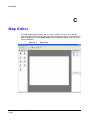
Map Editor
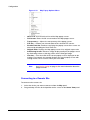
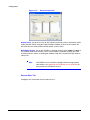
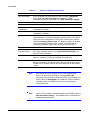
Table C-1
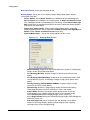
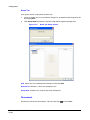
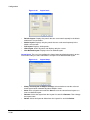
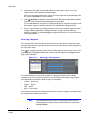
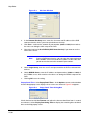
Property Tab Device Information
Property
Description
Site Information
Select a proper site for the device in the list, and the Equipment
fields (User, Password, IP Address and Port) are filled
automatically with the information set in Site Information Setting....
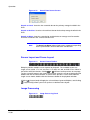
Image
Select an image of a device.
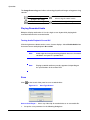
Ratio
Adjust the size of the device image.
X Coordinates / Y
Coordinates
Adjust the position of the device image by clicking each field and
changing the numbers.
Horizontal / Vertical Adjust the size of the device image by clicking each field and
changing the numbers.
Popup Camera
If the selected device is an alarm-in device, you can associate a
camera with the sensor by entering the camera name. The camera
name you enter should be the same as the camera name entered
under the Property [Camera] tab. The Map panel pops up another
screen and displays images of the camera associated with the
sensor on the popup screen when an alarm-in event occurs.
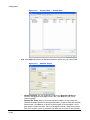
Equipment
96
IP Address / User /
Password / Port
Each field is filled in automatically with the information (user ID,
password, and port number) set in Site Information Setting..., or
you can enter it manually.
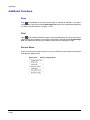
Device No.
Set the device number (1 ~ 32) for each device. If the selected
device is a camera, Device No. changes to Camera No.
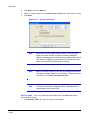
DVRNS Use
Select Yes to use DVR Name Service, and the DVRNS field appears.
Enter the IP address (or domain name) and the port number of the
DVRNS server, and the name of the DVR registered on the DVRNS
server.
Note
You should not select numbers that are not supported for
devices on the remote DVR when selecting Device No.
Otherwise, the map cannot detect the device and it displays the
device status as Unplugged. For example, the device number
should be from 1 to 16 when the device is connected to a
16-channel DVR.
Note
If you set the IP address and port number of the DVRNS server in
Site Information Setting…, the DVRNS fields are filled with the
information automatically.