1
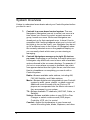
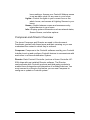
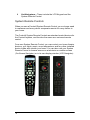
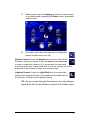
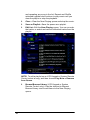
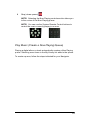
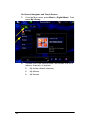
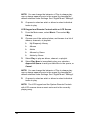
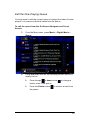
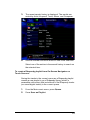
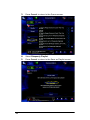
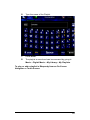
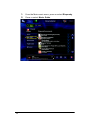
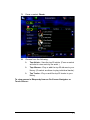
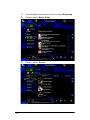
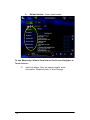
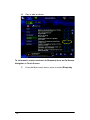
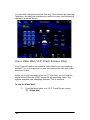
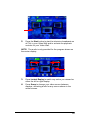
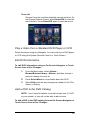
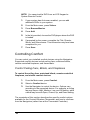
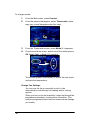
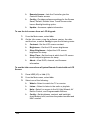
6. To edit the program event currently displayed (for example, Awake) for the day(s) selected (for example, Weekday), do the following: Press Enable to make this program event active. Set a time for this program event. Set a Heat Point and a Cool Point for this program event. 7. To edit another program event (Leave, Return, Sleep, Custom 1 or Custom 2), press Next one or more times until the event appears on the screen (as shown), then repeat. 8. When you are finished programming events, press Done to save your changes and exit the programming wizard. Changing Locations Have you ever gone to bed, and then noticed the sound of the TV coming from an unoccupied room in the house? With a Control4 system, you don't need to be in a room to control the devices in that room. No matter where you are in the house, you can change your Navigator to the room you want to control by changing the current location. To change locations from an On-Screen Navigator or a Touch Screen: NOTE: When using the LCD Keypad or the System Remote Control, go to List > House > Location to change rooms. 1. Scroll down to and press Location to view all rooms currently available for control. 2. Select the device you want to control in that room. For example, in Location, you might select Family Room. Then select Music, and then press to stop playing the music. 95