1
Create a Lighting Scene
Lighting Scenes can be created using a Touch Screen for a variety of
personalized settings. You can create a scene for a room, a floor, or an
entire home.
To create a Lighting Scene:
1.
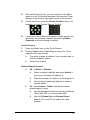
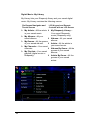
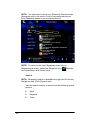
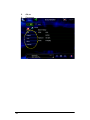
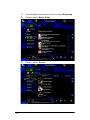
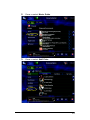
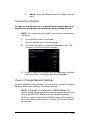
On the Lighting Options screen, press Light Scenes.
2.
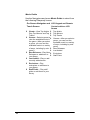
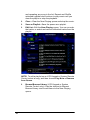
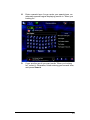
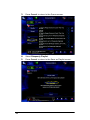
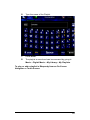
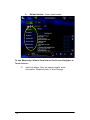
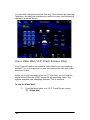
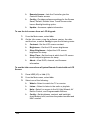
Press New Scene to create a scene using the scenebuilding options:
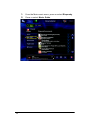
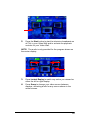
Add lighting loads from this scene— Press Add/
Remove Loads.
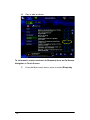
Press Room > Light.
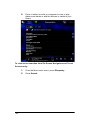
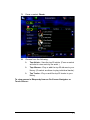
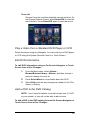
Set individual load levels (Touch, Touch and Drag,
or Touch and Hold as needed).
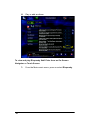
Press Finished.
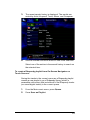
Press Save Scene.
Press Execute Scene to activate the scene.
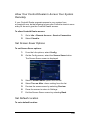
To edit a Lighting Scene:
1.
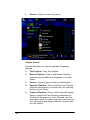
Press Edit Scene.
2.
Adjust or press Add/Remove Loads.
3.
Select the load to edit.
4.
Edit the load.
5.
Press Finished.
6.
Press Save Scene.
Activate a Lighting Scene
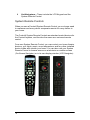
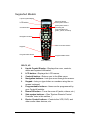
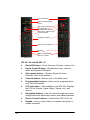
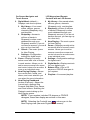
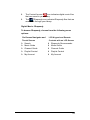
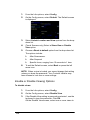
To activate a Lighting Scene from a Mini Touch Screen, System
Remote Control or LCD Keypad:
1.
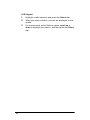
On the Lights screen, press or select Light Scenes.
97