1
154 Managing Tasks and Appointments — Using the Calendar function
To view today’s appointments
1.
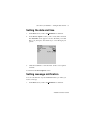
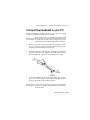
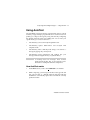
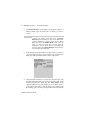
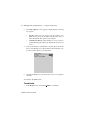
In the Home screen, scroll to the CALENDAR icon and click.
2.
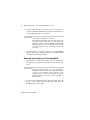
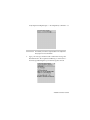
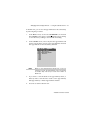
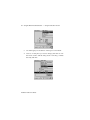
In the Calendar screen, click the trackwheel to view the menu.
Scroll to Today and click. The appointments for today’s date
appear in your chosen Calendar view.
Note
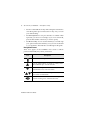
In Agenda view, if you do not have appointments for the
current date, the next day that has appointments will be
displayed.
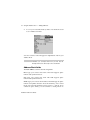
To view next and previous
1.
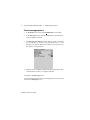
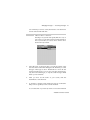
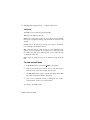
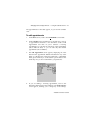
In the Home screen, scroll to the CALENDAR icon and click.
2.
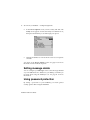
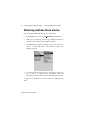
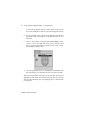
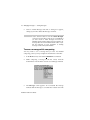
In the Calendar screen, click the trackwheel to view the menu.
Scroll to Next (or Previous) and click. The next (or previous)
day, week, or month is shown.
Note
In Agenda view, you will see the next or previous day with
appointments scheduled. Viewing the next or previous
day’s appointments is useful if you have many
appointments and do not want to continue scrolling through
your agenda.
In Day view, press ALT while rolling the trackwheel to scroll
to the next or previous day.
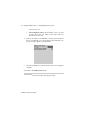
To view the appointments for a specific date
1.
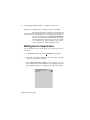
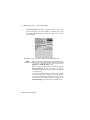
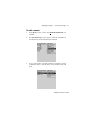
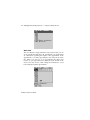
In the Home screen, scroll to the CALENDAR icon and click.
2.
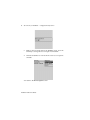
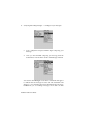
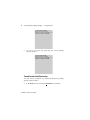
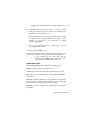
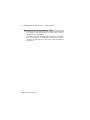
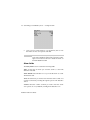
In the Calendar screen, click the trackwheel to view the menu.
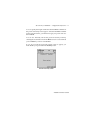
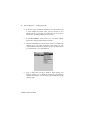
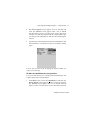
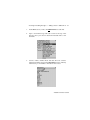
Scroll to Go to Date... and click. In the dialog box that appears,
use the SPACE key to select the date for which you would like to
view appointments and click.
Installation and User’s Guide