1
To modify a device:
1. Tap
!
.
2. Tap a device, and then tap
.
3. Edit the required fields, and then tap
.
To delete a device:
1. Tap
!
.
2. Tap and hold the device, and then tap Confirm.
Live View
After the devices are successfully added, you can view live video from those
devices, capture pictures and video, set image quality, start and stop two-way
audio and alarm outputs, and use the digital zoom function. Select a function by
tapping its icon, as shown in Table 2.
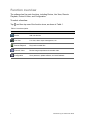
Table 2: Live View icons
Icon
Function
Icon
Function
Capture picture of the selected Live View
screen
Audio on/mute
Capture video of the selected Live View
screen
Start/stop two-way audio
PTZ control is not available in this release
Start/stop alarm outputs
Set image balance to Clear, Balanced,
Fluent, or Customized
Start/stop digital zoom
Start/stop all the Live View
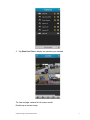
To start Live View:
1. Tap
2. Tap
!
.
, and then tap a device to expand the device list.
3. Tap the cameras that you want in Live View. A tick mark appears next to the
selected cameras.
6
ClareVision App for Android User Guide