1
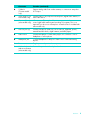
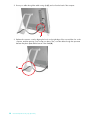
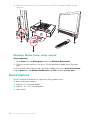
4 Connect your computer to the network. NOTE: A DSL wall connection is shown here. If you have a cable modem, the modem will be connected to the wall using a coaxial cable. A B C 5 Configure the HP TouchSmart 9100 to connect to the wireless network. a Turn on your HP TouchSmart 9100. b Connect your HP TouchSmart 9100 to the wireless network: Right-click the Network icon on the taskbar, and then select Open Network and Sharing Center. Click Connect to a network. When the window opens, select the network, and then click Connect. Or c Right-click the Network icon on the taskbar, and then select Network and Sharing Center. When the window opens, select Set up a new connection or network, and then follow the onscreen instructions. Test the wireless network by opening your Web browser and accessing any Web site. 6 Add wireless devices to the network (optional). Wired home network First-time wired network installation requires that you: 1 Purchase high-speed Internet service from an Internet service provider (ISP). 2 Purchase a broadband modem (DSL or cable). This may be provided by the ISP. 3 Purchase and install a wired router (sold separately), if one is required. NOTE: Broadband modem and router installation procedures vary, depending on the manufacturer. Follow the manufacturer’s instructions. 4 Connect the DSL cable (shown) or coaxial cable (not shown) from the wall to the modem. 5 Connect the modem to the computer Ethernet port with an Ethernet cable. If you want to connect multiple devices to the network, connect a router or hub (not shown) to the modem with an Ethernet cable, and then connect the computer to the router with an Ethernet cable. If you have a wired network in your home with Ethernet connectors in the wall, connect directly from your computer Ethernet port to the Ethernet wall connector with an Ethernet cable. Welcome 17