1
Crestron AV2 & PRO2
2-Series Integrated Dual Bus Control System
•
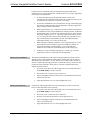
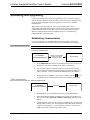
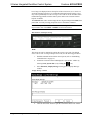
Use the Address Book in the Crestron Toolbox to create an entry for the
AV2 or PRO2 with the AV2’s or PRO2’s TCP/IP communication
parameters.
•
Display the “System Info” window (click the
or PRO2 entry.
•
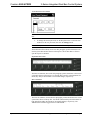
Use the Crestron Toolbox to create the AV2 or PRO2 IP table.
icon) and select the AV2
⇒ Select Functions | IP Table Setup.
⇒ Either add, modify, or delete entries in the IP table. The AV2 or
PRO2 can have only one IP table entry.
⇒ A defined IP table can be saved to a file or sent to the device.
•
When using the AV2 or PRO2 as a “slave”, edit the “master” control
system’s IP table to include an entry for the slave AV2 or PRO2. The entry
should list the AV2 or PRO2’s IP ID (specified on the AV2’s or PRO2’s IP
table) and the internal gateway IP address 127.0.0.1.
Programs and Firmware
•
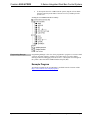
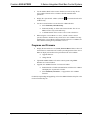
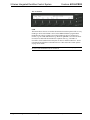
Display the network device tree (Tools | Network Device Tree) to show all
network devices connected to the control system. Right-click on the AV2 or
PRO2 to display actions that can be performed on the AV2 or PRO2:
⇒ Upgrade firmware
⇒ Change Net ID
•
Upload the SIMPL Windows file to the control system using SIMPL
Windows or Crestron Toolbox.
•
Upgrade AV2 & PRO2 firmware via Crestron Toolbox.
⇒ Establish serial or TCP/IP communications with the AV2 or PRO2
and display the “System Info” window.
⇒ Select Functions | Firmware… to upgrade the AV2 or PRO2
firmware.
For details on uploading and upgrading, refer to the SIMPL Windows help file or the
Crestron Toolbox help file.
Operations Guide – DOC. 5957B
2-Series Integrated Dual Bus Control System: AV2 & PRO2 • 17