1
Polycom® VVX® Series
Business Media Phone User Guide
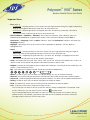
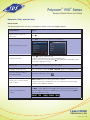
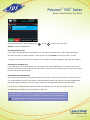
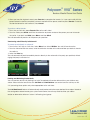
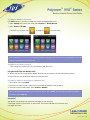
• Soft key—the context-sensitive keys that display along the bottom of the screen that update depending
on the task you’re performing. To see additional options (if available), press More. The More soft key is
always on the far-right of the soft key area, as shown below.
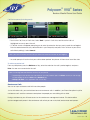
• Soft key area—The area (shown above) along the bottom of the screen that displays context-sensitive
soft keys.
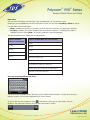
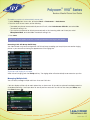
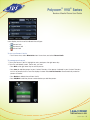
• Status bar—the top-most section of the touchscreen that displays your extension number, the date and
time, and scrolling icons and messages.
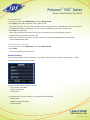
• Scroll (VVX500/600)—how to view lists that appear on more than one screen. To scroll through items or
lists, touch the screen, and then drag your finger up, down, left, or right. To stop scrolling, stop the dragging
motion.
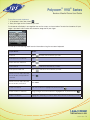
• Swipe (VVX500/600)—how to move a list of items up, down, left, or right. When you want to scroll quickly,
swipe your finger across the screen, either up, down, left, or right. To stop your screen from scrolling, press
your finger anywhere on the screen. Touching the screen while it scrolls won’t do anything. Swiping your
finger to the left or right also displays other phone views.
Getting Started
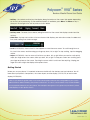
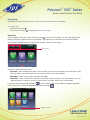
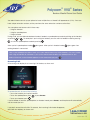
Before you use your phone, it’s important to become familiar with the features and user interface. You will
learn about your phone’s components, the screen layout, and the display (VVX310/410) or touchscreen
display(VVX500/600).
Note: As you read this guide, keep in mind that certain phone features are configurable by your system
administrator or determined by your phone environment. As a result, some features may not be enabled
or may operate differently on your phone. The examples and figures in this guide may not directly reflect
what displays on your phone screen.
1-866-9-TDSBIZ
tdsbusiness.com
157149/4-14/8571
3