1
Chapter 2: Installation and Configuration
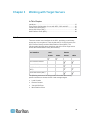
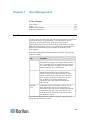
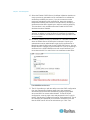
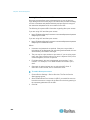
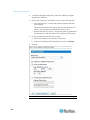
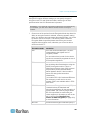
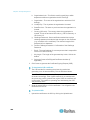
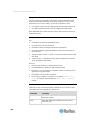
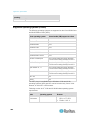
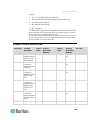
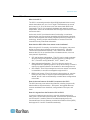
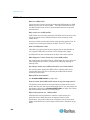
2. All KVM target servers must be configured to one of the display
resolutions supported by the KX II. The most popular supported
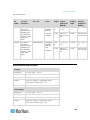
resolutions for Sun machines are:
Display resolution
Vertical refresh rate
Aspect ratio
1600 x 1200
60 Hz
4:3
1280 x 1024
60,75,85 Hz
5:4
1152 x 864
75 Hz
4:3
1024 x 768
60,70,75,85 Hz
4:3
800 x 600
56,60,72,75,85 Hz
4:3
720 x 400
85 Hz
9:5
640 x 480
60,72,75,85 Hz
4:3
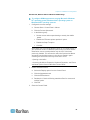
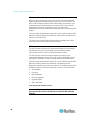
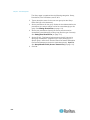
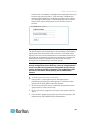
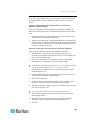
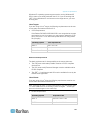
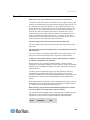
3. KVM target servers running the Solaris operating system must output
VGA video (H-and-V sync, not composite sync).
To change your Sun video card output from composite sync to
the nondefault VGA output:
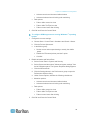
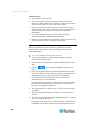
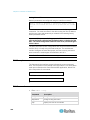
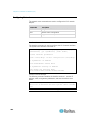
1. Issue the Stop+A command to drop to bootprom mode.
2. Issue the following command to change the output resolution: setenv
output-device screen:r1024x768x70
3. Issue the boot command to reboot the server.
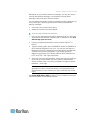
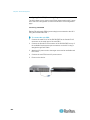
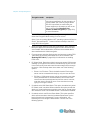
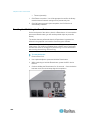
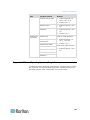
You can also contact your Raritan representative to purchase a video
output adapter:
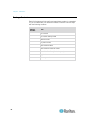
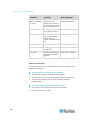
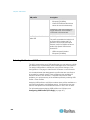
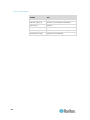
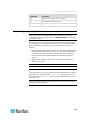
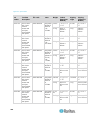
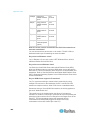
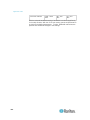
If you have:
Use this video output adapter:
Sun 13W3 with composite
sync output
APSSUN II Guardian converter
Sun HD15 with composite
sync output
1396C converter to convert from
HD15 to 13W3 and an APSSUN II
Guardian converter to support
composite sync
Sun HD15 with separate sync
output
APKMSUN Guardian converter
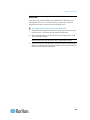
Note: Some of the standard Sun background screens may not center
precisely on certain Sun servers with dark borders. Use another
background or place a light colored icon in the upper left hand corner.
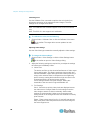
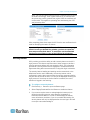
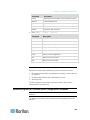
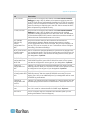
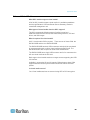
Mouse Settings
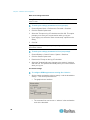
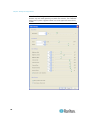
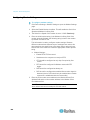
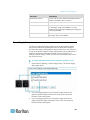
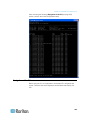
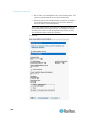
To configure the mouse settings (Sun Solaris 10.1):
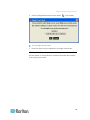
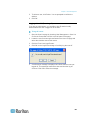
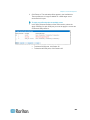
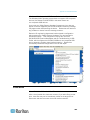
1. Choose Launcher. Application Manager - Desktop Controls opens.
23