1
BarcoMed software driver installation
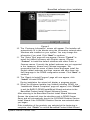
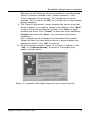
If the installation of the products you selected at the beginning is
complete, click “Finish” to exit the BarcoMed Product Install
Wizard or click “Back” to return to the Welcome Screen of the
BarcoMed Product Install Wizard to select additional software to
install.
When you click “Finish” Windows may prompt you to restart your
system, if it does click “Yes”.
Note: Clicking “Cancel” will also return you to the BarcoMed
Product Install Wizard, but will not delete the Barco Display Driver.
The wizard will also begin to install the next selected piece of
BarcoMed Software.
If the Wizard failed to successfully install the selected driver, it will
warn you that the installation failed. Click “Finish” to return to the
BarcoMed Product Install Wizard. The wizard will now begin
installing the next selected piece of BarcoMed Software. Click
“Cancel”, then click “Yes” then click “Finish”. Now “Back” and
try reinstalling the driver following the steps above or using the
steps outlined in “Reinstalling or Updating your BarcoMed
Drivers” section found later in this chapter.
BARCO DPMS Screen Saver Installation
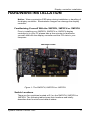
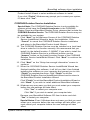
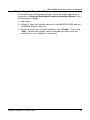
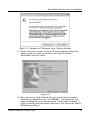
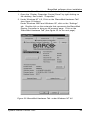
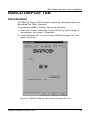
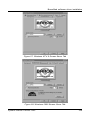
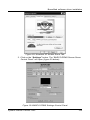
1.3. Click “Next” on the Welcome Screen of the BARCO DPMS
InstallShield Wizard (figure 19 below) to begin the installation.
Click “Cancel” to cancel the DPMS installation and return to the
BarcoMed Product Install Wizard.
Figure 19
System manual Coronis 1MP
77