1
Remote Viewing
Configuring Network Settings
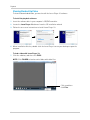
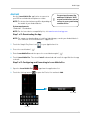
The Network settings menu allows you to configure the system DDNS, Email notification,
and port settings.
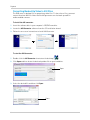
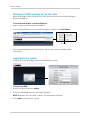
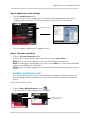
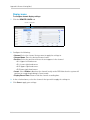
To configure network settings:
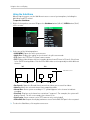
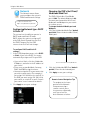
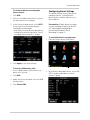
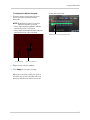
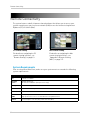
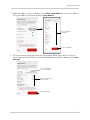
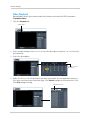
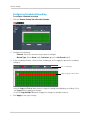
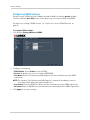
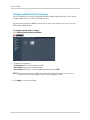
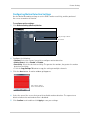
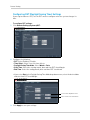
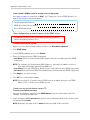
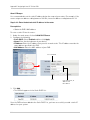
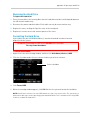
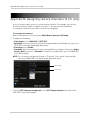
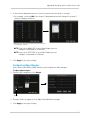
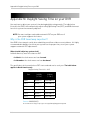
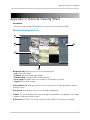
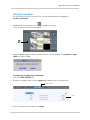
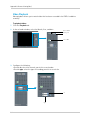
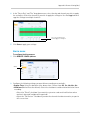
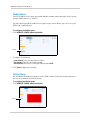
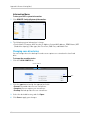
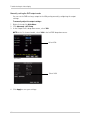
1 Click Remote Setting>Network>Basic.
2
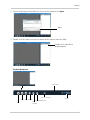
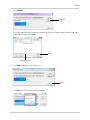
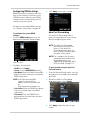
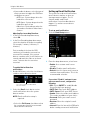
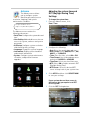
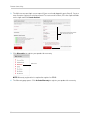
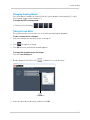
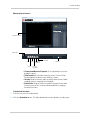
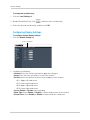
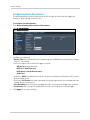
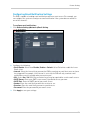
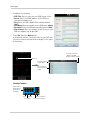
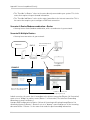
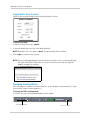
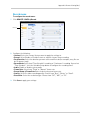
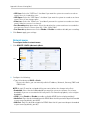
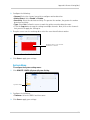
Configure the following:
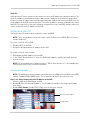
• Type: Select DHCP or Static. DHCP allows the router to assign the DVR an IP address. Static
fixes the IP address of the DVR.
• If you select Static, fill in the IP Address, Netmask, DNS 1 and Gateway fields. Remember to
assign the static IP address in your router as well.
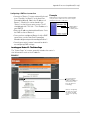
• Bandwidth: Select the bandwidth the DVR can consume. Set a lower bandwidth if you are on
a network with heavy traffic. For smoother playback, select a higher bandwidth.
• Auto Port Forwarding: Select Enable or Disable to turn auto port forwarding on or off. Note
that you must restart the DVR locally before changes take effect.
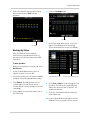
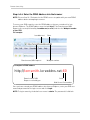
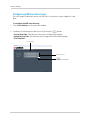
NOTE: You cannot remotely change the Net Client/Media port, Web port or Mobile port. To
change the Media, Web, or Mobile port, you must change the ports locally on the
DVR for changes to take effect.
3
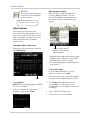
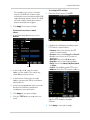
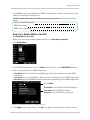
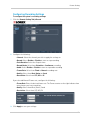
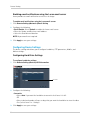
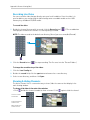
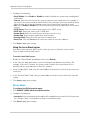
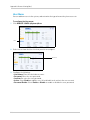
Click Apply to save your changes.
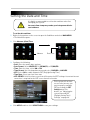
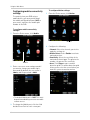
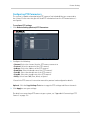
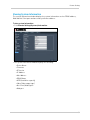
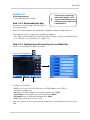
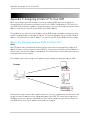
About Static IPs
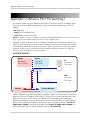
A static IP is useful if you wish to lock the local IP address of the DVR. This
is used when accessing the DVR over a local area network (LAN), and
prevents the DHCP server from assigning a random IP address for the
DVR. You must set the static IP address within your router before the
changes take effect.
75