1
Writing and Recording Your Handwritten Notes
Using the digital inking pen on the digital pad produces both familiar ink notes on
ordinary paper and digital pages in the storage device of the pad.
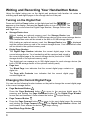
Turning on the Digital Pad
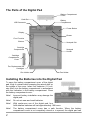
Press and hold the Power button on the digital pad until the
icon
appears on the display. Release the Power button to turn on the pad. The
display will be on and show the Digital Page Number, Storage Device icon
and Page icon.
z
Storage Device Icon
Without loading an optional memory card, the Storage Device icon
is displayed and the built-in 32 MB storage device is the current storage device.
Your handwritten notes will be stored in the built-in 32 MB storage device.
is displayed
With loading an optional memory card, the Storage Device icon
and the optional memory card is the current storage device. Your handwritten notes
will be stored in the optional memory card.
z
Digital Page Number
The Digital Page Number indicates the current digital page in the
current storage device. Your handwriting will be captured and stored in
the current digital page in the current storage device (the built-in 32 MB
storage device or the optional memory card).
The digital pad can manage up to 999 digital pages for each storage device (the
built-in 32 MB storage device or the optional memory card).
z
Page Icon
The Blank Page icon indicates that the current digital page contains no
digital ink.
The Page with Contents icon indicates that the current digital page
contains digital ink.
Changing the Current Digital Page
You can use the following function buttons on the pad to change the current digital page
in the current storage device.
z
Page Backward Button
Press the Page Backward button
to move to the previous digital page. By
pressing and holding the Page Backward button , the Digital Page Number
moves fast and backward. Once release the button , it stops moving.
z
Page Forward Button
z
Press the Page Forward button
to move to the next digital page. By pressing
and holding the Page Forward button , the Digital Page Number moves fast
and forward. Once release the button , it stops moving.
z
Next Blank Page Button
6