1
MEDIASTUDIO PRO USER GUIDE
120
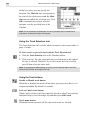
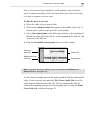
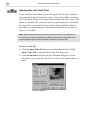
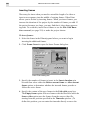
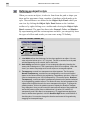
Using the Quick Command Panel
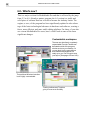
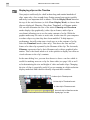
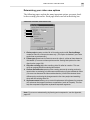
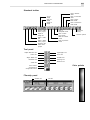
Open the Quick Command Panel by clicking View:
Toolbars & Panels and selecting the Quick Command
Panel option. (You can also open it by right-clicking
over any toolbar or panel.) The Quick Command
Panel’s advantage over the Menu bar is that you can
select and put frequently used commands on the panel
for more convenient access, as well as move and resize
the panel so that it is always close at hand.
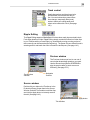
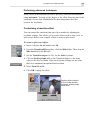
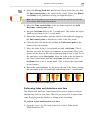
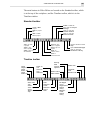
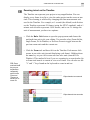
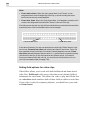
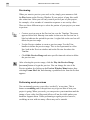
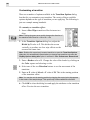
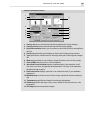
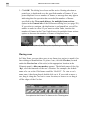
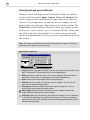
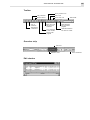
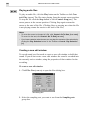
Quick Command Panel
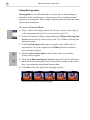
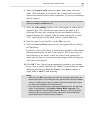
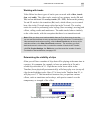
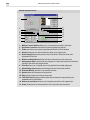
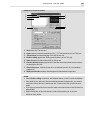
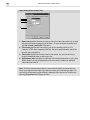
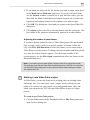
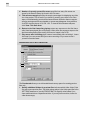
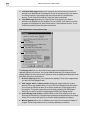
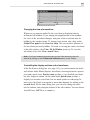
To determine how many commands appear in the Quick Command Panel,
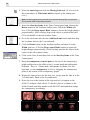
right-click the title bar of the Quick Command Panel and select the Layout
Options command. In the dialog box that opens, you can specify the
number of commands to appear in custom and cache areas. The custom
area displays commands you specifically insert into the panel while the
cache area automatically tracks the last commands you have used. Selecting the Save when program closes option saves your changes whenever
you quit Video Editor. Leave this clear if you want to save the current
configuration.
Note: Custom commands appear at the top of the Quick Command Panel: Cache
commands at the bottom.
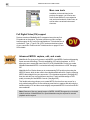
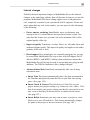
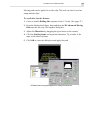
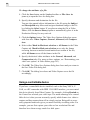
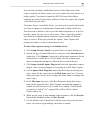
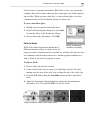
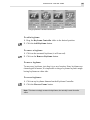
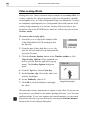
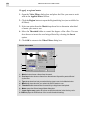
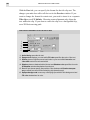
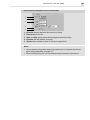
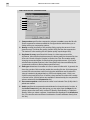
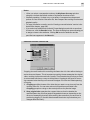
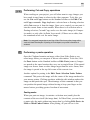
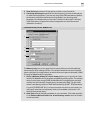
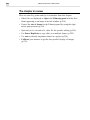
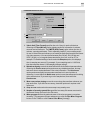
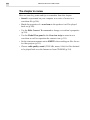
To add commands to the Quick Command panel:
1. Right-click on the title bar of the Quick Command Panel.
2. Click Modify.
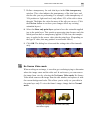
3. Select an item from the Menu list and then select a specific command
from the left hand side. All of the commands associated with that menu
appear in the list box below it.
4. Click Add to place the command on the Quick Command Panel.
5. Click OK to finish.