1
!
"#
——
!
Caution: Do not download system software to an entire group of printers unless every
printer in the group is the same model and supports the new software version. If you
overwrite a printer’s system software with the wrong type of system software, that
printer will not be functional.
1
In the main CrownAdmin window, select the printer, group, or set you want
to download to.
2
Read the instructions in your printer documentation for downloading print
system software from a PS file. When the instructions say to send the system software to the printer, choose Print File from the File menu in the main
CrownAdmin window.
3
In the Print File Dialog Box, use the Browse button to locate and select the
system PS file, then choose Open.
4
In the Print File Dialog Box, choose the Print button.
!
First, you need to make sure that the printer is up on the network.
Before following the instructions below, ensure that your printer is powered on
(previous troubleshooting steps may have had you power the printer off).
If you have a PC:
1
Go to Start/Programs/MS-DOS Prompt (Start/Programs/Command Prompt
for NT).
2
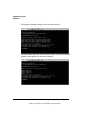
In the DOS window, type:
ping ipaddress↵
(for example, ping 161.33.128.5↵)
EDNord - Istedgade 37A - 9000 Aalborg - telefon 96333500
!