1
m If you are recharging the battery in a recharger, you may have an older
recharger with a new battery. Check to make sure you have the correct
recharger for your type of battery.
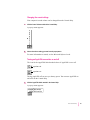
The computer goes to sleep too often.
m Open the PowerBook control panel and slide the slider to Better
Performance.
The PowerBook won’t run off the battery or the battery won’t charge.
m Make sure your PowerBook is running system software version 7.1 or later.
You may have a new battery which requires this system software.
m There may be a loose connection. Take the battery out and put it back in
the computer.
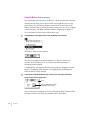
The computer doesn’t go to sleep automatically.
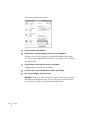
m You may have dragged the slider to Never in the Custom view of the
PowerBook control panel. Drag the slider to a lower setting.
m You may be connected to a shared disk on the network. If you are not using
the information on the shared disk, disconnect from it.
m The printer/modem port may be in use. Quit your telecommunications
program or turn off background printing in the Chooser (if the documents
you’re printing can wait until later).
m When application programs are working in the background, the computer
doesn’t go to sleep. In this case, choose Sleep from the Special menu.
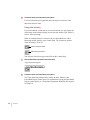
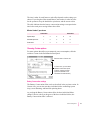
m The computer does not go to sleep if AppleTalk is active and the power
supply is plugged in. Turn AppleTalk off in the AppleTalk Switch module
in the Control Strip.
m The computer does not go to sleep if it is being used in a Duo Dock.
m The computer does not go to sleep if you are using it with a Duo
MiniDock and an external monitor or SCSI device is attached.
m The computer does not go to sleep if you are using it with a Duo
MiniDock and you started or restarted the computer after connecting it to
another device.
See Chapter 6 for more information about batteries and power consumption.
Tips and Troubleshooting
113