1
Step 9 - Save your settings
iLive provides different types of memory to store your settings. Back up your settings to the onboard
memories or archive them to your PC via USB key. For more information refer to the on screen HELP
manual.
Power down memory
You do not need to store settings before switching the
system off. iLive remembers its last settings on power down
and restores these when the system is next turned on. Your
settings are restored even if mains power is lost without
warning.
User Profiles
iLive lets you set up and work with up to 8 'User Profiles'. You
can set permissions and a password for each to restrict
operator access to certain functions.
The 'Admin' user (Administrator) has access to all functions
and can set permissions and allocate passwords if required
for the other users. Up to 7 guest users may be configured
and activated.
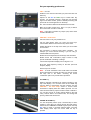
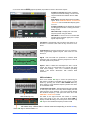
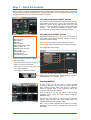
To set up User Profiles go to the TouchScreen UTILITY /
Configuration / Edit User Profiles page. Touch a User
button. Use the onscreen keypad to enter a user Name and
add a Comment. Set a Password if required. Touch Set
Permissions to enable or disable access to certain functions.
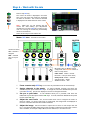
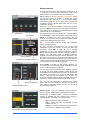
You can also assign a User Scene which will recall
automatically when the user logs in. Select No User Scene if
none is required. Activate any user profiles you want to
appear in the Change User or log in screen.
Note - Only set passwords if you really need to. Make sure
you keep a log of all passwords allocated. Clearing
passwords required resetting internal jumpers and clearing
the memories.
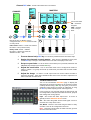
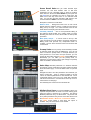
To log in as a different user go to the TouchScreen
UTILITY page and touch the Change User button. If a
password has been set then you are prompted to enter it
when you turn the system on or lock or unlock the Surface.
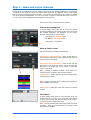
Libraries
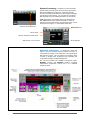
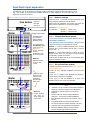
You can name, store and recall parameter settings as User
libraries, or recall factory presets from the Library pane in
each processing screen.
Library types:
PEQ
GEQ
Noise Gate
Compressor
Limiter/De-esser
Full input channel processing
Full mix channel processing
FX emulations
PL-Anet setup
iLive Fixed Format Getting Started Guide
Libraries can be archived to computer or transferred
between iLive systems using a USB key. Press the
TouchScreen UTILITY / Configuration / Library Manager
key to work with the USB library function. If you plug in a
USB key with libraries available these will be listed in the
related Library screens. You do not need to copy them to the
Surface to work with them. Copy libraries from the iLive to
the USB key to archive or transfer them.
Note - For iLive to see the Libraries on your USB key they
should be placed in an 'allenheath \ libraries’ folder in the
root directory of your key. If libraries have been previously
transferred from an iLive to the key then the folder should
exist already.
27
AP7141 iss.6b