1
GB
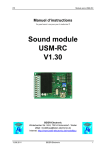
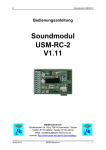
Sound module USM-RC
Operating Manual
Sound module
USM-RC
BEIER-Electronic
Winterbacher Str. 52/4, 73614 Schorndorf - Weiler
eMail: [email protected]
Internet: http://www.beier-electronic.de/modellbau
28.07.2008
BEIER-Electronic
1
GB
Sound module USM-RC
Table of Contents
Table of Contents ....................................................................................................... 2
Introduction................................................................................................................. 3
Note on Safety............................................................................................................ 3
Technical Data............................................................................................................ 4
Operating Modes: Digital- and analogue operation .................................................... 5
Pin assignments in digital operation ........................................................................... 6
Wiring diagram for digital operation ............................................................................ 7
Pin assignment in analogue operation........................................................................ 8
Wiring diagram for analogue operation....................................................................... 9
Installation of the sound module ............................................................................... 10
Connection of the sound module .............................................................................. 10
Connection of the sound module in digital operation ................................................ 13
Connection of the sound operation in analogue mode ............................................. 15
Functional assignment in proportional channel #1- #4 ............................................. 16
Stick simulation with switches................................................................................... 18
Loudspeaker............................................................................................................. 19
Volume control.......................................................................................................... 20
Sounds ..................................................................................................................... 21
Engine sound (Slot #1 - #9) ...................................................................................... 22
Additional sounds 1 - 16 (Slot #10 - #29) ................................................................. 24
Random sounds (Slot #30 - #37).............................................................................. 25
Turning on/off engine sound ..................................................................................... 25
Adjusting the driving sound to the top speed ............................................................ 25
Switching outputs ..................................................................................................... 26
PC-Software „USM-RC Sound-Teacher“ .................................................................. 28
Using the software ”USM-RC Sound-Teacher“......................................................... 30
Uploading sounds into the sound module................................................................. 34
Firmware update....................................................................................................... 35
Converting sound files .............................................................................................. 36
Record and edit new sounds with the PC ................................................................. 37
2
BEIER-Electronic
28.07.2008
GB
Sound module USM-RC
Introduction
The sound module USM-RC was developed for the RC model construction in order to
equip models, with an as faithful as possible, speed-dependent driving sound (e.g.
engine sound). To make the background noise perfect, in addition to the driving
sound, up to 16 additional sounds can be played. Automatic turn on-, turn off,
starting-, stopping-, idling-, braking- and driving noises can also be played. Also
another 8 conveniently configurable random sounds are possible.
The sound output occurs on this module four channeled, so in addition to the driving
sound, 3 further additional-/random sounds simultaneously can be played.
The information of the driving speed (up to 75 steps!) can be taken from 1 to 2
motors (analogous operation), or 1 to 2 proportional channels (digital operation) of
the receiver are used for the speed information.
All sounds can be changed at any time on the sound module. For this purpose, only
a Windows PC with an USB port and our software "USM-RC Sound-Teacher" is
necessary. You can use this sound module for the most different kinds of models.
Since there is already an efficient audio amplifier on the board, only a loudspeaker
needs to be connected for the sound output.
At 7 switching outputs for example LEDs, lamps, relays can be connected, and
different lighting effects (light, stop light, indicators, hazard warning light, MG fire,
flickering-light and so forth) can be realized.
Safety notes
•
•
•
•
•
•
Read this operating manual carefully and keep it for a future use well!
The integrated circuits on the sound module are sensitive to electrostatic
charge. You may not touch therefore these components, before you don’t
have discharged yourself (e.g. through a grip onto a grounded device).
To guarantee an interference-proof operation, the sound module should be
built in a suitable case.
The sound module may be use only with those, in the technical data given
supply voltages.
Always switch off power before connecting the module!
For children under 14 years, the using of the sound module is not suitable.
28.07.2008
BEIER-Electronic
3
GB
Sound module USM-RC
Technical Data
Supply Voltage (Ub):
Power consumption:
Switching-inputs:
Switching-outputs:
Proportional Inputs:
Voltage inputs for drive speed:
Audio amplifier:
Recommended loudspeakers:
Volume control:
Memory for sound files :
Max. length for the sounds:
Supported sound files:
Sound output:
Number of possible sounds:
Random generator:
Interface:
Permissible ambient temperature:
Permissible relative air humidity:
Measurement:
4
5 – 14V DC
Standby-current: ca. 30mA
Operation (only sound): max. 0,4A
Operation (sound + switching outputs):
max. 2,5A
5 pieces
LO-Signal = U < 2V
HI-Signal = U > 5V
Integrated pull-up resistors (4k7/10k)
7 pieces max. 0,3A (npn – open collector)
- 2 mulitfunctional outputs
- light
- reverse drive light
- stop light
- indicators (left and right) / hazard warning
light
4 pieces
0 – 14V DC
max. 3W
at Ub 5,0 – 9,6V: 8 – 16Ω (3 – 20W)
at Ub 9,6 – 14,0V: 16 – 32Ω (3 – 20W)
By external potentiometer (100kΩ) and/or
remote control possible
4MB Flash (32MBit)
380 seconds (at 11kHz)
WAV-format, 8 bit, mono, 11kHz or 22kHz
12 bit D/A-converter
75 for driving noise in full load
75 for driving noise in partial load
1 turn on noise (automatic)
1 turn off noise (automatic)
1 starting noise (automatic)
1 stopping noise (automatic)
1 idling noise (automatic)
1 brake noise (automatic)
1 reverse driving noise (automatic)
4 additional sounds (via inputs)
12 additional sounds (via prop.-channels)
8 random sounds (random generator)
Times between 1 to 250s adjustable
USB 2.0 Mini A
0 – 60°C
max. 85%
67 x 44 x 16 mm
BEIER-Electronic
28.07.2008
GB
Sound module USM-RC
Operating Modes: Digital- and analogue operation
In order to make the sound module as universally usable as possible, 2 different
operating modes are available. Since the operating mode is very decisive for the
possible functions, and particularly for the connection of the sound module, it should
be decided now at the beginning, which one of the two operating modes is better
suitable for the respective model. The operating mode of the sound module, is set in
the USM-RC Sound-Teacher (see page 32).
If possible, always the digital operation should be used, because this offers more
functions than the analogous operation.
Digital operation:
The digital operation will be presumably always be used if you use standard RC
remote control radios and receivers with PPM-signals. Here is the sound module
connected directly to the RC-receiver, and it recognizes the driving speed directly
from 1 or 2 proportional channels (parallel to the speed controller). Via 2 more
proportional channels, up to 12 additional sounds can be played, the engine sound
can be switched on and off, the volume can be adjusted, also light and indicators can
be switched. Via digital switching inputs also another 4 more additional sounds can
be played.
Analogous operation:
The analogous operation always becomes used, if you didn’t have a “standard” RC
equipment.
In the analogous operation the driving speed is determined by a voltage
measurement of 1 or 2 motors. In order to activate additional sounds, or turn on and
switch off the engine sound, the digital switching inputs of the sound module must be
connected here (e.g. with switching modules).
Because of the missing proportional channels, as many functions unfortunately are
not possible in the analogous operation, as in the digital operation. So for example
you can only activate 6 additional sounds with 6 switching inputs. Also the light and
the volume cannot be switched or controlled here by the remote control.
28.07.2008
BEIER-Electronic
5
GB
Sound module USM-RC
Pin assignments in digital operation
Connections on the sound module:
X1/1
Loudspeaker +
X1/2
Loudspeaker X1/3
Ground for additional audio amplifier
X1/4
Supply voltage + (5 – 14V DC)
X1/5
Supply voltage X1/6
Input for engine sound on/off
X1/7
Input for additional sound 13
X1/8
Input for additional sound 14
X1/9
Input for additional sound 15
X1/10 Input for additional sound 16
X2/1
X2/2
X2/3
X2/4
Connection for proportional channel 1 (speed)
Connection for proportional channel 2 (speed or additional sound 9-12)
Connection for proportional channel 3 (additional sound 1-4)
Connection for proportional channel 4 (additional sound 5-8)
X3/1
X3/2
X3/3
X3/4
X3/5
X3/6
X3/7
Connection for output 1 (multifunctional output)
Connection for output 2 (multifunctional output)
Connection for output 3 (light)
Connection for output 4 (reverse driving light)
Connection for output 5 (stop light)
Connection for output 6 (indicator left)
Connection for output 7 (indicator right)
X4
USB connector
X5
Connection for the potentiometer for the volume control
6
BEIER-Electronic
28.07.2008
BEIER-Electronic
-
3,15A
-
Engine sound on/off
Loudspeaker
NF
PV-20W
Audio amplifier
Additional sound 15
Switch module
Additional sound 13
+
Additional sound 14
-
Additional sound 16
28.07.2008
+
Power supply
5 - 14V DC
Topspeed
100k
Volume
USB
Speed controller
Speed controller
Multifunctionsoutput 2
Light
orange
green
Indicator left
brown
yellow
orange
red
Indicator right
Stop light
black
white
grey
purple
blue
yellow
Reverse driving
light
Multifunctionoutput 1
red
brown
RC-receiver
GB
Sound module USM-RC
Wiring diagram for digital operation
7
GB
Sound module USM-RC
Pin assignment in analogue operation
Connections on the sound module:
X1/1
Loudspeaker +
X1/2
Loudspeaker X1/3
Ground for additional audio amplifier
X1/4
Supply voltage + (5 – 14V DC)
X1/5
Supply voltage X1/6
Input for engine sound on/off
X1/7
Motor 1 (speed)
X1/8
Motor 1 (speed)
X1/9
Motor 2 (speed) / Input for additional sound 5
X1/10 Motor 2 (speed) / Input for additional sound 6
X2/1
X2/2
X2/3
X2/4
Input for additional sound 1
Input for additional sound 2
Input for additional sound 3
Input for additional sound 4
X3/1
X3/2
X3/3
X3/4
X3/5
X3/6
X3/7
Connection for output 1 (multifunctional output)
Connection for output 2 (multifunctional output)
Connection for output 3 (option)
Connection for output 4 (reverse driving light)
Connection for output 5 (stop light)
Connection for output 6 (indicator left)
Connection for output 7 (indicator right)
X4
USB connector
X5
Connection for the potentiometer for the volume control
8
BEIER-Electronic
28.07.2008
BEIER-Electronic
-
3,15A
+
Engine sound on/off
Switch module
-
Loudspeaker
M
M
Speed controller
(option)
Motor 2
NF
PV-20W
Add. sound 5
-
Add. sound 6
Switch module
Audio amplifier
Motor 1
-
Top speed
100k
Volume
USB
(option)
green
yellow
orange
red
brown
black
white
grey
purple
blue
yellow
Indicator right
Indicator left
Stop light
Reverse driving
light
Multifunctionoutput 2
orange
red
Multifunctionoutput 1
Additional sound 4
brown
Additional sound 3
Additional sound 2
28.07.2008
+
Power supply
5 - 14V DC
-
Switch module
GB
Sound module USM-RC
Wiring diagram for analogue operation
9
Additional sound 1
GB
Sound module USM-RC
Installation of the sound module
In order to fix the sound module in the model, 2 mounted holes with Ø 2,1mm are
available. Pay attention that no components or conducting paths of the board touch
any metal parts during the installation of the module! This can induce to short-circuits
which can destroy the sound module and connected devices.
Connection of the sound module
The connection of the supply voltage, the connection of the loudspeaker and the
connection of the outputs are always identical, independent whether you would like to
use the module in the digital or analogous operation.
The remaining wiring is dependent in which operating mode you want to use the
module.
Always switch off power before connecting the module!
The terminal X1 is a spring cage terminal which allows a fast and simple connection
of the sound module. To put a wire in or out, you simply push in from above, with a
small screwdriver, onto the actuating lever of the terminal. The wires should be
approximately 7-8mm stripped and before connecting ideally be tin-plated.
Connection of the supply voltage (battery):
The sound module is designed for a DC voltage of 5V to 14V. You connect the
positive pole to terminal X1/4 and to terminal X1/5 the negative pole of the supply
voltage. If the supply voltage is connected correctly, the green LED light.
We recommend switching also a fuse (3,15A) into power line, so if you have a wrong
wiring or a defect, you don’t get any greater damages at your model and the sound
module.
As an option you can connect a switch into the power supply of the sound module to
make it powerless. There is especially an advantage with battery used models, if you
don’t want to have a permanently sound.
Connection of the loudspeaker:
The positive pole of the loudspeaker is connected into the terminal X1/1 the negative
pole is connected into the terminal X1/2.
10
BEIER-Electronic
28.07.2008
GB
Sound module USM-RC
Connection of the outputs:
The 7 outputs of the module are on the pin connector X3. We recommend using the
supplied, attachable ribbon cable. Of course you can also connect other wire/plugs to
the pin connector. Per output there are always 2 pin's availably, at which the load
(e.g. lamps, LEDs, small engines) can be connected.
The pin at the board edge is the positive pole, next to the pin is the output (switched
negative pole).
Output
#1
#2
#3
#4
#5
#6
#7
Function
multifunctional output 1
multifunctional output 2
light
reverse driving light
stop light
indicator left
indicator right
Ribbon cable
brown (-)
red (+)
orange (-)
yellow (+)
green (-)
blue (+)
purple (-)
grey (+)
white (-)
black (+)
brown (-)
red (+)
orange (-)
yellow (+)
So that the cable colors are right, the ribbon cable must be put on correctly on the
connector (it could be put up theoretically rotated around 180 °, however, the
configuration is changed then). The brown wire must point above (board middle), the
yellow below (board edge).
The switched voltage at the outputs is always as high, as the supply voltage of the
sound module. If the sound module is supplied e.g. with 12 V, only lamps with 12 V
should be connected. If you want to connect LEDs, series resistors are always
needed. In addition attention must be paid at LEDs to the correct polarity. The series
resistors for the LED’s are depended from the supply voltage, the LED-color and the
LED-current. Here is a small table of series resistors, they can used with standard
LEDs (approx. 15 mA):
Supply voltage
6V
7,2V
8,4V
9,6V
12V
Series resistor
270 Ohm
330 Ohm
470 Ohm
510 Ohm
680 Ohm
If you want to connect several LEDs to one output, use for every LED an own series
resistor. It’s better not to make any series circuits of the LEDs.
28.07.2008
BEIER-Electronic
11
GB
Sound module USM-RC
Connection of an external audio amplifier (option):
To the terminals X1/1 and X1/3 an additional audio amplifier can be
connected. We recommend using our PV-20W as audio amplifier. This
amplifier is optimally designed for the USM-RC sound module. Of course
also other amplifiers can be connected, but a voltage divider which divides
the audio-voltage, to the voltage of the audio-input, of the used amplifier is
needed.
General references to the wiring in the model:
Unfortunately the speed controllers and motors in the model are often strong
interference sources, which can disturb the electronic of the sound module
or the sound output (whistles, humming in the loudspeaker). Therefore all
motors should absolutely be suppressed!
It is also important to pay attention, to most possible „clean" wire routing.
You should use always short wires and don’t make any unnecessary loops.
The wires for the supply voltage of the sound module, should be connected
to the driving-battery as direct as possible, and not connected over the same
wires with other devices or speed controllers.
12
BEIER-Electronic
28.07.2008
GB
Sound module USM-RC
Connection of the sound module in digital operation
Connection of the proportional channels
At connectors X1/1 - X1/4 up to 4 proportional outputs of an RC receiver can be
connected. You use the 2 supplied servo patch cables for the connection. If more
than 2 proportional channels should be connected, further servo patch cables are
needed, which you can order in our shop.
There is a labeling that characterizes where the 4 channels on the board are. The
channels #1 and #2 are carried out twice, so the proportional signal keeps on being
able to be continued directly to the speed controller or servo. If further speed
controllers or servos should be connected to the channels #3 and #4, Y-cables are
needed.
To put on the servo patch cables onto the sound module, be sure that the brown wire
points to the board edge (to the right), the orange wire to the board middle (to the
left).
With the 4 proportional channels following functions on the sound module can be
triggered:
Channel
#1
#2
#3
#4
Model with 1 motor
speed-dependent
driving noise
additional sounds 9-12
light, indicators, hazard warning
light
additional sounds 1-4
additional sounds 5-8
driving sound on/off
volume control
Model with 2 drive motor
speed-dependent
driving noise
speed-dependent
driving noise
additional sounds 1-4
additional sounds 5-8
driving sound on/off
volume control
If you have a model with 2 motors (e.g. chain vehicle) and use the proportional
channel #2 for the driving speed identification, unfortunately you can’t activate the
additional sounds 9-12 with this proportional channel. In the same way, no outputs
for light, indicators and hazard warning light can be switched then.
Connection of the switching-inputs
At the terminals X1/7 - X1/10, the additional sounds 13-16 can be triggered. To
activate a sound, the negative pole of the supply voltage must be switched to the
respective input. Normally switch modules are used for this (as our RC-SM-2 or other
standard multi-switch-modules). Because these switch modules are all negativswitched, only the outputs of the switch module must be connected to the inputs of
the sound module.
28.07.2008
BEIER-Electronic
13
GB
Sound module USM-RC
Terminal X1/6 is the switching-input, with which the engine sound is turned on and
off. For switching, simply the negative pole (e.g. by a switch module or switch) must
be connected to this input.
In the digital operation, the engine sound can also be switched directly with the
proportional channel #4.
14
BEIER-Electronic
28.07.2008
GB
Sound module USM-RC
Connection of the sound operation in analogue mode
Connection of the motors
In the analogous operation, the driving speed is determined by the motor voltage. 1
or 2 DC motors can be connected to the terminals X1/7 / X1/8 and X1/9 / X1/10. The
connection to the sound module occurs parallel to the existing connections of the
speed controllers which powers the motors.
To the polarity of the motor connections, attention must be paid only if you want to
use the output for the reverse driving light. If the reverse driving light shines at the
forward drive, the connections must simply be changed.
If only 1 motor is connected, the terminals X1/9 and X1/10 can be used as switchinginputs, with which 2 more additional sounds and the indicators can be activated.
Connection of the switching-inputs
At the connectors X2/1 - X2/4, the additional sounds 13-16 can be triggered. The
input pin is the left pin (direction board middle). The other two pins do not have any
functions.
To activate a sound, the negative pole of the supply voltage must be switched to the
respective input. Normally switch modules are used for this (as our RC-SM-2 or other
standard multi-switch-modules). Because these switch modules are all negativswitched, only the outputs of the switch module must be connected to the inputs of
the sound module.
Terminal X1/6 is the switching-input, with which the driving sound is turned on and
off. For switching, simply the negative pole (e.g. by a switch module or switch) must
be connected to this input.
If this switching-input is not connected, the driving sounds will be always switched off!
28.07.2008
BEIER-Electronic
15
GB
Sound module USM-RC
Functional assignment at proportional channels #1- #4
The proportional channel #1 is responsible only for the speed recognition. The other
3 channels have several functions. If channel #2 is used also for the speed
determination, the other functions (light, indicators, additional sounds 9-12) are not
available.
To occupy the proportional
channels #2 - #4 with several
functions, these channels are split
into the 5 areas "A, B, N, C and D
". These areas represent the
possible positions of a stick.
The area N is the neutral position
that is the center position of the
stick.
(100)
(2,0ms)
A
Threshold 1
(60)
Threshold 2
(20)
Neutral position
(0)
Threshold 3
(20)
Threshold 4
(60)
B
(1,5ms)
The same principle is valid also for
a horizontal stick. The area A is in
this case to the left and area D to
the right.
N
C
D
(1,0ms)
(100)
The areas can also
adjusted/optimized to your remote control, by setting the 4 thresholds in the USM-RC
Sound-Teacher.
Assignment of channel #2:
Position
Function
short (0,5-1,0s) in position
long (>2,5s) in position
additional sound 9 (#22)
A
light on/off
indicator left on/off
B
additional sound 11 (#24)
C
additional sound 12 (#25)
additional sound 10 (#23)
D
hazard warning light on/off
indicator right on/off
Assignment of channel #3:
Position
A
B
C
D
16
Function
additional sound 1 (#10 - #12)
additional sound 3 (#16)
additional sound 4 (#17)
additional sound 2 (#13 - #15)
BEIER-Electronic
28.07.2008
GB
Sound module USM-RC
Assignment of channel #4:
Position
Function
short (0,5-1,0s) in position
long (>2,5s) in position
A
additional sound 5 (#18)
volume control on
B
additional sound 7 (#20)
C
additional sound 8 (#21)
D
additional sound 6 (#19)
engine sound on/off
The functions which are here described, do not have to be used all of them. It is only
supposed to be represented in this overview, what with the channels #2 - #4 can be
done.
In order to activate the additional sound 5 for example, the stick of proportional
channel #4 must be brought from center position N to position A. This movement
should be done quite fast (< 0, 5 s), because the movement of the stick goes also
through the area B. If you move the stick too slowly, also the additional sound 7
would be played.
Neutral position
You can configure in the Sound-Teacher, whether the neutral position of the 4 sticks
should be read in automatically after switching on the power supply of the sound
module, or whether the neutral position is put on the usual default value (1,5ms)
firmly.
If the automatic neutral position search is used, pay attention that the sticks are really
in neutral position, during the switch-on of the sound module!
28.07.2008
BEIER-Electronic
17
GB
Sound module USM-RC
Stick simulation with switches
To use all functions of the proportional
channels #2 - #4 conveniently, you can
simulate the different potentiometer
positions of a stick, through a simple
keystroke. If you press the key S1, a stick
position is simulated for position A.
Often the available sticks are already
reserved by other functions, but the remote
control has still other free channels. This
schematic can be used for the further
channels to activate the additional sounds.
You need only 6 resistors and 4 switches for
this per channel.
With the indicated resistors values, this
schematic should work with all standard
remote controllers. If needed, you can also
configure the thresholds of the 5 areas in the
Sound-Teacher.
How and where this schematic is connected
in the remote control, is unfortunately always
a little different according to manufacturer
and model.
18
BEIER-Electronic
28.07.2008
GB
Sound module USM-RC
Loudspeaker
You can connect every loudspeaker to the sound module USM-RC, which has an
impedance of 8 - 32 Ω and was designed for the respective maximal power. The
maximum power and the volume of the sound module, is depending very much from
the height of the supply voltage and the loudspeaker impedance.
The following table shows which maximum sine-wave power at different voltages and
loudspeaker impedances can be reached.
Power at 8 Ω
Power at 16 Ω
Power at 32 Ω
U=6V
1,3W
0,6W
0,3W
U=7,2V
2,0W
1,0W
0,5W
U=8,4V
3,0W
1,5W
0,7W
U=9,6V
4,1W
2,1W
1,0W
U=12V
3,5W
1,7W
If the supply voltage of the sound module is over 9,6V, only loudspeakers with an
impedance of 16 Ω may be connected. Otherwise the amplifier circuit could become
too hot.
If only loudspeakers with 8 Ω are available to you, you can connect also 2 pieces in
series to get 16 Ω.
To reach an optimal volume and sound quality, the loudspeaker must be installed in a
suitable resonating body.
If the volume of the built-in amplifier does not suffice, or you would like to use lower
ohm-leveled loudspeakers (2 - 4 Ω), also an external, more efficient amplifier (e.g.
our PV-20W) can be connected.
At every amplifier a certain heat arises through power dissipation that must be
mentioned by a cooling element into the air. Generally attention should always be
paid to a heat dissipation as good as possible (air circulation).
28.07.2008
BEIER-Electronic
19
GB
Sound module USM-RC
Volume control
A volume control is possible by an external potentiometer (100kΩ).
You connect this potentiometer to connector X3 (see wiring diagram, page 7).
If no potentiometer is connected, always the maximum volume is spent.
If the sound module is used in the digital operation, the volume can be controlled also
by the remote control. The proportional channel #4 is used for that. To activate the
volume adjustment, the stick must be brought for at least 2,5s in position A. After this,
the volume control is active. You will recognize this also by the red LED on the sound
module which lights during the activated volume control.
If you move the stick now in position D, the sound becomes louder. In position A the
Sound becomes quieter. In order to hear, how you adjust the volume, it is of course
reasonable, to switch the engine sound on, before adjusting the volume.
If the stick from channel #4 is not moved for 5 seconds anymore, then the volume
controlling is switched off. The red LED turns off and the sound output is interrupted
very shortly. The stick has now his normal function.
General notes to the volume
Please also notice that the sound data’s which you transfer into the sound module
should have an optimal modulation. Therefore e.g. not already record the sounds
much too quiet.
With the supplied software „GoldWave" you can adjust the volume of the single
sound files accord to your wishes.
With low supply voltage (e.g. 6 V) it can happen that the Sound is overdriven, so it
can come to an unclean sound output (scratch noise). In this case, the volume
should be turned down a little.
20
BEIER-Electronic
28.07.2008
GB
Sound module USM-RC
Sounds
All sounds are stored in the sound module with our software USM-RC SoundTeacher, in so called „slots". Generally we can say, you don’t have to occupy every
slot with a sound. If you don’t want e.g. any starting-noise, let the slot #3 simply free.
Here an overview, which sounds in which slots, can be stored:
Slot
#1
#2
#3
#4
#5
#6
#7
#8
#9
#10
#11
#12
#13
#14
#15
#16
#17
#18
#19
#20
#21
#22
#23
#24
#25
#26
#27
#28
#29
#30
#31
#32
#33
#34
#35
#36
#37
28.07.2008
Sound
Turn on noise
Idling noise
Starting noise (idling Æ drive)
Driving noise (depend on speed)
Driving noise partial load (depend on speed)
Stopping noise (drive Æ idling)
Turn off noise
Reverse driving noise
Brake noise
Additional sound 1 (Tune in)
Additional sound 1 (Loop)
Additional sound 1 (Tune out)
Additional sound 2 (Tune in)
Additional sound 2 (Loop)
Additional sound 2 (Tune out)
Additional sound 3
Additional sound 4
Additional sound 5
Additional sound 6
Additional sound 7
Additional sound 8
Additional sound 9
Additional sound 10
Additional sound 11
Additional sound 12
Additional sound 13
Additional sound 14
Additional sound 15
Additional sound 16
Random sound 1
Random sound 2
Random sound 3
Random sound 4
Random sound 5
Random sound 6
Random sound 7
Random sound 8
BEIER-Electronic
21
GB
Sound module USM-RC
Engine sound (Slot #1 - #9)
The engine sound consists of several single noises. Normally there is a turn on noise,
idling noise, driving noise and turn off noise. This sound module offers also the
possibility to imitate a driving noise under partial load, a reverse driving noise, a
brake noise, a starting noise and a stopping noise. All engine sounds (therefore also
the reverse driving and brake noise) play only when the engine sound is switched on.
Turn on noise (#1)
The turn on noise is played when the engine sound is switched on. After the turn on
noise was played, the sound changes into the idling noise.
If the engine sound is switched on and the vehicle is already in motion, the turn on
noise will skip and the module directly plays the driving noise.
Idling noise (#2)
The idling noise is always played when the vehicle is in idle. The sound is played in
an endless loop. It suffices therefore, when in this sound slot a relatively short sound
(approx. 1-2s) is stored.
Starting noise (#3)
The starting noise is played uniquely when the vehicle sets off (idle Æ drive).
Driving noise (#4)
The driving noise is always played when the vehicle drives. The driving noise is
always played like the idling noise in an endless loop. The playing speed is
dependent on the speed of the vehicle. The sound module recognizes how fast the
vehicle moves, and plays the driving noise also in the corresponding speed. In this
sound slot the driving noise is stored in the slowest driving speed. The sound
module produces all faster driving steps (up to 75) itself.
Driving noise in partial load (#5)
When the driving speed of a real vehicle is reduced, the sound character of the
driving noise changes (engine produces less power). This effect is also possible with
this sound module. In slot #5 “another" driving noise can be stored, that always is
played when the driving speed is reduced. The driving-noise in partial load is played
speed-dependently, too.
Stopping noise (#6)
The stopping noise is played uniquely when the vehicle stops (drive Æ idle).
Turn off noise (#7)
The turn off noise is played when the engine sound is switched off.
Reverse driving noise (#8)
The reverse driving noise is played when the vehicle drives backwards. This could be
e.g. the beeping of a reverse driving warn sound of a truck.
22
BEIER-Electronic
28.07.2008
GB
Sound module USM-RC
Brake noise (#9)
The brake noise is played when the driving speed is strongly reduced.
In the folder „USM-RC Sounds”, on the supplied CD-ROM, you will find some
exemplary sounds for different vehicle types. In order to store a new sound on the
sound module, simply start the program „USM-RC Sound-Teacher", open an *.usm
project file that is in the respective folder and upload the new sound with the USB
cable to the sound module.
The great advantage of this sound module is that you also are able to edit and
compile your own driving noises. That could make your model into a unique,
individual object.
28.07.2008
BEIER-Electronic
23
GB
Sound module USM-RC
Additional sounds 1 - 16 (Slot #10 - #29)
With the proportional channels and the switching-inputs, according to operation mode
(digital or analogue) and number of motors, up to 16 different additional sounds can
be played.
To play an additional sound, it must be started with a start pulse. This happens
either, if you activate the corresponding switching-input shortly or, in the digital
operation, putting the stick into the corresponding position (A, B, C or D). When an
additional sound is started once, it will be played always completely to the end.
Additional sound (Slot)
1 (#10 - #12)
2 (#13 - #15)
3 (#16)
4 (#17)
5 (#18)
6 (#19)
7 (#20)
8 (#21)
9 (#22)
10 (#23)
11 (#24)
12 (#25)
13 (#26)
14 (#27)
15 (#28)
16 (#29)
Digital operation
Prop. #3 - Pos. A
Prop. #3 - Pos. D
Prop. #3 - Pos. B
Prop. #3 - Pos. C
Prop. #4 - Pos. A
Prop. #4 - Pos. D
Prop. #4 - Pos. B
Prop. #4 - Pos. C
Prop. #2 - Pos. A
Prop. #2 - Pos. D
Prop. #2 - Pos. B
Prop. #2 - Pos. C
X1/7
X1/8
X1/9
X1/10
Analogue operation
X2/1
X2/2
X2/3
X2/4
X1/9
X1/10
-
The two additional sounds 1 and 2 offers a special feature:
These sounds consist in each case of 3 single sound slots. When the additional
sound 1 is started, the slot #10 is played at first once (tune in). Then the sound
changes to the slot #11 (loop) and plays this slot in an endless loop so long as the
start signal for the additional sound 1 is still present. When the start signal for
additional sound 1 disappears, the slot #12 (tune out) is played uniquely. Additional
sound 2 works in same principle.
In this way, now such things like a ship horn with variable length (without a hard cut
at the end), can be realized. Also for example a MG fire can be fitted with a beautiful
reverberation.
The tune in and tune out slots are only options that can be used, but they not have to
be used. You can let these slots also simply free.
24
BEIER-Electronic
28.07.2008
GB
Sound module USM-RC
Random sounds (Slot #30 - #37)
Up to 8 random sounds can be played with the sound module USM-RC. The point of
time of the sound playback, is determined then by a random generator. The time
spans (min. /max.) can, for every sound separately, programmed by 1 - 250 seconds.
In the same way it can be programmed for each of the 8 random sounds, under
which conditions (idling/drive - engine sound on/off) the sound should plays. So you
can define, e.g. at a tank a randomized “chain squeaking” is played, only during the
drive and not in the idling.
Because the 8 random sounds run completely independently from each other, it
could happen that 2 or even 3 of the random sounds are played simultaneously at
once.
Turning on/off engine sound
To turn on and switch off the engine sound, the switching-input X1/6 must be
connected. When this input is put e.g. over a switch module on the negative pole, the
engine sound turns on. When this input is open, or not switched on the switch
module, the engine sound turns off.
In the digital operation, the engine sound can also turned on and switched off by the
proportional channel #4. If you move the stick minimum for 2,5s in position D (see
page 16), the engine sound will turn on or switch off. Here is the switching-input X1/6
not needed.
Adjusting the driving sound to the top speed
With the trimmer P1 the top speed sound can be adjusted. Run your model with the
highest driving speed and turn the trimmer until the wanted speed of the driving-noise
is reached.
28.07.2008
BEIER-Electronic
25
GB
Sound module USM-RC
Switching outputs
The sound module has 7 outputs, which them for example lamps, LED, relays… can
be switched.
These 7 outputs are assigned with:
Output #1 and output #2 (Multifunction outputs)
These two outputs can be programmed by the USM-RC Sound-Teacher with
different functions.
These outputs can be related to one (or several) sound slots and switches always on,
when the related slot is just playing. You can also specify whether these outputs
static (always on), flickering or flashing types should be.
By flickering outputs the output is turned on again and again very shortly, dependent
on the played sound. With this, fabulous light effects, as for example a fire simulation
or a welding light, can be realized.
The thresholds, at which volume the flickering should begin, can be adjusted for each
of the 2 outputs separately in the USM-RC Sound-Teacher. Values between 1 and
255 are possible. As larger the value, as higher the volume of the sounds have to be,
to activate the flickering.
At flashing outputs, the output flashes during the time the sound is played. The
flashing frequency can be chosen for every output separately in the USM-RC SoundTeacher. Values between 1 and 255 are possible. 1 corresponds to the fastest
flashing frequency (50Hz) and 255 of the slowest (0,196Hz).
The flashing frequency can be calculated as follow: f = 1 / (value x 0,02)
Output #3 (Light)
The output for the light is only available in the digital operation mode, and only, if the
proportional channel #2 isn’t used for a second drive motor. To switch the light on/off
the stick from channel #2 must be put longer then 2,5s in position A.
Of course other things as light can be switched by this output.
Output #4 (Reverse driving light)
The output for the reverse driving light always switches on, when the vehicle drives
backwards. If the sound module is configured for 2 drive engines, also both motors
have to work backwards, to switch the reverse driving light on.
Output #5 (Stop light)
The stop light is turned on always shortly when the driving speed is reduced strongly.
The sensitiveness can also be configured for that in USM-RC Sound-Teacher.
28.07.2008
BEIER-Electronic
26
GB
Sound module USM-RC
Output #6 (Indicator left)
To switch the indicator on or off, the stick of proportional channel #2 must be put very
shortly in position A.
In the analogous operation the indicator is switched by the switching-input X1/9.
Output #7 (Indicator right)
To switch the indicator on or off, the stick of proportional channel #2 must be put very
shortly in position D.
In the analogous operation the indicator is switched by the switching-input X1/10.
Hazard warning light
To switch the hazard warning light on or off, the stick of proportional channel #2 must
be put for at least 2,5s into position D. In the analogous operation the two switchinginputs X1/9 and X1/10 must simply be activated.
If the hazard warning light is turned on, the left and the right indicators are flashing.
28.07.2008
BEIER-Electronic
27
GB
Sound module USM-RC
PC-Software „USM-RC Sound-Teacher“
With our software „USM-RC Sound-Teacher", the sound module can be configured
and the sound files can be transferred to the sound module.
System requirements
• Windows PC
• 16 MB RAM
• 3 MB of free HD space
• Windows 98, ME, 2000, NT, XP or Windows Vista
• free USB-port (1.0, 1.1 or 2.0)
• CD/DVD-ROM disk drive
Software installation
Normally the “CD-Installer” starts automatically after you
insert the CD-ROM. If this not happens, please start the
file „CD-Installer.exe" which is in the root folder of the
CD-ROM.
To install the Sound-Teacher, click on the „USM-RC
Sound-Teacher” button and follow the further instructions
on the screen.
28
BEIER-Electronic
28.07.2008
GB
Sound module USM-RC
USB-Driver installation
Before you start the USM-RC Sound-Teacher, the USB driver for the sound module
should be installed first.
Connect the USB cable to a free USB port (1.0, 1.1 or 2.0) of your computer, and put
the other end into the USB socket on the sound module. A further voltage supply is
not necessary, because the sound module gets his power directly from the USB port.
The new sound module is recognized by the automatically hardware recognition and
Windows starts the hardware assistant. This looks a little different at the different
operating systems and languages, but it always run in a similar way. It is only
important that the supplied CD-ROM is in a CD/DVD-drive.
Now you can basically click always on „continue" until the driver installation is
finished.
28.07.2008
BEIER-Electronic
29
GB
Sound module USM-RC
Using the software ”USM-RC Sound-Teacher“
The design of the software was as simple as possible in order to make an intuitive
handling possible.
Subsequently all functions of the program are explained shortly:
Menu:
Neues Projekt erstellen
Projekt öffnen
Projekt speichern
Projekt speichern unter
Datei
Schnittstelle
Firmware aus dem
Internet laden
Firmwareupdate
durchführen
Sounds aus dem
Internet laden
USM-RC SoundTeacher Update aus
dem Internet laden
Beenden
Soundmodul suchen
Konfiguration Konfiguration ändern
Bedienungsanleitung
Hilfe
Diagnose
Info
Creating a new project
Opening an existing project
Saving the current project
Saving the current project with a new
filename
Downloading a new firmware from the
internet
Updating the sound module with a new
firmware
Downloading new sounds from the
internet
Downloading updates for the USM-RC
Sound-Teacher
Closing the program
Searching the sound module at the USB
ports
Configuring the sound module
Opening this operating manual
Starting a diagnostic tool
Shows information about the software
Configuring sounds
In the sound module USM-RC up to 37 different Sounds can be stored in the slots.
With the sound-select-bar you can choose the sound slot, which you would like to
edit. Simply click for this purpose on the wanted number.
If data are already available for this sound number, these are shown and can be
edited now.
30
BEIER-Electronic
28.07.2008
GB
Sound module USM-RC
Beschreibung
Ausgelöst durch
Löschen
Datei
Sound-Länge
Sample-Rate
Speicherbelegung
Sound öffnen
Anhören
Ausgänge
A description of the Sound in this slot.
Shows how the sound can be started.
With this button the current sound file will be deleted.
Path and filename of the WAV-file, which is stored in this
slot.
Length of the current sound in seconds.
Quality of the current sound.
Shows you how much memory usage is needed in %.
With this button a new sound file can be loaded into the slot
Playing the current sound over the PC-loudspeakers.
Therefore a soundcard in the PC and connected
loudspeakers are needed.
Configure which outputs were activated by playing the
current sounds.
Opening of sound files
With a click on the
button, the Windows usual “file open dialog” opens, in
which you can select the wanted sound file on your hard disk.
All WAV-files with following properties can be opened:
•
•
•
8 bit
mono
11,025kHz or 22,050kHz
If you want to open a file, which is not in the necessary format, an error message
appears. To be able to use this file, you have to convert it with a suitable program.
How this works, is explained in an example on page 36Fehler! Textmarke nicht
definiert..
We recommend, to store all sound files for a complete project, in an own separate
folder on your hard disk.
“Speicherbelegung” indicates how much memory is
already occupied in the sound module.
After all wanted sound files were assigned to their slots and the module was
configured, it is recommended to save the complete project (Datei Æ Projekt
speichern).
If you would like to delete a sound in a slot, select the slot, and click simply on the
button
.
In the folder „Sounds" on the CD you will find some example sounds.
In addition there are examples for different driving noises in the folder „USM-RC
Sounds".
28.07.2008
BEIER-Electronic
31
GB
Sound module USM-RC
Configuring the sound module
To make different settings on the sound module, please click in the menu
„Konfiguration” on „Konfiguration ändern”.
A new window is opened, in which different settings can be done..
“Soundmodul-Konfiguration”
Here is defined, whether the module should works in the digital or analogous
operation mode (see page 5).
Here is also defined, whether the model has 1 or 2 driving motors.
You have here the option to deactivate the special functions of the proportional
channel #4 (driving sound on/off and volume control).
“Bremsempfindlichkeit”
Here are 2 thresholds which are responsible for the brake recognition.
The threshold for the braking noise (sound #9) determines how strong the vehicle
must be slowed down, so that the brake noise is played.
The threshold for the stop light determines how strongly the vehicle must be slowed
down, so that the stop light lights.
The higher the thresholds are set, the more strongly must be slowed down, to
activate these functions.
“Teillast”
With the 2 thresholds for partial load on and partial load off, will be configured how
strongly the speed must be changed, that between full load (sound #4) and partial
load (sound #5) is switched over.
32
BEIER-Electronic
28.07.2008
GB
Sound module USM-RC
“Zufallssounds”
If you want to play random sounds with your sound module (see page 25), you can
configure here, in which temporally distances the random sounds are supposed to be
played. Times between 1 and 255 seconds are possible.
Here is also configured under which conditions the random sounds should be
activated. For example, whether the random sounds only should playing when the
model stands and/or moves or whether the driving sound is on and/or off.
“Ausgänge”
The two multifunctional outputs can be programmed here. It can be defined, whether
the outputs static, flickering or flashing types should be.
At flickering or flashing outputs you can configure how strong the outputs flicker and
how fast they flash. Values between 1 and 255 are possible (see page 26).
“Proportional-Kanäle”
You can configure here, the thresholds which separates the proportional channels #2
- #4 into the 5 areas A, B, N, C and D (see page 16).
It can also be configured, if the neutral positions of the sticks should be read in
automatically, after the switch-on of the sound module.
There are also another 2 more thresholds which are responsible for the optimal
crossing from idling to drive. These 2 thresholds should only be changed, if it’s really
necessary.
Thresholds for the zero dead zone:
When your vehicle doesn’t move and the drive engines doesn’t runs, but the sound
module doesn’t play the idling noise and play the driving noise, this value must be
increased.
If the idling noise is also still played although the vehicle already moves, this value
can be reduced a little.
Hysteresis idling/drive:
If you drive very slowly and the sound changes always from idling noise to driving
noise, this value should be increased a little.
If a value is changed in the configuration, the configuration must be uploaded to the
sound module so that a change becomes effective!
While saving a project, the sound configurations of the slots and the configuration of
the sound module are saved together in the project file.
28.07.2008
BEIER-Electronic
33
GB
Sound module USM-RC
Uploading sounds into the sound module
!!! ATTENTION !!!
If the sound module is only powered via the connected USB-cable, the 7 switching
outputs may not be connected and/or may be switched on.
If attention is not paid to this, the needed current for the connected loads is pulled out
directly from the USB port. This can destroy the USB port of the PC under
unfavorable circumstances!
Put off the ribbon cable from X3 during the programming!
For the upload of new sound files or a changed configuration, you connect the
supplied USB cable to your PC and then to the sound module. The sound module is
supplied with power over the USB port, it must be not powered by an external power
source (battery).
You start the USM-RC Sound-Teacher now and the new sounds can be selected,
and/or make the wanted configuration of the sound module.
Only the complete sound files can always be uploaded into the sound module, not
every sound separately.
Through a click onto the button
the file transfer is started.
This can according among of files up to 4 minutes. After the upload, the files are
available in the sound module and can be played. During the transfer of the sound
files, always the configuration of the sound module is transferred automatically.
If only a setting in the configuration is changed, the whole sound files do not need to
be uploaded again. It suffices then to transfer only the configuration. This happens
button.
through a click on the
During the transfer to the sound module the red LED flashes.
If an error happens during the transmission, this is shown at the PC. If a transmission
error occurs often, you should restart your PC, close all not needed programs and try
the transfer again.
Attention: The sounds and the configuration cannot be downloaded from the sound
module!
34
BEIER-Electronic
28.07.2008
GB
Sound module USM-RC
Firmware update
Also the firmware (the internal software) of the sound module can be updated by the
USM-RC Sound-Teacher
With the menu Datei Æ Firmware aus dem Internet laden can be checked whether
a new firmware (e.g. with new functions) for the USM-RC sound module is available.
You can download these from our internet page to your hard disk.
The firmware update is uploaded to the sound module by the USB cable. Connect
the sound module with the USB-cable to your PC. An external power supply isn’t
necessary.
With the menu Datei Æ Firmwareupdate durchführen you can start the update. At
first the version of the firmware is read out from the sound module and shown. Now
you select the new firmware (.bin file) on your hard disk, which should be uploaded to
the sound module. After loading the firmware file, the update is started by a click on
the „Yes"-button.
Now the sound module may not be disconnected from the USB cable! The pure
update takes now about 5 seconds. After this, the sound module can be used with
the new firmware as usual.
28.07.2008
BEIER-Electronic
35
GB
Sound module USM-RC
Converting sound files
If the sound files aren’t in the necessary format, they must be converted before they
are able to be transferred into the sound module.
Every arbitrary sound converter which offers the necessary functions can be used for
this.
There is a demo version of the software „GoldWave” on the supplied CD. You find
the software in the folder „Goldwave". For installing the software, you start the „CDInstaller", click on „Goldwave installieren" and follow the instructions on the screen.
This program is only a free test version which has a single restriction, it allows only
saving files with maximum sound length of 45 seconds. Normally this should suffice
for the most applications. You find further information about this software or other
versions at the page: http://www.goldwave.com
Please notice that we aren’t the developer of the software „GoldWave" and we don’t
offer any support for this product.
Here is an example how a conversion of a sound file is done with the software
„GoldWave":
1.
2.
3.
4.
Start the software „GoldWave"
Open the file that you want to convert
You click in the menu „Effekte" on „Resample" and choose 11025 or 22050.
Now save the file with a new name:
a. Click on „Speichern als” in the menu „Datei".
b. Choose the folder and filename
c. At „Dateityp” you have to choose „Wave (*.wav)"
d. At „Attribute" you have to choose „8-bit, mono, unsigned".
5. Now you can upload the new file with our software „USM-RC Sound-Teacher"
to the sound module.
If you have any questions please read the help of the software.
36
BEIER-Electronic
28.07.2008
GB
Sound module USM-RC
Record and edit new sounds with the PC
There are some sample sounds on the supplied CD-ROM, with which you can make
first attempts with the sound module. But sometimes you want to use your own
sounds on your sound module. The Internet offers an almost infinite number of sound
files which you can download mostly freely and transfer them to your sound module.
You simply enter the wanted sound in with „download" into a search engine
(http://www.google.com).
A further possibility is the recording of own sounds with your sound card. As sources
for example a cassette recorder, a MP3-Player, a CD/DVD or a microphone can be
used.
In following example it is shown how you can do this with the software „GoldWave".
1. Start the software „GoldWave"
2. Choose in menu „Datei" the entry „Neu".
3. Click in the opened window on „Radio" and then on „OK".
4. Adjusting the volume for the recording source (e.g. line, microphone or audio
CD):
a. Choose in the menu „Werkzeug" the entry „Lautstaerkeregler"
(opens the configuration of the volume).
b. Adjust the volume at the wanted recording. Normally the slider is mostly
in the upper third. During the recording, the recording level indicator in
windows „Gerätekontrolle" should reach maximally the yellow field.
c. Close the window „Lautstaerkeregelung"
5. With a click on the record button
in the window „Gerätekontrolle" the
recording starts.
6. Control now whether the volume control which you have done in step 4 was
correct. If necessary correct your volume configuration.
in the window „Gerätekontrolle" the
7. With a click on the stop button
recording stops.
8. Now in the blue window the recorded sound appears. You can listen to the
recorded sound by a click on the play button
.
9. The sound can be edited by the extensive functions of the software. Now a
example how you can cut a sound:
a. Click with the left mouse button at the place where the sound should
begin.
b. Click with the right mouse button at the place where the sound should
end.
c. You click now in the menu „Bearbeiten" on „Trimmen", to remove the
not needed sound.
10. Save now the file to your hard disk:
a. Click on „Speichern als” in the menu „Datei".
b. Choose the folder and filename
c. At „Dateityp” you have to choose „Wave (*.wav)"
d. At „Attribute" you have to choose „8-bit, mono, unsigned".
11. Now you can upload the new file with our software „USM-RC Sound-Teacher"
to the sound module.
28.07.2008
BEIER-Electronic
37
GB
Sound module USM-RC
If you have any questions please read the help of the software.
38
BEIER-Electronic
28.07.2008
GB
28.07.2008
Sound module USM-RC
BEIER-Electronic
39
GB
40
Sound module USM-RC
BEIER-Electronic
28.07.2008