1
38
USTIP USER GUIDE
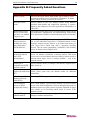
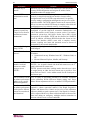
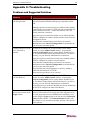
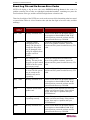
VIDEO PROBLEMS
SOLUTION
After switching to a different
Target Server channel the video
is not clear. Sometimes there is
a black edge at the boundary of
the Target Server’s screen.
Click Auto-sense Video or simultaneously press the keys
CTRL-ALT-A. USTIP will adjust the video settings. If the
video does not become clear, additional manual video
setting adjustments may be necessary. Contact Raritan
Technical Support to discuss changes to the Video Settings
window.
Ensure all Target Servers have standard blanking times.
Horizontal and vertical blanking times should closely
approximate VESA standard values.
When viewing a Target Server
remotely, the video image is
filled with moving block of
incorrect color that seem to
track next to the movement of
the mouse pointer.
The Color Settings on the Video Settings tab in the Video
window are not set correctly. Attempt manual adjustment
until the color blocking ceases or run the Automatic Color
Calibration Routine.
The screen is filled with small
visual errors, or grains of
missing color, which need to be
cleaned up.
Click Refresh Screen on the USTIP toolbar or
simultaneously press the keys CTRL-ALT-R.
The video seems to be stuck in
Auto Sense mode and the auto
sensing message in the middle
of the screen keeps counting
higher and higher.
Pressing Auto-sense Video while auto sensing is occurring
will stop the auto sense process. Check your Target Server
resolution to ensure USTIP supports it.
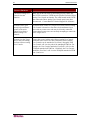
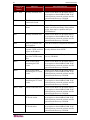
WEB BROWSER PROBLEMS
SOLUTION
I cannot connect to USTIP via
Web Browser.
Re-check the IP settings for USTIP from the USTIP Admin
Console or remote Admin Console window. Accessing the
Network Configuration screen, ensure that the IP
addresses set for “IP Address, Subnet Mask, and Default
Gateway” are still set correctly, per your Network
Administrator’s instructions.
Ensure that your user profile has Web Browser access
enabled and that USTIP is configured to enable Web
Browser.