1
FILING ITEMS IN FOLDERS
11
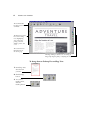
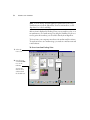
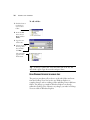
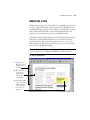
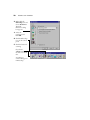
Note: This example shows the steps for using PaperPort’s built-in
OCR software and sending the converted text directly to Word. If you
have other OCR software installed on your computer, you can
convert the item by dragging the item to the OCR application on the
Link Bar.
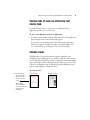
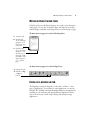
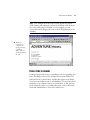
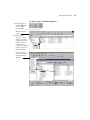
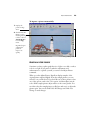
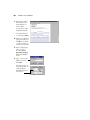
4. When the
conversion is
complete, the
word-processing
application
opens, and you
can begin editing
the text.
FILING ITEMS IN FOLDERS
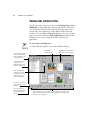
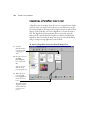
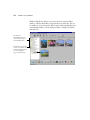
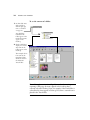
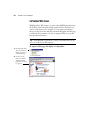
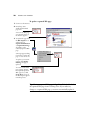
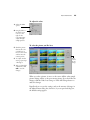
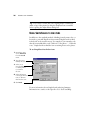
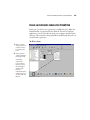
Desktop View provides an easy-to-use filing system for organizing your
items. The filing system consists of folders shown in the Folder View
and items shown on the Desktop. A folder that appears in the Folder
View can be any folder located on your hard drive or located on a device
attached to your computer, such as an external drive or disk. An item
can be a PaperPort item or a non-PaperPort item, such as a Word file.
You decide which folders to show in the Folder View.