1
Shutting Down
Telephony
when the
Control Panel is
hidden
You can still shut down the Telephony server when the Control Panel is hidden.
Use the Windows Services dialog box to stop the Vocera Telephony service. (If
the Vocera server command window is hidden, you can shut it down in the same
manner.)
To shut down the Telephony server when the Control Panel is hidden:
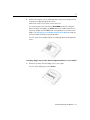
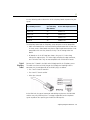
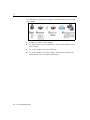
1. From the Windows Start menu, select Settings/Control Panel/
Administrative Tools/Services.
The Services dialog box appears, displaying the list of installed Windows
services.
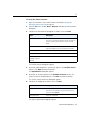
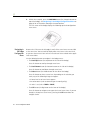
2. Right-click the Vocera Telephony service and select Stop.
The Vocera Telephony service stops, shutting down Vocera and its related
services.
Changing the Vocera Server IP Address
The Telephony server needs to know the IP address of the Vocera server. You
enter this IP address when you install the Telephony server software; however,
you can use the Telephony Control panel to change the address for the current
session. The IP address returns to the value you entered in the installation
program if you reboot the Telephony server.
To change the IP address of the Vocera server:
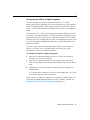
1. Choose IP Address from the Server menu.
The IP Address dialog box appears.
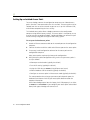
2. Use the Server IP Address field to provide the address of the Vocera server
in either of the following ways:
• Enter the numeric IP address using dot notation. For example:
192.186.15.10
• Enter the computer name (not the full domain name). For example:
vserver
3. Click OK.
The dialog box closes, and the Telephony server begins using the new IP
address immediately. The new IP address persists until you reboot the
Telephony server.
126 ··· Vocera Configuration Guide