1
C9_UserGuide.book Page i Tuesday, August 29, 2006 3:26 PM
Roxio
Easy Media Creator 9
User Guide
C9_UserGuide.book Page ii Tuesday, August 29, 2006 3:26 PM
ii
Roxio Easy Media Creator User Guide
www.roxio.com
Legal Information
Copyright ©1994 - 2006 Sonic Solutions. All Rights reserved. Roxio Easy Media Creator, Easy CD
& DVD Creator, Easy CD & DVD Burning, WinOnCD, Retrieve, DLA, Music Disc Creator,
MyDVD, Backup MyPC, Disc Copier, Label Creator, Sound Editor, Creator Classic, JUST!BURN,
WOCBlock, CinePlayer, Roxio Updater, Media Manager, VideoWave, PhotoSuite, Roxio Easy
DVD Copy, DVD Info Pro, Disc Image Loader, Easy Audio Capture, RecordNow!, DMX,
CineMagic, Drag-to-Disc, Roxio Backup, Media Import, Disc & Device Utility, Express Labeler,
Slideshow Assistant, Multi Photo Enhance, Panorama Assistant, Photo Email Assistant and all
styles and templates are protected by copyright law and international treaties. Unauthorized
reproduction or distribution of these programs, or any portion of them, may result in severe civil
and criminal penalties, and will be prosecuted to the maximum extent possible under law. Use of
these products is subject to the acceptance of the license agreement included in this product.
Sonic, Sonic Solutions, Roxio, the burning disc logo, Roxio Easy Media Creator, WinOnCD,
PhotoSuite, VideoWave, the burning CD logo, Easy CD & DVD Creator, Easy CD & DVD
Burning, Disc Copier, MyDVD, Creator Classic, JUST!BURN, Easy DVD Copy, BackUp MyPC,
CinePlayer, RecordNow! and Drag-to-Disc are trademarks of Sonic Solutions, which may be
registered in some jurisdictions. All other trademarks used are owned by their respective owners.
SOME OR ALL OF THE FOLLOWING APPLY TO THIS PRODUCT:
Portions of the software are provided by Apple Computer, Inc. Copyright © 2004 Apple
Computer, Inc.
DivX and the DivX logo are registered trademarks of DivXNetworks, Inc. in the U.S. and other
countries.
MPEG Layer-3 and mp3PRO audio coding technology licensed from Coding Technologies,
Fraunhofer IIS and THOMSON.
http://www.iis.fhg.de/amm
C9_UserGuide.book Page iii Tuesday, August 29, 2006 3:26 PM
Roxio Easy Media Creator User Guide
Legal Information
Portions utilize Microsoft Windows Media Technologies. Copyright © 1999-2004 Microsoft
Corporation. All Rights Reserved. Windows Media and the Windows logo are trademarks or
registered trademarks of Microsoft Corporation in the United States and/or other countries.
VST Plug-in Technology by Steinberg Copyright © 2004 Steinberg Media Technologies AG.
Steinberg is a registered trademark of Steinberg Soft- und Hardware GmbH.
Some digital content © 1994-2001 Hemera* Technologies Inc. All Rights Reserved. * Trademark
of Hemera Technologies Inc.
Ogg Vorbis audio compression technology provided courtesy of the Xiph.Org Foundation.
libfishsound
----------------------Copyright (C) 2003, 2004 Commonwealth Scientific and Industrial Research Organisation
(CSIRO) Australia
THIS SOFTWARE IS PROVIDED BY THE COPYRIGHT HOLDERS AND CONTRIBUTORS
``AS IS'' AND ANY EXPRESS OR IMPLIED WARRANTIES, INCLUDING, BUT NOT LIMITED
TO, THE IMPLIED WARRANTIES OF MERCHANTABILITY AND FITNESS FOR A
PARTICULAR PURPOSE ARE DISCLAIMED. IN NO EVENT SHALL THE ORGANISATION
OR CONTRIBUTORS BE LIABLE FOR ANY DIRECT, INDIRECT, INCIDENTAL, SPECIAL,
EXEMPLARY, OR CONSEQUENTIAL DAMAGES (INCLUDING, BUT NOT LIMITED TO,
PROCUREMENT OF SUBSTITUTE GOODS OR SERVICES; LOSS OF USE, DATA, OR
PROFITS; OR BUSINESS INTERRUPTION) HOWEVER CAUSED AND ON ANY THEORY OF
LIABILITY, WHETHER IN CONTRACT, STRICT LIABILITY, OR TORT (INCLUDING
NEGLIGENCE OR OTHERWISE) ARISING IN ANY WAY OUT OF THE USE OF THIS
SOFTWARE, EVEN IF ADVISED OF THE POSSIBILITY OF SUCH DAMAGE.
-----------------------------------------------libvorbis and libogg
------------------------------------------------
iii
C9_UserGuide.book Page iv Tuesday, August 29, 2006 3:26 PM
iv
Roxio Easy Media Creator User Guide
www.roxio.com
Copyright (c) 1994-2004 Xiph.org Foundation
THIS SOFTWARE IS PROVIDED BY THE COPYRIGHT HOLDERS AND CONTRIBUTORS
``AS IS'' AND ANY EXPRESS OR IMPLIED WARRANTIES, INCLUDING, BUT NOT LIMITED
TO, THE IMPLIED WARRANTIES OF MERCHANTABILITY AND FITNESS FOR A
PARTICULAR PURPOSE ARE DISCLAIMED. IN NO EVENT SHALL THE REGENTS OR
CONTRIBUTORS BE LIABLE FOR ANY DIRECT, INDIRECT, INCIDENTAL, SPECIAL,
EXEMPLARY, OR CONSEQUENTIAL DAMAGES (INCLUDING, BUT NOT LIMITED TO,
PROCUREMENT OF SUBSTITUTE GOODS OR SERVICES; LOSS OF USE, DATA, OR
PROFITS; OR BUSINESS INTERRUPTION) HOWEVER CAUSED AND ON ANY THEORY O
OF LIABILITY, WHETHER IN CONTRACT, STRICT LIABILITY, OR TORT (INCLUDING
NEGLIGENCE OR OTHERWISE) ARISING IN ANY WAY OUT OF THE USE OF THIS
SOFTWARE, EVEN IF ADVISED OF THE POSSIBILITY OF SUCH DAMAGE.
------------------------------------------------------------libflac and libflac++
----------------------------------------Copyright (C) 2000,2001,2002,2003,2004 Josh Coalson
THIS SOFTWARE IS PROVIDED BY THE COPYRIGHT HOLDERS AND CONTRIBUTORS
``AS IS'' AND ANY EXPRESS OR IMPLIED WARRANTIES, INCLUDING, BUT NOT LIMITED
TO, THE IMPLIED WARRANTIES OF MERCHANTABILITY AND FITNESS FOR A
PARTICULAR PURPOSE ARE DISCLAIMED. IN NO EVENT SHALL THE FOUNDATION OR
CONTRIBUTORS BE LIABLE FOR ANY DIRECT, INDIRECT, INCIDENTAL, SPECIAL,
EXEMPLARY, OR CONSEQUENTIAL DAMAGES (INCLUDING, BUT NOT LIMITED TO,
PROCUREMENT OF SUBSTITUTE GOODS OR SERVICES; LOSS OF USE, DATA, OR
PROFITS; OR BUSINESS INTERRUPTION) HOWEVER CAUSED AND ON ANY THEORY OF
LIABILITY, WHETHER IN CONTRACT, STRICT LIABILITY, OR TORT (INCLUDING
NEGLIGENCE OR OTHERWISE) ARISING IN ANY WAY OUT OF THE USE OF THIS
SOFTWARE, EVEN IF ADVISED OF THE POSSIBILITY OF SUCH DAMAGE.
-------------------------------------------------------dsfOggDemux, dsfOggMux, dsfVorbisDecoder, dsfVorbisEncoder.dll, dsfNativeFLACSource,
dsfFLACDecoder, dsfFLACEncoder, libOOOgg, libOOOggSeek
-----------------------------------Copyright (C) 2003-2005 Zentaro Kavanagh
THIS SOFTWARE IS PROVIDED BY THE COPYRIGHT HOLDERS AND CONTRIBUTORS
``AS IS'' AND ANY EXPRESS OR IMPLIED WARRANTIES, INCLUDING, BUT NOT LIMITED
TO, THE IMPLIED WARRANTIES OF MERCHANTABILITY AND FITNESS FOR A
PARTICULAR PURPOSE ARE DISCLAIMED. IN NO EVENT SHALL THE ORGANISATION
OR CONTRIBUTORS BE LIABLE FOR ANY DIRECT, INDIRECT, INCIDENTAL, SPECIAL,
EXEMPLARY, OR CONSEQUENTIAL DAMAGES (INCLUDING, BUT NOT LIMITED TO,
PROCUREMENT OF SUBSTITUTE GOODS OR SERVICES; LOSS OF USE, DATA, OR
PROFITS; OR BUSINESS INTERRUPTION) HOWEVER CAUSED AND ON ANY THEORY OF
LIABILITY, WHETHER IN CONTRACT, STRICT LIABILITY, OR TORT (INCLUDING
NEGLIGENCE OR OTHERWISE) ARISING IN ANY WAY OUT OF THE USE OF THIS
SOFTWARE, EVEN IF ADVISED OF THE POSSIBILITY OF SUCH DAMAGE.
C9_UserGuide.book Page v Tuesday, August 29, 2006 3:26 PM
Roxio Easy Media Creator User Guide
Legal Information
Audio effect engine licensed by Algorithmix. http://www.algorithmix.com
'Dolby' and the double-D symbol are trademarks of Dolby laboratories.
This product contains one or more programs protected under international and U.S. copyright
laws as unpublished works. They are confidential and proprietary to Dolby Laboratories. Their
reproduction or disclosure, in whole or in part, or the production of derivative works therefrom
without the express permission of Dolby Laboratories is prohibited. Copyright 1992-1997 by
Dolby Laboratories, Inc. All rights reserved.
Manufactured under license from Dolby Laboratories.
The TWAIN Toolkit is distributed as is. The developer and distributors of the TWAIN Toolkit
expressly disclaim all implied, express or statutory warranties including, without limitation, the
implied warranties of merchantability, non-infringement of third party rights and fitness for a
particular purpose. Neither the developers nor the distributors will be liable for damages,
whether direct, indirect, special, incidental, or consequential, as a result of the reproduction,
modification, distribution or other use of the TWAIN Toolkit.
Music recognition technology and related data are provided by Gracenote®. Gracenote is the
industry standard in music recognition technology and related content delivery. For more
information visit www.gracenote.com.
CD and music-related data from Gracenote, Inc., copyright © 2006 Gracenote. Gracenote
Software, copyright © 2006 Gracenote. This product and service may practice one or more of the
following U.S. Patents: #5,987,525; #6,061,680; #6,154,773, #6,161,132, #6,230,192, #6,230,207,
#6,240,459, #6,330,593, and other patents issued or pending. Some services supplied under
license from Open Globe, Inc. for U.S. Patent: #6,304,523.
Gracenote the Gracenotelogo, the Gracenote logotype, and CDDB are registered trademarks of
Gracenote. MusicID and the "Powered by Gracenote" logo are trademarks of Gracenote.
v
C9_UserGuide.book Page vi Tuesday, August 29, 2006 3:26 PM
vi
Roxio Easy Media Creator User Guide
www.roxio.com
For more information on using the Gracenote Service, visit: www.gracenote.com/corporate
Portions Copyright 1997, Chris Losinger
Portions of this product were created using LEADTOOLS © 1991-2001, LEAD Technologies, Inc.
ALL RIGHTS RESERVED.
Product includes the 3ivx Filter Suite. Copyright © 3ivx Technologies Pty. Ltd., 1999-2003, All
rights reserved. 3ivx is an international trademark.
Some digital content provided by Digital Vision.
Certain templates and images: © 2004 ArtBuilders.
Some audio content provided by Darklab Sound.
Some audio content is provided by Todor Kobakov from spineproductions.net.
Some content courtesy of Artbeats. www.artbeats.com
Some digital image content © 2006 Jupiterimages Corporation. All Rights Reserved.
Some audio content © 2006 Ian Nieman Music. All rights reserved.
Portions Copyright 1997-1998 Intel Corporation.
C9_UserGuide.book Page vii Tuesday, August 29, 2006 3:26 PM
Roxio Easy Media Creator User Guide
Legal Information
This product uses the LAME MP3 Encoder library (the “Library”). The Library is licensed under
the GNU Library General Public License, Version 2, 1991. For a copy of the complete
corresponding machine-readable source code for the Library, send your request to Sonic
Solutions, 101 Rowland, Suite 110, Novato, CA 94945 Attn: Legal Department. Processing,
shipping, and handling charges will apply.
THIS PRODUCT IS LICENSED UNDER THE MPEG-4 VISUAL PATENT PORTFOLIO
LICENSE FOR THE PERSONAL AND NON-COMMERCIAL USE OF A CONSUMER FOR (i)
ENCODING VIDEO IN COMPLIANCE WITH THE MPEG-4 VISUAL STANDARD (“MPEG-4
VIDEO”) AND/OR (ii) DECODING MPEG-4 VIDEO THAT WAS ENCODED BY A
CONSUMER ENGAGED IN A PERSONAL AND NONCOMMERCIAL ACTIVITY AND/OR
WAS OBTAINED FROM A VIDEO PROVIDER LICENSED BY MPEG LA TO PROVIDE
MPEG-4 VIDEO. NO LICENSE IS GRANTED OR SHALL BE IMPLIED FOR ANY OTHER
USE. ADDITIONAL INFORMATION INCLUDING THAT RELATING TO PROMOTIONAL,
INTERNAL AND COMMERCIAL USES AND LICENSING MAY BE OBTAINED FROM MPEG
LA, LLC. SEE HTTP://WWW.MPEGLA.COM.
PSP is a registered trademark of Sony Computer Entertainment, and Memory Stick is a
trademark of Sony Corporation.
The Bluetooth® word mark and logos are owned by the Bluetooth SIG, Inc., and any use of such
marks by Sonic Solutions is under license. Other trademarks and trade names are those of their
respective owners.
TiVo and the TiVo logo are registered trademarks of TiVo Inc. or its subsidiaries.
SightSpeed is a trademark owned by SightSpeed, Inc.
Xingtone is a trademark owned by Xingtone, Inc.
vii
C9_UserGuide.book Page viii Tuesday, August 29, 2006 3:26 PM
viii
Roxio Easy Media Creator User Guide
www.roxio.com
Changes
The material in this document is for information purposes only and is subject to change without
notice. While reasonable efforts have been made in the preparation of this document to assure its
accuracy, Sonic Solutions assumes no liability resulting from errors or omissions in this
document, nor from the use of the information contained herein.
Sonic Solutions reserves the right to make changes in the product design without reservation and
without notification to its users.
Disclaimer
This product may allow you to reproduce materials in which you own the copyright or have
obtained permission to copy from the copyright owner. Unless you own the copyright or have
permission to copy such materials from the copyright owner, you may be violating copyright law
and be subject to the payment of damages and other remedies. If you are uncertain of your rights,
you should contact your legal advisor.
This product may be protected by one or more of the patents listed at http://www.sonic.com/
innovation/patents.
C9_UserGuide.book Page ix Tuesday, August 29, 2006 3:26 PM
ix
Contents
1
Getting started with
Easy Media Creator
19
Welcome to Roxio Easy Media Creator. . . . . . . . . . .20
About this guide . . . . . . . . . . . . . . . . . . . . . . . . . . . .20
About the Easy Media Creator suite . . . . . . . . . . . . .21
About Easy Media Creator project assistants . . . . . . .25
Software and hardware requirements . . . . . . . . . . . .27
Installing Easy Media Creator . . . . . . . . . . . . . . . . . .30
Getting to know Easy Media Creator Home . . . . . . .31
Launching applications from Home . . . . . . . . . . . . .36
Starting media projects from Home . . . . . . . . . . . . .38
Where to find more information . . . . . . . . . . . . . . . .40
Online Help . . . . . . . . . . . . . . . . . . . . . . . . . . . .40
Tutorials . . . . . . . . . . . . . . . . . . . . . . . . . . . . . . .40
Roxio online support . . . . . . . . . . . . . . . . . . . . .41
Easy Media Creator support options . . . . . . . . . . . . .42
Unlimited self help options. . . . . . . . . . . . . . . . .42
Alternate support options . . . . . . . . . . . . . . . . . .42
Before you contact Roxio . . . . . . . . . . . . . . . . . .42
Contacting Roxio . . . . . . . . . . . . . . . . . . . . . . . .42
C9_UserGuide.book Page x Tuesday, August 29, 2006 3:26 PM
x
Roxio Easy Media Creator User Guide
www.roxio.com
2
Importing media files
3
Managing your media files
43
Welcome to Media Import . . . . . . . . . . . . . . . . . . . .44
Starting Media Import . . . . . . . . . . . . . . . . . . . . . . . .45
Getting to know the Media Import window . . . . . . .46
Overview of importing media files . . . . . . . . . . . . . .48
51
About Media Manager . . . . . . . . . . . . . . . . . . . . . . .52
Getting to know the Media Manager window. . . . . .53
Watching for new media files . . . . . . . . . . . . . . . . . .54
Overview of organizing media files . . . . . . . . . . . . .54
Working with My Media . . . . . . . . . . . . . . . . . . . . .55
Browsing My Media . . . . . . . . . . . . . . . . . . . . . .57
Creating new albums . . . . . . . . . . . . . . . . . . . . .58
Adding media files to albums . . . . . . . . . . . . . . .59
Moving or copying media files from one
album to another . . . . . . . . . . . . . . . . . . . . . . . .60
Setting the thumbnail for an album . . . . . . . . . . .61
Working with folders . . . . . . . . . . . . . . . . . . . . . . . .62
Creating new folders. . . . . . . . . . . . . . . . . . . . . .62
Viewing media files in a preview window . . . . .63
Viewing media files in QuickShows . . . . . . . . . .64
Searching for media files . . . . . . . . . . . . . . . . . . . . .65
C9_UserGuide.book Page xi Tuesday, August 29, 2006 3:26 PM
Roxio Easy Media Creator User Guide
Contents
4
Printing and sharing media files 67
Printing photos and projects . . . . . . . . . . . . . . . . . . .68
Tips for improving print quality. . . . . . . . . . . . . .69
E-mailing media files . . . . . . . . . . . . . . . . . . . . . . . .70
Sharing photos using an online photo service . . . . . .73
Sharing media files with wireless devices . . . . . . . . .74
About My Devices . . . . . . . . . . . . . . . . . . . . . . .74
Transferring files from your computer to a
wireless device . . . . . . . . . . . . . . . . . . . . . . . . . .74
Transferring files from a wireless device to
your computer . . . . . . . . . . . . . . . . . . . . . . . . . .75
Using LiveShare to share photos . . . . . . . . . . . . . . .76
About LiveShare . . . . . . . . . . . . . . . . . . . . . . . . .76
Configuring your home network for LiveShare . .77
Enabling or disabling sharing . . . . . . . . . . . . . . .78
Defining the web address for your LiveShares. . .78
Sharing photos using LiveShare. . . . . . . . . . . . . .79
Managing LiveShares . . . . . . . . . . . . . . . . . . . . .80
Using MediaSpace to share media on your
home network . . . . . . . . . . . . . . . . . . . . . . . . . .83
About MediaSpace . . . . . . . . . . . . . . . . . . . . . . .83
Configuring your home network for
MediaSpace (UPnP) . . . . . . . . . . . . . . . . . . . . . .84
Enabling or disabling home network sharing. . . .85
Granting access to devices on your home
network . . . . . . . . . . . . . . . . . . . . . . . . . . . . . . .85
Withdrawing access from devices on your
home network . . . . . . . . . . . . . . . . . . . . . . . . . .86
Accessing shared files on your home network. . .86
xi
C9_UserGuide.book Page xii Tuesday, August 29, 2006 3:26 PM
xii
Roxio Easy Media Creator User Guide
www.roxio.com
5
Copying discs using Disc Copier 87
6
Creating video compilations
About copying discs using Disc Copier . . . . . . . . . .88
Can I copy discs using one disc drive? . . . . . . . .88
What is CD-Text? . . . . . . . . . . . . . . . . . . . . . . . .88
What kinds of discs can I copy? . . . . . . . . . . . . . . . .89
Other sources you can copy from. . . . . . . . . . . . . . .90
Getting to know the Disc Copier window. . . . . . . . .92
Disc Copy window—Simple view . . . . . . . . . . .92
Disc Copy window—Advanced view . . . . . . . . .93
Copying using the Simple view . . . . . . . . . . . . . . . .94
97
About creating video compilations . . . . . . . . . . . . . .98
The Disc Copier window: Video Compilation
mode . . . . . . . . . . . . . . . . . . . . . . . . . . . . . . . . .99
Supported video formats. . . . . . . . . . . . . . . . . . . . .100
Notes about source files:. . . . . . . . . . . . . . . . . .101
Notes about Output formats . . . . . . . . . . . . . . .101
Creating a video compilation . . . . . . . . . . . . . . . . .102
Adding and editing movies . . . . . . . . . . . . . . . .102
Selecting or customizing a menu style . . . . . . .104
Selecting an output format and a destination . .105
Completing your compilation . . . . . . . . . . . . . .106
Creating a video compilation for a
portable player . . . . . . . . . . . . . . . . . . . . . . . . .106
Saving compilations . . . . . . . . . . . . . . . . . . . . . . . .108
C9_UserGuide.book Page xiii Tuesday, August 29, 2006 3:26 PM
Roxio Easy Media Creator User Guide
Contents
7
Creating discs using
Drag-to-Disc
109
Welcome to Drag-to-Disc. . . . . . . . . . . . . . . . . . . .110
Making your first disc with Drag-to-Disc . . . . . . . .110
Starting Drag-to-Disc . . . . . . . . . . . . . . . . . . . . . . .111
Getting to know Drag-to-Disc. . . . . . . . . . . . . . . . .112
Drag-to-Disc application view . . . . . . . . . . . . .112
Drag-to-Disc icon view. . . . . . . . . . . . . . . . . . .112
Switching between application and icon views . . .113
Hiding Drag-to-Disc . . . . . . . . . . . . . . . . . . . . . . . .114
8
Making discs using
Creator Classic
115
About Creator Classic . . . . . . . . . . . . . . . . . . . . . . .116
Getting to know the Creator Classic window . . . . .117
Deciding which type of project to create . . . . . . . .118
Starting a new project. . . . . . . . . . . . . . . . . . . . . . .119
Adding files and folders to your project . . . . . . . . .119
Working with files and folders in your project . . . .121
Creating new folders. . . . . . . . . . . . . . . . . . . . .121
Removing files and folders . . . . . . . . . . . . . . . .121
Renaming files and folders . . . . . . . . . . . . . . . .122
Searching for files . . . . . . . . . . . . . . . . . . . . . . .122
Burning a disc . . . . . . . . . . . . . . . . . . . . . . . . . . . .123
xiii
C9_UserGuide.book Page xiv Tuesday, August 29, 2006 3:26 PM
xiv
Roxio Easy Media Creator User Guide
www.roxio.com
9
Backing up and restoring files 125
About backing up and restoring files . . . . . . . . . . .126
Getting to know the Backup MyPC window . . . . . .127
Backing up your data . . . . . . . . . . . . . . . . . . . . . . .130
Restoring files . . . . . . . . . . . . . . . . . . . . . . . . . . . . .138
10
Working with photos
11
Creating video projects
145
Welcome to PhotoSuite . . . . . . . . . . . . . . . . . . . . .146
Getting to know the PhotoSuite window . . . . . . . .147
Choosing the best display settings . . . . . . . . . . . . .148
PhotoSuite’s project file format (.DMSP) . . . . . . . . .149
Supported file formats . . . . . . . . . . . . . . . . . . . . . .149
What is a photo project?. . . . . . . . . . . . . . . . . . . . .150
Creating new projects. . . . . . . . . . . . . . . . . . . . . . .150
Using the Photo Projects Assistant . . . . . . . . . .151
Creating a blank canvas . . . . . . . . . . . . . . . . . .151
Opening an existing project . . . . . . . . . . . . . . . . . .152
Importing files from your camera . . . . . . . . . . . . . .153
Changing the canvas . . . . . . . . . . . . . . . . . . . . . . .153
155
Welcome to VideoWave . . . . . . . . . . . . . . . . . . . .156
Getting to know the VideoWave window . . . . . . . .157
Task Pane . . . . . . . . . . . . . . . . . . . . . . . . . . . . .158
Preview area. . . . . . . . . . . . . . . . . . . . . . . . . . .158
Production Editor . . . . . . . . . . . . . . . . . . . . . . .158
Media Selector . . . . . . . . . . . . . . . . . . . . . . . . .159
Effect Selector . . . . . . . . . . . . . . . . . . . . . . . . . .159
C9_UserGuide.book Page xv Tuesday, August 29, 2006 3:26 PM
Roxio Easy Media Creator User Guide
Contents
Creating a slideshow . . . . . . . . . . . . . . . . . . . . . . .160
Creating a CineMagic production . . . . . . . . . . . . . .161
Importing video, photos, and audio clips . . . . . . . .162
Creating your first VideoWave movie . . . . . . . . . . .162
Step one: Add photos and video clips
to your movie . . . . . . . . . . . . . . . . . . . . . . . . . .163
Step two: Add background audio to
your movie . . . . . . . . . . . . . . . . . . . . . . . . . . . .165
Step three: Add transitions to your movie . . . . .166
Step four: Preview your movie . . . . . . . . . . . . .167
Step five: Output your movie . . . . . . . . . . . . . .168
12
Creating DVD projects
171
Welcome to MyDVD . . . . . . . . . . . . . . . . . . . . . . .172
Getting to know the MyDVD window . . . . . . . . . .173
Menu Edit view. . . . . . . . . . . . . . . . . . . . . . . . .173
Movie Edit view . . . . . . . . . . . . . . . . . . . . . . . .175
Features available in both views . . . . . . . . . . . .176
Overview of creating a disc . . . . . . . . . . . . . . . . . .177
Steps to create a DVD project. . . . . . . . . . . . . .177
Capturing media files . . . . . . . . . . . . . . . . . . . . . . .178
What are MyDVD projects? . . . . . . . . . . . . . . . . . .178
Creating new MyDVD projects. . . . . . . . . . . . . . . .179
Adding an intro movie . . . . . . . . . . . . . . . . . . . . . .180
What are menus? . . . . . . . . . . . . . . . . . . . . . . . . . .180
Adding and removing movies and slideshows . . . .181
Adding and removing menus . . . . . . . . . . . . . . . . .183
Applying menu styles . . . . . . . . . . . . . . . . . . . . . . .184
xv
C9_UserGuide.book Page xvi Tuesday, August 29, 2006 3:26 PM
xvi
Roxio Easy Media Creator User Guide
www.roxio.com
13
Creating audio projects
14
Recording and editing
audio files
185
Welcome to Sound Editor. . . . . . . . . . . . . . . . . . . .186
Getting to know the Sound Editor window . . . . . . .187
Sound Editor project file format (.dmse) . . . . . . . . .188
Getting started with Sound Editor projects . . . . . . .189
About adding audio clips . . . . . . . . . . . . . . . . . . . .190
Adding audio files. . . . . . . . . . . . . . . . . . . . . . .190
Adding tracks from audio CDs . . . . . . . . . . . . .192
About editing and applying effects . . . . . . . . . . . . .193
Selecting the waveform region to edit . . . . . . . .193
Basic editing . . . . . . . . . . . . . . . . . . . . . . . . . . .194
Adding or deleting track separators. . . . . . . . . . . . .195
About completing projects . . . . . . . . . . . . . . . . . . .196
Saving Sound Editor projects. . . . . . . . . . . . . . .197
Exporting audio clips . . . . . . . . . . . . . . . . . . . .197
Exporting sets of tracks or audio clips . . . . . . . .198
Burning tracks or clips to audio CDs. . . . . . . . .200
201
Recording from an audio input device . . . . . . . . . .202
Using Easy Audio Capture in Full mode . . . . . .202
Using Easy Audio Capture in Mini mode . . . . .204
Editing audio tags with the Audio Tag Editor . . . . .205
Moving and renaming audio files . . . . . . . . . . . . . .208
C9_UserGuide.book Page xvii Tuesday, August 29, 2006 3:26 PM
Roxio Easy Media Creator User Guide
Contents
15
Creating music discs
209
Welcome to Music Disc Creator. . . . . . . . . . . . . . .210
Overview of project basics . . . . . . . . . . . . . . . . . . .211
Supported file formats . . . . . . . . . . . . . . . . . . . . . .212
Music Disc Creator’s native format (.DMSA) . . .212
Supported audio formats. . . . . . . . . . . . . . . . . .212
Supported playlist formats. . . . . . . . . . . . . . . . .212
Adding tracks to your project . . . . . . . . . . . . . . . . .213
Important information about protected
audio tracks . . . . . . . . . . . . . . . . . . . . . . . . . . .213
Using the Media Selector . . . . . . . . . . . . . . . . .213
Adding tracks and playlists from your
hard disk. . . . . . . . . . . . . . . . . . . . . . . . . . . . . .215
Importing tracks from discs . . . . . . . . . . . . . . . .215
Finding tracks and managing track information . . .216
Checking for unidentified tracks . . . . . . . . . . . .217
Adding and editing track information . . . . . . . .218
Creating a track list using AutoMix . . . . . . . . . .219
Creating track lists using Search by Tags . . . . . .220
Previewing tracks . . . . . . . . . . . . . . . . . . . . . . . . . .221
Completing Music Disc Creator projects. . . . . . . . .222
Burning projects to disc or saving as disc
image files . . . . . . . . . . . . . . . . . . . . . . . . . . . .223
Exporting tracks . . . . . . . . . . . . . . . . . . . . . . . .224
Sending tracks to a portable device. . . . . . . . . .225
Archiving projects. . . . . . . . . . . . . . . . . . . . . . .226
xvii
C9_UserGuide.book Page xviii Tuesday, August 29, 2006 3:26 PM
xviii
Roxio Easy Media Creator User Guide
www.roxio.com
16
Creating disc labels and inserts 227
About Label Creator . . . . . . . . . . . . . . . . . . . . . . . .228
Overview of creating labels and disc inserts . . . . . .228
Getting to know the Label Creator window . . . . . .229
The Add Object area . . . . . . . . . . . . . . . . . . . .229
The Edit Layout area . . . . . . . . . . . . . . . . . . . . .229
The Layout area . . . . . . . . . . . . . . . . . . . . . . . .230
The Toolbars. . . . . . . . . . . . . . . . . . . . . . . . . . .230
The Layout Navigator . . . . . . . . . . . . . . . . . . . .230
Using Express Labeler. . . . . . . . . . . . . . . . . . . . . . .231
Index
235
C9_UserGuide.book Page 19 Tuesday, August 29, 2006 3:26 PM
19
Getting started with
Easy Media Creator
In this chapter
Welcome to Roxio Easy Media Creator
20
About this guide
20
About the Easy Media Creator suite
21
About Easy Media Creator project assistants
25
Software and hardware requirements
27
Installing Easy Media Creator
30
Getting to know Easy Media Creator Home
31
Launching applications from Home
36
Starting media projects from Home
38
Where to find more information
40
Easy Media Creator support options
42
C9_UserGuide.book Page 20 Tuesday, August 29, 2006 3:26 PM
20
Roxio Easy Media Creator User Guide
www.roxio.com
Welcome to Roxio Easy Media Creator
Welcome to Roxio Easy Media Creator, the all-in-one digital media
solution.
Designed for beginners and experts alike, Easy Media Creator makes it all
easy—from simple and practical tasks, such as creating a backup copy of a
CD or DVD disc, to fun and creative projects such as creating a home
movie complete with introductions, transitions, music, and effects.
Get creative and have fun with this powerful, intuitive, and easy-to-use
suite of digital media components. Do more with your digital music,
favorite photos, DVD video, and your important data files. Find all the
tools you need in one place, with one easy-to-use interface.
About this guide
This guide provides an overview of Easy Media Creator and explains how to
use its most popular features. For detailed information about how to use all
of the features of Easy Media Creator, see the online Help described in
Where to find more information on page 40.
Some of the components available in Easy Media Creator may not be
described in this guide. Each component includes detailed online Help,
which you can find under the component Help menu or by pressing F1.
Depending on the version of Easy Media Creator you are using, some of the
components described in this guide may not be available.
C9_UserGuide.book Page 21 Tuesday, August 29, 2006 3:26 PM
Getting started with Easy Media Creator
About the Easy Media Creator suite
About the Easy Media Creator suite
The following sections give a brief description of the components included
in Easy Media Creator.
Easy Media Creator Home
Easy Media Creator Home is the starting point that lets you access the
components and tools you need for all of your digital media projects. Using
Home, you can:
■
Open all of your Easy Media Creator applications and utilities.
■
Quickly create a CD or DVD disc.
■
Use the Mini Mode to play audio, create audio and data discs, and
copy discs.
■
Use the project tabs to get started with all of your digital media
projects. Each tab includes a handy guide, and gives you quick access
to the tools you need for each type of project.
For more information, see Getting to know Easy Media Creator Home
on page 31.
Importing and organizing media files
■
Media Import Use Media Import to import all types of media files to
your computer—from digital photos to video files, audio files, and
DVD movie titles—all in one place.
For more information, see Importing media files on page 43 and
Recording from an audio input device on page 202.
■
Media Manager Use Media Manager to view and manage your media
files in folders, and to organize them into personalized albums. Find
files quickly by browsing or searching, and burn your files to CD or
DVD discs.
Media Manager makes sharing your media files with friends and
family easier than ever. Use LiveShare to share photos with selected
users outside your home network, or use My MediaSpace (UPnP) to
share files with devices on your home network.
21
C9_UserGuide.book Page 22 Tuesday, August 29, 2006 3:26 PM
22
Roxio Easy Media Creator User Guide
www.roxio.com
For more information, see Managing your media files on page 51 and
Printing and sharing media files on page 67.
Copying and burning discs
■
Disc Copier Use Disc Copier to make backup copies of personal CD
and DVD discs so you can store the originals for safekeeping. You can
also convert DivX or WMV files to DVD-Video format, and create
compilations of DVD movies from a variety of sources.
For more information, see Copying discs using Disc Copier on page 87
and Creating video compilations on page 97.
■
Drag-to-Disc® Use Drag-to-Disc to easily drag and drop files for
burning to CD or DVD disc just as you would use a floppy disk. Disc
formatting and burning happens automatically.
For more information, see Creating discs using Drag-to-Disc on
page 109.
■
Creator Classic® Use Creator Classic to create data CDs and DVDs,
and to archive large projects to multiple discs. Create advanced format
and bootable discs, and more. In addition, you can choose to encrypt
the files on the disc so that the files can only be accessed by someone
entering a password that you select.
For more information, see Making discs using Creator Classic on
page 115.
Protecting your data
■
Backup MyPC: Protect yourself with reliable backups of all your
important data. Easily create a customized data protection plan with
“set-and-forget” automated backups, all password-secured. Use the
easy wizards and automated backups to protect your system, even if
you’ve never worked with backup software before. Follow step-by-step
instructions to back up your entire system, or just a few files. Even
large backup jobs are quick and painless with streamlined media
spanning.
For more information, see Backing up and restoring files on page 125.
C9_UserGuide.book Page 23 Tuesday, August 29, 2006 3:26 PM
Getting started with Easy Media Creator
About the Easy Media Creator suite
Working with photos
■
PhotoSuite® Use PhotoSuite to enhance, edit, and share your digital
photos.
Use PhotoFix™ to automatically adjust the exposure, saturation, and
sharpness of photos. Use other editing features in PhotoSuite to fix
common problems such as red eye.
The Photo Projects assistant guides you as you create personalized
calendars, greeting cards, and collages using your own photos. You can
also create photo slideshows to share with others.
For more information, see Working with photos on page 145 and
Printing and sharing media files on page 67.
Working with video and DVD projects
■
VideoWave® Use VideoWave to transform your home videos and
photos. Combine them with audio and VideoWave’s special effects and
transitions to create professional-looking video productions that you
can share with friends and family.
For more information, see Creating video projects on page 155.
■
MyDVD™ Use MyDVD to create multimedia stories on DVD to
share with family and friends. Capture and mix photos and video,
include narration or a favorite sound track, create your own
professional-looking menus, add transitions and animated
backgrounds, and burn to DVD, Video CD, or Super VCD.
For more information, see Creating DVD projects on page 171.
■
CinePlayer Play DVDs using the ultimate digital theater. CinePlayer
delivers the absolute highest quality video playback available for your
PC. Additionally, CinePlayer packs all of its powerful features into an
extremely easy-to-use and intuitive user-interface. Use CinePlayer to
view VCD, SVCD, and DVD projects created with Roxio software
products, including MyDVD.
For more information, see the CinePlayer Online Help.
23
C9_UserGuide.book Page 24 Tuesday, August 29, 2006 3:26 PM
24
Roxio Easy Media Creator User Guide
www.roxio.com
Working with audio
■
Sound Editor™ Use Sound Editor to record and edit sound clips and
audio files, and to create your own audio mixes. Use Easy Media
Creator’s new LP & Tape Assistant to capture audio from an analog
source (such as an LP or audio cassette) to create a digital audio file.
For more information, see Creating audio projects on page 185.
■
Easy Audio Capture Easy Audio Capture lets you quickly capture
(record) audio from analog sources (such as LP records, tapes, or
Internet radio), using a connection from your audio equipment to
your computer’s sound input.
For more information, see Recording and editing audio files on
page 201.
■
Music Disc Creator Use Music Disc Creator to create music
compilations to play on your home or car stereo, portable music
player, DVD player, or on your computer. Using audio files from your
music CDs, hard drive, or DVD-Video sources, you can create audio
CDs, MP3/WMA discs, and DVD music discs.
For more information, see Creating music discs on page 209.
Creating labels and disc inserts
■
Label Creator™ Use Label Creator to make personalized disc labels
and jewel case covers. Choose from dozens of professional designs, or
create your own.
For more information, see Creating disc labels and inserts on page 227.
C9_UserGuide.book Page 25 Tuesday, August 29, 2006 3:26 PM
Getting started with Easy Media Creator
About Easy Media Creator project assistants
About Easy Media Creator project assistants
Easy Media Creator includes several project assistants which provide a stepby-step guide to help you create professional-looking digital media projects.
■
Auto Edit with CineMagic: Create a professional-looking video
production using your home movies and photos, including
transitions, background audio, and much more.
■
DVD Music Assistant: Create a DVD music video disc using tracks
from your computer or an audio disc. Choose from professionally
designed styles or use your own background image, then burn your
project to DVD to play on your computer or set-top DVD player.
■
Express Labeler: Create disc labels and disc inserts such as front or
back covers or booklets.
■
LP & Tape Assistant: Create digital audio files from your old LPs and
tapes in just a few simple steps. You can then edit and enhance your
audio files to save to disc or to use in your Easy Media Creator projects.
■
Multi Photo Fix: Enhance several photos at once using AutoFix and
other photo tools. Rename or convert groups of photos to a different
format.
■
Panorama Assistant: Create a dramatic panorama by combining
several photos into one.
■
Photo E-mail Assistant: E-mail your photos and photo projects to
friends and family.
25
C9_UserGuide.book Page 26 Tuesday, August 29, 2006 3:26 PM
26
Roxio Easy Media Creator User Guide
www.roxio.com
■
Photo Projects Assistants: There are several photo project assistants
to help you create the following projects using your personal photos
combined with PhotoSuite’s professionally designed templates:
■
Calendars
■
Photo albums
■
Greeting cards
■
Photo collages
■
Gift tags
■
Posters
■
Plug & Burn: Import video from your DV camera and burn it directly
to disc.
■
Slideshow Assistant: Create a high-resolution photo slideshow in just
a few clicks, including background audio and Pan and Zoom effects.
Once you’ve completed your projects using a project assistant, you’re ready
to print, burn, or e-mail the project to friends. You can also continue
working with your project using the advanced features of the full Easy
Media Creator components such as PhotoSuite, Label Creator, or Music
Disc Creator.
C9_UserGuide.book Page 27 Tuesday, August 29, 2006 3:26 PM
Getting started with Easy Media Creator
Software and hardware requirements
Software and hardware requirements
This section lists the minimum and optional system requirements for Easy
Media Creator.
Minimum requirements
To take full advantage of all of the features of Easy Media Creator, your
computer must meet the following minimum system requirements:
■
Operating system:
■
Microsoft® Windows Vista™ Home, Business or Ultimate
Edition
■
Windows XP Home, Professional, or MCE (service pack 2 or
later)
■
Windows XP Professional x64 Edition
■
Microsoft® Windows 2000 (service pack 4 or later)
Note Drag-to-Disc does not run on Windows 2000. Vista
compatibility is based on the pre-release versions of the software
available at the time of Easy Media Creator 9 release. Some
applications may require an update for full compatibility.
■
Processor and memory:
■
For burning music and data discs: 500 MHz Intel® Pentium III or
equivalent; 128 MB RAM
■
For DVD, slideshow, or video authoring: 1.4 GHz Intel® Pentium
4 or equivalent; 256 MB RAM
■
For real-time MPEG-2 capture and burning: 1.4 GHz Intel®
Pentium 4 or equivalent; 256 MB RAM
■
For DivX or H.264 viewing in full screen mode: 2 GHz Intel®
Pentium 4 or equivalent; 512 MB RAM
27
C9_UserGuide.book Page 28 Tuesday, August 29, 2006 3:26 PM
28
Roxio Easy Media Creator User Guide
www.roxio.com
■
Hard disk space:
■
1 GB available hard disk space for typical installation of all
components
■
1 GB available hard disk space for every 5 minutes of video for
video capture
■
Up to 9 GB available hard disk space for copying DVD-Video or
DVD Music discs
Note This product does not copy encrypted or copy-protected
discs.
■
7200 RPM hard disk drive recommended for video projects
■
Display settings: 1024 X 768, 16-bit color graphics card; 24-bit or
32-bit true color recommended
■
DirectX 9 or higher compatible sound card and graphics card
■
QuickTime 7 or higher for burning of M4A files
■
Windows Media Player 9 or higher for Windows 2000 systems;
Windows Media Player 10 or higher for Windows XP and Vista
systems
■
Microsoft Internet Explorer 6 or higher
■
CD-ROM drive to install the software
■
Online services: Internet connection for registration, activation,
product updates, and some features including photo sharing and
Gracenote® MusicID™ support (to retrieve CD artist, album, and
track information). Any internet charges are the user’s responsibility.
Note Importing, capturing, editing, copying, burning,
exporting, or viewing MPEG-2 files, DVD-Video titles or HD-V
video, and burning of DVD, mini DVD or SVCD discs requires a
one-time product activation on the Internet. Product activation
is fast, free and anonymous.
C9_UserGuide.book Page 29 Tuesday, August 29, 2006 3:26 PM
Getting started with Easy Media Creator
Software and hardware requirements
Optional requirements
The following list outlines the optional requirements for Easy Media
Creator:
■
For burning: Multimedia compliant CD, DVD, or BD recordable drive
■
For audio capture or playback: 16-bit Windows-compatible sound
card and speakers
■
For video capture: OHCI compliant IEEE 1394 FireWire® card (for
use with a DV Camera) or analog video capture device
■
For mobile phone support: multimedia capable mobile phone with
USB cable or Bluetooth connectivity. For information about
supported phones visit www.roxio.com/support.
■
For Windows Media portable player support: player compatible with
Windows Media Device Manager 9 or higher
■
For iPod® support: iTunes 6.0.1 or higher
■
For Sony PlayStation® Portable (PSP™) support: Firmware version 2.6
or higher
■
For TiVo® file support: TiVo® Desktop 2.3 or higher
■
Broadband Internet connection required for LiveShare photo sharing
features
■
UPnP-compliant home network router for the LiveShare and
MediaSpace features
29
C9_UserGuide.book Page 30 Tuesday, August 29, 2006 3:26 PM
30
Roxio Easy Media Creator User Guide
www.roxio.com
Installing Easy Media Creator
Follow this procedure to install Easy Media Creator.
To install Easy Media Creator:
1
Insert the Easy Media Creator Program CD into your CD or DVD
drive.
If Autorun is enabled on your computer, the Easy Media Creator
installation window appears automatically and you can skip step 2 and
step 3.
2
Choose Start > Run.
3
Type d:\setup (substitute the appropriate letter of your CD or DVD
drive for d).
4
Follow the installation instructions that appear on the screen.
Depending on the type of install you select (Typical, Custom, or
Complete) you may need to insert the Content CD. The Content CD
contains project templates and sample media files. You can choose to
install these files on your computer, or you can access these files from
the CD as you need them.
C9_UserGuide.book Page 31 Tuesday, August 29, 2006 3:26 PM
Getting started with Easy Media Creator
Getting to know Easy Media Creator Home
Getting to know Easy Media Creator Home
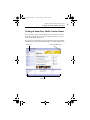
The easiest way to start your digital media project is from Home. Home is
the starting point that lets you access the components and tools you need
for all of your digital media projects.
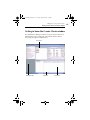
This section gives a brief introduction to using Home, the project launcher,
and Mini Mode. For more detailed information, see the Home Help Center.
Project pane
Switch to Mini Mode button
Control panel
31
C9_UserGuide.book Page 32 Tuesday, August 29, 2006 3:26 PM
32
Roxio Easy Media Creator User Guide
www.roxio.com
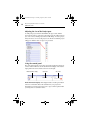
Adjusting the size of the Project pane
To enlarge the project window and minimize the project tabs, click the
arrow button at the top of the project list. The project tabs will be replaced
by a series of icons, and the project window will enlarge. To select a project,
hold your mouse over one of the project icons. The list of available projects
will appear. Click the name of a project to get started.
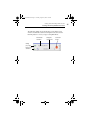
Using the control panel
The control panel appears across the bottom of the application window. It
consists of three main areas: the media information display on the left, the
input panel in the center, and the action area on the right.
Media information display
Input panel
Action area
Media information display: This display includes a visual representation
of the disc or hard drive that is the destination for your project. The
information presented varies from project to project and is updated when
you change discs or destination drives.
C9_UserGuide.book Page 33 Tuesday, August 29, 2006 3:26 PM
Getting started with Easy Media Creator
Getting to know Easy Media Creator Home
Some of the information you will see in the media information display
includes:
■
The format and capacity of the disc currently inserted in your recorder
drive
■
The volume label or title of the disc
■
The free space remaining on the disc
■
The number of the discs needed to complete the current project
For best results, insert a blank or appendable disc into your recorder drive
before starting your project. If no disc is detected or if the disc in the drive is
incompatible with the project (a DVD disc for a CD-only project, for
instance), the estimates shown will be based on the type of disc most
commonly used for your project.
Input area: The input area in the center of the control panel changes from
project to project and in some cases, from step to step within a single
project.
The input area is used to display:
■
A drop-down menu you can use to select the recorder drive for the
active project. In some projects, this same drop-down menu can be
used to browse to a specific file or location on your hard drive.
■
The progress of the active project.
■
Audio and video playback controls.
Action area: On the right side of the control panel is the action area where
you will set many projects in motion by clicking an action button. The
action button only appears when a project has been selected.
The action area also includes the Options button, which opens a group of
panels you can use to set project options.
Tip: To cancel a project after you have clicked on the action button,
click on the action button again.
33
C9_UserGuide.book Page 34 Tuesday, August 29, 2006 3:26 PM
34
Roxio Easy Media Creator User Guide
www.roxio.com
Working in Mini Mode
Two versions of the project launcher interface are available: the full-size
application window and a miniature version that is referred to as Mini
Mode.
Mini Mode offers a subset of the features available in the full-size interface.
This section describes some of its basic features. To learn more about using
Mini Mode, consult the Help section for the type of project you want to
complete.
To create projects in Mini Mode:
1
Click the Switch to Mini Mode button located in the upper righthand corner of the full-size application window, or choose View >
Mini Mode.
2
Use the following buttons to navigate through Mini Mode and start
projects:
Play audio Create an Copy a
audio CD disc
Create a
data disc
Close Home
Return to
current
project
Switch to
full-size UI
Minimize
Home
Open Options
panel
3
Open Home
Help Center
Clicking one of the project buttons opens a miniature project window
tailored to that project.
C9_UserGuide.book Page 35 Tuesday, August 29, 2006 3:26 PM
Getting started with Easy Media Creator
Getting to know Easy Media Creator Home
The following example shows the data disc project. Other project
windows are different, but the basic navigation is the same. Use the
following buttons to create your project using Mini Mode:
File and folder
information
Change
project type
Browse for files
and folders
Change the
selected drive
Click to burn
the disc
35
C9_UserGuide.book Page 36 Tuesday, August 29, 2006 3:26 PM
36
Roxio Easy Media Creator User Guide
www.roxio.com
Launching applications from Home
For quick access to Easy Media Creator components and utilities from
Home, click Applications under the Home project tab.
Note The applications available from Home may be different
from this example, depending on the software version you are
running.
C9_UserGuide.book Page 37 Tuesday, August 29, 2006 3:26 PM
Getting started with Easy Media Creator
Launching applications from Home
Applications
You can open the following applications from Home. Each application is
briefly described in About this guide on page 20. For more information, see
the following chapters.
■
Backup MyPC
■
Music Disc Creator
■
CinePlayer
■
MyDVD
■
Creator Classic
■
PhotoSuite
Sound Editor
VideoWave
■
Disc Copier
■
■
Label Creator
■
■
Media Manager
Utilities
The following utilities are available from the Home project tab, in the
Applications window:
■
Create Panorama: Create a dramatic panorama by combining several
photos into one.
■
Disc Image Loader: Create “virtual” disc drives. Load and read disc
image files on hard disk as if they were physical discs.
■
DVDInfo Pro: Test and get information about your disc drives and
media.
■
Easy Audio Capture: Create digital audio files from analog sources
(such as LP records, tapes, or Internet radio), using a connection from
your audio equipment to your computer’s sound input.
■
Media Import: Opens Media Import, where you can import audio
files, video, and photos from a camera or other device connected to
your computer. After you capture files to your computer, you can edit
the files, or use them in multimedia projects.
■
Multi-Photo Enhance: Enhance several photos at once using AutoFix
and other photo tools. Rename or convert groups of photos to a
different format.
37
C9_UserGuide.book Page 38 Tuesday, August 29, 2006 3:26 PM
38
Roxio Easy Media Creator User Guide
www.roxio.com
■
Roxio Retrieve: Retrieve files and folders that were burned to
multiple discs using Creator Classic, as well as encrypted and backup
projects.
■
SightSpeed: Transform your PC into a videophone. See and hear your
family, friends, and coworkers using SightSpeed, a web cam, and the
Internet.
Starting media projects from Home
You can quickly start media projects from Home using the Audio, Backup,
Copy, Data, DVD & Video, Organize, Photo projects and Tools tabs. Each
tab provides a list of tasks, as well as a guide screen to help you decide which
project type best suits your needs.
Note Depending on the software version you are running, some
or all of the project tabs may be available.
For more information about starting media projects from Home, see the
Home Help Center.
■
Audio projects: The Audio projects tab gives you quick access to
audio projects such as copying audio discs and converting files to
MP3, WMA, and other popular formats.
■
Backup projects: The Backup projects tab provides a backup guide,
and lets you back up your files using Backup MyPC.
■
Copy projects: The Copy projects tab gives you quick access to
copying tasks such as copying non-protected discs and creating disc
images.
■
Data projects: The Data projects tab provides the tools you need to
create data discs and other types of projects using Creator Classic.
■
Organize: The Organize tab lets you open Media Manager, where you
can browse and search for media files, create albums, and share your
files using LiveShare and My MediaSpace.
C9_UserGuide.book Page 39 Tuesday, August 29, 2006 3:26 PM
Getting started with Easy Media Creator
Starting media projects from Home
■
Photo projects: The Photo projects tab provides the tools you need to
import photos, create high-resolution slideshows, and create photo
projects such as calendars and greeting cards.
■
Video projects: The Video projects tab gives you quick access to the
tools you need to create DVD movies and video projects.
■
Tools: The Tools tab lets you quickly erase or finalize a disc, and get
disc information. You can also create disc labels, including laser labels
using a LightScribe® or LabelFlash® device.
39
C9_UserGuide.book Page 40 Tuesday, August 29, 2006 3:26 PM
40
Roxio Easy Media Creator User Guide
www.roxio.com
Where to find more information
This guide provides an overview of Easy Media Creator and explains how to
use its most popular features. For detailed information about how to use all
of the features of Easy Media Creator, see the online Help described below.
Online Help
Each Easy Media Creator 9 component has an extensive, searchable Help
Center. Each Help Center includes step-by-step procedures, detailed
information about the component interface, and answers to frequently
asked questions.
To access the Help Center, choose Help > Component Help Center. To
view context-sensitive Help for the activity you are currently doing,
press F1.
You can also open the Home Help Center by clicking the Help button from
Home.
Home Help Center
Tutorials
Easy Media Creator includes a set of tutorials to help you quickly become
familiar with all of the features available from Roxio Home. Each tutorial
includes tips and step-by-step instructions to help you get started creating
exciting digital media project. You can also view additional “how-to”
tutorials on the Roxio Support Web site.
C9_UserGuide.book Page 41 Tuesday, August 29, 2006 3:26 PM
Getting started with Easy Media Creator
Where to find more information
Choose any of the following ways to view a tutorial:
■
From Home, choose Help > Tutorial, and then select the tutorial you
want to view.
■
From Home, click the Tutorials button.
Tutorials
■
Visit the Roxio support Web site, located at http://support.roxio.com,
for helpful “how-to” tutorials and other product information.
Roxio online support
If you can’t find the answers you are looking for in the online Help or this
User Guide, you can get the most current information from our Web site.
You can access the Roxio Web site in any of these ways:
■
Click the Roxio logo from any Easy Media Creator 9 component
window.
■
Launch your Web browser and go to http://support.roxio.com.
41
C9_UserGuide.book Page 42 Tuesday, August 29, 2006 3:26 PM
42
Roxio Easy Media Creator User Guide
www.roxio.com
Easy Media Creator support options
Unlimited self help options
Roxio provides a variety of self help tools, including our virtual agent, a
searchable knowledge base of support articles with troubleshooting tips,
and tutorials that can help you get the most out of your Roxio products.
Be sure to visit the Roxio Support Web site before you contact us by phone
or e-mail—you’ll find answers to most of your questions at http://
support.roxio.com.
Alternate support options
Alternate support options such as e-mail or telephone support may be
available on a limited or paid basis for your Roxio product. Please visit our
Web site at http://support.roxio.com to find out what options are available
for your product.
Before you contact Roxio
If you can’t find the help you’re looking for in the online Help or on Roxio’s
support Web site, you may decide to contact us by e-mail or phone. Before
you do, visit http://support.roxio.com to view helpful steps that you can
take before you contact us.
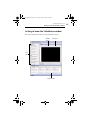
Contacting Roxio
Log in to our Customer Web portal to submit a request for assistance or to
find support contact information for your location. You can find the
customer Web portal at http://selfserve.roxio.com.
C9_UserGuide.book Page 43 Tuesday, August 29, 2006 3:26 PM
43
Importing media files
In this chapter
Welcome to Media Import
44
Starting Media Import
45
Getting to know the Media Import window
46
Overview of importing media files
48
C9_UserGuide.book Page 44 Tuesday, August 29, 2006 3:26 PM
44
Roxio Easy Media Creator User Guide
www.roxio.com
Welcome to Media Import
Using Media Import, you can copy or record all types of media formats to
your computer—including digital photos, video, audio, and DVD movie
titles—with one easy-to-use interface.
Once you have transferred your media files to your computer, you can use
them in any other Roxio digital media component, such as PhotoSuite,
MyDVD, or VideoWave, to edit and enhance your favorite music, photos
and videos.
Media Import allows you to copy or record from wide range of media
storage devices (such as digital cameras, scanners, and CD or DVD discs),
and source devices (such as VCRs, web cameras, and microphones).
Using Media Import, you can:
■
Import photos
You can transfer photos from digital cameras and scanners, CD and
DVD data discs, and other removable media storage devices. Media
Import supports both Windows Image Acquisition (WIA) and
TWAIN protocols.
■
Import video
You can copy video (live and saved video footage, as well as
unencrypted movie titles) from digital video (DV), high definition
(HD), digital, and web cameras, video equipment (such as VCRs or
TV tuners) attached to your computer, and DVDs.
■
Import audio
You can copy music tracks from audio CDs or save recordings from an
audio input device, such as a microphone.
For information about recording analog audio, see Recording and
editing audio files on page 201.
Note This chapter provides an overview of the import process,
using photos as an example. For detailed information about how
to use all of the features of Media Import, see the Media Import
Help Center.
C9_UserGuide.book Page 45 Tuesday, August 29, 2006 3:26 PM
Importing media files
Starting Media Import
Starting Media Import
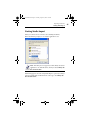
When you connect a device or insert a disc containing media files,
Microsoft Windows prompts you to select the application to use:
Note This dialog does not appear if you have already selected an
application to use with this device, and if you selected Always do
the selected action.
If this dialog appears, select the “using Media Import” option. If you always
want to use Media Import with this device or disc type, select Always do
the selected action.
45
C9_UserGuide.book Page 46 Tuesday, August 29, 2006 3:26 PM
46
Roxio Easy Media Creator User Guide
www.roxio.com
Getting to know the Media Import window
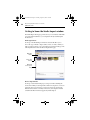
The Media Import Home page provides an easy-to-use interface with which
you can transfer media files to your computer from any attached digital
media devices.
Media type buttons
At the top of the Media Import window are buttons that allow you to
choose the type of media to import (Photo, Video, or Audio). When you
click one of these buttons, you see the Home page for that media type. The
following illustration shows the Photo Import Home page.
Media Type
buttons
Device dropdown list
Media- and
device-specific
dialog
Device drop-down list
At the top of each media Home page is a drop-down list containing the
devices from which you can import files. With some exceptions (see Devices
appearing when no external device is connected on page 47), the list only
includes devices that are currently connected to your computer and that
contain media files in formats supported by Media Import.
C9_UserGuide.book Page 47 Tuesday, August 29, 2006 3:26 PM
Importing media files
Getting to know the Media Import window
Media- and device-specific dialog
When you select a device from the drop-down list, the left side of the Media
Import window shows a dialog specific to that device type. (The preceding
illustration shows a dialog to import photos from a CD.)
Import Bin
The Import Bin (not shown) is on the right side of the Media Import
window. It contains files imported in this session (that is, since you started
the component).
Devices appearing when no external device is
connected
The Device drop-down list always contains entries for the following
devices, even if no external media device is connected.
■
audio capture card: If a sound card is installed on your computer, the
sound card appears in the Device list on the Audio Home page. Media
Import cannot tell whether an audio capture device is connected to the
sound card.
■
video capture card: If a video capture card is installed on your
computer, the video capture card appears in the Device list on the
Video Home page. Media Import cannot tell whether an analog video
device (such as a VCR or TV tuner) is connected to the video capture
card.
■
TWAIN devices: If a TWAIN device is installed on your computer,
the Device list includes the device, even if the device is not connected.
47
C9_UserGuide.book Page 48 Tuesday, August 29, 2006 3:26 PM
48
Roxio Easy Media Creator User Guide
www.roxio.com
Overview of importing media files
This section gives an overview of the import process, using photos or video
files on a digital camera as an example. The procedures for importing
different types of media files from other sources are similar, but may not be
exactly the same as the procedure given in this chapter. For more
information about importing media files from these other devices, see the
Media Import Help Center.
Importing photos or video files from a digital camera
(WIA)
Use this procedure to import photos using a WIA interface. If your digital
camera supports a movie or video feature, you can also use this procedure
to import video files.
Note Digital cameras store video using common video file
formats, such as MPEG or MOV.
To import photos from a camera (WIA):
1
Connect the camera to your computer following the instructions that
came with the camera.
Note If you have not already chosen an application to use with
the camera, you are prompted to do so. Select Media Import and
click OK.
If Media Import is open on your computer, continue with the next
step.
If Media Import is not open, it opens and the Photo Import Home
page appears. Skip to Step 4.
2
On the Media Import Home page, click Photo.
3
On the Photo Import Home page, in the Device drop-down list, select
your camera.
C9_UserGuide.book Page 49 Tuesday, August 29, 2006 3:26 PM
Importing media files
Overview of importing media files
Tip: If your camera supports both the WIA and TWAIN interfaces,
the Device list contains an entry for each interface. Hover the mouse
over the entries to identify the one for the WIA interface.
4
Select the digital media files to import. To select or deselect individual
files, press and hold Ctrl while you click the files.
Note For some types of video camera, photos and videos are
stored in different folders. You can only import photos or videos
from one folder at a time. If your camera stores photos and
videos in multiple folders, you must import the photos or video
from each folder separately.
5
Select the check box for each location in which you want to save the
media files.
6
In the Rename files text box, enter a name for the selected files.
Media Import uses the text entered in this box as the beginning of the
file name for each imported media file. For example, if you are
importing multiple photos and enter “PhotoDec15,” the imported files
are named “PhotoDec15 00000,” “PhotoDec15 00001,” and so on.
7
Optional: Select the Delete files from device after transfer check
box to delete the photos from the camera after the import process is
complete.
8
To burn the files to disc after importing them, select Burn to disc.
9
Click Import Now.
Media Import imports the digital media files to the selected folder.
Note This chapter provides an overview of Media Import and
the import process, using photos as an example. For detailed
information about how to use all of the features of Media Import,
see the Media Import Help Center.
49
C9_UserGuide.book Page 50 Tuesday, August 29, 2006 3:26 PM
50
Roxio Easy Media Creator User Guide
www.roxio.com
C9_UserGuide.book Page 51 Tuesday, August 29, 2006 3:26 PM
51
Managing your media files
In this chapter
About Media Manager
52
Getting to know the Media Manager window
53
Watching for new media files
54
Overview of organizing media files
54
Working with My Media
55
Working with folders
62
Searching for media files
65
C9_UserGuide.book Page 52 Tuesday, August 29, 2006 3:26 PM
52
Roxio Easy Media Creator User Guide
www.roxio.com
About Media Manager
Your media files—photos, video clips, music tracks, and Roxio projects—
come from many different sources, and can be stored in various locations
on your computer. They can also be stored on network drives, on
removable storage devices, such as CD or DVD discs, or on compatible
wireless devices, such as cell phones.
You can use Media Manager to:
■
Browse through and organize your photos, video clips, music tracks,
and Roxio projects.
■
Preview, rename and delete your media files, as well as assign keywords
and ratings.
■
Find media files quickly and easily by searching on file names,
keywords, comments, or file type.
■
Make minor touchups to photos, extract images and audio from
videos, and create slideshows and panoramas. You can also open your
media files in other Roxio components to add them to projects or
make more extensive changes.
■
Burn media files to a CD or DVD for safekeeping, or to make space
available on your hard disk.
■
Share your media files with friends and family.
For detailed information about the ways you can share media files, see
Printing and sharing media files on page 67.
Note This chapter provides information about just a few of the
most common Media Manager-related tasks. For more detailed
information about all of the features available in Media Manager,
see the Media Manager Help Center.
C9_UserGuide.book Page 53 Tuesday, August 29, 2006 3:26 PM
Managing your media files
Getting to know the Media Manager window
Getting to know the Media Manager
window
The Media Manager window provides an easy-to-use interface from which
you can organize your media files.
The following illustration identifies the parts of the window that are
common across all views.
My Media tab
Folders tab
My MediaSpace tab
My Devices tab
Task Bar
Options Bar
53
C9_UserGuide.book Page 54 Tuesday, August 29, 2006 3:26 PM
54
Roxio Easy Media Creator User Guide
www.roxio.com
Watching for new media files
Media Manager can automatically monitor your computer for new media
files. You can choose the folders to be monitored, and you can stop and
start monitoring (monitoring automatically starts after you install Media
Manager).
To open the Watched Folder Settings dialog box:
■
Choose Tools > Select Watched Folders.
The Watched Folder Settings dialog box appears.
Overview of organizing media files
Media Manager offers the following views to help you easily access and
organize the media files on your computer and connected devices:
■
My Media
This view shows your Smart Views and albums. For more information
on using the My Media view, see Working with My Media on page 55.
■
Folders
Your files are organized into folders for easy access. The Folders view
shows you the media files stored in Windows folders on your
computer storage devices, including the hard disk and removable
storage devices such as CD or DVD discs.
For more information, see Working with folders on page 62.
■
My MediaSpace
Media Manager enables you to view and share your digital media with
other computers on your home network, provided that the computers
on your home network support the Universal Plug and Play (UPnP)
networking technology.
■
My Devices
Using Media Manager, you can view digital media on compatible
wireless devices, such as cell phones. The My Devices view shows you
all detected devices, and allows you to browse the media files on these
devices.
C9_UserGuide.book Page 55 Tuesday, August 29, 2006 3:26 PM
Managing your media files
Working with My Media
For more information, see Sharing media files with wireless devices on
page 74.
Working with My Media
The My Media view shows your Smart Views and albums.
Smart Views are media file groupings automatically created and maintained
by Media Manager, based on common characteristics such as media type,
date, or keyword. You can also create Smart Views from your search queries,
or from existing Smart Views.
Albums are media file groupings that you create and manage yourself. You
can use albums to group media files from vacations, events, or special
occasions. If you’ve already organized your photos and videos into folders,
Media Manager automatically creates an album for each folder. When you
add a photo or video to one of these folders, Media Manager automatically
adds it to your album.
A single media file can be included in multiple Smart Views and albums.
Moving media files from one album or Smart View to another does not
affect the files’ physical location on the disk. When you remove media files
from Smart Views or albums, the media files are not physically deleted from
your disk.
You can remove a media file from a Smart View, which removes the file
from all other Smart Views to which it belongs. (The files are not removed
from the Windows file system.)
You can also rename files within a Smart View, which renames the file in all
other views to which it belongs, as well as in the Windows file system.
You cannot delete, rename, or move Smart Views.
55
C9_UserGuide.book Page 56 Tuesday, August 29, 2006 3:26 PM
56
Roxio Easy Media Creator User Guide
www.roxio.com
Note Media Manager cannot find files that are renamed, moved,
or deleted within Windows Explorer. If you disconnect or remove
a storage device, such as a CD or DVD disc, files on the device
will not be found.
For information on locating missing files, see the Media Manager
Help Center.
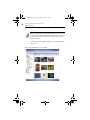
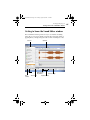
This is what the My Media view looks like:
C9_UserGuide.book Page 57 Tuesday, August 29, 2006 3:26 PM
Managing your media files
Working with My Media
Browsing My Media
In the My Media view, you can browse the following groupings:
All Media
This Smart View shows you all media files detected by Media Manager. Use
this view to search for files if you are not sure which views they belong to, or
if you want to browse all of your media files.
All Music
This Smart View allows you to browse your audio files quickly and easily. It
contains views common to all media types, such as date, keyword, rating,
and backup status, as well as music-specific views, such as album, artist,
and genre. In addition, a Not Protected view shows the music files that do
not have Digital Rights Management (DRM) restrictions.
All Photos
This Smart View allows you to browse your photos. Photos are further
grouped by date, keyword, and rating, and you can see which photos have
been recently imported or used, or have not yet been backed up.
All Projects
This Smart View allows you to browse your Roxio projects. Projects are
further grouped based on the Roxio component used to create them. The
Smart View contains views for recently used and imported project files.
All Videos
This Smart View allows you to browse your video files. It provides views for
recently used and imported video files, and organizes your videos by
format. In addition, a Not Protected view shows the video files that do not
have Digital Rights Management (DRM) restrictions.
My Views
This Smart View contains your custom Smart Views (for example, Smart
Views created from search queries). For example, you can save photos
assigned the keyword “Birthday” as a custom Smart View named “Birthday
Pics”.
57
C9_UserGuide.book Page 58 Tuesday, August 29, 2006 3:26 PM
58
Roxio Easy Media Creator User Guide
www.roxio.com
My Albums
This grouping stores albums created automatically by Media Manager
(based on Windows folders), as well as any albums you created yourself.
Creating new albums
You can create a new album in one of the following ways:
■
Create a new, empty, album.
■
Use the Albums button to select files, create an album, and add the
selected files to the new album, all in one step.
■
Drag files from Windows Explorer into a new album.
You can also create a new album based on search results.
To create a new, empty, album:
1
On the Task Bar, click Albums, and choose New Album.
A new album appears, with the default name, “New Album,” selected.
2
Type a new name for the album, and then press Enter.
To create a new album for selected files with the Albums button:
1
Select the files you want to put into the new album.
2
On the Task Bar, click Albums, and choose Add selection to new
Album.
Media Manager prompts for the name of the new album.
3
Type the album name and click Yes.
Media Manager creates a new album, and adds the selected files to it.
To create a new album for files dragged from Windows Explorer:
1
In Windows Explorer, browse to and select the files you want to put
into the new album.
2
On the Task Bar, click Split View.
3
In the Browse area at the bottom of the window, click My Media.
4
Select either All Albums or My Albums.
C9_UserGuide.book Page 59 Tuesday, August 29, 2006 3:26 PM
Managing your media files
Working with My Media
5
Drag the files into the Browse area in the bottom of the window.
Media Manager prompts for the name of the new album.
6
Type the album name and click Yes.
Media Manager creates a new album, and adds the selected files to it.
Adding media files to albums
You can add media files to albums in several different ways.
To add media files to an existing album using the Albums button:
1
Select the media files you want to add to an album.
2
On the Task Bar, click Albums and choose Add selection to Album.
3
Browse to the album to which you want to add the files, and click OK.
To add media files to a new album using the Albums button:
1
Select the media files you want to add to an album.
2
On the Task Bar, click Albums and choose Add selection to new
Album.
Media Manager prompts for the name of the new album.
3
Type the name of the new album, and click Yes.
To add media files to an album using the Split View:
1
On the Task Bar, click Split View.
A new pane opens at the bottom of the window, showing the My
Media view.
2
In the bottom part of the window, browse to the album to which you
want to add files.
3
In the top part of the window, browse to and select the files you want
to add to the album.
4
Drag the files to the bottom right pane to add them to the album.
5
Repeat Step 3 and Step 4 until you are finished adding files to the
album.
59
C9_UserGuide.book Page 60 Tuesday, August 29, 2006 3:26 PM
60
Roxio Easy Media Creator User Guide
www.roxio.com
To add media files to albums using Windows Explorer:
1
If you are not in the My Media view, in the Browse area, click My
Media.
2
In the Browse area, select the album to which you want to add media
files.
3
Open Windows Explorer, and position Windows Explorer and Media
Manager windows so you can see them both.
4
In Windows Explorer, select the media files you want to add to the
album.
Tip: To select more than one file at a time, press and hold Ctrl while
you select the media files or folders.
5
Drag the files and folders into the album in Media Manager and
release the mouse button.
The files are added to the album.
Moving or copying media files from one album to
another
Follow this procedure to move or copy media files between albums. You can
copy or move an entire album and its contents into another album.
When you copy or move a media file to an album, Media Manager does not
actually create another copy of the file on your computer system, and the
location of the file on your computer does not change. However, the file is
referenced by a new album.
To move or copy media files between albums:
1
If you are not in the My Media view, in the Browse area, click My
Media.
2
In the Browse area, click the album containing the albums or media
files you want to move or copy.
3
Select the media files or albums that you want to move or copy.
Tip: To select more than one file at a time, press and hold Ctrl while
you select the files.
C9_UserGuide.book Page 61 Tuesday, August 29, 2006 3:26 PM
Managing your media files
Working with My Media
4
To copy the media files to the clipboard, right-click and choose Copy.
5
In the Browse area, select the album to which you want to move or
copy the media files.
6
In the album, right-click and choose Paste.
To move the media files to the clipboard, right-click and choose Cut.
Setting the thumbnail for an album
Follow this procedure to use a photo or video file thumbnail as the
thumbnail for an album.
To select the photo or video file to be used as the thumbnail for an
album:
1
If you are not in the My Media view, in the Browse area, click My
Media.
2
In the Browse area, click the album containing the photo or video file
you want to use as a thumbnail.
3
Right-click the photo or video file, and choose Set As Album
Thumbnail.
61
C9_UserGuide.book Page 62 Tuesday, August 29, 2006 3:26 PM
62
Roxio Easy Media Creator User Guide
www.roxio.com
Working with folders
The Folders view in Media Manager is similar to Windows Explorer, except
that you only see media files supported by Roxio products.
In the Folders view, you can browse the contents of the folders on your
computer, and drag and drop media files between folders. You can also
create folders, and rename or delete folders or the files within them.
This is how the folders are displayed in the Folders view:
Creating new folders
To create a new folder:
1
If you are not in the Folders view, in the Browse area, click Folders.
2
In the Browse area, browse to the folder in which you want to create
the new folder.
For example, to create a new folder inside the My Pictures folder, select
My Pictures.
C9_UserGuide.book Page 63 Tuesday, August 29, 2006 3:26 PM
Managing your media files
Working with folders
3
In the Browse area, click Create a New Folder.
A new folder appears, with the default name, “New Folder,” selected.
4
Type a new name for the folder, and then press Enter.
Viewing media files in a preview window
Follow this procedure to view your photos, listen to your sound tracks, or
watch your videos. You can preview media files in any of the views, as well
as in the Search Results area.
When previewing photos, you can browse through the files using the
Previous and Next buttons.
Note In the Preview window, you can quickly fix and enhance
your photo, video, and audio files. For more information, in the
Preview window, click Help.
When previewing video files, you can view them in place, or you can open a
larger preview window.
To preview photos:
■
Select a photo file and, on the Task Bar, click Preview Selected
Item(s).
To preview a video, choose one of these methods:
■
To preview the video in place, on the video thumbnail, click Play.
■
To preview the video in a larger window, double-click the video
thumbnail.
A video Preview window opens. In this window, you can use the
playback controls, or use the slider to move the playback cursor to the
desired location in the video file.
63
C9_UserGuide.book Page 64 Tuesday, August 29, 2006 3:26 PM
64
Roxio Easy Media Creator User Guide
www.roxio.com
You can also extract images or audio and detect scenes. For more
information, see the Media Manager Help Center.
To preview an audio file, choose one of these methods:
■
On the audio thumbnail, click Play.
■
Double-click the audio thumbnail.
An audio Preview window opens. From this window, you can use the
playback controls (Go to Start, Rewind, Play/Pause, Fast Forward, and
Go To End. You can also use the slider to move the playback cursor to
the desired location in the audio file.
Viewing media files in QuickShows
A QuickShow displays a view of all the selected media files, one after the
other. Each photo displays in turn for five seconds. You can change the
display time by selecting Tools > Options, and changing the QuickShow
settings. Press the Help button on the Options dialog box for information
on setting the QuickShow options.
If the collection contains audio or video files, each file plays one after the
other.
To view a QuickShow:
1
In the Browse area, select the view containing the items you want to
view as a QuickShow.
2
Select the media files you wish to view as a QuickShow.
3
On the Task Bar, click QuickShow.
The QuickShow window opens in full screen mode and the media files
play in order.
4
To rotate a photo in the QuickShow, follow these steps:
a
Move or click the mouse.
The QuickShow toolbar appears.
b
Click Rotate Counter Clockwise or Rotate Clockwise.
C9_UserGuide.book Page 65 Tuesday, August 29, 2006 3:26 PM
Managing your media files
Searching for media files
Searching for media files
Use the simple search to find all media files with a specific word in their file
name, keywords, or comments. When you do a simple search, Media
Manager searches through all Smart Views and albums, and finds media
files of all types.
For example, if you search for the word “birthday,” Media Manager finds
media files with:
■
Keywords: “birthday,” “Mom’s birthday,” and “Grandad’s birthday”
■
Comments: “Cutting the birthday cake” and “Grandad is surprised at
his birthday party”
■
File names: Birthday050511.jpg, HappyBirthday.wav,
Birthday050625.mpg
To perform a simple search:
■
Enter the word you want to search for into the Search text box on the
Options Bar and press Enter.
For information about performing an advanced search, see the Media
Manager Help Center.
Note This chapter provides information about just a few of the
most common Media Manager-related tasks. For more detailed
information about all of the features available in Media Manager,
see the Media Manager Help Center.
65
C9_UserGuide.book Page 66 Tuesday, August 29, 2006 3:26 PM
66
Roxio Easy Media Creator User Guide
www.roxio.com
C9_UserGuide.book Page 67 Tuesday, August 29, 2006 3:26 PM
67
Printing and sharing media
files
In this chapter
Printing photos and projects
68
E-mailing media files
70
Sharing photos using an online photo service
73
Sharing media files with wireless devices
74
Using LiveShare to share photos
76
Using MediaSpace to share media on your home network
83
C9_UserGuide.book Page 68 Tuesday, August 29, 2006 3:26 PM
68
Roxio Easy Media Creator User Guide
www.roxio.com
Printing photos and projects
To print your photos and projects:
1
In PhotoSuite or Media Manger, on the toolbar, click Print.
The Print dialog box opens.
2
If you have more than one printer connected to your computer, select
a printer from the drop-down list.
3
Optional: Click Change Settings to change the printer settings, such
as paper source. For more information about your printer settings, see
the documentation that came with your printer.
4
In the Size drop-down list, select the size of the paper on which you are
printing your project.
5
Set the Orientation to Portrait or Landscape.
6
If you are using Media Manager, select the photos to be printed, by
following these steps:
a
On the top right side of the window, click Add Files.
b
Browse to and select the photo files to add.
Tip: To select more than one photo at a time, press and hold the Ctrl
key while you select the photos.
c
7
Click Add.
In the Layout box, select whether to o print one photo per page,
multiple photos, or thumbnails.
For more information about each of these options, click Help or press
F1 in the Print dialog box.
8
If you are printing multiple pages, you can preview each page. To do
so, click the tabs for the different pages.
9
In the Print drop-down list, identify the pages you want to print.
10 To specify the number of copies, select the number in the Copies box.
11 To print your project, click Print.
C9_UserGuide.book Page 69 Tuesday, August 29, 2006 3:26 PM
Printing and sharing media files
Printing photos and projects
Tips for improving print quality
The following tips may help you improve the print quality of your photos:
■
Select a high print quality in your printer’s settings. When you choose
a high quality print setting, the print output improves, but the print
job takes longer.
■
If you are scanning images, scan at the highest image resolution
available. Refer to your scanner’s documentation for information
about setting the best resolution.
■
Select the highest photographic quality for your digital camera. You
cannot store as many photos on the camera at a time, but the
higher-quality photos will give you better print results.
■
Use color matching, if your printer supports it. The colors on screen
do not always match the printed colors. The color-matching feature
improves consistency between on screen and printed colors.
■
Use photographic quality printer paper. Photos do not print well on
laser printer paper. Choose paper designed for color or photographic
printing so the colors are more vibrant. You can find photographic
paper at your computer supply store or at some camera stores.
Note Some color printers require proprietary paper. Check the
manufacturer’s recommendations.
69
C9_UserGuide.book Page 70 Tuesday, August 29, 2006 3:26 PM
70
Roxio Easy Media Creator User Guide
www.roxio.com
E-mailing media files
You can share your photos and other media files with friends and family by
e-mail.
Using the E-mail Assistant, you can e-mail photos individually, either as an
attachment or in the body of an HTML-formatted e-mail message (if your
e-mail program supports HTML-formatted messages), or you can send
your photos packaged in a slideshow.
To e-mail your files:
1
In PhotoSuite or Media Manager, in the tool bar, click E-mail.
2
To add media files to be e-mailed, follow these steps:
a
Click Add Files.
The Add Files dialog box appears.
b
Browse to and select the files to be added.
Tip: To select more than one media file at a time, press and hold Ctrl
while you select the files.
c
Click Add Files.
C9_UserGuide.book Page 71 Tuesday, August 29, 2006 3:26 PM
Printing and sharing media files
E-mailing media files
3
4
Select the e-mail program you want to use to send the files by choosing
one of the following options:
■
Default e-mail client (Microsoft Outlook): E-mail the files
using your default e-mail program. If you select this option,
choose whether to send the e-mail in HTML format. If you
choose this option, the photos appear in the body of the message,
rather than as attached files.
■
Other (e.g. Yahoo, webmail): Save the files on your hard drive
and e-mail them later using a web mail account.
If you are e-mailing photos, you can choose the format in which they
will be sent. For example, you may want to convert a photo to best fit a
particular screen size, or to reduce the size if you are e-mailing a large
number of photos to someone with a dial-up connection.
Choose one of the following conversion options:
■
Convert photos to JPEG: Sends the photos in JPEG format. You
can choose the size of the converted photos:
■
Small (640): Converts photos so that the largest dimension
(height or width) is 640 pixels. The other dimension is sized
to maintain the current proportions.
■
Medium (800): Converts photos so that the largest
dimension is 800 pixels.
■
Large (1024): Converts photos so that the largest
dimension is 1024 pixels.
■
Original size: Maintains the current size of photos.
■
Make a slideshow: Converts the photos to WMV format.
■
Just send the files with no conversion: Sends the photos
without changing their file format and size.
71
C9_UserGuide.book Page 72 Tuesday, August 29, 2006 3:26 PM
72
Roxio Easy Media Creator User Guide
www.roxio.com
Note Photo conversion options are available only if you have
selected photo files to e-mail.
The conversion does not affect your original files.
5
If you are e-mailing video files, you can optimize their quality by
setting the conversion options.
In the Quality box, choose the desired resolution. The higher the
resolution, the better the picture quality, but the larger the resulting
file.
Note Video conversion options are available only if you have
selected video files to e-mail.
The conversion does not affect your original files.
6
Click OK.
If you chose to use your default e-mail program in Step 3, the
conversion status indicator appears. When the conversion is complete,
an e-mail message appears.
If you chose to use an e-mail program other than your default, the Pick
the location for your e-mail files folder appears. Browse to the location
in which you want to save the converted files, and click OK. The files
are converted and copied to this folder. Use the e-mail program to
attach the files to a message and send them.
7
Complete and send the message. For detailed instructions, refer to the
documentation for your e-mail client.
C9_UserGuide.book Page 73 Tuesday, August 29, 2006 3:26 PM
Printing and sharing media files
Sharing photos using an online photo service
Sharing photos using an online photo
service
Follow this procedure to use an online photo service to post your photo
files to an Internet site from which other people can view the files.
To share photos through an online photo service:
1
In Media Manager or PhotoSuite, choose File > Online Sharing.
2
To add photos to share, follow these steps:
a
Click Add Photos.
The Add Files dialog box appears.
3
b
Browse to and select the photos to share.
c
Click Add files.
To change the folder in which your shared photos will be saved, follow
these steps:
a
Click Browse Sharing Folder.
b
Navigate to the folder you want to use, or click Create Folder to
create a new folder.
c
Click OK.
4
Optional: Select Delete the copies of the photos when I’m done
check box to remove the copies of the photos from the For Sharing
folder after they are uploaded.
5
Click Share Photos.
6
Optional: To see the contents of the For Sharing folder, click View
folder in Windows Explorer.
7
Click Launch Browser to go to the photo sharing web site.
8
Follow the instructions on the web site to post the photos, or to have
them developed by a professional photo finisher.
9
To close the Share Photos dialog box, click OK.
10 To close the Online Sharing window, click OK.
73
C9_UserGuide.book Page 74 Tuesday, August 29, 2006 3:26 PM
74
Roxio Easy Media Creator User Guide
www.roxio.com
Sharing media files with wireless devices
About My Devices
You can use My Devices view in Media Manager to browse media files on
cell phones and other compatible wireless devices. You can also transfer files
between your computer and your wireless device, and vice versa.
Transferring files from your computer to a wireless
device
To transfer files from your computer to a wireless device (such as a
cell phone):
1
Select the media files you want to transfer.
Tip: To select more than one file at a time, press and hold Ctrl while
you select the files.
2
On the Task Bar, click Split View.
A new pane opens at the bottom of the window, showing the My
Media view.
3
In the bottom part of the window, click My Devices to show the My
Devices view.
4
Select the device to which you want to transfer the files.
5
To move the files to the device (deleting them from your computer),
click Move Down. To copy them (keeping them on your computer),
click Copy Down.
The Transfer dialog box appears, showing the progress of the transfer.
When the transfer is complete, the dialog box closes automatically.
Tip: To hide the dialog box, click Close.
C9_UserGuide.book Page 75 Tuesday, August 29, 2006 3:26 PM
Printing and sharing media files
Sharing photos using an online photo service
Transferring files from a wireless device to your
computer
To transfer files from a wireless device (such as a cell phone) to your
computer:
1
If you are not in the My Devices view, in the Browse area, click My
Devices.
2
Select the media files you want to transfer.
Tip: To select more than one file at a time, press and hold Ctrl while
you select the files.
3
On the Task Bar, click Split View.
A new pane opens at the bottom of the window, showing the My
Media view.
4
In the bottom part of the window, browse to the album or folder to
which you want to copy the files.
5
To move the files to the device (deleting them from your computer),
click Move Down. To copy them (keeping them on your computer),
click Copy Down.
The Transfer dialog box appears, showing the progress of the transfer.
When the transfer is complete, the dialog box closes automatically.
Tip: To hide the dialog box, click Close.
75
C9_UserGuide.book Page 76 Tuesday, August 29, 2006 3:26 PM
76
Roxio Easy Media Creator User Guide
www.roxio.com
Using LiveShare to share photos
About LiveShare
You can share photos with selected users outside your home network. For
example, you can create an album containing wedding photos and share it
with your friends. Your friends can view the photos from a computer or an
Internet-enabled mobile device, such as a cell phone.
To use LiveShare, you choose the album you want to share, and invite your
friends to view it. Your friends receive an e-mail with thumbnails of a few of
the shared files, plus a link to a LiveShare on your computer. When they
click the link, they view a web page containing thumbnails of all the shared
files. They can click the thumbnails to view the photos, or even download
them to their PC or HTML-aware cell phone.
For information on how to share media files with users outside your home
network, see the following procedures:
■
Configuring your home network for LiveShare
■
Enabling or disabling sharing
■
Defining the web address for your LiveShares
■
Sharing photos using LiveShare
■
Managing LiveShares
Note Recipients can only view files if LiveShare is running on
your PC and if the PC is connected to the Internet when they try
to access the files.
LiveShare in a corporate environment
The LiveShare peer-to-peer photo sharing service is designed primarily for
use on home, rather than corporate, networks. From a corporate network,
it should be easy to access a LiveShare running on a home PC (although a
few corporate firewalls may prevent this). However, you probably cannot
set up a LiveShare on a PC in a corporate network, as most corporate
networks will not allow peer-to-peer applications.
C9_UserGuide.book Page 77 Tuesday, August 29, 2006 3:26 PM
Printing and sharing media files
Using LiveShare to share photos
Accessing LiveShares with Internet-enabled mobile devices
If your friends have Internet-enabled mobile devices, such as cell phones
with web browsing capability, they can view your LiveShares. On HTMLaware devices (devices that support HTML e-mail), they can access your
LiveShares by clicking the link in the e-mail message. On non-HTML
(WML) devices, they can still see your photos: they just need to enter the
correct address in their web browser. The address (or URL) is
“liveshare.roxio.com/” followed by the link address you define on the
Manage My LiveShares dialog box. For example, if you set the link address
to “Chris_Black”, the address would be “liveshare.roxio.com/Chris_Black.”
For detailed instructions, see Defining the web address for your LiveShares on
page 78.
Configuring your home network for LiveShare
Before you can use LiveShare, you may need to change the configuration of
your home network. See the following sections for more information.
Using LiveShare with a firewall
Many firewall applications, including Windows Firewall in Windows XP,
warn you about peer-to-peer activity and about applications that make use
of the Internet. Following are warning messages that some common firewall
applications might display when you use Media Manager to share media.
Windows Firewall: Media Manager is accepting connections from the
Internet. LiveShare is working normally. Click Unblock, and you will not
see this warning again.
McAfee Internet Security Suite: Media Manager, RoxLiveShare or Roxio
UPnP Renderer are requesting access to the Internet. LiveShare is working
normally. Click Grant Access, and you will not see this warning again.
Norton Internet Security: Media Manager, RoxLiveShare or
RoxUPnPRenderer is attempting to access the Internet. LiveShare is working
normally. Select Permit Always (Recommended), then click OK, and
you will not see this warning again.
Zone Alarm: Media Manager, Roxio LiveShare Service, Roxio UPnP
Renderer or Roxio UPnP Server is trying to act as a server. LiveShare is
working normally. Check Remember this setting, then click Allow, and
you will not see this warning again.
77
C9_UserGuide.book Page 78 Tuesday, August 29, 2006 3:26 PM
78
Roxio Easy Media Creator User Guide
www.roxio.com
Zone Alarm: Media Manager is trying to access the Internet. LiveShare is
working normally. Check Remember this setting, then click Allow, and
you will not see this warning again.
Enabling or disabling sharing
To enable or disable sharing:
1
Choose Tools > Manage My LiveShares.
The Manage My LiveShares dialog box appears.
2
To enable sharing, click Start Sharing.
The button name changes to “Stop Sharing.”
3
To disable sharing, click Stop Sharing.
The button name changes to “Start Sharing.”
4
Click Done to close the dialog box.
Defining the web address for your LiveShares
Friends with mobile devices that are not HTML-aware can access your
LiveShares from a web browser by entering the web address (or URL) for
your LiveShare. Use this procedure to define a web address, and tell your
friends to link to “liveshare.roxio.com/” followed by the link address you
enter here. For example, if you set the link address to “Chris_Black”, the
address would be
liveshare.roxio.com/Chris_Black
To define the web address for your LiveShares:
1
On the Manage My LiveShares dialog box, click Link Address.
2
Type the address you want to use, and click Create.
Tip: The address must be unique, and it must be in valid web address
format. We suggest that you use your name, replacing spaces with
underscores (for example, Chris_Black). If someone else is already
using this address, an error message displays, and you must specify a
different address.
C9_UserGuide.book Page 79 Tuesday, August 29, 2006 3:26 PM
Printing and sharing media files
Using LiveShare to share photos
Sharing photos using LiveShare
Note Recipients can only view files if LiveShare is running on
your PC and if the PC is connected to the Internet when they try
to access the files.
To share photos using LiveShare:
1
Select the album or Smart View you want to share.
2
Optional: To share selected photos, select them on the right side of
the window. (If you do not select individual photos, the whole album
or Smart View will be shared.)
3
On the Task Bar, click Sharing, and choose Share Now Using
LiveShare.
Media Manager prompts you for a LiveShare name and password.
4
Enter a descriptive name for the LiveShare and a password.
Note The only time that your friends will have to enter this
name and password is when they are accessing your LiveShare
from a cell phone that is not HTML-aware.
5
To use your default e-mail program to send the invitation, click Share
Now.
Your default e-mail program opens with thumbnails of a few of your
photos and a link to the web page on your PC where the files can be
viewed.
6
7
To use a web mail program to send the invitation, follow these steps:
a
Click Copy to Clipboard.
b
Open your web mail program and create the e-mail, pasting in
the link to the LiveShare that you copied in Step a.
Complete and send the e-mail message. For instructions, refer to the
documentation for your e-mail program.
79
C9_UserGuide.book Page 80 Tuesday, August 29, 2006 3:26 PM
80
Roxio Easy Media Creator User Guide
www.roxio.com
Managing LiveShares
You can view your LiveShares and delete them, add albums or Smart Views
to them, and set expiration dates for them. You can create new LiveShares,
choose a different template for a LiveShare, invite people to view a
LiveShare, and define or change the password for a LiveShare.
To view your LiveShares:
■
Choose Tools > Manage My LiveShares.
To choose a template for your LiveShares:
1
In the Manage My LiveShares dialog box, select the LiveShare to which
you want to apply a new template.
2
In the Share properties area, click Change.
3
Click the template you want to use, and click OK.
To add a new LiveShare:
1
In the Manage My LiveShares dialog box, click New.
2
Type a descriptive name for the new LiveShare, and press Enter.
The new LiveShare is created and assigned a default password.
3
Optional: To change the password for the new LiveShare, select it and
click Password. Then type the new password and click OK.
Note The only time that your friends will have to enter this
name and password is when they are accessing your LiveShare
from a cell phone that is not HTML-aware.
To add albums or Smart Views to a LiveShare:
1
In the Manage My LiveShares dialog box, select the LiveShare to which
you want to add the album or collection.
2
In the Share properties area, click Add.
3
Browse to the album or Smart View you want to add, and click OK.
C9_UserGuide.book Page 81 Tuesday, August 29, 2006 3:26 PM
Printing and sharing media files
Using LiveShare to share photos
To set an expiration date for a LiveShare:
1
In the Manage My LiveShares dialog box, select the LiveShare to which
you want to assign an expiration date.
2
Click the Never check box to clear it.
3
Enter an expiration date.
To invite users to view a LiveShare:
1
In the Manage My LiveShares dialog box, select the LiveShare you
want to share.
2
Click Invite.
3
To use your default e-mail program to send the invitation, click Send.
Your default e-mail program opens with thumbnails of a few of the
photos and a link to the web page on your PC where the files can be
viewed.
4
5
To use a web mail program to send the invitation, follow these steps:
a
Click Copy to Clipboard.
b
Open your web mail program and create the e-mail, pasting in
the link to the LiveShare that you copied in Step a.
Complete and send the e-mail message. For instructions, refer to the
documentation for your e-mail program.
Note Recipients can only view files if LiveShare is running on
your PC and if the PC is connected to the Internet when they try
to access the files.
To delete a LiveShare:
1
In the Manage My LiveShares dialog box, select the LiveShare you
want to delete.
2
Click Delete.
81
C9_UserGuide.book Page 82 Tuesday, August 29, 2006 3:26 PM
82
Roxio Easy Media Creator User Guide
www.roxio.com
To rename a LiveShare:
1
In the Manage My LiveShares dialog box, select the LiveShare you
want to rename.
2
Click Rename.
3
Type the new name and press Enter.
To define or change the password for a LiveShare
1
In the Manage My LiveShares dialog box, select the LiveShare for
which you want to change the password.
2
Click Password.
3
Type the new password and click OK.
C9_UserGuide.book Page 83 Tuesday, August 29, 2006 3:26 PM
Printing and sharing media files
Using MediaSpace to share media on your home network
Using MediaSpace to share media on your
home network
About MediaSpace
You can easily authorize PCs and other devices on your home network to
view your photos and other media files. Use this feature if you want to:
■
access your media files (view photos or play videos) from a different
computer on your home network
■
allow members of your family to access or download your media files
from their computers.
MediaSpace is implemented using Universal Plug and Play (UPnP)
networking technology. All of the UPnP components required for
MediaSpace are automatically installed with Media Manager.
For information on how to share media files on your home network, see the
following procedures:
■
Configuring your home network for MediaSpace (UPnP)
■
Enabling or disabling home network sharing
■
Granting access to devices on your home network
■
Withdrawing access from devices on your home network
■
Accessing shared files on your home network
MediaSpace (UPnP) in a corporate environment
MediaSpace (UPnP) is designed primarily for use on home networks, and
will allow you to share media between Media Manager running on your PC
and other PCs or devices that are UPnP-compliant.
Note The device or PC which is sharing media must authorize
other devices or PCs to play that media.
In a corporate environment this may work, but only if all devices or PCs are
on the same network subnet. (In a larger office there may be several
different network subnets.)
83
C9_UserGuide.book Page 84 Tuesday, August 29, 2006 3:26 PM
84
Roxio Easy Media Creator User Guide
www.roxio.com
Configuring your home network for MediaSpace (UPnP)
Before you can use the My MediaSpace feature, you may need to change the
configuration of your home network. See the following sections for more
information.
Configuring a router with MediaSpace
To use MediaSpace media-sharing capabilities, your router must be UPnPcompliant, and UPnP must be turned on. (Usually, you configure your
router with the software that came with the router, or through a local
administration web page that you access by typing a specific IP address into
your web browser.) For most routers, UPnP support is turned on by
default.
Using My MediaSpace with a firewall
Many firewall applications warn you about peer-to-peer activity and about
applications that make use of the Internet. Following are warning messages
that some common firewall applications might display when you use Media
Manager to share media.
McAfee Internet Security Suite: Media Manager, RoxLiveShare or Roxio
UPnP Renderer are requesting access to the Internet. MediaSpace is working
normally. Click Grant Access, and you will not see this warning again.
Norton Internet Security: RoxUPnPServer is attempting to listen for
connections from other computers. MediaSpace is working normally. Select
Always allow connections to this program on all ports, then click OK,
and you will not see this warning again.
Norton Internet Security: Media Manager, RoxLiveShare or
RoxUPnPRenderer is attempting to access the Internet. MediaSpace is
working normally. Select Permit Always (Recommended), then click
OK, and you will not see this warning again.
Zone Alarm: Media Manager, Roxio LiveShare Service, Roxio UPnP
Renderer or Roxio UPnP Server is trying to act as a server. MediaSpace is
working normally. Check Remember this setting, then click Allow, and
you will not see this warning again.
C9_UserGuide.book Page 85 Tuesday, August 29, 2006 3:26 PM
Printing and sharing media files
Using MediaSpace to share media on your home network
Zone Alarm: Media Manager wants to accept connections from the trusted
zone. MediaSpace is working normally. Check Remember this setting,
then click Allow, and you will not see this warning again.
Enabling or disabling home network sharing
To enable or disable home networking sharing:
1
On the Task Bar, click Sharing and choose Manage My MediaSpace
(UPnP).
The Manage My MediaSpace dialog box appears:
2
To enable home network sharing, click Start Sharing.
The button name changes to “Stop Sharing.”
3
To disable home network sharing, click Stop Sharing.
The button name changes to “Start Sharing.”
4
Click Done to close the dialog box.
Granting access to devices on your home network
Follow this procedure to give other users on other computers in your home
network access to your files.
To grant access to a device on your home network:
1
On the Task Bar, click Sharing and choose Manage My MediaSpace
(UPnP).
The Manage My MediaSpace dialog box appears:
2
Select a device with which you want to share your files, and click
Authorize.
Repeat this step for each device with which you want to share files.
3
Click Done to close the dialog box.
85
C9_UserGuide.book Page 86 Tuesday, August 29, 2006 3:26 PM
86
Roxio Easy Media Creator User Guide
www.roxio.com
Withdrawing access from devices on your home
network
To withdraw access to your files from a device on your home
network:
1
On the Task Bar, click Sharing and choose Manage My MediaSpace
(UPnP).
The Manage My MediaSpace dialog box appears:
2
Select a device with which you want to share your files, and click
Deauthorize.
Repeat this step for each device from which you want to withdraw
access to your files.
Accessing shared files on your home network
Follow this procedure to access files on other devices on your home
network.
To access files on other devices in your home network:
1
In the Browse area, click My MediaSpace (UPnP) to browse files
stored on your home network.
The Browse area lists the devices connected to your home network to
which you have been given access. If the device you are looking for is
not in the list, make sure that:
2
■
Media Manager is installed on the device.
■
Your PC has been authorized to view media on the device.
Navigate the folders in the Browse area to look for media files.
C9_UserGuide.book Page 87 Tuesday, August 29, 2006 3:26 PM
87
Copying discs using Disc
Copier
In this chapter
About copying discs using Disc Copier
88
What kinds of discs can I copy?
89
Other sources you can copy from
90
Getting to know the Disc Copier window
92
Copying using the Simple view
94
C9_UserGuide.book Page 88 Tuesday, August 29, 2006 3:26 PM
88
Roxio Easy Media Creator User Guide
www.roxio.com
About copying discs using Disc Copier
Disc Copy mode lets you copy an entire disc, disc image file, or DVD-Video
folder. You can burn the contents to a disc, or create a disc image file or
DVD-Video folder on your hard disk.
For a list of the types of discs and files you can copy, see What kinds of discs
can I copy? on page 89 and Other sources you can copy from on page 90.
Can I copy discs using one disc drive?
You can copy a disc using one recorder, or multiple recorders. If you have
only one disc recorder, the contents of the disc are first copied to a
temporary location on your hard disk, and then they are copied to the new
disc.
Note You must have enough free space on your hard disk to
temporarily store the entire contents of your source disc.
What is CD-Text?
When you copy an audio CD, you have the option to include CD-Text. This
is a feature that allows you to store text information such as the disc title,
artist name, and track titles on an audio CD. This information can then be
displayed on audio CD players that support CD-Text information.
Information for most commercial music CDs is available from the Internet
using the Gracenote Media Database. Disc Copier lets you import this
information in the CD-Text dialog box.
Note If the source disc already contains CD-Text information, it
will be imported automatically. If you are adding or changing
CD-Text information, you cannot copy a disc using RAW mode.
For more information, see the Disc Copier Help Center.
C9_UserGuide.book Page 89 Tuesday, August 29, 2006 3:26 PM
Copying discs using Disc Copier
What kinds of discs can I copy?
What kinds of discs can I copy?
The following table shows the types of discs that you can copy and any
other related information.
Type of Disc
Notes
Data CD
The Raw Mode option (available in the Burn Setup dialog
box, under Advanced Options) allows you to copy some
data and audio discs that cannot be copied using a normal
copying process.
For more information, click the Help button in the Burn
dialog box.
Audio CD
The source drive must support digital audio extraction
(the drive is tested to determine its capabilities the first
time a source disc is inserted).
Drag-toDisc
(DirectCD)
■
■
MixedMode CD
■
■
Some CD-ROM drives may not be able to read a disc
made with DirectCD or Drag-to-Disc. If your drive is
MultiRead capable, there should be no problems.
The disc should be closed before you begin copying.
The source drive must support digital audio extraction
(the drive is tested to determine its capabilities the first
time a source disc is inserted).
If your mixed-mode CD cannot be copied, the CD may
be formatted to prevent copying.
Enhanced
CD
The source drive must support digital audio extraction
(the drive is tested to determine its capabilities the first
time a source disc is inserted).
Photo CD
Requires a source drive capable of reading CD-ROM XA.
Most current drives support this.
Video CD
(VCD)
Requires a source drive capable of reading CD-ROM XA.
Most current drives support this.
89
C9_UserGuide.book Page 90 Tuesday, August 29, 2006 3:26 PM
90
Roxio Easy Media Creator User Guide
www.roxio.com
Type of Disc
Notes
Super
Video CD
(SVCD)
Requires a source drive capable of reading CD-ROM XA.
Most current drives support this.
DVD
■
■
Requires DVDs that are not copy protected.
Some drives may not be able to copy DVDs of different
types. For example, a DVD-R drive may not be able to
copy a DVD+R disc.
Other sources you can copy from
In addition to copying discs, you can also select disc image files and DVDVideo folders as your source.
■
Disc image files: A disc image file can contain DVD-Video content or
other kinds of disc content (for example, Audio CD or Video CD
content). Valid disc image files include .iso, .c2d (Roxio proprietary
format), and .cue (BIN/CUE).
■
DVD-Video folders: A DVD-Video folder is a folder on a disc or hard
disk that contains valid DVD-Video source content. This folder can be
burned to a DVD-recordable disc and then viewed on a DVD player.
Note Only folders containing valid DVD-Video source content
can be copied using Disc Copier.
C9_UserGuide.book Page 91 Tuesday, August 29, 2006 3:26 PM
Copying discs using Disc Copier
Other sources you can copy from
The DVD-Video folder source can come from any of the following
sources:
■
A disc containing a “VIDEO_TS” folder which contains valid
DVD-Video source content. The disc cannot be copy-protected.
■
A disc image file containing valid DVD-Video source content.
Valid disc image files include .iso, .c2d (Roxio proprietary
format), and .cue (BIN/CUE).
■
A “VIDEO_TS” folder on your hard disk containing valid
DVD-Video source content.
Note If your DVD-Video source files are greater than 4.7 GB in
size, the files can be compressed so that the final output can fit
onto a standard 4.7 GB DVD-recordable disc. Disc Copier also
supports copying without compression for supported DVD
Double Layer drives.
91
C9_UserGuide.book Page 92 Tuesday, August 29, 2006 3:26 PM
92
Roxio Easy Media Creator User Guide
www.roxio.com
Getting to know the Disc Copier window
Disc Copier has one or two modes of operation—Disc Copy, Video
Compilation, or both. This topic describes Disc Copy mode, which has
both “Simple” and “Advanced” views.
Note This chapter provides information about just a few of the
most common Disc Copier-related tasks. For more detailed
information about all of the features available in Disc Copier, see
the Disc Copier Help Center.
Disc Copy window—Simple view
Disc Copy mode lets you quickly copy an entire disc. Using the Simple view,
you can perform a direct copy of the entire contents of one disc to another.
You can also select a disc image file or DVD-Video folder as the source or
destination format.
Mode selection buttons
Simple/Advanced view button
Destination
area
Copy/Save
As button
Copy Now/Advanced
Copy drop-down
Source area
For more information, see Copying using the Simple view on page 94.
C9_UserGuide.book Page 93 Tuesday, August 29, 2006 3:26 PM
Copying discs using Disc Copier
Getting to know the Disc Copier window
Disc Copy window—Advanced view
Like the Simple view, Disc Copy mode Advanced view is an easy way to
quickly copy a disc, but it also gives you more options. These options
include:
■
Adding CD-Text to an audio CD copy.
■
Selecting the write speed and number of copies to create.
■
Selecting language options for a DVD-Video.
■
Including data content from a DVD-Video source.
Mode selection buttons
Simple/Advanced view
button
Destination Copy/Save As Copy Now/Advanced
Copy drop-down
area
button
CD-Text options (for audio CDs) or
Language Options (for DVDs)
For more information, see the Disc Copier Help Center.
93
C9_UserGuide.book Page 94 Tuesday, August 29, 2006 3:26 PM
94
Roxio Easy Media Creator User Guide
www.roxio.com
Copying using the Simple view
Follow this procedure to copy the entire contents from one disc to another
without selecting any advanced options.
To copy a disc:
1
2
In Disc Copier, click Disc Copy if you are not already in Disc Copy
mode.
Select the source to copy:
■
If you are copying a disc, insert the disc that you want to copy
into your source drive.
In the Source area, select the drive containing the source disc
from the drop-down list. (This may already be selected by
default.)
■
If you are copying a disc image file or DVD-Video folder, select
Browse for Disc Image/DVD-Video Folder from the dropdown list in the Source area, and then use the Media Selector
dialog box to locate the file you want to copy.
For more information about disc image files and DVD-Video
folders, see Other sources you can copy from on page 90.
The contents of the source appear in the Contents area of the Source
area.
3
4
In the Destination area, select one of the following from the dropdown list:
■
the drive containing the destination disc (if you have only one
recorder, the drive is selected by default)
■
Disc Image
■
DVD-Video folder (only available if the source is DVD-Video
content)
Click the Copy/Save As button.
C9_UserGuide.book Page 95 Tuesday, August 29, 2006 3:26 PM
Copying discs using Disc Copier
Copying using the Simple view
Note The Copy/Save As button has two modes—Copy Now to
start burning immediately, and Advanced Copy to launch the
Burn Setup dialog before copying. The Burn Setup dialog lets you
select additional options such as burning to more than one drive.
To select a mode, click the arrow beside the Copy/Save As button,
and then select Copy Now or Advanced Copy.
The Progress Information dialog box appears and displays the
progress. Follow the instructions on the screen. When you are done
recording, the dialog box indicates that the copy is complete.
Note This chapter provides information about just a few of the
most common Disc Copier-related tasks. For more detailed
information about all of the features available in Disc Copier, see
the Disc Copier Help Center.
95
C9_UserGuide.book Page 96 Tuesday, August 29, 2006 3:26 PM
96
Roxio Easy Media Creator User Guide
www.roxio.com
C9_UserGuide.book Page 97 Tuesday, August 29, 2006 3:26 PM
97
Creating video compilations
In this chapter
About creating video compilations
98
Creating a video compilation
102
Creating a video compilation for a portable player
106
Saving compilations
108
C9_UserGuide.book Page 98 Tuesday, August 29, 2006 3:26 PM
98
Roxio Easy Media Creator User Guide
www.roxio.com
About creating video compilations
A video compilation is a collection of movies (“titles”) from different
sources. You can mix and match video files to create movies in a wide range
of formats including DVD-Video, DivX, and WMV. You can even reformat
movies so you can watch them on your video iPod®, PSP™, or video cell
phone.
Disc Copier gives you the option to trim the beginning and end points of
the movies, add a menu, and select a background style to give your video
compilation a professional look. DivX and DVD projects can be
automatically compressed to fit on a single disc or memory card.
Note Using Disc Copier, your DVD-Video or DivX compilation
will either have a single menu or no menu at all if you choose not
to add one. Also note that to play back DivX files with menus,
your player must support this feature.
C9_UserGuide.book Page 99 Tuesday, August 29, 2006 3:26 PM
Creating video compilations
The Disc Copier window: Video Compilation mode
The Disc Copier window: Video
Compilation mode
Video Compilation mode lets you compile movies from multiple sources
for playback on the device of your choice. The illustration below shows the
Disc Copier window in Video Compilation mode.
Mode selection buttons
Movies added to
the compilation
Output size
Destination area Burn or Save As button
Project size/number of
discs needed
Main menu
preview
For more information, see Creating video compilations on page 97.
Note Versions of Disc Copier with a single copying mode do not
have mode selection buttons.
99
C9_UserGuide.book Page 100 Tuesday, August 29, 2006 3:26 PM
100
Roxio Easy Media Creator User Guide
www.roxio.com
Supported video formats
The table below lists the types of video files that can be included in a
compilation and the supported output formats (The files supported by
your version of the product may differ from those listed here):
Supported input formats
Supported output formats
■
DVD-Video
■
DVD-Video
■
WMV (Windows Media Video,
standard and HD)
■
WMV (including HD if the
source is HD)
■
DivX, including HD DivX and
DMF — DivX Media Format.
(Menus will not be imported
with DMF files)
■
DivX (including DivX with
menus)
■
DVR-MS (DVR recorded by
Windows XP Media Center)
■
3GP
■
MPEG-4
■
3G2
MPEG2
■
H.264
■
■
MP4 (Part 2)
■
MP4 (Part 2)
■
DV-AVI
■
MPEG-4
■
3GP (video format for mobile
phones)
■
.TS (transport streams,
including ATSC and DVB
streams and HD)
■
TiVo
■
MOV (requires QuickTime)
C9_UserGuide.book Page 101 Tuesday, August 29, 2006 3:26 PM
Creating video compilations
Supported video formats
Notes about source files:
Consider the following information as you select source files for your
compilation:
■
You can only select individual movie titles from a DVD-Video disc,
not the full DVD with original menus and navigation. The content of
the disc cannot be copy protected.
■
A DVD-Video folder is a folder on a disc or hard disk that contains
valid DVD-Video source content. This folder can be burned to a
DVD-recordable disc and then viewed on a DVD player.
The DVD-Video folder source can come from any of the following
sources:
■
■
A disc containing a “VIDEO_TS” folder which contains valid
DVD-Video source content. The disc cannot be copy-protected.
■
A disc image file containing valid DVD-Video source content.
Valid disc image files include .iso, .c2d (Roxio proprietary
format), and .cue (BIN/CUE).
Valid disc image files include .iso, .c2d (Roxio proprietary format),
and .cue (BIN/CUE).
Notes about Output formats
Consider the following information as you select an output format for your
compilation:
■
The 3GP format is designed for playback on video cell phones.
However, some phones have a very limited storage capacity. Before
creating compilations for playback on a cell phone, consult the phone’s
owner’s manual to determine the maximum size of the video files it
can hold.
■
The Format drop-down list includes a set of format names and specific
device names. If you device is listed, choose it from the list. If your
device is not listed, choose a format supported by your device.
101
C9_UserGuide.book Page 102 Tuesday, August 29, 2006 3:26 PM
102
Roxio Easy Media Creator User Guide
www.roxio.com
Creating a video compilation
Creating a video compilation consists of the following basic steps:
■
Adding and editing movies
■
Selecting or customizing a menu style
■
Selecting an output format and a destination
■
Completing your compilation
Adding and editing movies
To add and edit movies:
1
Click the Video Compilation button, if necessary.
Note Versions of Disc Copier with a single copying mode do not
have mode selection buttons.
Rename Movie, Delete, Preview/Trim
Movie, Up and Down
Format and Output to
options
Add Movies
Language
Options
Select Menu Style
C9_UserGuide.book Page 103 Tuesday, August 29, 2006 3:26 PM
Creating video compilations
Creating a video compilation
2
Click Add Movies.
3
Select the movies that you want to include in the compilation.
Note In Video Compilation mode, you can only select
individual movie titles, not the full DVD with original menus and
navigation.
To select more than one movie at a time, hold the Ctrl key while you
select the movies.
As you add movies, thumbnails representing each movie appear in the
Source area.
4
Click the Up and Down arrow buttons to change the order of the
movies in the compilation. To remove a movie, click the Delete
button.
5
Click the Rename Movie button to rename any movie in your
compilation.
6
Optional: To select whether to include subtitles, and to select the
audio and subtitle languages to include, click Language Options.
Note Language options are only available for DVD-Video source
movies.
Note Only DVD-Video output supports multiple languages. If
you choose a video file as your output format, you must select
one language.
For more information, click Help in the Language Options dialog box.
7
Optional: To trim the start or end points of the movie, select a
thumbnail image, or select angles to copy (if angles are available),
double-click the movie, or click the Preview/Trim Movie button.
103
C9_UserGuide.book Page 104 Tuesday, August 29, 2006 3:26 PM
104
Roxio Easy Media Creator User Guide
www.roxio.com
For more information, click Help in the Preview/Trim Movie dialog
box.
Selecting or customizing a menu style
Disc Copier comes with a set of professionally designed menu styles that
you can adapt for your projects. Each style includes attractive background
images, titles, and buttons. These elements are referred to as Smart Objects
in Disc Copier. You can modify any of these styles, use them as designed, or
create your own.
Note If you do not choose to create a menu, the movies will play
sequentially when you insert the disc into a DVD player.
Menus can only be created in Disc Copier if the output format is
DVD-Video or DivX. If your DivX player does not support
menus, the movies will play sequentially without a menu.
C9_UserGuide.book Page 105 Tuesday, August 29, 2006 3:26 PM
Creating video compilations
Creating a video compilation
To create a menu:
1
Click Options, and then select Create a Main Menu.
2
Click OK to close the dialog.
3
To select a menu style, click Select Style.
The Style dialog opens.
The Style tab contains the styles that were supplied with Disc Copier
and any custom styles that you have saved. The Smart Objects tab
contains tools you can use to modify an existing style or create a new
one. For more information on creating menu styles, click the Help
button on the Style dialog.
4
Once you have selected or created a style. click OK. Save the style if
asked to do so.
Selecting an output format and a destination
1
In the Destination area, from the Format drop-down list, select one of
the available formats.
2
For Output to, select one of the following options:
■
Disc/Disc Image
■
File/Folder
■
Portable Device/Media
3
Optional: Click Options to select options such as whether to use
more than one disc if necessary.
4
Use the Size drop-down menu to select the type of disc or the output
device you are planning to use. If your device or media is not listed,
select Custom. Then use the Custom Output Size dialog to match the
output size to the capacity of your device or media.
5
Click OK to close the dialog.
6
The Content Quality indicator is updated to reflect the new output
size. If the quality drops too low, consider removing one or more
movies from your compilation or choose a different output
destination.
105
C9_UserGuide.book Page 106 Tuesday, August 29, 2006 3:26 PM
106
Roxio Easy Media Creator User Guide
www.roxio.com
Note The Portable Device/Media option becomes active when a
supported device or media is connected to your computer. This
option allows you to transfer a compilation directly to the device.
If your device is not supported, choose File/Folder to save the
compilation to your hard disc. You can then transfer the
compilation using the standard methods for your device.
For more information, click the Help button in the Options dialog box.
Completing your compilation
To complete your compilation, click the Burn/Save As/Copy button.
■
In Burn mode, the Burn Setup dialog appears. Select burn options,
such as the recorder(s) to burn to or to create a disc image file, then
click OK.
■
In Save As mode, the Save As dialog appears. Use it to select a
destination for your compilation, then click Save.
■
In Copy mode, a series of dialog boxes take you through the steps to
convert and copy your compilation to a portable player or media.
Creating a video compilation for a portable
player
Video compilations can be converted into files that you can play on
portable video players such as the Apple® iPod® (with video playback) and
Sony PSP™. Disc Copier can save the converted files on your hard disk,
transfer them to your music player, or both.
To create a video compilation for playback on a portable player:
1
Connect your portable player to your computer with a suitable USB
cable.
2
Follow the steps described in Creating a video compilation on page 102
to set up your compilation.
3
In the video compilation Destination area, select a portable player
from the Format drop-down menu.
C9_UserGuide.book Page 107 Tuesday, August 29, 2006 3:26 PM
Creating video compilations
Creating a video compilation for a portable player
Look at the choices in the Output to list. If Portable Device/Media is
available, you have the option of saving the compilation directly to
your portable device or media as described in Step 5.
4
5
To save the file on your hard disk, choose File/Folder from the Output
to list and follow these steps:
a
Click the Save As button.
b
Use the Select Folder dialog to select a destination for your file.
c
Click the OK button.
To transfer the file directly to your music player or media, choose
Portable Device/Media from the Output to list and follow these
steps:
a
Click the Copy button. The Select Copy Destination dialog
appears.
b
For PSP™ conversions: Select a PSP™, if you have more than one,
and click the OK button. If you disconnected your player from
your computer, you will be asked to reconnect it so the file can be
transferred.
For iPod® conversions: Select a destination for the file by
selecting an existing playlist or creating a new one, and click the
OK button.
Note If you choose Portable Device/Media when the Always
save copies to hard drive option is selected, your compilation
will be saved to your hard disk and to your portable player. Select
Tools > Options to open the General Options dialog.
If you disconnect your player or memory card from your
computer while a file is being transferred, the copy process will be
aborted and you will have to start over.
107
C9_UserGuide.book Page 108 Tuesday, August 29, 2006 3:26 PM
108
Roxio Easy Media Creator User Guide
www.roxio.com
Saving compilations
To save a compilation project:
1
Choose File > Save Compilation (or File > Save Compilation As).
2
Enter a name and select a location in which to save the compilation.
3
Click Save.
Note File > Save Compilation (or File > Save Compilation
As) saves your project and all of its settings as a file that can be
opened with Disc Copier. Don’t confuse this menu item with the
Save As button, which is used to convert a project into a video
file or folder.
C9_UserGuide.book Page 109 Tuesday, August 29, 2006 3:26 PM
109
Creating discs using
Drag-to-Disc
In this chapter
Welcome to Drag-to-Disc
110
Making your first disc with Drag-to-Disc
110
Starting Drag-to-Disc
111
Getting to know Drag-to-Disc
112
Switching between application and icon views
113
Hiding Drag-to-Disc
114
C9_UserGuide.book Page 110 Tuesday, August 29, 2006 3:26 PM
110
Roxio Easy Media Creator User Guide
www.roxio.com
Welcome to Drag-to-Disc
Drag-to-Disc lets you back up your data to a recordable CD, DVD, or Bluray Disc (BD) just as you might do with a floppy disk. Drag-to-Disc lets you
add files to your disc just by dragging them to the Drag-to-Disc application.
You can also use standard Windows Explorer functions (including dragand-drop and cut and paste) to write to discs with Drag-to-Disc.
Note This chapter provides information about just a few of the
most common Drag-to-Disc-related tasks. For more detailed
information about all of the features available in Drag-to-Disc,
see the Drag-to-Disc Help Center.
Making your first disc with Drag-to-Disc
Backing up your files with Drag-to-Disc is a simple three-step process:
1
Insert the disc into your recorder.
2
Add files to the disc with Drag-to-Disc. You can add as many files
to a disc as the disc will hold. You can also overwrite files, delete files,
and create folders to organize files. You can do this using the
Drag-to-Disc window or icon, or using Windows Explorer.
For more information, see the Drag-to-Disc Help Center
3
Eject the disc. You can prepare the disc before ejecting it, based on
how you will use the disc after it is ejected. For more information, see
the Drag-to-Disc Help Center.
C9_UserGuide.book Page 111 Tuesday, August 29, 2006 3:26 PM
Creating discs using Drag-to-Disc
Starting Drag-to-Disc
Starting Drag-to-Disc
Once Drag-to-Disc is installed, it automatically starts each time you start
your computer.
Note The Drag-to-Disc icon displayed in the Windows taskbar
means that Drag-to-Disc is running; however, this icon may be
hidden. For more information, see the Drag-to-Disc Help Center.
Drag-to-Disc taskbar icon
Choose one of the following ways to start Drag-to-Disc:
■
From the Windows Start > All Programs menu, locate and select
Drag-to-Disc.
■
From Windows Explorer, right-click the drive letter of your recording
device, and select Drag-to-Disc.
■
From Roxio Home (if installed), click Applications, and then Dragto-Disc.
111
C9_UserGuide.book Page 112 Tuesday, August 29, 2006 3:26 PM
112
Roxio Easy Media Creator User Guide
www.roxio.com
Getting to know Drag-to-Disc
Drag-to-Disc can be displayed in application view (its default window size)
or icon view.
Drag-to-Disc application view
Switch to
icon view
Hide
Menu
Drag files here to add
them to disc, or
double-click here to
view disc contents
View disc contents
Help
Drive letter and
disc name
Eject disc
Drag-to-Disc icon view
Drag files here to add
them to disc, or
double-click here to
view disc contents
Drive letter and
disc name (if
named)
C9_UserGuide.book Page 113 Tuesday, August 29, 2006 3:26 PM
Creating discs using Drag-to-Disc
Switching between application and icon views
Switching between application and icon
views
Drag-to-Disc can be displayed in its normal application view, or it can be
reduced to an icon view that takes up less space on your screen.
To shrink Drag-to-Disc to an icon:
■
In the Drag-to-Disc window, click the Icon View icon (or choose
Icon View from the Drag-to-Disc menu).
Note When in icon view, you can display the Drag-to-Disc
toolbar by moving the mouse over the Drag-to-Disc Icon.
To switch Drag-to-Disc back to application view:
■
In the Drag-to-Disc toolbar, click the Application View icon (or
choose Application View in the Drag-to-Disc menu).
Switch to application view
Drag-to-Disc switches to application view.
113
C9_UserGuide.book Page 114 Tuesday, August 29, 2006 3:26 PM
114
Roxio Easy Media Creator User Guide
www.roxio.com
Hiding Drag-to-Disc
You can hide Drag-to-Disc while keeping it running in the background.
Note When Drag-to-Disc is hidden, you can still copy files to
disc using Drag-to-Disc in Windows Explorer (for more
information, see the Drag-to-Disc Help Center.)
Choose one of the following ways to hide Drag-to-Disc:
■
On the Drag-to-Disc window or toolbar, click the Hide button (or
choose Hide Drag-to-Disc from the Drag-to-Disc menu).
Hide
To show Drag-to-Disc after hiding:
■
In the Windows Taskbar, click the Drag-to-Disc icon (or locate and
select Drag-to-Disc from the Windows Start > All Programs menu).
■
In Windows Explorer, right-click the drive letter of the recorder and
choose Drag-to-Disc.
Note This chapter provides information about just a few of the
most common Drag-to-Disc-related tasks. For more detailed
information about all of the features available in Drag-to-Disc,
see the Drag-to-Disc Help Center.
C9_UserGuide.book Page 115 Tuesday, August 29, 2006 3:26 PM
115
Making discs using Creator
Classic
In this chapter
About Creator Classic
116
Getting to know the Creator Classic window
117
Deciding which type of project to create
118
Starting a new project
119
Adding files and folders to your project
119
Working with files and folders in your project
121
Burning a disc
123
C9_UserGuide.book Page 116 Tuesday, August 29, 2006 3:26 PM
116
Roxio Easy Media Creator User Guide
www.roxio.com
About Creator Classic
Use Creator Classic to archive your important files to CD or DVD, or large
projects to multiple discs. Create multimedia, bootable, and backup discs,
and more.
With Creator Classic, burning a disc is easy to do:
1
Start a Creator Classic project. With Creator Classic, you can create
the following types of projects:
■
Data Disc
■
Multimedia Disc
■
Bootable Disc
Select the type of project you want to create from the Projects or Other
Tasks area.
For more information about each project type, see Deciding which type
of project to create on page 10.
2
Add files, folders, and tracks to the project. You can add files and
folders from your hard disk and other discs to your project.
3
Burn your disc. When you have added and organized all of the files
that you want to record to your project, you are ready to burn your
project to disc.
Note This chapter provides information about just a few of the
most common Creator Classic-related tasks. For more detailed
information about all of the features available in Creator Classic,
see the Creator Classic Help Center.
C9_UserGuide.book Page 117 Tuesday, August 29, 2006 3:26 PM
Making discs using Creator Classic
Getting to know the Creator Classic window
Getting to know the Creator Classic window
The default window that appears whenever you start Creator Classic is an
untitled Data Disc project. The parts of the window that are common
across all project types are identified below.
Source Area
Other Tasks Area
Status Bar
Project Area
117
C9_UserGuide.book Page 118 Tuesday, August 29, 2006 3:26 PM
118
Roxio Easy Media Creator User Guide
www.roxio.com
Deciding which type of project to create
This section lists the types of projects you can create using Creator Classic,
and helps you choose the best project type for your needs.
Tip: Roxio Drag-to-Disc lets you copy data to a disc just as you would
use a floppy disk. For more information, see Creating discs using
Drag-to-Disc on page 109, or the Drag-to-Disc Help Center.
■
Data discs
A data disc is a CD or DVD that contains any computer data. With
Creator Classic, you can make your own data discs by burning files
and folders from your hard disk and other discs.
Select this project type to include any type of data files on the disc.
■
Multimedia discs
A multimedia disc is a CD or DVD that contains media files—photos,
video clips, and audio files. You can add files from your hard disk, or
from other sources such as audio CDs.
Select this type of project when you want to create a disc that contains
photos, audio, and video clips, but not data files.
■
Bootable discs
A bootable disc is a CD or DVD that contains a bootable image, which
is an exact representation of a bootable floppy disk or hard disk. With
Creator Classic, you can make a bootable disc that can be used to start
your system.
Bootable discs are useful if you want to start your system, bypassing
the operating system on your hard disk. Bootable discs are also useful
if you want to run backup, drive utility, or virus scan software.
Note This chapter gives procedures for the basic steps for all
types of Creator Classic projects. For more information about
each type of project, see the Creator Classic Help Center.
C9_UserGuide.book Page 119 Tuesday, August 29, 2006 3:26 PM
Making discs using Creator Classic
Starting a new project
Starting a new project
To start a new project:
1
In the Projects area, select the type of project you want to create (or
choose File > New Project). For information about the types of
projects you can create, see Deciding which type of project to create on
page 118.
An untitled project appears in the Project area.
2
Add files to your project. For more information see Adding files and
folders to your project on page 119.
Adding files and folders to your project
You can locate and add files and folders from your hard disk and other discs
to your project.
To browse for files and folders and add them to your project:
1
You can browse for files and folders in any of these ways:
My Media
Folders
■
My Devices
Click My Media to browse your Smart Views and albums. Smart
Views are media file groupings created and maintained
automatically by Media Manager, based on characteristics such as
media type and date. Albums are media file groupings you create
and manage yourself.
See the Media Manager Help Center for more information about
Smart Views and albums.
119
C9_UserGuide.book Page 120 Tuesday, August 29, 2006 3:26 PM
120
Roxio Easy Media Creator User Guide
www.roxio.com
■
Click Folders to browse files in the Windows folders on your
computer.
■
Click My Devices to browse files on cell phones and other
compatible devices detected by your computer.
See the Manager Help Center for more information about
browsing files on other devices.
2
Click the desired file.
Tip: To select more than one file at a time, press and hold Ctrl while
you click the files.
3
Optional: Select the type of files that you want to view from the Files
of type drop-down list.
4
Click the desired files.
5
To select more than one file at a time, press and hold the Ctrl key while
you click the files.
6
The Status Bar at the bottom of the Project area displays the estimated
size of your project.
7
Add the files and folders to your project in any of these ways:
■
Click Add Files
■
Drag files and folders from the Source area Media Selector to the
Project area.
■
Select files and folders in the Media Selector, and then choose
Edit > Add to Project.
■
Drag files and folders from Windows Explorer to the Project area.
■
Copy and paste files and folders from the Source area or
Windows Explorer to the Project area.
Note If you have a large project that cannot fit on a single disc,
you can record it to multiple discs. For more information, see the
Creator Classic Help Center.
C9_UserGuide.book Page 121 Tuesday, August 29, 2006 3:26 PM
Making discs using Creator Classic
Working with files and folders in your project
Working with files and folders in your
project
Once you have added files to your project, you have the following options:
■
Creating new folders on page 121
■
Removing files and folders on page 121
■
Renaming files and folders on page 122
■
Searching for files on page 122
Creating new folders
You can create a new folder in your project and then add files and
subfolders to it.
To create a new folder:
■
Right-click in the Project area and select New Folder (or click in the
Project area and then choose Edit > New Folder).
Removing files and folders
You can remove files and folders from your project. This does not remove
the original file or folder from your hard disk.
To remove a file or folder:
■
Select the file or folder in the project, and then click Remove (or
right-click the file or folder in the project and select Remove from
Project.
121
C9_UserGuide.book Page 122 Tuesday, August 29, 2006 3:26 PM
122
Roxio Easy Media Creator User Guide
www.roxio.com
Renaming files and folders
You can rename files and folders in your project. This does not change the
original name of the file or folder on your hard disk.
To rename a file or folders:
■
Right-click the file or folder in the project and select Rename (or
select the file or folder in the project, and then choose Edit >
Rename).
Searching for files
You can find a file currently included in your project.
To find a file in your project:
1
Right-click the folder or disk volume in the project and select Search
in Project.
The Search For Files dialog box appears.
2
In the Named text box, type the name of the file you are looking for
(wildcard characters are allowed).
3
Click Search.
C9_UserGuide.book Page 123 Tuesday, August 29, 2006 3:26 PM
Making discs using Creator Classic
Burning a disc
Burning a disc
When you have added and organized all of the files that you want to record
to your project, you are ready to burn your project to disc.
To burn your project to disc:
1
Click the Burn button.
2
Select recording devices from the list. Selecting multiple recording
devices lets you burn multiple disc copies at the same time.
The default device is checked with a check mark.
3
Insert a writable CD or DVD disc in the disc drive.
4
To view more information about the recording device, or to eject,
erase or format the disc, click the arrow button beside the check box,
and choose one of the following options from the drop-down menu:
■
To eject the disc, select Eject.
■
To erase or format the disc, select Erase/Format Disc. Choose
this option to erase the content of a rewritable disc, or to format a
blank disc.
123
C9_UserGuide.book Page 124 Tuesday, August 29, 2006 3:26 PM
124
Roxio Easy Media Creator User Guide
www.roxio.com
Note Nonrewritable discs can be formatted only once, and
cannot be erased at all. Rewritable discs can be formatted and
erased multiple times.
5
If you want to create a disc image file, select Save disc image file, and
then click Browse to specify the name and location of the image file.
A disc image file is a complete copy of the data as it will appear on the
disc you want to burn, only it’s stored on your hard drive. Saving a disc
image file is useful if you want to later create another copy of the disc,
without needing the original one.
Note When making a disc image file, make sure you have
enough space on your hard disk to store the disc image file.
6
Optional: To view or edit burn options, click the Plus (+) sign located
to the left of Burn Options.
For detailed information about burn options, click Help or press F1 in
the Burn Options dialog box.
7
To start burning to disc, click OK.
The Burn Progress dialog box appears, showing you the progress while
the project is burning to disc.
Tip: If an error occurs during the burn process, you can find out more
about the error by clicking on the error link.
Note This chapter provides information about just a few of the
most common Creator Classic-related tasks. For more detailed
information about all of the features available in Creator Classic,
see the Creator Classic Help Center.
C9_UserGuide.book Page 125 Tuesday, August 29, 2006 3:26 PM
125
Backing up and restoring files
In this chapter
About backing up and restoring files
126
Getting to know the Backup MyPC window
127
Backing up your data
130
Restoring files
138
C9_UserGuide.book Page 126 Tuesday, August 29, 2006 3:26 PM
126
Roxio Easy Media Creator User Guide
www.roxio.com
About backing up and restoring files
Backup MyPC helps you protect yourself with reliable backups of all your
important data: photos, video, e-mail, music, financial records—everything
you value on your system. You can easily create a customized data
protection plan with “set-and-forget” automated backups, all passwordsecured.
Backup MyPC provides easy wizards and automated backups, making
protecting your system a snap—even if you’ve never worked with backup
software before. Follow the step-by-step instructions to back up your entire
system, or just a few files. Even large backups are quick and painless with
streamlined media spanning.
This chapter gives you an overview of creating backups and restoring files.
For detailed information about all of the features of Backup MyPC, press F1
or choose Help > Backup MyPC Help to view the online Help.
C9_UserGuide.book Page 127 Tuesday, August 29, 2006 3:26 PM
Backing up and restoring files
Getting to know the Backup MyPC window
Getting to know the Backup MyPC window
Quick Start window
The Quick Start window is displayed each time you start Backup MyPC.
The central pane offers shortcuts to Wizards that provide step-by-step
assistance in backing up files, restoring files, scheduling an automatic
backup.
The pane on the left includes links to the Backup, Restore, and Compare
windows. A link to the Quick Start window is also included.
127
C9_UserGuide.book Page 128 Tuesday, August 29, 2006 3:26 PM
128
Roxio Easy Media Creator User Guide
www.roxio.com
Selection panes
Drives and files are selected in Backup MyPC just as they are in Windows
Explorer. Selection panes are used to select and deselect drives, folders, and
files.
There are two selection panes:
■
All Folders pane: On the left. Displays a list of your computer’s drives
and folders.
■
Contents pane: On the right. When a folder is highlighted in the All
Folders pane, the files and folders in that folder appear in the Contents
pane.
Click the Expand/Collapse button to expand or collapse a folder:
■
A plus sign (+) means the listing can be expanded to display additional
folders.
■
A minus sign (–) means the listing can be collapsed so that folders
beneath it are not displayed.
■
Folders without buttons contain no subfolders.
C9_UserGuide.book Page 129 Tuesday, August 29, 2006 3:26 PM
Backing up and restoring files
Getting to know the Backup MyPC window
Selecting drives, folders, and files
This section explains how to select drives, folders, and files to back up or
restore. Click a selection check box to select or deselect files and folders.
The following symbols indicate whether an item is selected
■
An empty check box means the drive, folder, or file has not been
selected for backup or restore.
■
A large, blue check mark means one or more items in a folder have
been selected for backup or restore.
■
A smaller, green check mark means that some, but not all, of a drive or
folder has been selected.
■
A red X means that the file’s type has been excluded. (For more
information about including and excluding file types, see the online
help.)
Note A check mark next to a drive or folder may remain blue
even after some or all of the individual files within that drive or
folder have been de-selected. Those files will not be backed up or
restored unless they are selected again.
129
C9_UserGuide.book Page 130 Tuesday, August 29, 2006 3:26 PM
130
Roxio Easy Media Creator User Guide
www.roxio.com
Backing up your data
Whether you are new to computers or a long-time user, Backup MyPC
offers a backup method to match your needs. There are four tools you can
use to backup your important data.
■
Use Automatic Data Protection to schedule a regular backup of all
the files on your computer.
■
Use One-Button Backup to perform an immediate backup using
Backup MyPC’s default settings.
■
Use the Backup Wizard if you would like help stepping through your
backup and want greater control over what gets backed up, when the
back up occurs, and your choice of options.
■
Use the Backup Window to access the full power of Backup MyPC.
From the Backup Window, you can create new backups, modify
existing backups, set a wide range of options, determine what gets
backed up, when the backup occurs, and where the backup is stored.
Note The first three backup methods are described in this user
guide. For information about the Backup Window method and
the complete set of backup options that are available, see the
Backup MyPC online Help.
C9_UserGuide.book Page 131 Tuesday, August 29, 2006 3:26 PM
Backing up and restoring files
Backing up your data
Automatic Data Protection
Use Automatic Data Protection to schedule regular backups. Backups
created with Automatic Data Protection are initially set to back up all the
files on your computer, but the file list and most other settings can be
changed later using the Backup window.
To use Automatic Data Protection:
1
Choose Tools > Automatic Data Protection.
The Automatic Data Protection window appears.
2
Enter a time and day for the backup to run in the areas provided.
Choose one of the following options for the day:
■
a day of the week (for example, Monday)
■
Day
■
Weekday
If you choose a day of the week, the New and changed files option is
available. If you choose Day or Weekday, the New and changed files
option is not available.
131
C9_UserGuide.book Page 132 Tuesday, August 29, 2006 3:26 PM
132
Roxio Easy Media Creator User Guide
www.roxio.com
3
Click Next to continue.
The Automatic Data Protection Where to back up window appears.
4
If your backup device is recognized by Backup MyPC, its name
appears in the drop-down list. If the device name is not listed, select
File.
When File is selected, a text box and browse button appear. The File
option lets you back up your data to a custom location, such as an
internal or external hard disk, a network drive, a floppy drive, or
removable media. Click Browse, and select a location for your backup.
For more information, see the online Help.
Note The File option is not supported on all versions of
Backup MyPC.
5
Click Finish.
Notes about Automatic Data Protection:
■
Consider your backup device when setting a time for your backups. If
you are backing up to a large external hard disk, scheduling a backup
for the middle of the night is probably not a problem. But if you are
using a CD recorder and the backup will require several discs, choose a
time when someone will be available to add and remove discs.
■
If you are using Windows 2000 Professional or Windows XP
Professional, you will be prompted to type password information in
order to schedule a backup. Type your Windows user name and
password in the areas provided.
■
If you use the Windows power management options to turn off your
hard disks after a set period of time, Backup MyPC may not be able to
re-start your computer to run a scheduled backup. (For more
information, see the online help.)
C9_UserGuide.book Page 133 Tuesday, August 29, 2006 3:26 PM
Backing up and restoring files
Backing up your data
One-Button Backup
One-Button Backup launches a backup of all local hard disks. This includes
the Windows Registry, which is a collection of important system files.
Note Other critical system files will be included if the Backup
the System State option is selected. To learn more, see the online
Help.
To use One-Button Backup:
1
If Backup MyPC is running on your computer, you must close it
before running One-Button Backup.
2
From the Windows Start menu, navigate to the Backup MyPC
program group, and then select One-Button Backup.
The One-Button Backup window appears.
3
If your backup device is recognized by Backup MyPC, its name will
appear in the drop-down list. If the device name is not listed, select
File.
When File is selected, a text box and browse button appear. The File
option lets you back up your data to a custom location, such as an
internal or external hard disk, a network drive, a floppy drive, or
removable media. Click Browse, and select a location for your backup.
For more information, see the online Help.
Note The File option is not supported on all versions of
Backup MyPC.
4
Click Start.
133
C9_UserGuide.book Page 134 Tuesday, August 29, 2006 3:26 PM
134
Roxio Easy Media Creator User Guide
www.roxio.com
Notes about One-Button Backup:
■
The File option is not supported on all versions of Backup MyPC.
■
A full backup will be performed if 10 differential backups have been
performed since the last full backup, or if more than seven days have
passed since the last backup. Otherwise, only new files and files that
have changed will be backed up. For more information on full and
differential backup types, see the online Help.
■
If your backup exceeds the space available on a single disc,
Backup MyPC will prompt you to insert another blank disc when the
current one is full.
C9_UserGuide.book Page 135 Tuesday, August 29, 2006 3:26 PM
Backing up and restoring files
Backing up your data
Using the Backup Wizard
The Backup Wizard guides you through the steps required to create a new
backup.
Note You can only use the Backup Wizard to create a new
backup. It cannot be used to modify an existing backup.
To create a backup using the Backup Wizard:
1
Click the Backup Wizard link in the Quick Start window or choose
Tools > Backup Wizard.
The What to Back Up window of the Backup Wizard is displayed.
135
C9_UserGuide.book Page 136 Tuesday, August 29, 2006 3:26 PM
136
Roxio Easy Media Creator User Guide
www.roxio.com
2
Choose one of the following options to select the drives and files you
want to back up:
■
Back up My Computer: To back up all files, folders, and local
drives on your computer.
■
Back up selected files, folders and drives: To back up only
some of the files, folders, or drives on your computer.
The Backup Wizard Selection Panes appear.
Select the specific drives, folders, and files you want to back up.
3
Click Next to continue.
The Backup Type Wizard window appears.
4
Select one of the following backup types:
■
All Selected Files: To back up all selected files.
■
New and Changed Files: To back up only files that are new or
have changed since the last All Selected Files backup.
5
Click Next to continue.
6
Select a destination for the backup from the Where to back up list.
When File is selected, a text box and browse button appear. The File
option lets you back up your data to a custom location, such as an
internal or external hard disk, a network drive, a floppy drive, or
removable media. Click Browse, and select a location for your backup.
For more information, see the online Help.
Note The File option is not supported on all versions of
Backup MyPC.
7
Click Next to continue.
The How to Back Up window appears.
C9_UserGuide.book Page 137 Tuesday, August 29, 2006 3:26 PM
Backing up and restoring files
Backing up your data
8
9
Select the following backup options, as appropriate:
■
Compare original and backup files to verify data was
successfully backed up.
■
Compress the backup data to save space.
Click Next to continue.
The When to Back Up window appears.
10 Click Now to begin the backup immediately, or click Later to
schedule it for a later time.
Note If you select Later, Windows Task Scheduler or
Backup MyPC Scheduler must be running.
11 To back up later, specify the frequency, then set the time, date, and/or
days of the week to run this backup. For more information on
scheduling your backup, see the online Help.
12 Click Next to continue.
137
C9_UserGuide.book Page 138 Tuesday, August 29, 2006 3:26 PM
138
Roxio Easy Media Creator User Guide
www.roxio.com
The Name the backup job window appears.
13 Type a name for the backup.
14 Review the backup summary. To change an option, use the Back and
Next buttons.
15 Click Start to begin the backup.
The Backup Progress window appears.
Note If your backup exceeds the space available on a single disc,
Backup MyPC will prompt you to insert another blank disc when
the current one is full.
Restoring files
Whether you are new to computers or a long-time user, Backup MyPC
offers a restore method to match your needs. There are three tools you can
use to restore your important data.
■
Use One-Button Restore to perform an immediate restore using the
Backup MyPC’s default settings.
■
Use the Restore Wizard if you would like help stepping through your
restore and want greater control over what gets restored, when the
restore occurs, and your choice of options.
■
Use the Restore Window to access the full power of Backup MyPC.
From the Restore Window, you can review the files you’ve backed up,
select the files to restore, and set a wide range of options.
Note The first two restore methods are described in this user
guide. For information about the Restore Window method and
the complete set of restore options that are available, see the
Backup MyPC online Help.
C9_UserGuide.book Page 139 Tuesday, August 29, 2006 3:26 PM
Backing up and restoring files
Restoring files
One-Button Restore
One-Button Restore launches a window that helps you perform a restore in
just a few steps. The restore will run with the following default settings:
■
What to Restore: Folder view.
■
Where to restore: Original Location.
■
How to restore: Do not replace.
For more information about these settings, see the online Help.
To run One-Button Restore:
1
If Backup MyPC is running on your computer, you must close it
before running One-Button Restore.
2
From the Windows Start menu, navigate to the Backup MyPC
program group, and then select One-Button Restore.
The One-Button Restore window appears.
3
Select the backup device to restore from, or select File if you backed
up your files to a hard drive, network drive, a floppy drive, or
removable media.
Note The File option is not supported on all versions of
Backup MyPC.
4
Click Next to continue.
139
C9_UserGuide.book Page 140 Tuesday, August 29, 2006 3:26 PM
140
Roxio Easy Media Creator User Guide
www.roxio.com
5
Select the check boxes next to the items you want to restore. For more
information about selecting items, see Selecting drives, folders, and files
on page 129.
6
Click Start to begin restoring your files.
Note If your backup spanned more than one disc, insert the first
disc of the backup set. Backup MyPC will then prompt you to
insert each additional disc.
C9_UserGuide.book Page 141 Tuesday, August 29, 2006 3:26 PM
Backing up and restoring files
Restoring files
Using the Restore Wizard
The Restore Wizard guides you through the steps required to run a restore
using a series of windows that offers more flexibility in selecting options
than is available with One-Button Restore.
To restore files using the Restore Wizard:
1
Click the Restore Wizard link in the Quick Start window, or choose
Tools > Restore Wizard.
The Restore source window appears.
2
Select the backup device to restore from, or select File if you backed up
your files to a hard drive, network drive, a floppy drive, or removable
media. Then click Next.
Note The File option is not supported on all versions of
Backup MyPC.
The View files to restore window appears.
3
Select how you want to view the files to restore. You can select files
from the catalog stored on your hard disk or from the media in your
drive.
4
Click Next to continue.
The Restore selection pane window appears.
141
C9_UserGuide.book Page 142 Tuesday, August 29, 2006 3:26 PM
142
Roxio Easy Media Creator User Guide
www.roxio.com
5
Click the check boxes next to the items you want to restore. For
information about selecting items, see Selecting drives, folders, and files
on page 129.
6
Click Next to continue.
The Where to restore window appears.
7
Choose a destination for your restored files.
8
If you choose Alternate Location or Single Directory, a text box and
Browse button will appear. Type a path in the text box, or click
Browse.
Note Files are restored in their original folder structure unless
you select Single Directory. For more information, see the
online Help.
C9_UserGuide.book Page 143 Tuesday, August 29, 2006 3:26 PM
Backing up and restoring files
Restoring files
9
Click Next to continue.
The How to restore window appears.
10 Select one of the following options:
■
Do not replace the files on my computer (recommended).
■
Replace the file on my computer only if the file is older.
■
Always replace the file on my computer.
11 Click Start.
The Media Required dialog box appears.
143
C9_UserGuide.book Page 144 Tuesday, August 29, 2006 3:26 PM
144
Roxio Easy Media Creator User Guide
www.roxio.com
12 Follow the instructions on the screen, then click OK.
The Restore Progress window Restore Progress window appears.
Note If your backup spanned more than one disc, insert the first
disc of the backup set. Backup MyPC will then prompt you to
insert each additional disc.
Note This chapter provides information about just a few of the
most common Backup MyPC-related tasks. For more detailed
information about all of the features available in Backup MyPC,
see the Backup MyPC Help Center.
C9_UserGuide.book Page 145 Tuesday, August 29, 2006 3:26 PM
145
Working with photos
In this chapter
Welcome to PhotoSuite
146
Getting to know the PhotoSuite window
147
Choosing the best display settings
148
PhotoSuite’s project file format (.DMSP)
149
Supported file formats
149
Creating new projects
150
Opening an existing project
152
Importing files from your camera
153
Changing the canvas
153
C9_UserGuide.book Page 146 Tuesday, August 29, 2006 3:26 PM
146
Roxio Easy Media Creator User Guide
www.roxio.com
Welcome to PhotoSuite
With Roxio’s PhotoSuite, it has never been easier to repair, enhance, and
share your digital photos.
You can use PhotoSuite to carry out everyday tasks, such as:
■
cropping photos
■
correcting exposure
■
removing red eye
■
straightening crooked photos
You can also use it to perform more advanced editing tasks, such as adding
special effects, cloning a part of the image onto another area of the photo,
or creating cutouts.
PhotoSuite makes combining your photos into multi-photo projects easy,
and allows you to add clip art, drawings, and text to your photos.
You can also use PhotoSuite to share photos with your friends in a variety of
ways—such as e-mailing them, printing them, or posting them on an
Internet site.
Note This chapter provides information about just a few of the
most common PhotoSuite-related tasks. For more detailed
information about all of the features available in PhotoSuite, see
the PhotoSuite Help Center.
C9_UserGuide.book Page 147 Tuesday, August 29, 2006 3:26 PM
Working with photos
Getting to know the PhotoSuite window
Getting to know the PhotoSuite window
Whether you are working on a single photo or a project, the PhotoSuite
window includes several main panels:
■
Canvas Toolbar: Provides quick access to frequently-used PhotoSuite
commands.
■
Options Bar: Contains a set of context-sensitive commands that are
relevant to the selected object.
■
Canvas: Displays the photo or project that you are working with.
■
Task pane: Gives you quick access to the operations you can perform
on photos and other objects. The task pane has two views, the
Common tasks view, and the All tasks view.
■
Open Files pane: Shows thumbnails of all the files currently open in
PhotoSuite.
■
Objects pane: Shows all project objects, including photos, text and
images, that are displayed in the Canvas.
Canvas
Task pane
Canvas Toolbar
Open Files pane
Options Bar
Objects pane
147
C9_UserGuide.book Page 148 Tuesday, August 29, 2006 3:26 PM
148
Roxio Easy Media Creator User Guide
www.roxio.com
Choosing the best display settings
Color depth
If your video card supports a higher color depth than 16-bit (for example,
24-bit or 32-bit) consider using this higher setting for improved photo
display.
To view and set the color depth:
1
On your Windows Desktop, right-click and choose Properties.
2
In the Display Properties dialog box, click the Settings tab.
3
From the Color quality drop-down list, select a color depth, and then
click OK.
For more information, see the Microsoft Windows online help, or the
documentation that came with your video card.
Screen resolution
Set your screen resolution to 1024 x 768 pixels or higher when running
Roxio digital media products.
To view and set the screen resolution:
1
On your Windows Desktop, right-click and choose Properties.
2
In the Display Properties dialog box, click the Settings tab.
3
Use the slider to set the screen area, and then click OK.
For information about configuring the screen resolution, see the
Microsoft Windows online help, or the documentation that came with
your video card.
C9_UserGuide.book Page 149 Tuesday, August 29, 2006 3:26 PM
Working with photos
PhotoSuite’s project file format (.DMSP)
PhotoSuite’s project file format (.DMSP)
DMSP (PSPD in PhotoSuite 5.0) is PhotoSuite's native file format for
edited photos and projects. This format retains layer information and
allows you to “undo” changes you have made. With DMSP, both the
original settings and the edits (such as transformations or special effects)
are stored.
For example, if you crop a photo and save it in DMSP format, you can
reverse the edit later, retrieving the deleted portion.
Note If you save the photo in another format, such as JPEG,
BMP, or TIFF, only the portion enclosed within the crop lines is
saved. The cropped portion of the photo, the area of the photo
lying outside the crop lines, is discarded permanently.
If you share a DMSP file with another user, that user must also have
PhotoSuite.
Supported file formats
PhotoSuite supports a number of popular file formats, including Windows
bitmap (BMP), Joint Photographic Experts Group (JPEG), Portable
Network Graphics (PNG) and Tagged Image File Format (TIFF).
The output medium you use for your photos determines the format in
which you save them. For example, to e-mail your photos or post them on a
web site, save them in JPEG format, to create smaller files.
For more information about these formats, see the PhotoSuite Help Center.
149
C9_UserGuide.book Page 150 Tuesday, August 29, 2006 3:26 PM
150
Roxio Easy Media Creator User Guide
www.roxio.com
What is a photo project?
A photo project is a collection of objects, such as photos, text, and graphics,
placed on a canvas. You can add, remove, and manipulate these objects, and
apply special effects to them.
This section explains how to create new photo projects, open existing photo
projects, and resize the canvas.
For information on how to create new projects, see the following sections:
■
Creating new projects on page 150
■
Opening an existing project on page 152
■
Importing files from your camera on page 153
■
Changing the canvas on page 153
Creating new projects
With PhotoSuite, you can create a variety of projects. Use the Photo
Projects Assistant to create selected types of projects, such as personalized
calendars and greeting cards, or start with a blank canvas and add photos
and objects to your project. For more information, see the following
sections:
■
To create a personalized calendar, greeting card, or other type of photo
project, see Using the Photo Projects Assistant on page 151.
■
To start a new project with a blank canvas, to which you can add
photos, text, and clip art, apply effects, and so on, see Creating a blank
canvas on page 151.
C9_UserGuide.book Page 151 Tuesday, August 29, 2006 3:26 PM
Working with photos
Creating new projects
Using the Photo Projects Assistant
The Photo Projects Assistant helps you create personalized calendars,
greeting cards, and more.
To create a photo project using the Photo Projects Assistant:
1
Open the Photo Projects Assistant in one of the following ways:
■
In the Common tasks pane, under Open / Create, click Photo
Projects.
■
Choose File > Photo Projects.
The Photo Projects Assistant opens.
2
Select the type of project you want to create.
3
Click Next to continue.
4
Follow the instructions in the Photo Projects Assistant to choose the
template or style for your project, add photos and text, and so on.
Creating a blank canvas
To create a blank canvas:
1
To open a blank canvas, choose File > New > New Canvas.
The New Canvas dialog box appears.
2
Select a canvas size from the box. If you select Custom Size, enter a
width and height, and select the units of measure to be used.
3
Set the canvas orientation to Portrait or Landscape.
4
In the Background Color drop-down list, select a color.
Tip: For more color choices, select More colors. Or use the eye
dropper: Click the eye dropper tool, and then click a sample of the
color you want to use. You can click a color anywhere in the
PhotoSuite window—for example, you can select a color from a photo
in the Open Files pane.
5
Click OK.
A blank canvas opens in the Canvas area.
151
C9_UserGuide.book Page 152 Tuesday, August 29, 2006 3:26 PM
152
Roxio Easy Media Creator User Guide
www.roxio.com
Opening an existing project
To open an existing project, you can browse using the My Media, Folders,
or My Devices view.
To open an existing project:
1
In the Common tasks pane, under Open / Create, click Open Photo.
2
Choose any of the following ways to locate the files that you want to
open:
My Media
My Devices
Folders
3
■
Click My Media to browse your Smart Views and albums. Smart
Views are media file groupings created and maintained
automatically by Media Manager, based on characteristics such as
media type and date. Albums are media file groupings you create
and manage yourself.
■
Click Folders to browse files in the Windows folders on your
computer.
■
Click My Devices to browse files on cell phones and other
compatible devices detected by your computer.
Click the desired file.
Tip: To select more than one file at a time, press and hold Ctrl while
you click the files.
4
Click Open.
C9_UserGuide.book Page 153 Tuesday, August 29, 2006 3:26 PM
Working with photos
Importing files from your camera
Importing files from your camera
If you have a digital camera connected to your computer, you can import
the files to your hard disk, and then use the photos in a PhotoSuite project.
You import photos using Media Import.
To start Media Import from PhotoSuite:
■
In the Common tasks pane, under Open/Create, click Import from
Camera.
For more information about using Media Import, see the Media
Import Help Center.
Changing the canvas
To resize a canvas or change the background color:
1
Choose Tools > Edit Canvas.
The Edit Canvas dialog box appears.
2
Select a canvas size from the box. If you select Custom Size, enter a
width and height, and select the units of measure to use.
3
Set the canvas orientation to Portrait or Landscape.
4
Select a background color from the Background Color drop-down
list.
Tip: For more color choices, select More colors. Or use the eye
dropper: Click the eye dropper tool, and then click a sample of the
color you want to use. You can click a color anywhere in the
PhotoSuite window—for example, you can select a color from an
object on the Canvas.
5
Click OK.
Note This chapter provides information about just a few of the
most common PhotoSuite-related tasks. For more detailed
information about all of the features available in PhotoSuite, see
the PhotoSuite Help Center.
153
C9_UserGuide.book Page 154 Tuesday, August 29, 2006 3:26 PM
154
Roxio Easy Media Creator User Guide
www.roxio.com
C9_UserGuide.book Page 155 Tuesday, August 29, 2006 3:26 PM
155
Creating video projects
In this chapter
Welcome to VideoWave
156
Getting to know the VideoWave window
157
Creating a slideshow
160
Creating a CineMagic production
161
Importing video, photos, and audio clips
162
Creating your first VideoWave movie
162
C9_UserGuide.book Page 156 Tuesday, August 29, 2006 3:26 PM
156
Roxio Easy Media Creator User Guide
www.roxio.com
Welcome to VideoWave
VideoWave is a powerful but easy-to-use application that lets you create
your own video projects, called productions. Use your own home videos,
photos, and music files, and combine them with VideoWave’s special effects
and transitions, to create professional looking video productions that you
can share with friends and family.
This chapter describes:
■
how to find your way around the VideoWave window. For more
information, see Getting to know the VideoWave window on page 157.
■
how to create a photo slideshow with music and transitions using the
Slideshow Assistant. For more information, see Creating a slideshow on
page 160.
■
how to use CineMagic to automatically cut video clips to music. For
more information, see Creating a CineMagic production on page 161.
■
the basic steps involved in creating your first VideoWave production.
For more information, see Creating your first VideoWave movie on
page 162.
■
how to get started importing video files to your hard disc. For more
information, see Importing video, photos, and audio clips on page 162.
Note This user guide gives an overview of some of VideoWave’s
basic features. For more information about using all of the
features of VideoWave, see the VideoWave Help Center
C9_UserGuide.book Page 157 Tuesday, August 29, 2006 3:26 PM
Creating video projects
Getting to know the VideoWave window
Getting to know the VideoWave window
This section describes the main areas of the VideoWave window.
Standard
Toolbar
Preview area
Task
Pane
Production Editor
157
C9_UserGuide.book Page 158 Tuesday, August 29, 2006 3:26 PM
158
Roxio Easy Media Creator User Guide
www.roxio.com
Task Pane
The Task Pane contains the Add Content and Tools areas. To show or hide
the Task Pane, on the Preview toolbar click Show/Hide Tasks, or choose
View > Task Pane.
Add Content area
The Add Content area contains buttons that let you add movies, photos and
video, background audio, text, overlays, video effects, and transitions to
your production. Click any of these buttons to display the Media Selector or
Effect Selector.
Tools area
The Tools area provides buttons that show the Media Selector, the Effect
Selector, and the Settings dialog box. Additionally, it provides buttons to
start CineMagic, the Slideshow Assistant, or Media Import.
Preview area
The Preview area displays your production and provides all the tools you
need to customize the content of your production.There are two Preview
area toolbars: the standard toolbar, which provides the common tools that
are always available, and the context-sensitive toolbar, which changes to
display the tools to manipulate the item you have displayed in the Preview
area. You can also trim and position items displayed in the Preview area.
Tip: You can increase the size of the Preview area by hiding the Task
Pane. You can also drag the split bar between the Preview and
Production Editor areas to change the size of the Preview area.
Production Editor
The Production Editor is where you add and arrange the content of your
video production. You can drag and drop video clips and photos from the
Media Selector to the Production Editor, and add color panels, audio,
transitions, overlays, text, and other special effects. There are two ways to
view the Production Editor—use the Storyline view, or the Timeline view.
For more information, see the VideoWave Help Center.
C9_UserGuide.book Page 159 Tuesday, August 29, 2006 3:26 PM
Creating video projects
Getting to know the VideoWave window
Media Selector
Use the Media Selector to add content such as images, video, and audio
clips to the Production Editor. You can open the Media Selector from the
Add Content area.
Tip: To open the Media Selector, choose View > Media Selector. To
dock the Media Selector to the right of the Preview area, choose
View > Dock Media Selector.
Effect Selector
The Effect Selector provides quick access to all the effects you can add to
your production. It offers extensive libraries of transitions, video effects,
overlays, and titles that you can add to items or your entire production in
the Production Editor. Once you have added an effect, you can continue to
work with it to create custom effects that you can save and use again. You
can open the Effect Selector from the Add Content area.
Tip: To open the Effect Selector, choose View > Effect Selector. To
dock the Effect Selector to the right of the Preview area, choose
View > Dock Effect Selector.
159
C9_UserGuide.book Page 160 Tuesday, August 29, 2006 3:26 PM
160
Roxio Easy Media Creator User Guide
www.roxio.com
Creating a slideshow
The Slideshow Assistant helps you turn your photos into a slideshow that
includes background music, your own text, transitions, and theme, in just a
few steps.
To create a slideshow using the Slideshow Assistant:
1
Choose one of the following ways to open the Slideshow Assistant.
Open the Slideshow Assistant in one of the following ways:
■
In the Welcome dialog box, choose Slideshow.
■
In VideoWave, in the Tools area, click New slideshow.
■
In Home, choose Slideshow Assistant.
The Slideshow Assistant opens.
2
Click Add Photos to select the photos you want to include in the
slideshow.
3
Click Add Audio to select the audio you want to include in the
slideshow.
4
Click Next to continue.
5
Follow the instructions in the Slideshow Assistant to choose the
transition theme, set the duration, add pan and zoom effects, and
open the slideshow in VideoWave where you can further modify your
project.
C9_UserGuide.book Page 161 Tuesday, August 29, 2006 3:26 PM
Creating video projects
Creating a CineMagic production
Creating a CineMagic production
CineMagic is a fully automated editor that transforms your raw video
footage and audio clips into a polished production, complete with
transitions. Follow the steps to create captivating, personalized video in a
few clicks. CineMagic automatically edits your production, trimming and
adjusting the flow and transitions between your video clips by using the
tempo of the music clip you add.
To create a CineMagic production:
1
Choose one of the following ways to open CineMagic:
■
In the Welcome dialog box, choose Auto edit with CineMagic.
■
In VideoWave, in the Tools area, click New CineMagic
Production.
■
In Home, click Auto edit with CineMagic.
CineMagic opens, displaying the main screen.
2
Follow the instructions in CineMagic to make your CineMagic
production.
161
C9_UserGuide.book Page 162 Tuesday, August 29, 2006 3:26 PM
162
Roxio Easy Media Creator User Guide
www.roxio.com
Importing video, photos, and audio clips
Roxio Media Import helps you import video and audio clips from digital
cameras, camcorders, and other portable devices, and from CDs and DVDs
as well. You can then use the imported clips in your VideoWave or
CineMagic production.
To import video, photos, or audio:
1
In the Tools area, click Capture/Import.
Roxio Media Import opens.
2
Follow the instructions in Roxio Media Import to import your video
and audio clips.
Creating your first VideoWave movie
This section shows you how easy it is to make a simple movie production
using video clips, audio files, and enhancements such as transitions.
This procedure shows you five simple steps to making a movie:
1
Add video. Assemble video clips in your production.
2
Add audio. Add background audio files to your production.
3
Create transitions. Create transitions between your video clips,
including dissolves, fades, and more.
4
Preview. Preview your production.
5
Output your production. Convert or produce a video file that is ideal
for the way that you plan to use it.
C9_UserGuide.book Page 163 Tuesday, August 29, 2006 3:26 PM
Creating video projects
Creating your first VideoWave movie
Step one: Add photos and video clips to your movie
1
In the Media Selector, you can browse your computer for media files to
use for your production:
My Media
My Albums
Folders
■
Click My Media to browse the automatic groupings created by
Media Manager.
■
Click My Albums to browse files you have previously organized
into your own categories in Media Manager.
■
Click Folders to browse files stored on your computer.
Tip: To select more than one file at a time, press and hold Ctrl while
you click the files.
2
When you locate the photos and video clips you want to use, select
them in the Media Selector, and then drag them to an empty panel in
the Production Editor.
163
C9_UserGuide.book Page 164 Tuesday, August 29, 2006 3:26 PM
164
Roxio Easy Media Creator User Guide
www.roxio.com
Drag photos and video clips
from the Media Selector to
the Production Editor.
Add as many video clips to your production as you like.
3
When you are finished, you are ready to go Step two: Add background
audio to your movie on page 165.
C9_UserGuide.book Page 165 Tuesday, August 29, 2006 3:26 PM
Creating video projects
Creating your first VideoWave movie
Step two: Add background audio to your movie
This step shows you how to add audio files to your production. This audio
is known as background audio, and will overlap with any native audio built
into the video itself.
1
In the Media Selector, browse your computer for audio files.
2
When you find the audio file you want to add, drag it to one of the
following areas:
To add audio to individual photos or
video clips, drag it to the item in the
production
An Audio Icon appears on the panel to
show that you have added an audio file
to the item
To add audio to the entire production,
drag it to the Production Editor
background (the area between the
panels)
An Audio Icon appears on the
Production-level Icon Container to show
that you have added an audio file to the
production
You have now added the audio file to the production.
3
You are now ready to go to Step three: Add transitions to your movie on
page 166.
165
C9_UserGuide.book Page 166 Tuesday, August 29, 2006 3:26 PM
166
Roxio Easy Media Creator User Guide
www.roxio.com
Step three: Add transitions to your movie
This step describes how to add transitions. A transition is the change you
see between one photo and the next photo in a slideshow.
To add transitions:
1
Click on Effect Selector, and then click Transitions.
Transitions
The Transitions view appears, displaying thumbnails of the transitions
you can use.
2
To preview a transition, click Play in the lower right corner of the
thumbnail.
3
From the Effect Selector, drag any transition to an empty transition
panel between two video clips in the Production Editor.
Add as many transitions as you like.
4
To set the amount of time for which the transition will play, follow
these steps:
a
Double-click a transition to display the Set Transition Duration
dialog box (or select the transition and on the Production Editor
toolbar, click Adjust Duration).
b
In the Duration text box, enter the number of seconds you want
the transition to last. (One second is generally enough.)
c
If you want to apply this duration to all transitions you have
added to your slideshow or movie production, select Apply to
all.
d
When you are finished, click OK.
The Set Transition Duration dialog box closes.
5
You are now ready to go to Step four: Preview your movie on page 167.
C9_UserGuide.book Page 167 Tuesday, August 29, 2006 3:26 PM
Creating video projects
Creating your first VideoWave movie
Step four: Preview your movie
This section describes how to preview your movie from beginning to end.
To preview your movie:
1
In the Production Editor, click the first panel of your production to
select it.
Click the first video
clip to select it
2
In the Production Preview, click Play.
Play
Your slideshow or movie begins playing in the Preview window.
3
When you have finished previewing your movie and are happy with
the results, go to Step five: Output your movie on page 168.
167
C9_UserGuide.book Page 168 Tuesday, August 29, 2006 3:26 PM
168
Roxio Easy Media Creator User Guide
www.roxio.com
Step five: Output your movie
This section describes how to output your movie in different ways,
depending on what you want to do with your movie.
To output your production in one of many formats:
1
On the Preview toolbar, click Output To.
The Make Movie dialog box appears, displaying options for the type of
files you can output to.
2
Choose how you want to output your movie:
■
Video File: Save your production as a video file. You will be able
to choose different types.
■
DV Camera: Record the production on a DV camera that is
connected to your computer.
■
TV/VCR: Record the production on a TV or VCR that is
connected to your computer.
■
E-mail: Save your production as an e-mail-friendly video clip,
automatically attached to a new e-mail message created using
your default e-mail program.
3
Choose the settings, or create new settings for your production,
4
In the text box, type a name for your production, and if you want, click
Browse to change the location the file is stored on your computer.
C9_UserGuide.book Page 169 Tuesday, August 29, 2006 3:26 PM
Creating video projects
Creating your first VideoWave movie
5
Click Render to generate your production. You can then click
Preview to review your production, and if you want, you change the
settings and click Render Again.
Note If you need more information at any time, click Help in
the Make Movie dialog box.
Note This user guide gives an overview of some of VideoWave’s
basic features. For more information about using all of the
features of VideoWave, see the VideoWave Help Center
169
C9_UserGuide.book Page 170 Tuesday, August 29, 2006 3:26 PM
170
Roxio Easy Media Creator User Guide
www.roxio.com
C9_UserGuide.book Page 171 Tuesday, August 29, 2006 3:26 PM
171
Creating DVD projects
In this chapter
Welcome to MyDVD
172
Getting to know the MyDVD window
173
Overview of creating a disc
177
Capturing media files
178
What are MyDVD projects?
178
Creating new MyDVD projects
179
Adding an intro movie
180
What are menus?
180
Adding and removing movies and slideshows
181
Adding and removing menus
183
Applying menu styles
184
C9_UserGuide.book Page 172 Tuesday, August 29, 2006 3:26 PM
172
Roxio Easy Media Creator User Guide
www.roxio.com
Welcome to MyDVD
With MyDVD, it’s easy to turn your digital home video and photos into
DVDs, VCDs, and SVCDs with professional transitions and animated
menus. You can also create DVDs with “no menu” that contain video only.
MyDVD lets you create and burn DVD-recordable and CD-recordable discs
that play back in most set-top DVD players and in computers with DVD
drives. You can also edit a MyDVD project on an editable DVD disc.
This chapter gives an overview of the MyDVD interface and lists the basic
steps to create a DVD or VCD disc. This chapter also provides information
about the following basic MyDVD topics:
■
■
MyDVD Project basics:
■
What are MyDVD projects? on page 178
■
Creating new MyDVD projects on page 179
■
Adding an intro movie on page 180
Working with menus basics:
■
What are menus? on page 180
■
Adding and removing movies and slideshows on page 181
■
Adding and removing menus on page 183
■
Applying menu styles on page 184
Note For more information about using all of the features of
MyDVD, including editing menus and movies, and adding
transitions, text, overlays, and other effects, see the MyDVD Help
Center.
C9_UserGuide.book Page 173 Tuesday, August 29, 2006 3:26 PM
Creating DVD projects
Getting to know the MyDVD window
Getting to know the MyDVD window
The following section describes the main areas of the MyDVD window in
both the Menu Edit and Movie Edit views.
Menu Edit view
When you are working on a menu, you work in the menu edit view.
Preview area
Toolbars
Menu Task
area
Edit area
Project
View area
Menu Tasks area
The Menu Tasks area lets you add content such as photos and video clips to
the project. From the Menu Tasks area, you can also create a slideshow or
CineMagic movie.
173
C9_UserGuide.book Page 174 Tuesday, August 29, 2006 3:26 PM
174
Roxio Easy Media Creator User Guide
www.roxio.com
Edit area
The Edit area provides the tools you need to edit your project’s menu. You
can select a menu style or background, or change the audio.
Project View area
The Project View area displays a hierarchical view of the project and lets
you go directly to individual menus and movies. This area is not displayed
when working in the Production Editor.
Tip: To show or hide the task pane (Menu Tasks, Edit, and Project
view areas), choose
View > Task Pane.
Preview area—Menu Edit view
The Preview area provides the tools you need to customize the appearance
of the menus in your project. You can change the appearance of text for
headings and movie buttons, and arrange the objects on the menu.
The Preview area also provides a convenient way to view and edit the
project’s movies and menu backgrounds.
C9_UserGuide.book Page 175 Tuesday, August 29, 2006 3:26 PM
Creating DVD projects
Getting to know the MyDVD window
Movie Edit view
When you are editing a movie you work in the movie edit view.
Preview area
Toolbar
Add Content
area
Tools area
Production Editor - Timeline view
Add Content area
The Add Content area lets you add content and effects to the movie.
Tools area
The Tools area provides the tools you need to edit a movie.
Tip: To show or hide the task pane (Add Content and Tools areas),
choose View > Task Pane.
175
C9_UserGuide.book Page 176 Tuesday, August 29, 2006 3:26 PM
176
Roxio Easy Media Creator User Guide
www.roxio.com
Preview area—Movie Edit view
The Preview area provides the tools you need to customize the appearance
of the content in your project. There are two Preview area toolbars: the
standard toolbar, which provides the common tools that are always
available, and the context-sensitive toolbar, which changes to display the
tools to manipulate the item you have selected in the Preview area.
The Preview area also provides a convenient way to view and edit the
project’s movies and menu backgrounds.
Production Editor
The Production Editor lets you add, remove, sort, and edit video clips,
photos, color panels, and transitions in your movies and menu
backgrounds. Drag and drop video clips and photos from the Media
Selector, and also add color panels, audio, transitions, overlays, text, and
other special effects. There are two ways to view the Production Editor: the
Storyline view and the Timeline view.
For more information, see Overview of creating a disc on page 177.
Effect Selector
The Effect Selector allows you to quickly add elements to the movie
displayed in the Preview area. To open the Effect Selector, choose View >
Effect Selector. To dock the Effect Selector to the right of the Preview area,
choose View > Dock Effect Selector.
Features available in both views
Settings dialog box
Use the Settings dialog box to adjust the properties of selected items in the
Preview area or in the Production Editor. To open the Settings dialog box,
choose View > Settings. To dock the Settings dialog box to the right of the
Preview area, choose View > Dock Settings.
Disc space indicator
As you add content to your project, the disc space indicator shows an
estimate of how much disc space the project will fill. You can choose the
target disc size from the drop-down list next to the indicator.
C9_UserGuide.book Page 177 Tuesday, August 29, 2006 3:26 PM
Creating DVD projects
Overview of creating a disc
Overview of creating a disc
This section gives a general overview of the steps you take to create a DVD
or VCD using MyDVD. For step-by-step procedures, see the additional
Help topics in the MyDVD Help Center.
You can use your favorite video clips, photos, and audio clips to quickly and
easily make an exciting and creative DVD or VCD.
Steps to create a DVD project
The following steps show how easy it is to create a disc using media files that
you capture from your digital device to your computer. For more
information about each of these steps, see the additional Help topics in the
MyDVD Help Center.
To create a DVD project:
1
Capture the media files from a digital device— for example, a camera,
DV camcorder, scanner, or removable device—that is connected to
your computer, to your hard drive using Media Import.
2
Add video clips and photos to your project. You can add an intro title
which will play when the disc is first inserted into a DVD player.
3
Create menus with button links to the movies. Select a menu style and
background, and select the menu audio you want to use.
4
Preview the project to make it sure it plays the way you expect it to.
5
Burn the project to a CD or DVD disc, which you can then play on
your set-top DVD player.
177
C9_UserGuide.book Page 178 Tuesday, August 29, 2006 3:26 PM
178
Roxio Easy Media Creator User Guide
www.roxio.com
Capturing media files
If you have a digital camera, video camera, scanner, or other device
connected to your computer, you can capture media files to use in your
MyDVD projects. You capture media files using Media Import.
To start Media Import from MyDVD:
■
Choose File > Capture/Import.
Media Import opens, and you can select a device and begin capturing
media files.
For more information about using Media Import, choose Help >
Media Import Help Center.
When you have finished capturing files, you can add them to your
MyDVD projects. For more information, see the MyDVD Help Center.
For more information about using all of the features of MyDVD, see the
MyDVD Help Center.
What are MyDVD projects?
MyDVD projects are multimedia presentations that can include video clips,
photos, and background audio.
Projects are generally organized into menus. Each menu has one or more
buttons that link to movies or to other menus. Movies are collections of
video clips and photos. You can make the movies more interesting by
adding transitions that play between the video clips and photos. Menus can
have video or image backgrounds, animated button images, and
background audio.
You can also create “no menu” DVD projects containing one or more
movies that play in succession.
This chapter describes the elements that are common to the entire project
you are working on, such as the project type and settings.
C9_UserGuide.book Page 179 Tuesday, August 29, 2006 3:26 PM
Creating DVD projects
Creating new MyDVD projects
Creating new MyDVD projects
To create a new project:
1
Open MyDVD if it is not already running.
When you open MyDVD, a new project of the default type is created.
2
Optional: Select the type of project you want to create from the File >
New Project menu.
Note If you are using MyDVD VCD Edition, Video CD is the
only format available.
3
■
If you chose to create a DVD without menus, the Media Selector
dialog box opens. Select the video file or production you want,
then click Open. The Preview area displays the first video frame.
■
If you chose any other project type, the Preview area displays an
empty menu.
Optional: If you chose to create a DVD project, you can select the
target Disc type from the list next to the disc space estimator at the
bottom of the window. The disc space indicator adjusts to the chosen
disc type.
For more information, see the MyDVD Help Center.
4
To set the project settings, such as such as television standard, video
quality and audio format, choose File > Project Settings.
The Project Settings dialog box appears. The settings that you choose
affect the size and quality of the MyDVD project; you can also make
this project the default for all new projects. For more information,
click Help in the Project Settings dialog box.
179
C9_UserGuide.book Page 180 Tuesday, August 29, 2006 3:26 PM
180
Roxio Easy Media Creator User Guide
www.roxio.com
Adding an intro movie
In projects that include menus, the intro movie is an introductory
production—which can include video clips and photos, background audio,
transitions, and so on—that plays automatically when you insert the disc
into a player.
Follow these procedures to add or remove an intro movie.
To add an intro movie to the project:
1
Choose Movie > Add Intro Movie.
2
Locate and select the video clips or photos that you want to use for the
introduction to your project, and then click Open.
The intro movie appears in the Project View area.
For information on editing movies, see the MyDVD Help Center.
To remove the Intro movie from a project:
■
Choose Movie > Remove Intro Movie.
What are menus?
A menu is a screen containing buttons that link to movies (collections of
video clips, photos, and so on), slideshows, and other menus.
Menus in a MyDVD project work exactly the same way as the menus you
see when you play a commercial DVD-video disc. These menus typically let
you choose to play the movie, select audio settings, view bonus material,
and so on.
A project can have several menus. When you play the project, navigation
buttons let you move between menus. MyDVD lets you create complex
hierarchies of menus and submenus.
Menus include background photos and video clips, audio, and buttons that
link to movies and other menus. You start with an empty menu
background, then add movies, text, and button links to other menus. You
can edit menu backgrounds in exactly the same way that you can edit
movies.
C9_UserGuide.book Page 181 Tuesday, August 29, 2006 3:26 PM
Creating DVD projects
Adding and removing movies and slideshows
You can also add unlinked buttons to menus, then link them to movies and
other menus later.
Adding and removing movies and
slideshows
A movie is a collection of video clips and photos that play one after the
other. Movies can include transitions and other effects. Slideshows are
similar to movies, but contain only still images and optional background
audio. Images generally look better in a slideshow than they do when used
in a movie. DVD-Video and VCD projects can contain up to 99 movies and
slideshows, whereas DVD+VR projects can contain up to 48 movies and
slideshows. Movies and slideshow are called “productions.”
You can add several movie or slideshow buttons to each menu, and then
arrange and resize the buttons as desired. You can also delete buttons
without deleting the linked products, and then link the productions to
other buttons. For more information, see the MyDVD Help Center.
In the productions themselves, you can add, remove, edit, and rearrange the
video clips and photos, add transitions, and much more. For more
information about editing movies, see the MyDVD Help Center.
To add a movie to the project:
1
In the Project View area (Menus tab), click the icon of the menu where
you want to add the movie.
2
In the Menu Tasks area, click Add New Movie, select the files you
want to add, and then click Open.
Tip: To add more than one file at a time, press and hold Ctrl while
you select the files.
If you add more than one file at a time, the files are all included in one
movie and will play one after the other when you play the production.
To change the order of the files in the movie, and add more video clips
and photos to a movie, see the MyDVD Help Center.
181
C9_UserGuide.book Page 182 Tuesday, August 29, 2006 3:26 PM
182
Roxio Easy Media Creator User Guide
www.roxio.com
Note You can also add existing VideoWave productions
(DMSM) and slideshows (DMSS) as movies. If you select
multiple files, each DMSM and DMSS file becomes a separate
movie.
Each time you add a movie to the project, a new button appears on the
current menu in MyDVD, and a movie icon appears in the Project
View area (Menus tab). Movies are also listed in the Movies tab in the
Project View area.
When you add more buttons than can fit on the menu, MyDVD
creates a new menu automatically, and adds navigation buttons so that
you can navigate between the menus.
To add a slideshow to the project:
1
In the Project View area (Menus tab), click the icon of the menu where
you want to add the movie.
2
In the Menu Tasks area, click Add Slideshow.
The Slideshow Assistant window opens.
3
Follow the Slideshow Assistant’s instructions to add images and
background audio to the slideshow.
Each time you add a slideshow to the project, a new button appears on
the current menu in MyDVD and a slideshow icon appears in the
Project View area (Menus tab). Slideshows are also listed on the
Movies tab in the Project View area.
To remove a movie or slideshow from the project:
■
Right-click on the movie or slideshow name in the Project View area
(Movies tab) and choose Delete.
To remove a button without removing the linked movie/slideshow from the
project, see the MyDVD Help Center.
When you remove a movie/slideshow, any items that were linked to it move
to the “Orphaned items” section of the Project View area (Menus tab).
C9_UserGuide.book Page 183 Tuesday, August 29, 2006 3:26 PM
Creating DVD projects
Adding and removing menus
Adding and removing menus
When you create a new project (except a “no menus” DVD project),
MyDVD creates the first, main menu automatically. You can add submenu
buttons to this menu, then add further submenus to those menus to create
complex hierarchies.
To add a submenu to an existing menu:
1
In the Project View area (Menus tab), click the icon of the menu where
you want to add a submenu.
2
Click Add Submenu in the Menu Tasks area.
A new button appears on the menu displayed in the Preview area. This
button links to the new submenu.
To see the new submenu, click its icon in the Project View area.
To add menus to a “no menus” DVD project:
■
Choose DVD Menu > Add New Menu.
Note Once you have added a menu to a “no menus” project, you
cannot return to having no menus.
To remove a menu from the project:
■
Right-click on the menu’s icon in the Project View area (Menus tab)
and choose Delete.
When you delete a menu, any movies or menus that were linked to its
buttons move to the “Orphaned items” section of the Project View area
(Menus tab).
183
C9_UserGuide.book Page 184 Tuesday, August 29, 2006 3:26 PM
184
Roxio Easy Media Creator User Guide
www.roxio.com
Applying menu styles
A menu style is a template that controls the appearance of the menus in a
project. Each style includes a background design, text properties,
navigation buttons, button layout, and so on, for both main menus and
chapter menus. New projects use the standard style, but you can quickly
change individual menus or the entire project by selecting from a variety of
predefined styles. You can also edit individual menus and then create
custom styles based on those menus.
To apply a style to the project:
1
In the Edit area, click Change Menu Style.
The Style Selector dialog box opens. Available styles are listed on the
left of the dialog box.
2
Click the style you want to use.
3
Select Current menu only or Entire project to apply the style to the
current menu or to the entire project, respectively.
4
Click OK.
Note For more information about using all of the features of
MyDVD, including editing menus and movies, and adding
transitions, text, overlays, and other effects, see the MyDVD Help
Center.
C9_UserGuide.book Page 185 Tuesday, August 29, 2006 3:26 PM
185
Creating audio projects
In this chapter
Welcome to Sound Editor
186
Getting to know the Sound Editor window
187
Sound Editor project file format (.dmse)
188
Getting started with Sound Editor projects
189
About adding audio clips
190
About editing and applying effects
193
Adding or deleting track separators
195
About completing projects
196
C9_UserGuide.book Page 186 Tuesday, August 29, 2006 3:26 PM
186
Roxio Easy Media Creator User Guide
www.roxio.com
Welcome to Sound Editor
Sound Editor lets you record, preview, and modify any supported and noncopy-protected digital audio file format (including WAV and WMA). You
can use Sound Editor to import (record) audio from analog sources,
including LP records and tapes, then apply audio effects to improve and
enhance your recorded audio. Finally, you can save your audio tracks for
use in other Roxio projects or burn them directly to audio CD.
When working on a Sound Editor project, you can:
■
Add audio files stored on fixed or removable drives, copy audio tracks
from CDs, or record audio from analog sources such as LP records and
tapes. For more information, see About adding audio clips on page 190.
■
Edit your clips and choose from a wide range of effects to apply to
either the entire project or a part of the project (for example, adjust
the volume or balance, remove “crackling” sounds from audio files, or
add dramatic effects to your music). For more information, see About
editing and applying effects on page 193.
■
Export your clips and tracks into standard audio formats or quickly
burn your music to disc (for enjoyment on your home or car stereo, or
on a portable music device). For more information, see About
completing projects on page 196.
Note This chapter provides information about just a few of the
most common Sound Editor-related tasks. For more detailed
information about all of the features available in Sound Editor,
see the Sound Editor Help Center.
C9_UserGuide.book Page 187 Tuesday, August 29, 2006 3:26 PM
Creating audio projects
Getting to know the Sound Editor window
Getting to know the Sound Editor window
The Sound Editor window provides an easy-to-use interface for adding
audio clips to your project, editing your audio clips (improving quality or
applying effects), and exporting your audio to a file or burning it to a disc.
Task area
Volume
Mute
Un-Mute
Track Position
Clip Editor
Enable/Disable
Repeat Mode
Selection Length
Playback Controls
187
C9_UserGuide.book Page 188 Tuesday, August 29, 2006 3:26 PM
188
Roxio Easy Media Creator User Guide
www.roxio.com
Sound Editor project file format (.dmse)
Sound Editor projects are stored in DMSE format. The Sound Editor's
project file stores:
■
references to the audio files included in the project
■
information about effects and changes applied to these audio files
■
information about how the audio files are organized into tracks and
layers
Because changes to the audio files are stored separately from the files
themselves, you can easily undo them. For example, if you apply an effect to
a specific part of the waveform, you can remove that effect later.
Note When you save a Sound Editor project in another format,
such as WAV, your edits are flattened and combined, and you can
no longer undo changes.
DMSE files are not suitable for sharing, as they contain references to audio
files, but not the audio files themselves. If you share a DMSE file with
another user (who must also have Sound Editor), you must also share all
referenced audio files, and the audio files must be in the same folder
structure as they are on your computer.
C9_UserGuide.book Page 189 Tuesday, August 29, 2006 3:26 PM
Creating audio projects
Getting started with Sound Editor projects
Getting started with Sound Editor projects
A Sound Editor project is a collection of the following components:
■
Audio clip: An audio file which contains a song, a part of a song, or a
short repetitive sound, such as a drum beat. You can add audio clips
from various sources to your Sound Editor project. For more
information, see About adding audio clips on page 190.
■
Track: An audio clip or part of a clip. You can export a track as a track
on an audio CD, or as an audio file. For more information, see
Exporting sets of tracks or audio clips on page 198 or Burning tracks or
clips to audio CDs on page 200.
Working with Sound Editor projects typically involves the following steps:
1
Add an audio clip to your project. For more information, see About
adding audio clips on page 190.
2
Improve the quality of the audio clip and apply special effects using
the Clip Editor. For more information, see About editing and applying
effects on page 193.
3
Repeat Step 1 to Step 2 to add and enhance additional audio clips.
4
Add track separators so you can create an audio CD with multiple
tracks, or so you can save your tracks as separate audio files. For more
information, see Adding or deleting track separators on page 195.
5
Export your project to a file or to an audio CD. For more information,
see About completing projects on page 196.
189
C9_UserGuide.book Page 190 Tuesday, August 29, 2006 3:26 PM
190
Roxio Easy Media Creator User Guide
www.roxio.com
About adding audio clips
A Sound Editor project is a collection of audio clips. You can add audio
clips from various sources, improve their quality and add special effects.
You can add audio clips in any of the following ways:
■
Add audio files stored on your hard disk or removable disc storage. For
more information, see Adding audio files on page 190.
■
Copy audio tracks from CD. For more information, see Adding tracks
from audio CDs on page 192.
■
Record audio from analog sources, such as a microphone, LP records,
or tapes. For more information, see Recording from an audio input
device on page 202.
Adding audio files
With Sound Editor, you can add digital audio files to a project from your
hard disk, or from removable disc storage.
Note You can only add files in formats supported by Sound
Editor. When you browse for files to add, only files with
supported formats are visible.
To add audio files to your project:
1
To insert an audio file into an existing audio clip in your project, select
the audio clip in the Project View area.
In the Clip Editor, click to move the playback cursor to the location at
which you want to insert the audio file.
2
In the task area, under Add to Project, click Add Audio File.
3
Choose any of the following ways to locate the files that you want to
add:
C9_UserGuide.book Page 191 Tuesday, August 29, 2006 3:26 PM
Creating audio projects
Getting started with Sound Editor projects
My Media
Folders
My MediaSpace
■
Click My Media to browse your Smart Views and Albums. Smart
Views are media file groupings created and maintained
automatically by Media Manager, based on characteristics such as
media type and date. Albums are media file groupings you create
and manage yourself.
■
Click Folders to browse files in the Windows folders on your
computer.
■
Click My MediaSpace to browse files shared by other devices on
your home network.
4
Select the desired files.
5
Click Open.
The selected audio file appears in the Clip Editor.
191
C9_UserGuide.book Page 192 Tuesday, August 29, 2006 3:26 PM
192
Roxio Easy Media Creator User Guide
www.roxio.com
Adding tracks from audio CDs
To add tracks from audio CDs to your project:
1
Insert the CD from which you want to copy tracks into your CD drive.
2
In the task area, under Add to Project, click Import from CD.
The Select Source dialog box opens.
3
In the Browse area, click the drive containing the audio CD.
4
In the Track View page on the right, select the tracks you want to
import, and then click OK.
Tip: To select multiple tracks, hold down the Ctrl key while you click
the tracks to be imported.
The Import from CD dialog box appears.
5
In the Import Settings box, select one of the available formats. To
define your own combination of settings, including alternate file
format, encoder type, bit rate, and file location, select Custom and
click Options (see the following step).
6
Optional: To define custom settings, click Options. The Output
Settings dialog box appears. For more information, click Help in the
dialog box.
7
In the Save To box, enter the folder in which the tracks will be saved.
8
Click Save.
The tracks appear as audio clips in the Clip Editor.
C9_UserGuide.book Page 193 Tuesday, August 29, 2006 3:26 PM
Creating audio projects
Getting started with Sound Editor projects
About editing and applying effects
You can use Sound Editor to make changes to audio clips. Not only does
Sound Editor let you save your recorded audio to any other supported file
format (similar to converting audio file formats), it also lets you edit and
enhance your audio clip using the available audio effects and editing tools.
Selecting the waveform region to edit
You can apply an edit or effect to an entire audio clip or to a selected part of
a clip. To edit or add audio effects to your clip, use the playback buttons or
the Zoom buttons to identify the part of the waveform that you want to
edit. When you find the region that you want to edit, select it in one of the
following ways:
To select all tracks:
■
Choose Edit > Select All.
To select a single track, use one of these methods:
■
In the task area, under Project View, expand Tracks, and click a track.
■
To select the track immediately following the currently selected track,
choose Edit > Select Next Track.
■
To select the track immediately preceding the currently selected track,
choose Edit > Select Previous Track.
To select a clip:
■
In the task area, under Project View, expand Clips, and click a clip.
To select a part of a waveform, use one of these methods:
■
In the Clip Editor, click and drag your mouse cursor from the
beginning of the selection to the end. Your selection is highlighted on
the waveform.
■
If you have inserted markers into the waveform, you can select the area
between the markers. In the Clip Editor, right-click the section of the
waveform you want to select, and choose Select Area Between
Markers.
193
C9_UserGuide.book Page 194 Tuesday, August 29, 2006 3:26 PM
194
Roxio Easy Media Creator User Guide
www.roxio.com
Basic editing
You can delete, copy, or move a clip or part of a waveform.
To delete a clip or part of a waveform:
1
Select the clip or waveform region you want to delete. For information
on how to select a waveform, see Selecting the waveform region to edit
on page 193.
2
Choose Edit > Delete.
To copy a clip or part of a waveform:
1
Select the waveform region you want to copy. For information on how
to select the waveform, see Selecting the waveform region to edit on
page 193.
2
Choose Edit > Copy.
3
Move the playback cursor to the location to which you want to copy
the waveform region, and choose Edit > Paste.
To move a clip or part of a waveform:
1
Select the waveform region you want to move. For information on
how to select the waveform, see Selecting the waveform region to edit on
page 193.
2
On the Clip Editor toolbar, click Cut.
3
Move the playback cursor to the location to which you want to move
the waveform region, and choose Edit > Paste.
To undo the last edit step:
■
Choose Edit > Undo.
To redo the last edit step that was undone:
■
Choose Edit > Redo.
C9_UserGuide.book Page 195 Tuesday, August 29, 2006 3:26 PM
Creating audio projects
Adding or deleting track separators
Adding or deleting track separators
You can use Sound Editor to add track separators to or delete them from
your recording. For example, if you intend to play your recording as a
playlist, or burn it to disc, you will want to easily identify the tracks and
navigate them with your player.
Tip: To make editing easier, maximize the Sound Editor window for a
higher resolution display of your audio waveform.
To add track separators:
1
Play your recording to determine where you want to place a track
separator.
2
When the playback cursor reaches that location, click Add New
Track.
3
Repeat Step 1 to Step 2 for each track separator you want to add.
4
To check the placement of your track separator, listen to your
recording by playing it from the beginning, and then clicking the Next
and Previous playback controls to advance to the next track break.
Next
Previous
5
If you are not satisfied with the location of the track separator,
reposition it by dragging the track break flag to move it to the desired
location.
6
Optional: Rename and tag the tracks by right-clicking the track on
the Track Bar and choosing Edit Track Info.
The Edit Audio Tags dialog box appears. For more information, click
Help in the dialog box.
195
C9_UserGuide.book Page 196 Tuesday, August 29, 2006 3:26 PM
196
Roxio Easy Media Creator User Guide
www.roxio.com
To delete a track separator:
1
Select the track separator that you want to remove.
2
Click Delete Track.
For more information about markers, see Adding or deleting track
separators on page 195.
About completing projects
When you finish making changes to your Sound Editor project, you have
several options:
■
Save your project to a Sound Editor project format. For more
information, see Saving Sound Editor projects on page 197.
■
Export an audio clip to a single file. For more information, see
Exporting audio clips on page 197.
■
Export a set of tracks or audio clips to multiple files. Sound Editor lets
you export each track or audio clip from your project to a separate file.
For more information, see Exporting sets of tracks or audio clips on
page 198.
■
Burn your tracks or clips to audio CDs. If you have too many tracks to
fit on one audio CD, Sound Editor will automatically span them across
multiple CDs. For more information, see Burning tracks or clips to
audio CDs on page 200.
Note The output medium you use for your music determines
the best format in which to save your audio files.
C9_UserGuide.book Page 197 Tuesday, August 29, 2006 3:26 PM
Creating audio projects
Adding or deleting track separators
Saving Sound Editor projects
Sound Editor lets you save your work to a Sound Editor project file
(DMSE), so you can continue working on it later. The DMSE format
preserves all of the information about the audio clips, tracks, and layers
used in your project.
For more information about the Sound Editor project format, see Sound
Editor project file format (.dmse) on page 188.
To save your project:
1
Choose File > Save Project.
If this is the first time you are saving your project to a file, the Save As
dialog box appears.
2
Choose the folder in which you want to save the project, specify the file
name, and click Save.
Exporting audio clips
Sound Editor lets you export audio clips from your project to a variety of
popular file formats.
To export an audio clip:
1
Right-click the audio clip in the Project View area, and choose Export
Current Clip.
The Export Current Clip dialog box appears.
2
In the Output Settings box, select one of the available formats. To
define your own customized settings, select Custom and click
Options (see the following step).
3
Optional: To define custom settings, click Options. The File Format
dialog box appears. For more information, click Help in the dialog
box.
4
In the Save To box, specify the folder in which you want to save the
files, or click Browse to search for a folder.
5
In the File name box, specify the name of the exported file.
6
Click Export.
197
C9_UserGuide.book Page 198 Tuesday, August 29, 2006 3:26 PM
198
Roxio Easy Media Creator User Guide
www.roxio.com
Exporting sets of tracks or audio clips
Using the Sound Editor, you can export a set of tracks or audio clips. Each
track or clip is saved as a separate file.
To export a set of tracks or audio clips to separate files:
1
In the task area, under Export, click Export Tracks/Clips.
The Export Tracks dialog box appears.
2
In the Export Tracks dialog box, choose one of the following options:
■
Use Tracks from Project: Select this option if you want to
export each track from your project to a separate file.
■
Use Clips from Project: Select this option if you want to export
each audio clip from your project to a separate file.
3
Select the tracks or audio clips that you want to export.
4
To preview your selection, use the playback controls (Play, Stop,
Track/Clip Position).
Play
Stop
Track/Clip Position
5
In the Output Settings box, select one of the available formats. To
define your own customized settings, select Custom and click
Options (see the following step).
6
Optional: To define custom settings, click Options. The Output
Settings dialog box appears. For more information, click Help in the
dialog box.
7
In the Save To box, specify the folder in which you want to save the
files, or click Browse to search for a folder.
8
Optional: To preserve the volume of the audio in the mix, clear the
Maximize volume before exporting check box.
The total volume of an audio mix is made up of the individual layer
volumes.
C9_UserGuide.book Page 199 Tuesday, August 29, 2006 3:26 PM
Creating audio projects
Adding or deleting track separators
Note Unless you manually adjust the layers' volume, the more
layers you have in the mix, the lower is the volume of each
individual layer.
Selecting this option renders the entire mix, and then maximizes the
volume of the resulting audio to ensure the loudest sound, while
avoiding audio distortion.
9
Optional: To rename and tag the tracks, click Edit Audio Tags.
The Edit Audio Tags dialog box appears. For more information, click
Help in the dialog box.
10 Click Export.
Sound Editor exports each selected track or clip.
199
C9_UserGuide.book Page 200 Tuesday, August 29, 2006 3:26 PM
200
Roxio Easy Media Creator User Guide
www.roxio.com
Burning tracks or clips to audio CDs
To burn an audio CD:
1
Insert a blank CD into your recorder.
2
In the task area, under Export, click Burn Audio CD.
The Burn Audio CD dialog box appears.
3
In the Burn Audio CD dialog box, choose one of the following options:
■
Use Tracks from Project: Select this option if you want to burn
tracks from your project to disc.
■
Use Clips from Project: Select this option if you want to burn
audio clips from your project to disc.
4
Select the tracks or audio clips that you want to burn.
5
In the Disc Size box, select the size of your audio CD.
6
Optional: To add more information about your disc, click Audio CD
Settings.
The Audio CD Project Settings dialog box appears. For more
information, click Help in the dialog box.
7
Optional: Rename and tag the tracks by right-clicking the track on
the Track Bar and choosing Edit Track Info.
The Edit Track Info dialog box appears. For more information, click
Help in the dialog box.
8
Click Burn.
For detailed information about the Burn dialog box options, click
Help or press F1.
Note This chapter provides information about just a few of the
most common Sound Editor-related tasks. For more detailed
information about all of the features available in Sound Editor,
see the Sound Editor Help Center.
C9_UserGuide.book Page 201 Tuesday, August 29, 2006 3:26 PM
201
Recording and editing audio
files
In this chapter
Recording from an audio input device
202
Editing audio tags with the Audio Tag Editor
205
Moving and renaming audio files
208
C9_UserGuide.book Page 202 Tuesday, August 29, 2006 3:26 PM
202
Roxio Easy Media Creator User Guide
www.roxio.com
Recording from an audio input device
Easy Audio Capture is an assistant you can use to quickly record audio from
analog sources (such as LP records, tapes, or Internet radio), using a
connection from your audio equipment to your computer’s sound input.
You can use Easy Audio Capture in two modes: Full mode and Mini mode.
To switch between modes, use the Switch to Mini Mode and Switch to Full
Mode buttons:
Switch to Mini Mode
Switch to Full Mode
Using Easy Audio Capture in Full mode
To record audio from analog sources:
Tip: If recording from a turntable, use an amplifier/receiver with a
Phono input. Most turntables do not provide a strong enough signal
to plug directly into a computer sound card.
1
Use appropriate cabling to connect the analog equipment to your
computer. Connect stereo equipment, such as a phonograph or tape
player, to the Line In connection on your sound card.
Warning To prevent possible equipment damage, refer to the
manuals that came with your audio equipment to determine the
appropriate source and line out connections.
C9_UserGuide.book Page 203 Tuesday, August 29, 2006 3:26 PM
Recording and editing audio files
Recording from an audio input device
2
Set the following options, as required:
■
Capture From: Select your sound card from the list.
■
Input: Select your audio input channel. For example, if you want
to record from a Line in input, select Line In.
■
Recording Level: Drag the slider to increase or decrease the
recording volume. If the volume is too high, distortion may
result. If the volume is too low, the resulting sound may be less
than optimal.
Adjust the recording level so that the meter indicators light up
only to the middle of the meter, passing the middle only
occasionally. If all of the meter indicators stay lit persistently, the
recording level has passed the zero dB clipping point, and is too
“hot”. If this occurs, reduce your recording level.
If you want Easy Audio Capture to automatically find a recording
level that does not clip, click Auto. Easy Audio Capture uses the
highest possible recording level. If clipping occurs, Easy Audio
Capture reduces the recording level. If no clipping occurs at this
new recording level, this level is used.
■
Balance: Drag the slider to balance the audio level between the
left and right speakers.
■
Capture settings: Select the output file format. The format you
choose will depend on how you plan to use the audio clip. To
define customized settings, including file format, encoder type,
bit rate, automatic track detection, and file location, select
Custom and click Options to define the custom settings.
■
Save to: Browse to the folder in which you want to save the new
audio file.
■
File name prefix: Enter a name for the audio files. Component
Name uses the text you enter to begin the file name for each
recorded audio file. For example, if you are recording several
audio files and enter “Audio,” the recorded files are named
“Audio,” “Audio_1” and so on.
203
C9_UserGuide.book Page 204 Tuesday, August 29, 2006 3:26 PM
204
Roxio Easy Media Creator User Guide
www.roxio.com
3
Start playing your source audio.
4
Click Record to start recording.
5
When the analog source finishes playing, click Stop to stop recording.
6
When you finish recording, click Done.
Note If you plan to make further edits to your recording, you
should save your recording in WAV format to retain full audio
fidelity. When you have finished making changes to the
recording, you can reduce the file size by converting it to one of
the compressed formats, and then delete the original WAV file.
Using Easy Audio Capture in Mini mode
Switch to Full
Mode
Record
Close
Stop
Edit Capture
Settings
Recording
level
Status
display
The Status display shows the amount of time left on the drive, the recording
time elapsed, or the time left to record (if you have limited the recording
time in the Options). To change between these displays, click the Status
display area.
C9_UserGuide.book Page 205 Tuesday, August 29, 2006 3:26 PM
Recording and editing audio files
Editing audio tags with the Audio Tag Editor
To record audio:
1
Optional: Click Edit Capture Settings and customize capture
options, including file format, encoder type, bit rate, and file location.
2
Click Record to start recording.
3
Click Stop to stop recording.
Editing audio tags with the Audio Tag Editor
The Audio Tag Editor allows you to associate the following information
with your audio files:
■
title
■
artist
■
album name
■
track number
■
year
You can enter this information manually, or you can search an online music
database, using the MusicID feature.
To update track information automatically with the MusicID feature:
1
Select the tracks for which you want to add or change information.
2
In Sound Editor, if you are editing tags for an audio clip that contains
multiple tracks, and if you want to add or change information for only
one track, select the track name in the Title drop-down list. Otherwise,
you can edit all of the selected files together.
3
To search the online database for track information, click MusicID.
The online database is searched for an entry that matches the selected
tracks. The results of the search are listed in the status area. For a
description of the statuses, click Help on the Edit Audio Tags dialog
box.
4
If multiple matches are found, click the Multiple Matches link to
select the information you want to use.
5
To use the information that was found in the music database, select the
Use MusicID tags check box.
205
C9_UserGuide.book Page 206 Tuesday, August 29, 2006 3:26 PM
206
Roxio Easy Media Creator User Guide
www.roxio.com
6
Depending on the application from which you invoke the Edit Audio
Tags dialog box, the following options might be available:
■
Embed tags inside the files (if supported by the audio
format): Saves track information with the audio file. If you do
not select this option, the audio tag information will be
associated with the track in this project only.
Note This option is only available for file formats that support
metadata.
■
7
Also update the source audio files: Saves the track
information in the source audio file.
To close the dialog box, click Done.
To edit track information manually:
1
In the tracks list, select the tracks for which you want to add or change
information.
2
In Sound Editor, if you are editing tags for an audio clip that contains
multiple tracks, and if you want to add or change information for only
one track, select the track name in the Title drop-down list. Otherwise,
you can edit all of the selected files together.
3
Select the text you want to change and then type new text.
C9_UserGuide.book Page 207 Tuesday, August 29, 2006 3:26 PM
Recording and editing audio files
Editing audio tags with the Audio Tag Editor
4
Depending on the application from which you invoke the Edit Audio
Tags dialog box, the following options might be available:
■
Embed tags inside the files (if supported by the audio
format): Saves track information with the audio file. If you do
not select this option, the audio tag information will be
associated with the track in this project only.
Note This option is only available for file formats that support
metadata.
■
Also update the source audio files: Saves the track
information in the source audio file.
Note This option does not display for all applications.
5
To close the dialog box, click Done.
207
C9_UserGuide.book Page 208 Tuesday, August 29, 2006 3:26 PM
208
Roxio Easy Media Creator User Guide
www.roxio.com
Moving and renaming audio files
Follow this procedure to change the name or location of audio files. You can
rename or move several files at a time. You can also choose to create
duplicates of the files, leaving the original files in their current location.
This is useful if the files are used in other applications or projects, which
may not be able to locate the files after they have been moved or renamed.
Note When you rename or relocate files, the changes cannot be
undone. If these files are used in any projects, the other
applications may not be able to locate the files in the new location
or by the new file name.
1
Select the audio files you want to move or rename.
2
Right-click and choose Move and rename audio files.
3
Optional: To ensure that the original files are not changed, select
Leave original files untouched. If the file name or location changes
as a result of this procedure, a duplicate file will be created.
4
To rename the selected files, select Rename Files, and set the rename
options.
5
To move the selected files, select Move Files and set the move options.
For more information, click Help or press F1 in the Move and Rename
dialog box.
C9_UserGuide.book Page 209 Tuesday, August 29, 2006 3:26 PM
209
Creating music discs
In this chapter
Welcome to Music Disc Creator
210
Overview of project basics
211
Supported file formats
212
Adding tracks to your project
213
Finding tracks and managing track information
216
Adding and editing track information
218
Previewing tracks
221
Completing Music Disc Creator projects
222
C9_UserGuide.book Page 210 Tuesday, August 29, 2006 3:26 PM
210
Roxio Easy Media Creator User Guide
www.roxio.com
Welcome to Music Disc Creator
Music Disc Creator lets you create music compilations to play on your
home or car stereo, portable music player, DVD player, or on your
computer. You can use audio files from your music CDs, hard disk, or
DVD-Video sources to create music discs.
With Music Disc Creator, you can:
■
Import audio from various sources to use in your projects. You can
import audio tracks from CDs, import playlists, extract audio from
DVDs, or record audio using a microphone.
■
Use Quick Sound Editor to trim audio tracks, add fading, and remove
clicks, crackling, and other unwanted noises.
■
Add track information, such as the artist name, album title, and track
title—you can search for track information from the online music
database, or enter your own information.
■
Export tracks to popular audio file formats, or burn your project to
disc, or create a disc image file.
■
Send tracks to a portable device, such as an iPod® or PSP™.
Note The following sections describe basic Music Disc Creator
project tasks. For more detailed information about creating
Audio CDs, MP3/WMA discs, and DVD Music discs, see the
Music Disc Creator Help Center.
C9_UserGuide.book Page 211 Tuesday, August 29, 2006 3:26 PM
Creating music discs
Overview of project basics
Overview of project basics
This section outlines the basic steps that are common to all Music Disc
Creator projects. This section gives instructions for the following
procedures:
■
Select the type of project you want to create.
Note Some versions of Music Disc Creator may only include one
project type.
■
Add audio tracks to the project. For more information, see Adding
tracks to your project on page 213 and Finding tracks and managing
track information on page 216.
■
If needed, trim audio tracks, add fading, and remove clicks, crackling,
and other unwanted noises in Quick Sound Editor.
■
If needed, add or edit track information, such as the track names or
album titles. For more information, see Adding and editing track
information on page 218
■
Preview the tracks in your project. For more information, see
Previewing tracks on page 221
For information about completing your project by exporting the tracks,
burning the project to disc, or saving a disc image file, see tCompleting
Music Disc Creator projects on page 222.
211
C9_UserGuide.book Page 212 Tuesday, August 29, 2006 3:26 PM
212
Roxio Easy Media Creator User Guide
www.roxio.com
Supported file formats
This section describes the types of files that you can use with Music Disc
Creator. It describes the Music Disc Creator format, and other formats
supported by Music Disc Creator.
Note You may be able to import protected tracks into the
project, but Digital Rights Management (DRM) may prevent you
from exporting or burning the tracks to disc.
Music Disc Creator’s native format (.DMSA)
DMSA (Digital Media Suite Audio) is the file format for Music Disc Creator
projects. DMSA files can only be opened in Music Disc Creator.
Supported audio formats
Music Disc Creator supports a number of file formats, including WAV,
WMA, MP3, and other popular formats. In addition, Music Disc Creator
provides advanced options for writing to various audio file formats in the
Export dialogs.
Supported playlist formats
You can import playlists from many popular players, such as iTunes and
Windows Media Player, into a Music Disc Creator project. Playlists may
contain tracks that are unavailable, or tracks that are in unsupported or
protected file formats. If you import a playlist that includes a protected or
unavailable track, Music Disc Creator lets you choose whether to download
or skip the tracks.
C9_UserGuide.book Page 213 Tuesday, August 29, 2006 3:26 PM
Creating music discs
Adding tracks to your project
Adding tracks to your project
There are several ways to add tracks to your projects. This section includes
the following information and procedures:
■
Important information about protected audio tracks on page 213
■
Using the Media Selector on page 213
■
Adding tracks and playlists from your hard disk on page 215
■
Importing tracks from discs on page 215
You can also record audio from an analog source. For more information,
see Recording from an audio input device on page 202.
Important information about protected audio tracks
Some audio tracks are protected by digital rights management (DRM)
technology which controls the ways in which you can use the files. For
example, DRM may allow you to add tracks to only some types of projects,
or it may prevent you from copying or burning tracks to disc. In some cases,
if you have purchased burn rights for a track, you may be limited to a
certain number of burns.
Music Disc Creator will only allow you to use tracks in ways that are
permitted by DRM. If you try to add or burn a track for which you do not
have permission, you will be informed by Music Disc Creator.
Using the Media Selector
The Media Selector lets you add tracks to your projects. You can keep the
Media Selector open while you work, either as a floating window, or docked
in the project track list area.
The Media Selector gives you several ways to find, manage, and select tracks
to add to your project. For example, you can browse for tracks in the My
Media or Folders views, preview tracks, or move or rename tracks.
To open the Media Selector, click Add Audio Tracks or Import from CD/
DVD.
For more detailed information about Media Selector and all of its features,
click Help or press F1 in the Media Selector.
213
C9_UserGuide.book Page 214 Tuesday, August 29, 2006 3:26 PM
214
Roxio Easy Media Creator User Guide
www.roxio.com
To select and add tracks to your project:
1
Click a track to select it, or press the Ctrl key to select more than one
track at a time.
2
Click Add, or drag the tracks into the Track List area.
For more detailed information, click Help or press F1 in the Media
Selector.
To dock or undock the Media Selector:
1
Click the Attach to main window button in the top right corner of
the Media Selector.
The Media Selector is docked in the main project window.
Attach to main window
2
To undock the Media Selector, click the Attach to main window
button again.
C9_UserGuide.book Page 215 Tuesday, August 29, 2006 3:26 PM
Creating music discs
Adding tracks to your project
Adding tracks and playlists from your hard disk
To add tracks and playlists from your hard disk:
Tip: You can also add tracks or playlists to your project by dragging
them from a folder and dropping them into the project window.
1
In the Add to Project area, click Add Audio Tracks.
2
Use the Media Selector to locate the tracks or playlists you want to add.
For more information, see Using the Media Selector on page 213 or
click Help or press F1 in the Media Selector.
3
Select the tracks or playlists, and then click Add.
Note If you are adding a playlist that contains tracks that are
referenced from the Internet, you will be asked to select a folder
in which to download them.
The tracks are added to your project.
4
To rearrange the tracks, select and drag them to a new location.
Importing tracks from discs
In addition to copying tracks from CDs and DVDs, you can also select
tracks from disc image files and DVD-Video folders.
■
Disc image files: A disc image file is a complete copy of a disc that is
stored on your hard disk as a file instead of recorded to a blank disc.
Valid disc image files include .iso, .c2d (Roxio proprietary format),
and .cue.
■
DVD-Video folders: A DVD-Video folder is a “VIDEO_TS” folder
on a disc or hard disk that contains valid DVD-Video source content.
The audio from each chapter of a DVD-Video folder can be added to a
project.
215
C9_UserGuide.book Page 216 Tuesday, August 29, 2006 3:26 PM
216
Roxio Easy Media Creator User Guide
www.roxio.com
To import tracks from a disc:
1
In the Add to Project area, click Import from CD/DVD.
2
Use the Media Selector to select the CD or DVD drive, or locate a disc
image file or DVD-Video “VIDEO_TS” folder.
For more information, see Using the Media Selector on page 213, or
click Help or press F1 in the Media Selector.
3
Select the audio CD tracks or DVD-Video chapters you want to copy,
and then click Add.
4
Optional. Select the import settings you want to use, and then click
Save.
Tip: To add or change track information, click Audio Tags. For more
information, see Adding and editing track information on page 218.
The tracks are added to the project.
5
To rearrange the tracks, select and drag them to a new location.
Finding tracks and managing track
information
This section explains how to add track information and how to create track
lists by searching for audio tracks.
Track information, called audio tags, can be very useful for finding and
categorizing your audio tracks. Examples of audio tags are song titles, artist
and album names, and music genre. When audio tags are complete and
accurate, Music Disc Creator can automatically create music mixes by
searching for songs with similar properties. You can add track information
manually, or let Music Disc Creator search the online music database to
automatically add it for you.
This section includes the following procedures:
■
Checking for unidentified tracks
■
Adding and editing track information
■
Creating a track list using AutoMix
■
Creating track lists using Search by Tags
C9_UserGuide.book Page 217 Tuesday, August 29, 2006 3:26 PM
Creating music discs
Finding tracks and managing track information
Checking for unidentified tracks
To check for unidentified tracks:
1
Choose Tools > Check for Unidentified Tracks.
2
Optional. Select a folder to search in from the Look in drop-down list.
If you do not select a folder, Music Disc Creator will search your hard
drive starting from your “My Music” folder.
3
Optional. To continuously monitor the selected folder for audio
tracks, select Add to watched folders in Roxio Media Manager. For
more information, see the Media Manager Help Center.
4
Click Check Now.
Music Disc Creator begins reaching for tracks and the Edit Audio Tags
dialog box opens. As tracks are identified, the status of each track is
updated. For more information, see Adding and editing track
information on page 218.
Note Depending on the number of unidentified tracks you have,
the search may take a long time. For example, if you have
thousands of unidentified tracks, the search may take several
hours. However, once tracks are identified, the information is
saved and you will not have to repeat this process.
217
C9_UserGuide.book Page 218 Tuesday, August 29, 2006 3:26 PM
218
Roxio Easy Media Creator User Guide
www.roxio.com
Adding and editing track information
The Audio Tag Editor allows you to associate information, such as the
following, with your audio files:
■
title
■
artist
■
album name
■
track number
■
year
You can enter this information manually, or you can search an online music
database, using the MusicID feature.
In addition, you can select art to be associated with this track.
Note To use the MusicID feature, you must be connected to the
Internet.
To edit track information:
1
Select the track(s) you want to edit, and then click the Edit Audio Tags
button.
The Edit Audio Tags dialog box opens.
2
Enter the track information manually, or use the MusicID feature to
search for information online.
3
Click Done to close the Audio Tag Editor.
For more detailed information, click the Help button or press F1 in
the Audio Tag Editor.
C9_UserGuide.book Page 219 Tuesday, August 29, 2006 3:26 PM
Creating music discs
Finding tracks and managing track information
Creating a track list using AutoMix
Music Disc Creator can automatically create a track list for you by finding
tracks that are similar to each other, using the AutoMix feature.
Note This feature creates track lists by searching for tracks that
have been identified by the GraceNote music service. If a track on
your computer is not found, then it has not been identified. For
more information, see Checking for unidentified tracks on
page 217, or Adding and editing track information on page 218.
To create a track list using AutoMix:
1
Select one or more tracks in your project, and then click the AutoMix
button (or choose Tools > AutoMix).
2
If there are unidentified tracks on your computer, or if this is the first
time you have used this feature, Music Disc Creator asks if you would
like to check for unidentified tracks. If you would like to do so, click
Check Now, and then refer to Checking for unidentified tracks on
page 217. Otherwise, click Ignore.
The AutoMix dialog box opens with the results of the first AutoMix
search.
3
Optional. For Limit track list to, enter the maximum number of
tracks, minutes, or megabytes to include in the track list (for example,
25 tracks, 45 minutes, 20 megabytes).
4
If you want to search again, and want to keep or exclude some or all of
the original results, click the icon beside the song title. You can also
keep or exclude all of the tracks by clicking the icon beside the Title
heading.
5
To search again, click Find Again.
219
C9_UserGuide.book Page 220 Tuesday, August 29, 2006 3:26 PM
220
Roxio Easy Media Creator User Guide
www.roxio.com
6
Choose how to add the tracks to the project:
■
Add tracks to currently selected track list in project
■
Add tracks as a new track list
If you chose to add the tracks as a new track list, enter a name for the
track list.
7
To add the tracks to the project, click Add to Project.
Creating track lists using Search by Tags
Music Disc Creator’s “Search by Tags” feature automatically generates
tracks lists for your projects. For example, you might use Search by Tags to
create a track list that includes files of a particular genre or by a particular
artist.
Note This feature creates track lists by searching your Roxio
database of media files. If a track on your computer is not found,
then it is not in the database. You can add tagged tracks to the
Roxio database by checking for unidentified files or by editing the
track information. For more information, see Checking for
unidentified tracks on page 217, or Adding and editing track
information on page 218.
Creating track lists using Search by Tags:
1
Choose Tools > Search by Tags.
2
For Tag, choose the type of tag you want to search for (for example,
track name or artist name).
3
For Condition, choose how you want to search for the tag (for
example, choose, Equals or Contains).
4
For Value, enter the values of the criteria the search is based on (for
example, if you selected “Genre” as a search criterion, you could select
“Jazz” as the value).
5
To add another rule, click the plus sign.
C9_UserGuide.book Page 221 Tuesday, August 29, 2006 3:26 PM
Creating music discs
Previewing tracks
6
Optional. For Limit track list to, enter the maximum number of
tracks, minutes, or megabytes to include in the track list (for example,
25 tracks, 45 minutes, 20 megabytes).
7
Optional. To add the files to the project in random order, select
Shuffle result set.
8
Choose how to add the tracks to the project:
■
Add tracks to currently selected track list in project
■
Add tracks as a new track list
If you chose to add the tracks as a new track list, enter a name for the
track list.
9
To create the track list, click Search.
10 To add the tracks to the project, click Add to Project.
For more detailed information, click Help or press F1 in the Search by
Tags dialog box.
Previewing tracks
To preview the tracks in your project, use the playback buttons at the
bottom of the Music Disc Creator window, or click the Preview button
beside the track.
Play/
pause
Stop
Previous
track
Next track
Mute
Volume
221
C9_UserGuide.book Page 222 Tuesday, August 29, 2006 3:26 PM
222
Roxio Easy Media Creator User Guide
www.roxio.com
Completing Music Disc Creator projects
When your Music Disc Creator project is complete, you can export the
tracks to MP3, WAV, or WMA files, or burn your project to CD or DVD, or
create a disc image file.
Choose how you want to output your project:
■
Burning projects to disc or saving as disc image files: To save the
project as a disc image file or burn it to a disc.
■
Exporting tracks: To export tracks to one of several popular audio file
formats.
■
Sending tracks to a portable device: To send tracks to a portable
device, such as an iPod® or PSP™.
Note To send tracks to an iPod, you must have iTunes installed.
You can also archive your Music Disc Creator project. The archive contains
your Music Disc Creator project file, and a folder that includes all of the
source files (for example, audio files and photos) that are used in the
project. For more information, see Archiving projects on page 226.
C9_UserGuide.book Page 223 Tuesday, August 29, 2006 3:26 PM
Creating music discs
Completing Music Disc Creator projects
Burning projects to disc or saving as disc image files
Follow this procedure to burn your project to disc or to create a disc image
file.
A disc image file is a complete copy of a disc that is stored on your hard disk
instead of recorded to a blank disc. You can create a disc image file for any
type of project in Music Disc Creator.
Note Some tracks may be protected by DRM, which may
prevent burning, or limit the number of copies you can burn to
disc. In addition, protected files may not be saved in a disc image
file.
For more information, see Important information about protected
audio tracks on page 7.
To burn a project to disc or save as a disc image file:
1
Click Output Settings to choose output settings.
For more information, click the Help button in the Output Settings
dialog box.
2
Click the Burn button.
The Burn Setup dialog box appears.
3
To create a disc image file, select Save disc image file, and then click
Browse to select the location for the disc image file. Otherwise, to
burn the project to disc, do not select this check box.
4
Select the burn options as needed, and then click OK to begin burning
the project to disc or saving the image file.
For more information about the options in the Burn Setup dialog,
click the Help button.
223
C9_UserGuide.book Page 224 Tuesday, August 29, 2006 3:26 PM
224
Roxio Easy Media Creator User Guide
www.roxio.com
Exporting tracks
Follow this procedure to export tracks to one of several popular audio file
formats.
Note Depending on the software version you are running,
available formats may include WMA, WAV, and MP3. Not all
formats are available in all versions of Music Disc Creator.
To export a project:
1
Select the tracks you want to export, right-click, and choose Export.
The Export Tracks dialog box appears.
2
From the Output Settings drop-down list, select the file format for
the exported tracks.
3
Optional. Click Edit to choose advanced output options such as
encoding and audio format options.
4
Click Browse to select the location where you want to save the
exported files.
5
Click Export.
C9_UserGuide.book Page 225 Tuesday, August 29, 2006 3:26 PM
Creating music discs
Completing Music Disc Creator projects
Sending tracks to a portable device
Follow this procedure to send the tracks in your project to a portable
device, such as an iPod® (iTunes must be installed) or PSP™, any WMDM
(Windows Media Device Manager) compliant MP3 player, or any MP3
device that appears as a drive letter on your computer.
To send tracks to a portable device:
1
Select the tracks you want to send to the device.
2
Right-click, and choose Send to Portable Device.
Tip: If your project is an MP3/WMA disc, you can send the whole
project, not just selected tracks, by clicking the Send to Portable
Device button.
3
Select the device to send the track to from the drop-down list.
4
Optional. To convert all of the tracks to the same file format, check
Convert to preferred audio format before sending.
5
If you selected the option to convert the audio format, select a format
from the Preferred Audio Format drop-down list. You can use a
preset format, or click Edit to customize the format.
For more information about customizing the format, click Help or
press F1 in the File Format dialog box.
6
Click Send to send the files to the portable device.
7
If playlists are available, select the destination playlist when prompted.
225
C9_UserGuide.book Page 226 Tuesday, August 29, 2006 3:26 PM
226
Roxio Easy Media Creator User Guide
www.roxio.com
Archiving projects
You can archive your Music Disc Creator project. The archive contains your
Music Disc Creator project file, and a folder that includes all of the source
files that are used in the project.
To archive a project:
1
Choose File > Archive Project.
2
Enter a project folder name, and select the a location for the archived
project.
3
Click OK.
A new project folder, containing the Music Disc Creator project file
and a folder for the source files, is created.
Note This chapter provides information about just a few of the
most common Music Disc Creator-related tasks. For more
detailed information about all of the features available in Music
Disc Creator, see the Music Disc Creator Help Center.
C9_UserGuide.book Page 227 Tuesday, August 29, 2006 3:26 PM
227
Creating disc labels and inserts
In this chapter
About Label Creator
228
Overview of creating labels and disc inserts
228
Getting to know the Label Creator window
229
Using Express Labeler
231
C9_UserGuide.book Page 228 Tuesday, August 29, 2006 3:26 PM
228
Roxio Easy Media Creator User Guide
www.roxio.com
About Label Creator
Label Creator gives you the tools to make professional-looking labels,
inserts, sleeves, and case covers for CDs and DVDs. Additionally, Label
Creator helps you record and organize information about the content of
your CDs and DVDs on binder pages.You can even create the designs and
print the labels, inserts, covers, and binder pages while you burn discs.
Label Creator also works with special printers that print designs directly to
discs, and LightScribe® recorders that burn labels on to discs. Label
Creator supports many of these popular printers and LightScribe-capable
burners on the market today.
Note This guide gives an overview of the basic Label Creator
features. For more information about using all of the features
available, see the Label Creator Help Center.
Overview of creating labels and disc inserts
Each set of labels, inserts, sleeves, binder pages, and covers you create is
called a project, and creating projects is a simple process:
1
Create a new Label Creator project. Select the types of labels or
inserts you want to create (that is, the layouts), and choose a project
type (audio, data, or video).
2
Add information about the disc to your project. The information
you add depends on the type of disc you are creating the label for. For
example, for an audio CD or a DVD, you can include the names of the
audio tracks, the artist, the title, and so on.
3
Apply a style to your project. Choose from a selection of
professionally designed styles, or create your own custom design.
4
Print your project. Print test pages to make sure your labels, covers,
and inserts align with the paper properly, and then print your project.
C9_UserGuide.book Page 229 Tuesday, August 29, 2006 3:26 PM
Creating disc labels and inserts
Getting to know the Label Creator window
Getting to know the Label Creator window
The following section describes the main areas of the Label Creator
window.
Add Object area
Edit Layout
area
Toolbars
Layout area
Layout Navigator Select More
area
Layouts button
The Add Object area
Use the Add Object area to add images, shapes such as rectangles, circles,
and lines, text, or a picture index to your project.
The Edit Layout area
The Edit Layout area lets you change the appearance of the layout. In the
Edit Layout area you can select a Style for your project, show and hide
Smart Objects, or change the background of your project.
229
C9_UserGuide.book Page 230 Tuesday, August 29, 2006 3:26 PM
230
Roxio Easy Media Creator User Guide
www.roxio.com
The Layout area
A layout is the design for your label, insert, booklet, or cover. The Layout
area is where you work on the content and appearance of your project.
For more information, see the Label Creator Help Center.
The Toolbars
The Toolbars provide the tools to work with objects on your layout. The top
row buttons are always available, for example, the zoom, print, and
alignment buttons.
The bottom row buttons change depending on the type of object selected in
the Layout area. For example, if you have selected a text object, the tools are
text object property tools, such as font and font color.
The Layout Navigator
The Layout Navigator displays thumbnails of the layouts in the current
project. You can only work on one layout at a time in the Layout area, but
thumbnails of the other layouts are displayed in the Layout Navigator. To
work on another layout, click its thumbnail in the Layout Navigator.
You can also add layouts to your project by clicking the Select more
layouts button beside the layout thumbnails.
C9_UserGuide.book Page 231 Tuesday, August 29, 2006 3:26 PM
Creating disc labels and inserts
Using Express Labeler
Using Express Labeler
You can create labels, inserts and booklets while you’re burning discs, in
Express Labeler. Express Labeler guides you as you select the project layout
and style, and the information that will appear on the disc, such as the disc
title and artist name.
Express Labeler is the fastest way to create and print your labels.
To use Express Labeler:
1
In Label Creator, choose Tools > Express Labeler.
Note When you burn a disc using an Easy Media Creator
component, you can click Create a Label to start Express
Labeler.
231
C9_UserGuide.book Page 232 Tuesday, August 29, 2006 3:26 PM
232
Roxio Easy Media Creator User Guide
www.roxio.com
2
Select the layouts you want to create. For example, to create a disc label
and front and back covers for the disc jewel case, select the Disc,
Front, and Back layouts.
The layouts that you select appear in the bottom Layout Navigator area
of Express Labeler.
3
Click Next.
4
Choose a project type, style, and content for your labels and inserts:
a
b
Select one of the following project types from the drop-down list:
■
Audio Project
■
Data Project
■
Video Project
Click Select Style.
The Select Style dialog box appears.
c
Select the style that you want for your project, and then click OK.
Note In the Use Style Objects area, you can select whether to
apply the style image (background), object layout (placements),
and/or font settings.
The style is applied to your project.
d
Click Edit Content.
The Smart Object Editor appears.
e
Select the Smart Objects that you want to include on your label or
insert.
To import the Smart Object information from the disc that is
currently in the recorder, select Auto-Fill from Disc.
f
Click OK.
The project is updated with the content that you selected.
C9_UserGuide.book Page 233 Tuesday, August 29, 2006 3:26 PM
Creating disc labels and inserts
Using Express Labeler
5
When you have finished selecting the project type, style, and content,
click Next.
6
Choose one of the following options:
■
Print: To print the labels and inserts without saving the project,
or before saving the project.
■
Save: To save your labels and inserts as a Label Creator project
that you can print or continue to work with later.
■
Edit in Label Creator: To open Label Creator and continue
working with this project.
Note This guide gives an overview of the basic Label Creator
features. For more information about using all of the features
available, see the Label Creator Help Center.
233
C9_UserGuide.book Page 234 Tuesday, August 29, 2006 3:26 PM
234
Roxio Easy Media Creator User Guide
www.roxio.com
C9_UserGuide.book Page 235 Tuesday, August 29, 2006 3:26 PM
235
Index
A
about
Backup MyPC 126
CineMagic 161
Media Import 44
Music Disc Creator 210
MyDVD 172
Roxio Easy Media Creator 20
VideoWave 156
accessing
other devices in the home
network 86
action area
in the Control panel 33
adding
albums 58
audio clips to production 162
audio clips to projects 190
audio files to projects 190
audio tags 218
audio tracks to projects 192
background audio to
productions 165
files and folders 119
folders in Media Manager 62
intro movies 180
LiveShares 80
media files to albums 59
menus to DVD projects 183
menus to video compilations
104
movies to menus 181
movies to video compilations
103
new folders to Creator Classic
projects 121
photos to productions 163
playlists to Music Disc Creator
projects 215
slideshows to menus 181
track information 218
track lists using Search by Tags
220
track separators 195
tracks to Music Disc Creator
projects 213, 215
video clips to production 162
videos to productions 163
address
LiveShare 78
adjusting
the Project pane in Home 32
C9_UserGuide.book Page 236 Tuesday, August 29, 2006 3:26 PM
236
Roxio Easy Media Creator User Guide
www.roxio.com
albums
about 55
adding media files to 59
adding to a LiveShare 80
choosing thumbnails for 61
copying media files between 60
in My Media View 54
moving media files between 60
sharing outside a home network
79
All Media Smart View
about 57
All Music Smart View
about 57
All Photos Smart View
about 57
All Projects Smart View
about 57
All Videos Smart View
overview 57
analog audio
capturing 202
applications
starting from Home 36
archiving projects 226
audio capture cards
See sound cards
audio CDs
adding audio tracks to projects
from 192
source drive requirements 89
audio clips
about 189
adding to projects 190
burning 200
copying 194
deleting 194
exporting 197, 198
moving 194
selecting 193
audio discs
source drive requirements 89
audio effects
overview 193
audio files
adding to Music Disc Creator
projects 213
adding to projects 190
browsing 57
e-mailing 70
finding track information 218
moving 208
previewing 63, 221
renaming 208
audio projects
starting from Home 38
Audio Tag Editor
about 205
audio tags
about 216
adding 218
cleaning 218
downloading 218
editing 205, 218
audio tracks
adding to projects 192
defined 189
authorizing
devices on your home network
to access your files 85
Auto Edit with CineMagic
description 25
Automatic Data Protection
using to back up files 131
automatic groupings
about 55
AutoMix feature
about 219
C9_UserGuide.book Page 237 Tuesday, August 29, 2006 3:26 PM
Roxio Easy Media Creator User Guide
Index
B
C
backing up files
using Automatic Data Protection
canvas
PhotoSuite 147
resizing in PhotoSuite 153
capturing
audio from analog sources 202
audio from microphone 202
capturing media files 162, 178
cassettes
recording 202
CD & DVD Copy mode
copying discs using 88
description of interface 92
CDs
adding audio tracks to projects
from 192
importing tracks from 215
cell phones
and LiveShare 77
sharing media files with 74
transferring file from 75
transferring media files to 74
changing
audio file names 208
names of files and folders 122
CineMagic
about 161
creating a production with 161
starting 161
CinePlayer
description 23
opening from Home 37
cleaning audio tags 218
clips
See audio clips, video clips
color depth
setting for use with PhotoSuite
131
using the Backup Wizard 135
with One-Button Backup 133
Backup MyPC
description 22, 126
expand/collapse button 128
finding online Help 126
opening from Home 37
using Automatic Data Protection
131
using One-Button Backup 133
using One-Button Restore 139
using the Backup Wizard 135
using the Restore Wizard 141
ways to back up files 130
ways to restore files 138
backup projects
starting from Home 38
Backup Wizard
using to back up files 135
bootable discs
overview 118
browsing
audio files 57
media files 57
music 57
photos 57
projects 57
Smart Views 57
video files 57
burning
projects to disc 123, 223
tracks and clips 200
148
237
C9_UserGuide.book Page 238 Tuesday, August 29, 2006 3:26 PM
238
Roxio Easy Media Creator User Guide
www.roxio.com
completing
projects, overview 196
configuring
home network for LiveShare 77
home network for MediaSpace
84
Control panel
action area 33
input area 33
media information display 32
using in Home 32
copy projects
starting from Home 38
copying
audio CDs 89
audio clips or parts of waveforms
194
audio discs 89
data discs 89
DirectCD discs 89
Drag-to-Disc discs 89
DVDs 90
enhanced CDs 89
media files between albums 60
media to your computer 44
mixed-mode CDs 89
photo CDs 89
using one drive 88
VCDs 89
corporate networks
and LiveShare 76
Create Panorama
description 37
creating
a Music Disc Creator project
archive 226
albums 58
blank photo projects 151
Easy Media Creator projects
using project assistants 25
folders in Media Manager 62
image files 223
labels and inserts, overview 228
movies 162
multimedia discs 118
new folders 121
photo projects 150
photo projects with Photo
Projects Assistant 151
track lists automatically 219
track lists using Search by Tags
220
video compilations 98
Creator Classic
description 22
getting started 115
opening from Home 37
overview 116
Project area 117
Source area 117
custom Smart Views
about 57
D
data discs 89
copying 89
overview 118
raw mode option 89
data projects
starting from Home 38
deauthorizing
devices on your home network
86
default settings
One-Button Restore 141
default views
about 55
defining
tracks 195
C9_UserGuide.book Page 239 Tuesday, August 29, 2006 3:26 PM
Roxio Easy Media Creator User Guide
Index
deleting
audio clips 194
files and folders 121
LiveShares 81
part of a waveform 194
track separators 195
Device drop-down list 46
devices
in the home network, accessing
media files on 86
on your home network,
authorizing to access your
files 85
on your home network,
withdrawing access to your
files from 86
digital audio extraction
and audio CDs 89
digital cameras
importing photos from 48, 153
importing video from 48
DirectCD
copying discs made with 89
directories
removing 121
renaming 122
disabling
LiveShare 78
MediaSpace 85
Disc and Device Utility
opening from Home 38
Disc Copier
description 22
description of interface 92
modes of operation 92, 99
opening from Home 37
disc image files
description 91, 101
Disc Image Loader
description 37
opening from Home 37
disc inserts
overview of creating 228
disc space indicator
about 176
discs
burning 123
copying 94
status bar 117
types Disc Copier can copy 89
display settings
for use with PhotoSuite 148
DMSE format
and Sound Editor 188
DMSP file format
described 149
downloading
media files from a wireless device
75
Drag-to-Disc
about 110
copying discs made with 89
description 22
icon in taskbar 111
icon view 112
making your first disc 110
resizing the toolbar 113
resizing the window 113
drives
copying with one drive 88
DRM
about 213
DV Camera
recording production to 168
DVD compilations
See video compilations
DVD discs
creating 177
239
C9_UserGuide.book Page 240 Tuesday, August 29, 2006 3:26 PM
240
Roxio Easy Media Creator User Guide
www.roxio.com
DVD Info Pro
description 37
opening from Home 37
DVD Music Assistant
description 25
DVDs
creating 177
creating compilations 98
importing tracks from 215
requirements for copying 90
DVD-Video folders
description 90, 101, 215
importing tracks from 215
E
Easy Audio Capture
description 37
Easy Media Creator
installing 30
Easy Media Creator components
Backup MyPC 22
CinePlayer 23
Creator Classic 22
Disc Copier 22
Drag-to-Disc 22
Label Creator 24
Media Import 21
Media Manager 21
Music Disc Creator 24
MyDVD 23
PhotoSuite 23
project assistants 25
Sound Editor 24
VideoWave 23
Edit area
in MyDVD, about 174
editing
audio tags 205, 218
names of files and folders 122
track information 218
waveforms 194
Effect Selector
about 159, 176
Transitions view 166
effects
in Sound Editor, overview 193
e-mail
attaching video files to 168
e-mailing
audio files 70
media files 70
photos 70
videos 70
enabling
LiveShare 78
MediaSpace 85
enhanced CDs
source drive requirements 89
expiration dates
for LiveShares 81
exporting
audio clips 197
sets of audio clips and tracks 198
tracks 224
Express Labeler
description 25
starting 231
starting from other components
231
using 231
C9_UserGuide.book Page 241 Tuesday, August 29, 2006 3:26 PM
Roxio Easy Media Creator User Guide
Index
F
G
file formats
supported by Music Disc Creator
granting
access to your files 85
supported by PhotoSuite 149
files
adding to projects 119
finding 122
removing from projects 121
renaming 122
saving productions to 168
finding
audio tags online 218
track information online 218
unidentified tracks 217
finishing
projects, overview 196
firewall
using with LiveShare 77
using with MediaSpace 84
folders
adding to Creator Classic
projects 121
adding to projects 119
creating in Media Manager 62
in Media Manager, overview 62
removing from projects 121
renaming before making the disc
H
212
122
Folders view
about 54
format options
for video compilations 105
Full mode
Easy Audio Capture 202
hardware requirements
minimum 27
optional 29
help
online support 41
viewing online help 40
viewing tutorials 40
help button
finding in Drag-to-Disc 112
hide button 112
hiding
Drag-to-Disc 114
Home
adjusting the Project pane 32
available tools 39
description 31
opening Media Manager from
38
starting applications from 36
starting audio projects 38
starting backup projects 38
starting copy projects 38
starting data projects 38
starting media projects 38
starting photo projects 39
starting video projects 39
using the Control panel 32
241
C9_UserGuide.book Page 242 Tuesday, August 29, 2006 3:26 PM
242
Roxio Easy Media Creator User Guide
www.roxio.com
home network
configuring for LiveShare 77
configuring for MediaSpace 84
granting access to your files to
devices on 85
viewing media files on other
devices in 86
withdrawing access to your files
from devices on 86
home network sharing
disabling 85
enabling 85
I
image files
creating 223
importing tracks from 215
See disc image files
importing
media 44
photos from digital cameras 48
tracks from CDs and DVDs 215
tracks from DVD-Video folders
215
tracks from image files 215
video from digital cameras 48
importing media files 162, 178
input area
in the Control panel 33
inserts
overview of creating 228
installing
Easy Media Creator 30
optional requirements 29
intro movies
adding 180
removing 180
intro titles
See intro movies
invitations
to view LiveShares 81
inviting
users to view a LiveShare 81
iPods®
creating video compilations for
106
sending tracks to 225
L
Label Creator
description 24
opening from Home 37
overview 228
labels
overview of creating 228
language options
for video compilations 103
launching
Media Import 45
link address
LiveShare 78
listening
to tracks in a project 221
LiveShare
about 76
and corporate networks 76
and firewalls 77
and mobile devices 77
configuring a home network for
77
disabling 78
enabling 78
C9_UserGuide.book Page 243 Tuesday, August 29, 2006 3:26 PM
Roxio Easy Media Creator User Guide
Index
LiveShares
adding 80
adding albums to 80
adding Smart Views to 80
defining expiration dates for 81
defining passwords for 82
deleting 81
inviting users to view 81
managing 80
renaming 82
viewing 80
LP & Tape Assistant
description 25
M
mailing
media files 70
Make Movie dialog box
about 168
McAfee Internet Security Suite
using with LiveShare 77
using with MediaSpace 84
media files
adding to albums 59
browsing 57
capturing to hard disk 178
copying from one album to
another 60
disabling of sharing outside a
home network 78
e-mailing 70
enabling of sharing outside a
home network 78
importing 44
moving from one album to
another 60
on other devices in the home
network, accessing 86
organizing, overview 54
previewing 63
sharing on a home network 83
sharing outside a home network
76
sharing with wireless devices 74
transferring from wireless
devices 75
transferring to wireless devices
74
viewing in slideshow 64
watching for new 54
Media Import
about 44, 178
description 21
opening from Home 37
starting 45
Media Import window
about 46
media information
viewing 32
media information display
in the Control panel 32
Media Manager
description 21
opening from Home 37
overview 52
Media Manager window
overview 53
media projects
starting from Home 38
Media Selector
about 159
adding media to productions
163
MediaSpace
about 83
configuring a home network for
84
disabling 85
enabling 85
243
C9_UserGuide.book Page 244 Tuesday, August 29, 2006 3:26 PM
244
Roxio Easy Media Creator User Guide
www.roxio.com
menu button
finding in Drag-to-Disc 112
Menu Edit view
about 173
disk space indicator 176
Menu Tasks area 173
Preview area 174
Project View area 174
Settings dialog box 176
Menu Tasks area
about 173
menus
adding movies 181
adding slideshows 181
adding to DVD projects 183
adding to video compilations
104
applying menu styles 184
removing from DVD projects
183
microphone
capturing from 202
Mini Mode
choosing a project 34
navigating 34
using for Easy Audio Capture
204
mixed-mode CDs
source drive requirements 89
mobile devices
and LiveShare 77
sharing media files with 74
transferring media files from 75
transferring media files to 74
monitoring
your computer for new media
files 54
movie compilations
See video compilations
Movie Edit view
about 175
Add Content area 175
disk space indicator 176
Effect Selector 176
Preview area 176
Production Editor 176
Settings dialog box 176
Tools area 175
movies
adding background audio 165
adding intro movies 180
adding media files 163
adding to menus 181
adding to video compilations
103
adding transitions 166
creating 162
creating compilations on DVD
98
playing 167
previewing 167
previewing in video
compilations 103
removing intro movies 180
saving 168
trimming 103
moving
audio clips or parts of waveforms
194
audio files 208
media files between albums 60
MP3 players
sending tracks to 225
Multi Photo Fix
description 25
multimedia discs
overview 118
Multi-Photo Enhance
description 37
C9_UserGuide.book Page 245 Tuesday, August 29, 2006 3:26 PM
Roxio Easy Media Creator User Guide
Index
MultiRead drives
and Disc Copier 89
music
browsing 57
Music Disc Creator
description 24
opening from Home 37
overview 210
supported file formats 212
Music Disc Creator projects
adding playlists 215
adding tracks 213
adding tracks from your hard
disk 215
basic steps 211
burning to disc 223
completing 222
exporting 224
overview 211
saving as image files 223
music discs
source drive requirements 89
MusicID
audio tracks 205
My Albums
about 58
creating 58
My Devices view
about 54
My Media view
about 54
My MediaSpace
See MediaSpace
My MediaSpace view
about 54
My Views Smart View
about 57
MyDVD
description 23
opening from Home 37
MyDVD Menu Edit view
Edit area 174
N
names
of audio files, changing 208
new folders
creating in Media Manager 62
new media files
watching for 54
Norton Internet Security
and MediaSpace 84
using with LiveShare 77
O
Objects pane
PhotoSuite 147
One-Button Backup
using 133
One-Button Restore
default settings for 141
using 139
online help
viewing 40
online photo services
sharing photos with 73
online support
finding the Roxio Website 41
Open Files area
PhotoSuite 147
opening
photo projects 152
optional system requirements 29
Options bar
PhotoSuite 147
245
C9_UserGuide.book Page 246 Tuesday, August 29, 2006 3:26 PM
246
Roxio Easy Media Creator User Guide
www.roxio.com
organizing
media files, overview 54
output options
for video compilations 105
outputting
VideoWave productions 168
P
Panorama Assistant
description 25
passwords
defining for LiveShares 82
photo CDs
copying 89
source drive requirements 89
Photo E-mail Assistant
description 25
photo files
browsing 57
See also photos
Photo Project Assistants
creating photo projects with 151
photo projects
creating 150
creating blank 151
creating with Photo Projects
Assistant 151
opening 152
overview 150
printing 68
starting from Home 39
Photo Projects Assistant
description 26
photos
browsing 57
e-mailing 70
importing from digital cameras
48, 153
previewing 63
printing 68
sharing outside a home network
79
sharing with an online photo
service 73
sharing with wireless devices 74
transferring from a wireless
device 75
transferring to wireless devices
74
using as album thumbnails 61
PhotoSuite
description 23
opening from Home 37
supported file formats 149
PhotoSuite window
overview 147
playing
productions 167
playing tracks 221
playlists
adding to Music Disc Creator
projects 215
supported formats 212
PlayStation® Portable
creating video compilations for
106
Plug & Burn
description 26
portable devices
sending tracks to 225
Preview area
about 158, 174, 176
previewing
audio files 63
media files 63
movies in video compilations
103
photos 63
productions 167
C9_UserGuide.book Page 247 Tuesday, August 29, 2006 3:26 PM
Roxio Easy Media Creator User Guide
Index
tracks 221
videos 63
print quality
improving 69
printing
improving quality 69
photo projects 68
photos 68
Production Editor
about 158, 176
productions
adding background audio 165
adding photos 163
adding transitions 166
adding videos 163
creating new production 162
outputting movie 168
outputting movies 168
playing 167
previewing 167
saving 168
project assistants
Auto Edit with CineMagic 25
description 25
DVD Music Assistant 25
Express Labeler 25
LP & Tape Assistant 25
Multi Photo Fix 25
Panorama Assistant 25
Photo E-mail Assistant 25
Photo Projects Assistant 26
Plug & Burn 26
Slideshow Assistant 26
Project pane
adjusting for Home 32
Audio projects tab 38
Backup projects tab 38
Copy projects tab 38
Data projects tab 38
DVD & Video projects tab 39
Organize tab 38
Photo projects tab 39
project types
bootable discs 118
data discs 118
multimedia discs 118
Project View area
about 174
projects
about 178
adding audio clips to 190
adding audio files to 190
adding audio tracks to 192
applying menu styles 184
archiving in Music Disc Creator
226
browsing 57
choosing a project type 118
completing, overview 196
creating 177
creating blank photo 151
creating new 228
creating new folders 121
creating photo 150
creating with Photo Projects
Assistant 151
opening photo 152
removing files and folders 121
renaming files and folders 122
saving 197
types of Creator Classic projects
118
working with files and folders
121
protected audio tracks
about 213
PSP™
creating video compilations for
106
PSPD
see DMSP
247
C9_UserGuide.book Page 248 Tuesday, August 29, 2006 3:26 PM
248
Roxio Easy Media Creator User Guide
www.roxio.com
Q
QuickShows
viewing 64
Roxio Media Import
about 162
Roxio Retrieve
description 38
opening from Home 38
R
S
raw mode option
and data CDs 89
recording
from vinyl LPs and cassettes 202
removing
audio clips 194
files and folders from projects
saving
audio clips 197
production 168
projects 197
projects as image files 223
screen resolution
setting for use with PhotoSuite
intro movies 180
menus from DVD projects 183
part of a waveform 194
See deleting
track separators 195
renaming
audio files 208
files and folders 122
LiveShares 82
requirements
minimum 27
optional 29
resizing
Drag-to-Disc 113
the PhotoSuite canvas 153
Restore Wizard
using 141
restoring files
with One-Button Restore 139
with the Restore Wizard 141
router
using with MediaSpace 84
Search by Tags
overview 220
using to create track lists 220
searching
for files in projects 122
simple 65
selecting
all tracks 193
audio clips 193
single track 193
waveforms 193
sending
e-mail with video file 168
media files by e-mail 70
tracks to a portable device 225
Settings dialog box
about 176
sharing
media files on a home network
121
148
83
media files outside a home
network 76
media files outside a home
C9_UserGuide.book Page 249 Tuesday, August 29, 2006 3:26 PM
Roxio Easy Media Creator User Guide
Index
network, disabling 78
media files outside a home
network, enabling 78
photos with an online photo
service 73
SightSpeed
description 38
simple searches
performing 65
Slideshow Assistant
about 160
description 26
slideshows
adding to menus 181
creating 160
viewing 64
Smart Views
about 55
adding to a LiveShare 80
browsing 57
in My Media view 54
sharing outside a home network
79
software
installing 30
requirements, minimum 27
requirements, optional 29
sound cards
and Device Type menu 47
Sound Editor
description 24
opening from Home 37
overview 186
Sound Editor window
overview 187
starting
CineMagic 161
Express Labeler 231
home network sharing 85
Media Import 45
sharing outside a home network
78
stopping
home network sharing 85
sharing outside a home network
78
styles
applying to layouts 228
subtitles
including in video compilations
103
Super Video CDs
See SVCDs
supported file formats
description 212
DMSA 212
other 212
PhotoSuite 149
playlists 212
SVCDs
source drive requirements 90
system requirements
for audio (optional) 29
for burning (optional) 29
for burning data discs 27
for burning music 27
for digital video capture
(optional) 29
for DVD authoring 27
for online services (optional) 28
for real-time capture 27
for slideshows 27
for video authoring 27
optional requirements 29
249
C9_UserGuide.book Page 250 Tuesday, August 29, 2006 3:26 PM
250
Roxio Easy Media Creator User Guide
www.roxio.com
T
tags. See audio tags
tapes
recording 202
Task Pane
about 158
Add Content area 158
Tools area 158
taskbar
see Windows taskbar
tasks pane
PhotoSuite 147
templates
for LiveShares, choosing 80
see styles
tempo
adjusting 161
themes
see styles
thumbnails
choosing for albums 61
setting a thumbnail image 103
tools
available from Home 39
track information
about 216
adding 218
downloading 218
editing 218
track lists
adding tracks to 213
creating using AutoMix 219
creating using Search by Tags
220
track separators
adding 195
deleting 195
tracks
adding audio tags 216
adding to Music Disc Creator
projects 213, 215
adding to projects 192
burning 200
checking for unidentified 217
defined 189
defining 195
exporting 224
exporting sets of 198
finding similar 219
finding track information 218
importing from CDs and DVDs
215
importing from disc image files
215
importing from DVD-Video
folders 215
playing 221
previewing 221
protected tracks, about 213
selecting all 193
selecting single 193
sending to a portable device 225
transferring
media files from a wireless device
75
media files to wireless devices 74
transition effects
adding to production 166
trimming
movies 103
tutorials
viewing for Roxio Home 40
viewing online 40
TWAIN devices
and Device Type menu 47
C9_UserGuide.book Page 251 Tuesday, August 29, 2006 3:26 PM
Roxio Easy Media Creator User Guide
Index
U
unidentified tracks
finding 217
Universal Plug and Play
and MediaSpace 83
uploading
media files to wireless devices 74
UPnP
and MediaSpace 83
using
the Control panel in Home 32
V
VCDs
creating 177
source drive requirements 89
VCRs
recording productions to 168
video
creating compilations 98
e-mailing 168
importing from digital cameras
48
saving 168
using CineMagic 161
video capture cards
and Device Type menu 47
video CDs
See VCDs
video clips
attaching to e-mail 168
Video Compilation mode
description of interface 99
video compilations
adding a main menu 104
adding movies 103
for portable video players 106
format options 105
including subtitles 103
language options 103
output options 105
overview 98
previewing movies 103
thumbnail images 103
trimming movies 103
video files
browsing 57
transferring from wireless
devices 75
transferring to wireless devices
74
See also videos
video projects
starting from Home 39
VIDEO_TS folders
copying 94
description 91, 101
videos
browsing 57
e-mailing 70
previewing 63
sharing with wireless devices 74
transferring from wireless
devices 75
transferring to wireless devices
74
using as album thumbnails 61
VideoWave
about 156
description 23
opening from Home 37
251
C9_UserGuide.book Page 252 Tuesday, August 29, 2006 3:26 PM
252
Roxio Easy Media Creator User Guide
www.roxio.com
viewing
LiveShares 80
media files on other devices in
the home network 86
media information 32
movie 167
QuickShows 64
views
My Media 54
vinyl LPs
recording 202
W
Watched Folder Settings dialog
box
opening 54
watching
for new media files 54
waveforms
copying part of 194
deleting part of 194
editing 194
moving part of 194
selecting for editing 193
web address
LiveShare 78
WIA devices
importing photos from 48
importing video from 48
Windows Firewall
using with LiveShare 77
Windows taskbar
Drag-to-Disc icon 111
wireless devices
sharing media files with 74
transferring media files from 75
transferring media files to 74
withdrawing
access to your files 86
Z
Zone Alarm
and MediaSpace 84
using with LiveShare 77