1
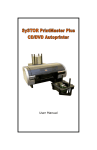
Version 1.0 03/10/2011 Version 2.0 18/01/2012 First Release Updated JR JR WARNING To avoid electrical shock hazards, uni t covers should only be removed by authorised personnel. © COPYRIGHT This document is the property of Copytrax Technologies UK Ltd and it may not be reproduced, copied or exhibited to a third party without permission from Copytrax. ENVIRONMENTAL PROTECTION Waste electrical products should not be thrown away with household waste. Please recycle where facilities exist. Check with your local authority or retailer for recycling advice. Copytrax reserve the right to amend or modify the specifications and design criteria applying to these products. PrintMaster Monet. Contents. Page Unpacking 5 Setup 6 Driver Installation and Printing Preferences 7 Basic Operation 8 Maintenance Daily Weekly Monthly Quarterly Annually 9 9 9 10 10 11 Control Panel and Printer Operation 12 Troubleshooting Workflow for Ink Flow Problems 14 16 Name of Parts 17 Warranty & Support 18 PrintMaster Monet. Unpacking. Printer Syringe set Custom Jig (Type and quantity of jig(s) included will depend on the individual order) Power lead and USB cable Control panel and cable 1. Unpacking. Prepare a clean and sturdy desk space to place your printer. Allow enough space for the flatbed to extend fully to the front and rear of the printer. Check that all of the parts shown are included in the box. Note. *Templates for custom jigs will not necessarily be included and should be requested via e-mail from your supplier. Do not discard the box. Store it safely in case the printer should ever need to be returned for any reason. 5. PrintMaster Monet. Set Up. Open right hand side door to reveal the ink supply bottles and waste bottle Unscrew lids of supply bottles and fill each with ink. The shoulder of the bottle should be the maximum fill level. The minimum fill level should be considered as a fingers width from the bottom of the supply bottle Please Note: Do not allow the supply bottle to run dry as this can cause damage to the ink supply system and print head Empty the waste bottle before it is full. Contact your supplier for disposal advice. Fitting Custom Jig. The flatbed is fitted with a magnetic base to attach and fix your custom jig in place for printing Cable fitting Connect the power lead, USB cable and control panel cable as below. Do not power on until the ink supply tanks are filled with ink and you are promted to do so during the first time driver installation process 6. PrintMaster Monet. Driver Installation and Printing Preferences. Insert the CD-ROM into your computer. It should Autorun if this function is enabled on your system. If it does not Autorun explore the disc and double click ‘autorun.exe’ Select Install Printer Driver Select the relevant driver for your operating system (32 or 64-bit) If prompted select EPSON Stylus Photo R230 Series MAC users should insert the CD-ROM and explore the disc to locate the printer driver: AutoPlay > MAC driver Follow the on-screen instructions to complete the printer installation Set the Printing Preferences after successful driver installation. For Windows: Open Printers & Faxes window in Control Panel, right click on Epson Stylus R230 (or PrintMaster Monet if you choose to rename the printer) and select Printing Preferences. Select Advanced. (If prompted select Do not display this message again and Continue). Setup a custom Page Size by selecting User Defined in the drop down list. Input the following values: Paper Width = 2100 Paper Height = 3200 Set the Paper Size Name as PrintMaster Monet and select Save followed by OK. NOTE: This custom page size should be set in the software you choose to print from as well. Use these settings as a starting point and save the configuration. Different materials may need adjustment to these settings but these will be a sufficient default to get started. 7. PrintMaster Monet. Basic Operation. Attention: Do not load media before you power on Switch on the PrintMaster Monet by the button next to the power cable on the left side of the printer The printer will start up into TEST MODE Wait 5 seconds then press button marked Printer power The printer will now initialise When ready the top two leds will stop flashing and turn to solid lights Press the Forward button to move the flatbed to the front of the printer Press the Backward button to move the flatbed to the rear of the printer The PrintMaster Monet is now initialised and the flatbed position is calibrated. The control panel should read “Ready to print” Press the Forward button to fully extend the flatbed to the front of the printer Load media into your custom jig Press Auto Height adjustment button to perform the auto height function When the flatbed is at the rear of the printer and the height is set the PrintMaster Monet is ready for printing from the software of your choosing with the template provided for your custom jig. After a print, unload the jig and reload with unprinted media. If the media is the same as the previous print there is no need to use the auto height function to load the flatbed ready for printing. Instead use the Ready to Printer/Repeat Printing button load the flatbed. Some materials provide a better print result when heat is added. This can be done using the halogen lamp inside the PrintMaster Monet. The halogen lamp is automatic and will ignite at the start of a print and extinguish after the flatbed has ejected See Run Mode Functionality section for instructions on how to adjust the brightness of the lamp and how to enable/disable this function To power off the printer properly press Printer power button on the control panel. The machine will then enter TEST MODE. When in this state you may press the power switch on the left side of the printer to fully turn off the machine. If the power switch is pressed without first powering off the printer by the control panel, the print head may not fully cap on the cleaning station allowing the ink in the nozzles to dry. 8. PrintMaster Monet. Maintenance. Daily A . Nozzle Check: a. Tape down a piece of blank paper on the flatbed b. Press Backwards button to get the PrintMaster into “Ready to print” mode c. Go to “Start” and open “Printers and Faxes” d. Right-Click on “Epson Stylus Photo R230” and select “Printing Preferences” e. Click on the “Mai ntenance” Tab f. Click “Nozzle Check” g. If Nozzle Check print is irregular (missing dots, bending, and/or blurry), run a head cleaning B . Head Cleaning: a. Printers and Faxes Method: 1. Power on the printer 2. Go to “Start” and open “Printers and Faxes” 3. Right-Click on “Epson Stylus Photo R230” and select “Printing Preferences” 4. Click on the “Mai ntenance” Tab 5. Click “Hea d Cleaning” C . If print result still isn’ t perfect, try head cleaning 3 more times D. If print result is still not good, refer to the workflow section for ink flow issues Weekly A . Capping Station Cleaning: a. Disconnect the mains power supply b. Manually move the head to the middle to expose the capping station c. Fill syringe with cleaning solution (provided) d. Squirt the solution all over both pads in the capping station, as seen in the picture below. e. Manual move head back to Capping Station f. Fully power on the printer g. Run a head clean 9. PrintMaster Monet. Maintenance. Monthly A . Clean the horizontal encoder strip (seen below) in the front of the printer frame with rubbing alcohol and cotton buds. B . Cleaning vertical encoder: a. Located at rear of printer near vertical motor Quarterly (or as needed) A . Capping Station Replacement: a. If nozzle check is not good after head cleaning, check the change date of capping station b. If change date is 3 months old, your PrintMaster needs a capping station replacement: 1. Power off printer 2. Open printer cover 3. Release screws for supporting capping station 4. Disconnect signal cable 5. Take capping station out from the printer frame 6. Put new capping stationinto the printer frame 7. Reconnect signal cable 8. Tighten support screws for capping station 9. Make sure the waste ink tube is emptying into the waste ink bottle 10. PrintMaster Monet. Maintenance. Annually ( or as needed ) A . Printer Head replacement a. If nozzle check is continuously bad after printer head cleaning & capping station replacement,you may need to replace your printer head: 1. Power off printer 2. Take all dampers out from printer head carriage 3. Remove screw on side of head carriage and remove side cover Note: These arms are very delicate, so do not lift with a lot of force. 4. Remove two fixing screws and lift our print head 5. Disconnect two FFC head cables from printer head 6. Replace printer head and reconnect cables 7. Put new printer head back in original position 8. Tighten two screws on the printer head 9. Put flat cables cover back in original position 10. Power printer on b. Ink charge procedure (Windows only): 1. Run SSC Service Utility from the CD-ROM 2. Select your printer from the drop down lists in the configuration window 3. Close the window 4. Select initial charge from the head cleaning menu in the taskbar icon 5. Wait for completion 11. PrintMaster Monet. Control Panel and Printer Operation. A. B. Control panel operation Button “1” Power Button “2” Forward Button “3” Backward Button “4” Head up Button “5” Head down Button “6” Auto height adjust Button “7” Ready to print/ Repeat print Printer Mode Test mode function When unit is switched on, printer will start in Test mode. In this mode you can do the following: Button Printer operation Display 1 Power on printer and print goes to Run Mode 2 Flatbed moves forward at one touch and stop at another touch 3 Flatbed moves backward at one touch and stops at another touch 4 Print head moves up away from flatbed 5 Print head moves down towards flatbed 6 Initiate auto height adjustment 7 Push and hold 5 seconds and to enter Function Mode Ready to print Call to Supplier Run mode function After printer initialisation you can do the following: Button Printer operation Remark 1 Power off printer and goes to Test Mode 2 Flatbed moves forward at one touch and stop at another touch table continued over page... 12. PrintMaster Monet. Control Panel and Printer Operation. 3 Flatbed moves backward at one touch and stop at second touch 4 Print head moves up away from flatbed 5 Print head moves down towards flatbed 6 Push button for 3 seconds to start a head clean (flatbed must be in print ready position) When printer is printing, printing will stop when pressing this button Start auto height function when flatbed is at the front position 7 Ready to print and enable multi print with same images by touch after print Push and hold for 3 seconds to enter Function mode Function Mode This mode can be used for adjusting printer settings. Press and hold button 7 for 3 seconds to enter this menu (in Test or Run mode) Press button 7 to cycle to the next setting. Button 4 increases value and button 5 decreases value. 1.SETTemperatur e Halogen lamp temperature control (30%) 2.SETTemperatur e MODE 3.AutomaticClea ning (40%) 5.BACKSPEEDSET SPEED Auto head clean timer (48h) 4.FRONTSPEED SET SPEED Halogen lamp on/ off (OFF) (40%) 6.1 2 3 4 5 6 7 - - - Y - - - FlatBed forward speed control (recommended speed 40% ~ 50%) FlatBed backward speed control (recommended speed 40% ~ 50%) Sensor test 13. PrintMaster Monet. Troubleshooting. Problem: Nozzle check pattern is not complete. Solutions: Are the ink supply bottles correctly positioned on the side of the printer? Is the shipping tape removed from the ink bottle lids? Are the ink bottle lids open? Are the ink supply tubes filled with ink? If not: a. Perform a head clean b. Prime cartridges with a syringe (cartridge printers only - dampers do not require priming) Is the capping station clear? Perform weekly maintenance and suck the cleaning solution from the waste pipes with a syringe. Replace capping station if it has an immovable blockage. If there is still no solution contact your supplier. Problem: The ink has drained from the supply bottles to the waste bottle. Solutions: Make sure the ink supply bottles are not above the level of the cartridges in the printer. Is the ink level too high? The ink supply bottles should not be over 2/3 full or there is too much pressure on the ink flow. Perform capping station maintenance and check for flowing ink to the waste bottle through both waste pipes. A clogged capping station will bridge the capping station and print head to cause a free ink flow. How was the printer powered off? If the printer is not powered off when in idle state the print head may not be capped by the capping station and it will not have kept a seal. Problem: Control panel shows EPSON PRNT ERR. Solution: Cycle the power on your printer to clear the error. If the fault persists record the status monitor message and contact your supplier for assistance. Problem: How do I access status monitor? Solution: Windows: START MENU -> CONTROL PANEL -> (right click on printer) PRINTING PREFERENCES -> MAINTENANCE TAB -> STATUS MONITOR. Problem: Status monitor shows a maintenance request “parts inside your printer need to be replaced”. Solution: Perform the waste ink pad counter reset in the SSC Service Utility included on your CD-ROM. Problem: The print appears to be shifting. Solution: Clean the encoder. 14. PrintMaster Monet. Troubleshooting. Problem: How do I perform an ink charge? Solution: Using the initial charge function from the SSC Service Utility included on the CD-ROM. Problem: My print has lines in. Solution: Perform a head clean. Is the printer set to bi-directional (high speed) printing? If yes please disable this function in the printing preferences. 15. PrintMaster Monet. Troubleshooting. Workflow for Ink Flow Problems. Ink flow problems can be confirmed by being unable to print a complete nozzle check pattern. If no solution is found from this workflow please contact your supplier for more assistance. Key: Print nozzle check pattern. Is nozzle check pattern complete? yes =Start =Action =Finish =Question Printer is in working order. Resume normal printing. no Have three head cleans been carried out? yes Has an ink charge already been carried out? Is the capping station clear? yes no no no Perform head clean. Perform ink charge in Adjustment Software. Carry out weekly capping station maintenance. yes Is the capping station clear? no Advanced: Prime cartridges* and manually flush print head nozzles. Replace capping station. *Cartridge systems only. Damper sets do not require priming. 16. yes PrintMaster Monet. Name of Parts. D Overall view A A. Control panel E B B. Power connector, USB port & Control panel cable connector C. Flatbed C D. Printer cover E. Ink bottles set and waste ink bottles Components F N H K O I L P G M Q J << Front view >> < <B a c k s i d e v i e w> > F. Screw for up/down motion G. Auto height adjust sensor K. Motor for Up/Down L. Motor for Back/Forward M. Motor for capping station H. Ink chips and dampers I. Ink bottles and waste ink bottle J. Screw for back/forward motion N. Motion control board O. Epson board P. Power adapter Q. Transformer 17. PrintMaster Monet. Warranty & Support. COPYRIGHT © Copytrax Technologies UK Ltd. 2008. All rights reserved. This manual and the software described in it are copyrighted with all rights reserved. No part of this publication may be reproduced, transmitted, transcribed, stored in a retrieval system or translated into any language in any form by any means without the written permission of Copytrax Technologies UK Ltd. ENVIRONMENTAL Waste electrical products should not be thrown away with household waste. Please recycle where facilities exist. Check with your local authority or retailer for recycling advice. Copytrax are available to dispose of equipment free of charge to UK customers only. TRADEMARKS Copytrax is the registered trademark of Copytrax Technologies UK Ltd. Brand names and product names are trademarks or registered trademarks of their respective companies. LIMITED LIABILITY PRODUCT WARRANTY The PrintMaster is warrantied for 12 months from the date of purchase from Copytrax. Print heads & ink systems are limited to 3 months warranty. All warranties are limited to manufacturing defects only. Fair wear & tear or misuse of the printer or components are not covered by the warranty. Warranty on products purchased from an authorised Copytrax distributer are covered by the distributor & not by Copytrax direct. Copytrax will work with the distributor to resolve any issues quickly. Copytrax warranty is a return to base(Cambridge, UK). All returns must be assigned an RMA number before returning to Copytrax. No on-site service is provided by Copytrax. You must return the product to Copytrax or an authorised Copytrax dealer within the warranty period accompanied by proof of purchase. Copytrax DISCLAIMS ALL IMPLIED WARRANTIES ON THE PRODUCT, INCLUDING WITHOUT LIMITATION WARRANTIES OF MERCHANTABILITY, PERFORMANCE AND FITNESS FOR A PARTICULAR PURPOSE. Copytrax WILL NOT BE LIABLE FOR ANY BUG, ERROR, OMISSION, DEFECT, DEFICIENCY, OR NONCONFORMITY IN ITS HARDWARE. AS A RESULT THE HARDWARE IS SOLD “AS IS” AND THE PURCHASER ASSUMES THE ENTIRE RISK AS TO ITS QUALITY AND PERFORMANCE. Copytrax SHALL IN NO EVENT BE LIABLE FOR DIRECT, INDIRECT, SPECIAL, INCIDENTAL, CONTINGENT OR CONSEQUENTIAL DAMAGES RESULTING FROM ANY DEFECT IN THE HARDWARE OR ITS DOCUMENTATION INCLUDING DAMAGES FROM LOSS OF DATA, EVEN IF Copytrax OR AN AUTHORIZED Copytrax DEALER HAS BEEN ADVISED OF THE POSSIBILITY OF SUCH DAMAGES YOU AGREE THAT Copytrax’s LIABILITY ARISING OUT OF CONTRACT, NEGLIGENCE, STRICT LIABILITY OR TORT OR WARRANTY SHALL NOT EXCEED ANY AMOUNTS PAID BY YOU FOR THIS PRODUCT. any written or oral information or advice given by Copytrax dealers, distributers, agents or employees will in no way increase the scope of this warranty. Nor may you rely on such oral or written communication. Some states do not allow the exclusion or limitation of implied warranties or liability for incidental or consequential damages, so the above limitation or exclusion may not apply to you. This warranty gives you specific legal rights, and you may also have other rights which vary from state to state. For support tel. UK: 0844 815 6225 Intl: +44 1954 212200 e-mail: [email protected] Copytrax Technologies UK Ltd. (manufacturer) 35 Dry Drayton Industries Scotland Road Dry Drayton Cambridge Cambridgeshire. CB23 8AT United Kingdom. Telephone UK: 0844 815 6225 International: +44 1954 212200 Fax UK: 01954 211950 International: +44 1954 211950 Web www.copytrax.com e-mail [email protected] Registered No. 6691594 VAT No. GB938 6097 79 18.