1
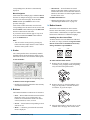
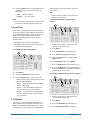
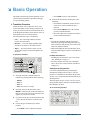
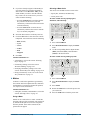
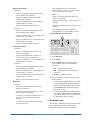
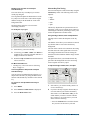
8. Navigate to sub-directories by selecting a
sub-directory name and then pressing the left
knob. Sub-directories are displayed as follows:
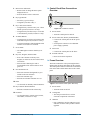
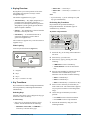
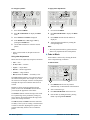
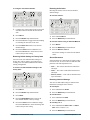
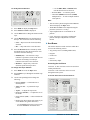
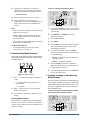
To lock or unlock place and bank values:
3
7
• <directory-name>
4
9. Return to a parent directory by selecting <..>.
10. Use the left knob to select the image or
animation file you wish to load and press the left
knob to load it into the selected Media-Store
channel.
Note:
• Wait 5 seconds after inserting a USB drive into the
USB port before using it.
• Turn the middle knob when browsing the file
system to display the full text of long directory
lists and filenames.
• If you select an animation, the number of frames is
displayed next to the filename.
For More Information on...
• accessing the USB port, refer to the section
“Frame Overview” on page 1-3.
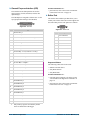
Ô Understanding Media Numbers
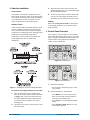
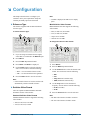
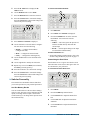
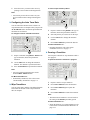
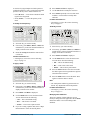
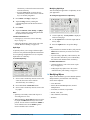
Each image and animation is uniquely identified by a
Media number. Media numbers are 4 digits and take
the following form:
1234
1
2
3
Figure 5.1 Media Number
1. Place — Location where image or animation is
stored.
• 0 — Internal Memory (this feature not yet
implemented)
• 1 — USB drive
2. Bank — There are 100 (0 - 99) banks where
images can be stored.
3. Item Number — Each bank contains 10 (0 - 9)
images.
Entering Media Numbers
Media numbers are entered using the Wipe Pattern
buttons. You can choose to lock the Place and Bank
to specific values which allows you to quickly access
a subset of images.
5–2 • Media-Store
1
2
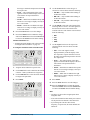
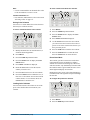
1. Press and hold SHIFT on any bus. If you use the
Program bus or on-air Key bus, you may affect
on-air images.
2. Press MEDIA 1 or MEDIA 2 to select a
Media-Store channel.
3. Press the Browse knob.
4. Press NEXT.
5. Press the Place knob to lock or unlock the Place
value. When locked, the Place value will be
surrounded by brackets [].
6. If you locked the Place value, use the Place
knob to select the locked value. You can choose
from the following:
• INT (0) — internal storage (this feature not
yet implemented)
• USB (1) — USB drive (default)
7. Press the Media knob to lock or unlock the
Bank value. When locked, the Bank value will
be surrounded by brackets [].
8. If you locked the Bank value, use the Bank knob
to select the locked value.
Ô Loading an Image or Animation by
Media Number
Once an image has been assigned a Media number, it
can be quickly reloaded by typing the corresponding
Media number using the Wipe Pattern buttons. The
procedure is slight different if you have locked the
Place and Bank values.
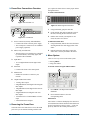
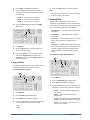
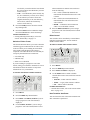
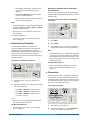
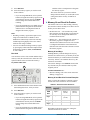
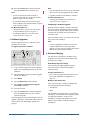
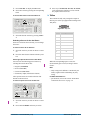
To load an image or animation by Media number
with a locked place and bank number:
4
3
2
CrossOver 6 / 12 User Manual (v1.4)