1
Information
4
Press
to highlight TV Installation.
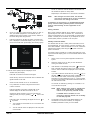
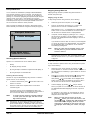
The Information Menu has three sub-menus, DSD Status, CA Status
and Loader Status, which provide important diagnostic and version
information to technical personnel. These status screen are read-only
screens. You may be asked to read some of this information to Hot Line
personnel.
5
Press OK.
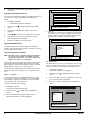
A security check screen is displayed, in which you must enter
the installation PIN (9949).
The TV Type option is automatically highlighted when the
correct PIN is entered.
To view the information do the following:
6
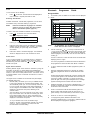
Press OK. A TV type list is displayed in which PAL BG is
highlighted. Press
to highlight any other TV type.
Press OK to activate the setting and leave the screen, or EXIT
to cancel the setting.
DSD Status
1
Press MENU on the RCU.
The Main Menu options list is displayed.
7
2
On the RCU, press
Aspect Ratio
3
Press OK.
The Advanced Options Menu is displayed.
The Aspect Ratio allows the user to select between a normal width
TV and a wide-screen TV.
4
Press
1
Repeat steps 1 to 5 for setting the TV Type (page 23).
5
Press OK.
The Information Menu is displayed, in which the DSD Status
option is highlighted.
2
Press
3
Press OK.
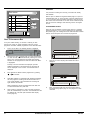
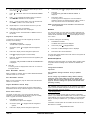
The Aspect Ratio screen is displayed, in which the 4:3 aspect
is highlighted.
4
Press
to select the 16:9 aspect ratio (4:3 is for normal TV,
16:9 for wide-screen TV).
5
Store the setting by pressing OK on the RCU.
to highlight Advanced Options.
to highlight Information.
6
Press OK. The DSD Status screen is displayed
7
To exit the DSD Status information screen, press EXIT to return
to the previous menu or MENU to return to the service.
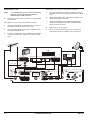
CA Status
to highlight Aspect Ratio.
UHF Tuning
1
Repeat steps 1 to 5 of the DSD Status screen.
2
Press
3
Press OK. The CA Status screen is displayed.
4
To exit the CA Status information screen, press EXIT to return to
the previous menu or MENU to return to the service.
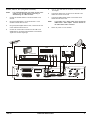
The UHF Tuning application allows the user to select a particular
UHF channel for satellite viewing.
to highlight CA Status.
1
Repeat steps 1 to 5 for setting the TV Type (page 23).
2
Press
3
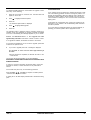
Press OK. The UHF Tuning screen is displayed and the
decoder front panel display shows the current UHF channel
number.
4
Press
or
to increase or decrease the channel number.
If the channel number is changed, the TV picture is lost
because the TV is not tuned to the new channel. The
changed channel number is displayed on the decoder front
panel.
5
Store the setting by pressing OK on the RCU.
6
Press MENU to exit from the menu.
7
Retune the TV set to the new decoder UHF channel.
Typical values are PAL I, PAL B, PAL G, PAL B/G, etc. The TV type is
determined by the TV system used in the country of installation (default is PAL BG).
TIP:
Pressing and holding down UHF (not in menu, Information Bar
or EPG mode) also causes the UHF Tuning screen to be
displayed.
To set the TV Type:
NOTE:
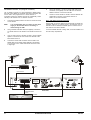
Loader Status
1
Repeat steps 1 to 5 of the DSD Status screen.
2
Press
3
Press OK.
The Loader Status screen is displayed.
4
To exit the Loader Status information screen, press EXIT to
return to the previous menu or MENU to return to the service.
to highlight Loader Status.
TV Installation
TV Type
1
Press MENU on the RCU.
The Main Menu options list is displayed.
2
On the RCU, press
3
Press OK.
The Advanced Options Menu is displayed.
DSD 700
to highlight UHF Tuning.
Pressing EXIT at any time while this screen is
displayed will return you to the service without
saving any changes made.
to highlight Advanced Options.
OPERATING INSTRUCTIONS
23