1
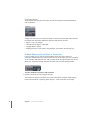
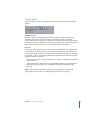
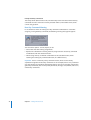
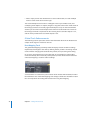
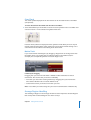
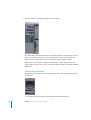
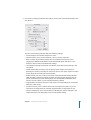
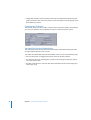
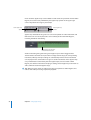
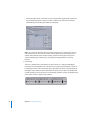
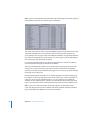
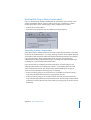
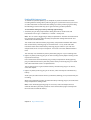
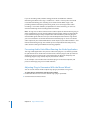
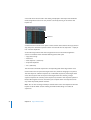
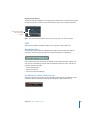
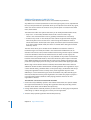
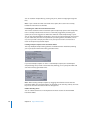
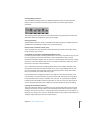
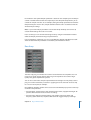
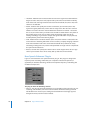
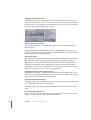
Copying Patterns in the Pattern menu Copying patterns is achieved with a copy and paste operation via a shortcut menu. The same tasks can also be performed with a short cut, enhancing workflow and ease-ofuse. To copy a pattern using the short cut: 1 Select the desired pattern in the Pattern menu. 2 Press Option and select another Ultrabeat pattern. The selected pattern is copied to the target position. All sequencer data that exists in the new pattern number is replaced. If you change your mind during the process, simply release Option. Exporting Step Sequences as MIDI Regions Step sequences programmed in Ultrabeat’s internal step sequencer can also be exported as MIDI Regions into the Arrange window. To export an Ultrabeat sequence to the Arrange window: 1 Select the desired pattern in Ultrabeat’s Pattern menu. 2 Click-hold the area to the left of the pattern menu. 3 Drag and drop the sequence at the desired song position on the respective Ultrabeat track. A Region is created, containing all MIDI events, including Swing and Accent parameter settings. MIDI notes are positioned according to their Swing value set in Ultrabeat. Accents are interpreted as polyphonic pressure events. Note: To avoid double triggering while playing back the exported MIDI Region, you may want to turn off Ultrabeat’s internal sequencer. Previewing Samples in Sample Load Window Ultrabeat offers a Play button in its Load Sample dialog, which allows audio files (AIFF, WAV, SD2, UBS) to be previewed before loading. Â Press the Play button to loop playback of the currently selected sample file. The sample is played directly from the hard disk, with no voice manipulation: filters, EQ, envelopes, and other synthesizer parameters are ignored. Â Pressing the button again stops playback. You can audition multiple files by pressing Play once, and then stepping through the files. 98 Chapter 10 Plug-in Enhancements