1
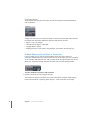
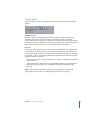
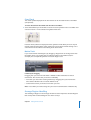
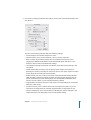
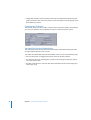
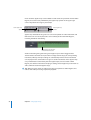
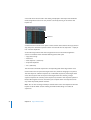
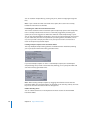
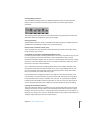
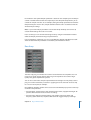
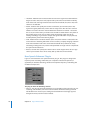
 Percussive—The Percussive algorithm perfectly maintains the timing of percussive material, making it a good choice for drum loops and percussive, non-harmonic material. In comparison to the Beats Only algorithm, the Percussive algorithm is better suited for percussive material that has been processed through a reverb (or contains a long “tail”). This may also apply to percussive playing styles, such as a staccato electric piano or clavinet parts. Beats Only may be the better alternative for “dry” drum recordings. Note: These three new algorithms will only appear in Logic Pro if Mac OS X version 10.4 (Tiger) or QuickTime 7 is installed on your system. Serato AU Support Logic Pro 7.2 allows you to use the pitch shift and time stretch algorithms provided with Serato’s Pitch’n Time plug-in as Time Machine algorithms. You can access these algorithms via the Arrange window’s Audio > Time Machine Algorithm menu or the Time and Pitch Machine in the Sample Editor. Note: The Pitch’n Time plug-in must be installed as an Audio Units plug-in for this algorithm “sharing” to be available in Logic. Working With the Follow Tempo Function Audio files created in Logic Pro 7.1 or Logic Pro 7.2 can follow the song tempo (including tempo changes) and the first key signature set in the Global tracks. As an example: If you record a bass solo at 100 bpm, you can change the song tempo to 120 bpm and the bass solo will automatically be played back at the new tempo. The function works for all audio files that were recorded in, or bounced/exported from, Logic Pro 7.1 and Logic Pro 7.2. The function only works in the parent song (the song the audio files were created in). If you drag a file recorded in a given song to another song with the Finder, the file can not follow the song tempo. Bounced/exported files can only follow the song tempo, if the “Add resulting files to Audio window” option was enabled in the Export/Bounce window prior to the bounce/export. Files copied between two songs retain the ability to follow the song tempo. The song’s tempo information is used to tag the beats in the recording. The function works best if your audio files match the song tempo as precisely as possible. The longer your audio files are, the more RAM is required for this functionality to work properly. To make an audio file follow the song tempo and first key signature: 1 Select one of the audio file’s Audio Regions in the Arrange window. If your audio file was created with one of the methods outlined above, the Follow Tempo option appears in the Region parameter box. Chapter 3 Working With Audio 31