1
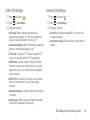
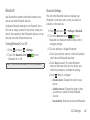
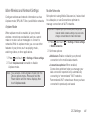
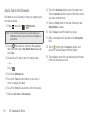
Date and Time Accessibility By default, your phone receives date and time information from the wireless network. When you are outside network coverage, you may want to set date and time information using the Date and time settings. Your phone offers features to make using the phone easier for those with certain physical disabilities. Use the Accessibility settings to activate these services. 1. Press and touch > Settings > Date and time. 2. Touch a setting to configure: 䡲 Automatic date and time: When enabled, the phone takes date and time updates from the wireless network. 䡲 Set date: Enter the current date (only available when Automatic date and time is disabled). 䡲 Set time: Enter the current time (only available when the Automatic setting is disabled). 䡲 Automatic time zone: When enabled, the phone takes the time zone from the wireless network. 䡲 Select time zone: Choose your local time zone (only available when the Automatic setting is disabled). 䡲 Use 24-hour format: Set the format for the time. 䡲 Select date format: Set the format for the date. Auto-Rotate Screen When enabled, the screen’s orientation automatically changes when you rotate the phone. 1. Press and touch > Settings > Accessibility. 2. Touch Auto-rotate screen to turn the feature On or Off. Important: You can also set Auto-rotate from Notifications with the Screen rotation setting. 2C. Settings 68