1
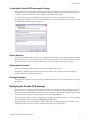
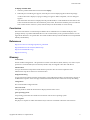
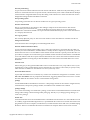
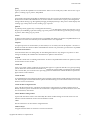
Pocket ACE Guide Creating the ACE Master Policy Before you begin defining the policy for your ACE Master, consider the target users who will use the Pocket ACE instances. Some factors include how secure or restrictive the environment should be, how remote users will get assistance if there is an issue, and whether any restrictions should be placed on accessing peripherals. The following example shows a policy that can be used by an ACE administrator who is deploying Pocket ACE‐enabled devices to users as a secure remote access solution. In this case, the users will be accessing the enterprise network using an unmanaged Personal Computer from their home or other remote location. Use the following requirements to define the ACE policy: Provide an ACE instance for secure remote access to enterprise resources. Distribute a secure remote access solution with preinstalled applications ensuring software compliance. Restrict access to communication between the enterprise network and the ACE virtual desktop. Restrict access to who can initialize the Pocket ACE instance. Prevent the Pocket ACE instance from being copied or moved when deployed. Ensure the Pocket ACE regularly checks for policy updates. Creating the Pocket ACE Policy To start the policy editor, right click the ACE master you created and select Policies. Access Control To configure access control 1 Select Access Control. 2 Under Activation select Password. 3 Under Authentication select User‐specific password. By configuring the activation policy to use either a password or activation key, you can protect the Pocket ACE instance while it is in transit to the user. The activation password or key is known only to the Pocket ACE administrator and end user. Setting an authentication policy ensures that a Pocket ACE instance will prompt the user for a new authentication password after the Pocket ACE has been initialized. This password is always used to power on the Pocket ACE instance, and is known only by the end user. If the user forgets the authentication password, it can be reset by an administrator from the ACE management server. Expiration Set an expiration time period if you want the Pocket ACE instance to expire after a certain period of time. Copy Protection Under Copy Protection, select Do not allow moving or copying the instance files. Configuring the copy protection policy for the Pocket ACE instances allows you to minimize the risk of lost or stolen media devices. This prevents a Pocket ACE instance that has been moved or copied from running. Resource Signing Under Resource Signing, select Verify the integrity of all files in the ACE resource directory. Configuring resource signing ensures the configuration and ACE resources files that accompany the Pocket ACE instance have not been modified or changed. If someone attempts to modify or tamper with the configuration files, the Pocket ACE becomes unusable. By default all Pocket ACE files are encrypted. Copyright © 2007 VMware, Inc. All rights reserved. 6