1
Wireless Gateway (HDU) Configuration
LifeSense Installation Wizard/Configuring a New
Account
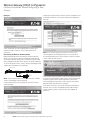
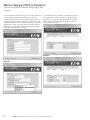
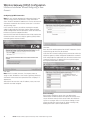
A pop-up message similar to the one shown will appear if the
installation wizard has successfully discovered the gateway.
Click OK.
Example:
If your credentials are not accepted please contact your
respective Eaton customer service representative for
assistance.
Discovering the Wireless Gateway (HDU)
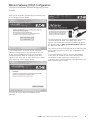
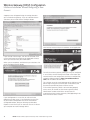
Before proceeding with discovering the wireless gateway
(HDU), you will need to connect the programming cable to
the wireless gateway (HDU). Next, connect the power cable
to the programming cable. Then connect the power cable to a
12- or 24-volt power source. Lastly, connect the programming
cable to the serial port on the computer.
Note: If you need to go back to previous screens at any
time throughout the configuration process you may do so
by clicking the back arrow. Arrow location within the wizard’s
screen varies by web browser.
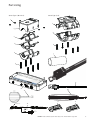
POWER CONNECTOR
POWER CORD
SETUP CABLE
GATEWAY
CONNECTOR
CABLE 1
CABLE 2
PC
CONNECTOR
Note: If your computer does not have a serial port, a RS232
serial to USB adapter may be required.
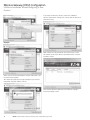
Connect both antennas to the gateway. Click the Discover
Gateway button.
8
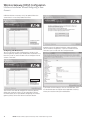
If the wireless gateway (HDU) is not successfully discovered,
check to ensure the power cable is fully inserted into the port
and there is power to the wireless gateway (HDU). Next,
verify the programming cable is fully seated in the wireless
gateway (HDU) and port on the computer.
If this does not result in the wireless gateway (HDU) being
discover you may have a bad programming cable or faulty
wireless gateway (HDU). Contact Eaton tech support for
guidance.
EATON LifeSense Wireless System Quick Setup Guide E-HOOV-II002-E August 2014