1
Installing the Virgin Broadband software
Software installation for Windows
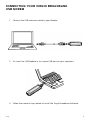
After connecting the Modem’s USB cable to your computer, the setup software will run
automatically.
If the software does not run automatically, go to “My Computer”, which should
be located on your Windows desktop, and browse to the disk drive labelled
“VIRGINBROADBAND”. Double-click on “Autorun.exe”, to start the installation
program.
1. Choose Install and then click Continue
2. Please read, and agree to, the Software Licence Agreement and leave the
installation directory unchanged. The software will start to install, and a
progress screen will be displayed
3. Once the software and drivers have installed, click Finish
4. Your computer will now use the new software to properly configure your
Modem. Please wait until the software tells you it is finished. An information
balloon will pop up from your System Tray area to advise you of this. This
process may take several minutes
5. When the install is finished the Virgin Broadband connection software
will start
6. Click Connect. Open your Internet browser (e.g. Internet Explorer). You are
now connected to the Internet and ready to start surfing!
Software installation for Apple OS X
1. After connecting the USB Modem, the disk on the Modem will automatically open
2. Under Install or Run Program, double-click on Virgin Broadband to begin
installation
3. Please read and agree to the Software Licence Agreement and click Continue
to proceed
4. If you agree to the terms of the Software Licence Agreement, click Agree
to proceed
5. Select the disk drive where you wish to install the Virgin Broadband
connection software and click Continue to proceed
6. Choose Easy Install to proceed with the current install
7. You will be prompted for an administrator password to allow the software
package to be installed. In most cases this will simply be the password you use
to log onto the computer. Click OK to continue
8. When you see the message “The software was successfully installed”, click
Close to finish
9. Your computer will now start the Virgin Broadband Connection software which
is already configured for the Virgin Broadband network
10. Click the Connect button. Open your Internet browser (e.g. Safari). You are
now connected to the Internet and ready to start surfing!
V2.5
5