1
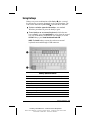
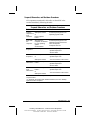
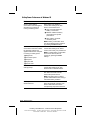
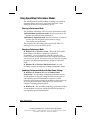
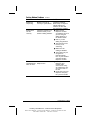
Using the SpeedStep Icon
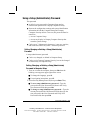
The SpeedStep icon displays on the taskbar by default and
changes to indicate whether the computer is running in Maximum
Performance or Battery Optimized mode. The icon can also be
used for the tasks described in the following table.
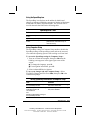
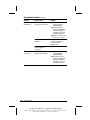
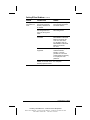
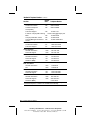
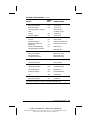
SpeedStep Icon Tasks
Task
Procedure
Display current performance
mode.
Open the SpeedStep window.
Change the current performance
mode.
Rest the pointer over the icon.
Double-click the icon.
Right-click the icon, then select a
performance mode with the up or
down arrow key.
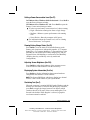
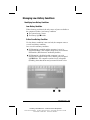
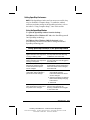
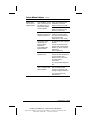
Using Computer Setup
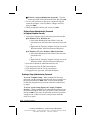
The SpeedStep settings in Computer Setup enable or disable the
SpeedStep settings in the operating system and can be accessed
even when the operating system is not working or will not load.
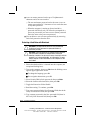
To access the SpeedStep settings in Computer Setup—
1. Turn on or restart the computer, then press F10 when the
blinking cursor appears in the upper-right corner of the
screen.
■ To change the language, press F2.
■ For navigation instructions, press F1.
2. Select Advanced!Device Options.
To save your changes and exit Computer Setup—Select
File!Save Changes and Exit. Press Enter, then press F10 at the
confirmation prompt.
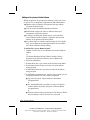
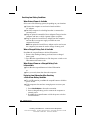
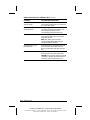
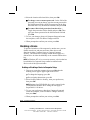
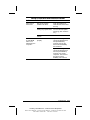
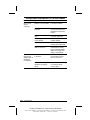
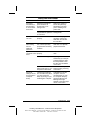
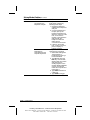
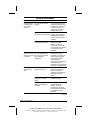
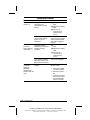
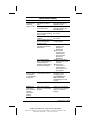
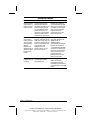
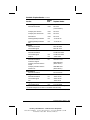
Setting SpeedStep Preferences in Computer Setup
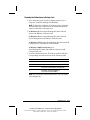
Task
Procedure
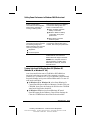
Enable all SpeedStep settings in
the SpeedStep window.
Set the computer to run in Battery
Optimized mode in all
circumstances
and
Disable all SpeedStep settings in
the SpeedStep window.
In the Intel SpeedStep Technology
field, select Automatic.
In the Intel SpeedStep Technology
field, select Disable.
Managing Power 4-23
COMPAQ CONFIDENTIAL - NEED TO KNOW REQUIRED
Writer: Karen Williams Saved by: Integrity Group Saved date: 06/01/00 10:23 AM
Part Number: 168893-001 File name: CH04.doc