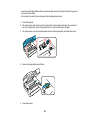
1
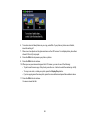
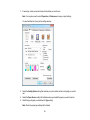
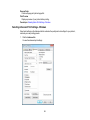
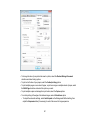
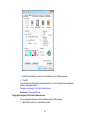
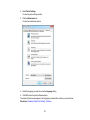
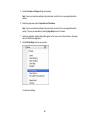
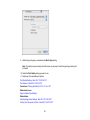
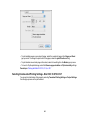
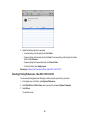
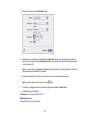
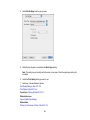
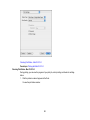
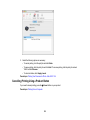
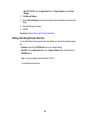
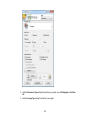
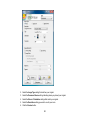
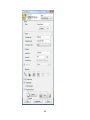
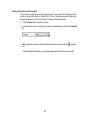
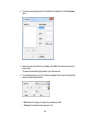
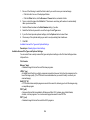
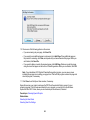
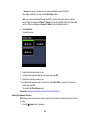
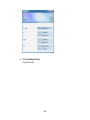
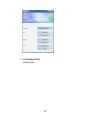
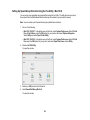
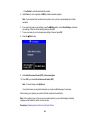
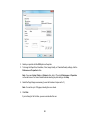
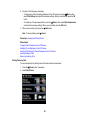
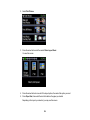
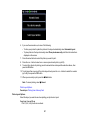
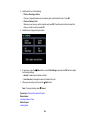
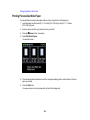
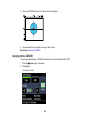
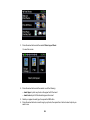
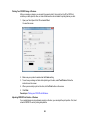
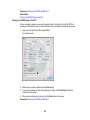
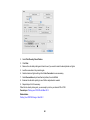
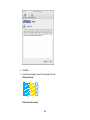
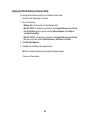
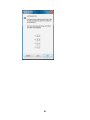
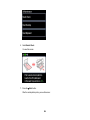
2. Select Print Density Confirmation Pattern.
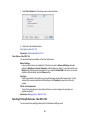
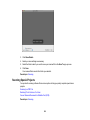
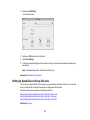
3. Click Print.
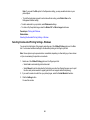
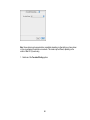
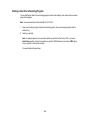
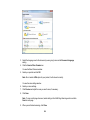
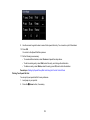
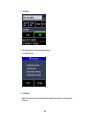
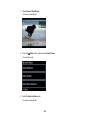
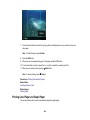
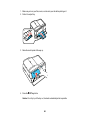
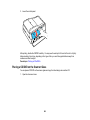
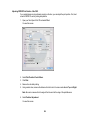
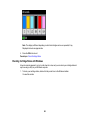
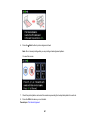
4. Remove the disc after printing and check to see if you need to make the density darker or lighter.
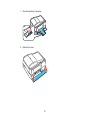
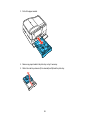
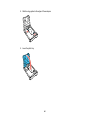
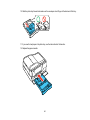
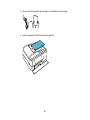
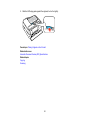
5. Load the same disc in the product again.
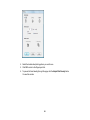
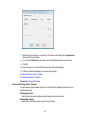
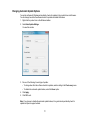
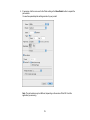
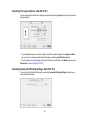
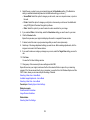
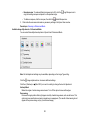
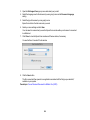
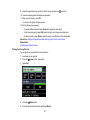
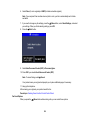
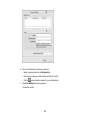
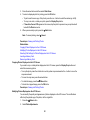
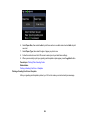
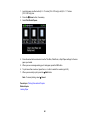
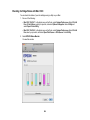
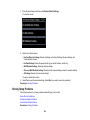
6. Adjust the Print Color Correction slider to a darker or lighter setting as necessary.
7. Select the Second radio button to print another test pattern, then click Print.
8. Examine the disc after printing to see if further adjustment is needed.
9. Repeat steps 5 to 8 if necessary.
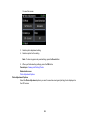
When the ink density looks good, you are ready to print on your burned CD or DVD.
Parent topic: Printing on a CD/DVD with Windows
Related tasks
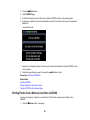
Printing Your CD/DVD Design - Windows
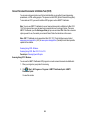
Printing on a CD/DVD with Mac OS X
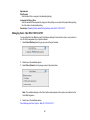
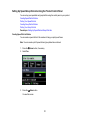
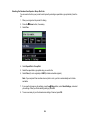
You can print with your product using the Epson Print CD software, as described in these sections.
256