1
basket-7.fm Page 9 Wednesday, May 13, 1998 3:12 PM
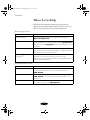
Troubleshooting
Possible cause
Solution
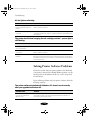
Printing is stalled.
In Windows 95/3.1x, delete the stalled print jobs in Spool
Manager; see Chapter 4 for instructions. In Windows NT, use the
despooler.
On a Macintosh, delete stalled print jobs using Monitor3 or open
the Extensions folder, EPSON folder, and Spool folder; then
delete any queued files.
The print heads are clogged
or the ink cartridges are too
old.
Clean the print heads; see Chapter 5 for instructions. If cleaning
doesn’t help, replace the cartridges. For information on cartridge
life and replacement instructions, see Chapter 5.
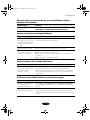
The S paper out light is flashing or on.
Possible cause
Solution
If flashing, paper is jammed.
Remove the paper and follow the guidelines for preventing jams
as described on page 7-14.
If on, paper is used up or is
loaded incorrectly.
Load paper or remove the stack and reload it as described in the
Setup Guide and in Chapter 2. Then press the E load/eject button
to turn off the light and resume printing.
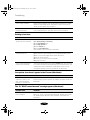
A B black or A color ink out light is flashing or on.
Possible cause
Solution
If flashing, the ink supply is
getting low.
You need to replace the indicated ink cartridge soon; see
Chapter 5 for instructions.
If on, the ink cartridge is
empty.
You must replace the indicated ink cartridge now to be able to
print; see Chapter 5 for instructions.
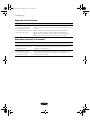
The S and Plights are flashing.
Possible cause
Solution
A carriage error has
occurred.
Remove any paper in the printer. Press the E load/eject button for
about 30 seconds. Then press it again. Turn the printer off, wait a
few seconds, and then turn it on and try printing again. If the error
is not cleared, contact EPSON as described in the Introduction.
7-9