1
OMNISCANNER
10. Updating Scanner Software
10.1 Downloading Software from the WWW
Software updates can be easily downloaded from the Black Box World-Wide Web
site. If you are connected to the Internet, you can access our web site by entering
http://www.blackbox.com in the URL address field.
1. Select the “Connectivity” option.
2. Select the file you need by clicking it, and save it to a disk.
3. Extract the .exe file.
10.2 Updating OMNIScanner Software and OMNIRemote Software
NOTE
The update process will erase all test results stored in memory. Use
ScanLink to upload the results before updating OMNIScanner’s
software.
To update OMNIScanner with the files you have downloaded from the WWW to
your PC, proceed as follows:
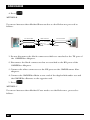
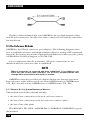
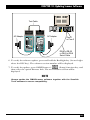
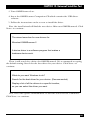
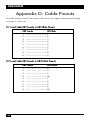
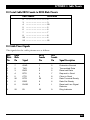
1. Connect the DB9 end of the serial cable to OMNIScanner’s serial port, and
then connect the DB9 or DB25 end of the serial cable to your PC’s serial port.
2. Plug the AC adapter into the OMNIScanner.
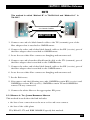
3. Connect OMNIScanner and OMNIRemote using the provided test cable and
adapter.
4. Plug the AC adapter into OMNIRemote.
5. Turn on OMNIScanner. You are now ready to download the new flash update
from the PC. Follow the instructions in the ReadMe that accompanies the
update file.
122