1
MachineControl™
Version 2.0
Copyright
© 2006 Digidesign, a division of Avid Technology, Inc. All rights
reserved. This guide may not be duplicated in whole or in part
without the express written consent of Digidesign.
Digidesign, Avid, and Pro Tools are either trademarks or
registered trademarks of Avid Technology, Inc. in the US and
other countries. All other trademarks contained herein are the
property of their respective owners.
Product features, specifications, system requirements, and
availability are subject to change without notice.
PN 9320-17770-00 REV A 02/06
contents
Chapter 1. Introduction . . . . . . . . . . . . . . . . . . . . . . . . . . . . . . . . . . . . . . . . . . . . . . . . . . . . . . 1
MachineControl Version 2.0 . . . . . . . . . . . . . . . . . . . . . . . . . . . . . . . . . . . . . . . . . . . . . . . . . 1
MachineControl Components . . . . . . . . . . . . . . . . . . . . . . . . . . . . . . . . . . . . . . . . . . . . . . . . 1
System Requirements . . . . . . . . . . . . . . . . . . . . . . . . . . . . . . . . . . . . . . . . . . . . . . . . . . . . . 2
Digidesign Registration . . . . . . . . . . . . . . . . . . . . . . . . . . . . . . . . . . . . . . . . . . . . . . . . . . . . 2
About This Guide . . . . . . . . . . . . . . . . . . . . . . . . . . . . . . . . . . . . . . . . . . . . . . . . . . . . . . . . . 2
About www.digidesign.com . . . . . . . . . . . . . . . . . . . . . . . . . . . . . . . . . . . . . . . . . . . . . . . . . 3
Chapter 2. Installing MachineControl . . . . . . . . . . . . . . . . . . . . . . . . . . . . . . . . . . . . . . . . . . 5
Cables and Connections . . . . . . . . . . . . . . . . . . . . . . . . . . . . . . . . . . . . . . . . . . . . . . . . . . . . 5
Connecting Machines . . . . . . . . . . . . . . . . . . . . . . . . . . . . . . . . . . . . . . . . . . . . . . . . . . . . . 6
Installing MachineControl Software . . . . . . . . . . . . . . . . . . . . . . . . . . . . . . . . . . . . . . . . . . . . 7
Starting Up Your System . . . . . . . . . . . . . . . . . . . . . . . . . . . . . . . . . . . . . . . . . . . . . . . . . . . 8
Authorizing MachineControl . . . . . . . . . . . . . . . . . . . . . . . . . . . . . . . . . . . . . . . . . . . . . . . . . 8
Removing MachineControl . . . . . . . . . . . . . . . . . . . . . . . . . . . . . . . . . . . . . . . . . . . . . . . . . 11
Chapter 3. MachineControl Communication Modes . . . . . . . . . . . . . . . . . . . . . . . . . . . . 13
Chapter 4. Setting Up Machine Control . . . . . . . . . . . . . . . . . . . . . . . . . . . . . . . . . . . . . . . 15
Online and Offline Operation . . . . . . . . . . . . . . . . . . . . . . . . . . . . . . . . . . . . . . . . . . . . . . . 15
Transport Controls . . . . . . . . . . . . . . . . . . . . . . . . . . . . . . . . . . . . . . . . . . . . . . . . . . . . . . . 15
Chapter 5. Serial Deck Control Mode (Configuration and Operation) . . . . . . . . . . . . . 19
Setting Up a MachineControl Device for Deck Control . . . . . . . . . . . . . . . . . . . . . . . . . . . . . . 20
Preferences for Serial Deck Control Mode . . . . . . . . . . . . . . . . . . . . . . . . . . . . . . . . . . . . . . 23
Session Setup Window and MachineControl. . . . . . . . . . . . . . . . . . . . . . . . . . . . . . . . . . . . . 24
Additional Pro Tools Commands . . . . . . . . . . . . . . . . . . . . . . . . . . . . . . . . . . . . . . . . . . . . . 27
Selecting Pro Tools or the Machine as the Transport Master . . . . . . . . . . . . . . . . . . . . . . . . . 28
Playback in Serial Deck Control Mode . . . . . . . . . . . . . . . . . . . . . . . . . . . . . . . . . . . . . . . . . 29
Contents
iii
Remote Track Arming . . . . . . . . . . . . . . . . . . . . . . . . . . . . . . . . . . . . . . . . . . . . . . . . . . . . 31
Configuring Track Arming . . . . . . . . . . . . . . . . . . . . . . . . . . . . . . . . . . . . . . . . . . . . . . . . . 31
Creating a Track Arming Profile . . . . . . . . . . . . . . . . . . . . . . . . . . . . . . . . . . . . . . . . . . . . . 32
Arming Tracks Remotely for Layback . . . . . . . . . . . . . . . . . . . . . . . . . . . . . . . . . . . . . . . . . 35
Chapter 6. Remote 9-Pin Deck Emulation Mode (Configuration and Operation) . . . 37
Configuring Remote 9-Pin Deck Emulation Mode. . . . . . . . . . . . . . . . . . . . . . . . . . . . . . . . . 37
Preferences for Remote 9-Pin Deck Emulation Mode . . . . . . . . . . . . . . . . . . . . . . . . . . . . . . 40
Playback in Remote 9-Pin Deck Emulation Mode . . . . . . . . . . . . . . . . . . . . . . . . . . . . . . . . 40
Recording in Remote 9-Pin Deck Emulation Mode . . . . . . . . . . . . . . . . . . . . . . . . . . . . . . . . 41
Track Arming in Remote 9-Pin Deck Emulation Mode . . . . . . . . . . . . . . . . . . . . . . . . . . . . . 42
Appendix A. Deck Control Key Commands . . . . . . . . . . . . . . . . . . . . . . . . . . . . . . . . . . . . 43
Appendix B. Troubleshooting . . . . . . . . . . . . . . . . . . . . . . . . . . . . . . . . . . . . . . . . . . . . . . . . 45
Appendix C. Machine IDs . . . . . . . . . . . . . . . . . . . . . . . . . . . . . . . . . . . . . . . . . . . . . . . . . . . 47
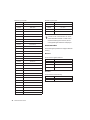
Appendix D. 9-Pin Cable Pinouts . . . . . . . . . . . . . . . . . . . . . . . . . . . . . . . . . . . . . . . . . . . . . 49
Serial Deck Control Mode Cable:
D Sub 9-Pin Male to D Sub 9-Pin Female (Windows Only) . . . . . . . . . . . . . . . . . . . 49
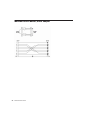
MachineControl Master/Slave Adapter . . . . . . . . . . . . . . . . . . . . . . . . . . . . . . . . . . . . . . . . 50
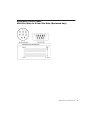
Serial Deck Control Cable:
Mini DIN 8 Male to D Sub 9-Pin Male (Macintosh Only) . . . . . . . . . . . . . . . . . . . . . 51
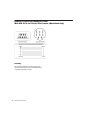
Remote 9-Pin Deck Emulation Cable:
Mini DIN 8-Pin to D Sub 9-Pin Female (Macintosh Only) . . . . . . . . . . . . . . . . . . . . . 52
Index . . . . . . . . . . . . . . . . . . . . . . . . . . . . . . . . . . . . . . . . . . . . . . . . . . . . . . . . . . . . . . . . . . . . . 53
iv
MachineControl Guide
chapter 1
Introduction
Digidesign MachineControl™ is special purpose
software for Pro Tools HD that enables serial
communication with Sony® 9-pin compatible
synchronizers, and video or audio machines.
Video captured in Pro Tools is intended
only for use in Pro Tools. It has not been
tested for import into other applications,
and may not be of standard broadcast quality. Pro Tools should not be used for laying
back picture to video masters.
MachineControl Components
Your MachineControl package includes the following, based on your operating system:
Windows Systems
• MachineControl Installer CD-ROM
• Serial Deck Control cable: RS-232 -RS-422
• 9-pin Turnaround adapter (for Remote 9pin Deck Emulation mode)
• MachineControl iLok License Card
MachineControl Version 2.0
This guide provides installation and operational
instructions for MachineControl version 2.0 for
Pro Tools systems on Windows XP or Mac OS X.
If you require documentation for other system
configurations, refer to earlier versions of this
guide, available in the Technical Documents Library page of the Digidesign Web site
(www.digidesign.com/support.docs).
Macintosh Systems
• MachineControl Installer CD-ROM
• Serial Deck Control cable: Male 8-pin miniDIN to male 9-pin cable
• Remote 9-pin Deck Emulation cable: Male
8-pin mini-DIN to female 9-pin cable
• MachineControl iLok License Card
• For Pro Tools systems using Mac OS 9 and
MachineControl v2.0, refer to MachineControl 2.0 Guide for Pro Tools 6.0, 6.1, and
6.2.
• For Pro Tools systems that require MachineControl v1.1 (such as Pro Tools|24 MIX
systems), refer to the MachineControl 1.1
Guide for Pro Tools 5.3.1.
Chapter 1: Introduction
1
System Requirements
MachineControl requires the following:
Digidesign-qualified Pro Tools|HD system,
running on a Digidesign-qualified Windows or
Macintosh computer.
◆
Remote 9-Pin Deck Emulation
Requirements
A SYNC I/O is required when running MachineControl 9-Pin Remote Deck Emulation mode, as
it provides frame-accurate LTC.
Compatibility Information
However, Remote 9-Pin Deck Emulation
does not work via the serial ports on the
SYNC I/O or via the DigiSerial ports on the
Pro Tools HD card. Instead, you must connect the remote controller to your Pro Tools
system using one of the following methods:
Digidesign can only assure compatibility and
provide support for hardware and software it
has tested and approved.
See “Connecting Machines for Remote 9Pin Deck Emulation Mode” on page 7.
For complete system requirements, visit the
compatibility page of the Digidesign Web site
(www.Digidesign.com/compato).
For a list of Digidesign-qualified computers, operating systems, hard drives, machine controllers and third-party devices, refer to the latest
compatibility information on the Digidesign
Web site (www.digidesign.com/compato).
Serial Deck Control Mode
Requirements
Digidesign Registration
Refer to the registration information card included with MachineControl 2.0 for instructions on registering your product and information on technical support. Registered users will
receive periodic software update and upgrade
notices.
For Tighter Lockups
For Serial Deck Control, use of a Digidesign
SYNC I/O is recommended.
For near sample accurate Serial Deck Control, a
SYNC I/O is required.
With Pro Tools|24 MIX, either a SYNC I/O
or Universal Slave Driver (USD) can be used
for frame edge accuracy.
If you are not using a SYNC I/O with Pro Tools,
some features of MachineControl can be used
by connecting the deck to the DigiSerial port on
a Pro Tools Core card.
See “Connecting Machines for
Serial Control Mode” on page 6.
2
MachineControl Guide
About This Guide
This guide assumes:
• You have installed Pro Tools and verified
that it works properly.
• You have a thorough understanding of
your video deck, external 9-pin decks,
mixer, and other audio and video equipment.
• You have an understanding of your synchronization equipment and requirements.
Conventions Used in This Guide
This guide uses the following conventions to indicate menu choices and key commands:
Convention
Action
File > Save
Choose Save from the File
menu
Control+N
Hold down the Control key
and press the N key
Control-click
Hold down the Control key
and click the mouse button
Right-click (Windows)
Click with the right mouse
button
The following symbols are used to highlight important information:
User Tips are helpful hints for getting the
most from your system.
Important Notices include information that
could affect your data or the performance of
your system.
Cross References point to related sections in
other Digidesign Guides.
About www.digidesign.com
The Digidesign Web site (www.digidesign.com)
is your best source for information to help you
get the most out of your Pro Tools system. The
following are just a few of the services and features available.
Registration Register your purchase online. See
the enclosed registration form for details.
Support Contact Digidesign Technical Support
or Customer Service; download software updates and the latest online manuals; browse the
Compatibility documents for system requirements; search the online Answerbase; join the
worldwide Pro Tools community on the Digidesign User Conference.
Training and Education Become a certified
Pro Tools Operator or Expert; study on your
own using courses available online, or find out
how you can learn in a classroom setting at a
certified Pro Tools Training Center.
Products and Developers Learn about Digidesign
products; download demo software; learn about
our Development Partners and their plug-ins,
applications, and hardware.
News and Events Get the latest news from Digidesign; sign up for a Pro Tools demo.
To learn more about these and other resources
available from Digidesign, visit the Digidesign
Web site (www.digidesign.com).
Chapter 1: Introduction
3
4
MachineControl Guide
chapter 2
Installing MachineControl
Before you Begin
Cables
Before you install MachineControl, make sure
that you have already connected and verified
operation of your Pro Tools system.
MachineControl comes with the following cables and adapters, depending on your computer
platform:
If you are using a SYNC I/O, refer to its guide to
make sure your equipment is installed and operating correctly.
Cables and Connections
MachineControl requires its own connections
between Pro Tools hardware, the computer, and
external machines. Connections differ depending on your Pro Tools audio interface, operating
system, and on which of the two MachineControl operational modes you want to use:
Serial Deck Control mode or Remote 9-Pin Deck
Emulation mode.
Windows Systems
Serial Deck Control Cable RS-232 to RS-422 cable, for serial time code and all other MachineControl functions.
Turnaround Adapter 9-pin adapter, used with RS232 to RS-422 cable, for Remote 9-Pin Deck Emulation.
Macintosh Systems
Serial Deck Control Cable Male 8-pin mini-DIN
to male 9-pin cable, for Deck Control.
Remote Deck Emulation Mode Cable Male 8-pin
mini-DIN to female 9-pin cable, required for Remote 9-Pin Deck Emulation.
Do not substitute 9-pin or serial adaptors
for either MachineControl cable. Each cable
is specifically wired for one operation mode.
Chapter 2: Installing MachineControl
5
Serial Deck Control Mode
Serial Deck Control mode supports bi-directional communication between Pro Tools and a
compatible external machine. With this feature
you can:
• Synchronize to serial time code
• Arm tracks on the machine remotely
• Control a transport from Pro Tools
• Configure machine settings and options.
Pro Tools|HD Systems
With Pro Tools|HD systems, you can use a Serial
to 9-pin connection or a 9-pin to 9-pin connection for Serial Deck Control mode.
CPU to Deck Connection This type of connection yields the best performance, especially with
linear decks. Use the included Serial Deck Control cable for this type of connection.
SYNC I/O to Deck Connection This type of connection is suitable for non-linear decks. If you
are using a SYNC I/O, as many as two machines
can be connected to the two 9-pin Out ports on
the SYNC I/O. You can control one machine at a
time, and switch between them from within
Pro Tools. These ports support all MachineControl modes except Remote 9-Pin Deck Emulation mode. For Remote Deck Emulation mode
on Macintosh systems, a Keyspan USA28x USB
serial adapter is required.
Remote 9-Pin Deck Emulation
Mode
This mode enables a form of deck emulation in
Pro Tools. When the Remote 9-Pin Deck Emulation Mode cable is used on a supported system,
Pro Tools can respond to record-arming, transport, and other standard 9-pin commands from
an external machine.
6
MachineControl Guide
While in Remote 9-Pin Deck Emulation mode,
Pro Tools always generates time code, and can
be either the time code master or a slave device.
On Windows systems, Remote 9-pin Deck Emulation mode uses an RS-232 to RS-422 cable and
a Turnaround adapter connected to an available
serial or COM port on the computer.
On Macintosh systems, use the Remote 9-Pin
Emulation Mode cable. This mode requires a
Keyspan USA28x serial adapter connected to a
computer USB port, and a properly wired configuration. See Chapter 6, “Remote 9-Pin Deck
Emulation Mode (Configuration and Operation)” for details.
Connecting Machines
This section describes how to connect machines
for Serial Control Mode or Remote 9-Pin Deck
Emulation Mode.
Connecting Machines for
Serial Control Mode
For Best Serial Deck Control
For best serial deck control, connect your deck
as follows:
To connect a deck to a Windows computer:
■ Connect the computer’s COM port to the machine, using the provided 9-pin RS-322 to RS422 cable.
To connect a deck to a Macintosh computer:
1 Connect a Keyspan USA28x USB serial adapter
(not provided) to a USB port on the computer.
2 Connect the provided male mini DIN-8 serial
Do not use the DigiSerial port on your HD Core
card or the 9-pin ports on the SYNC I/O for Remote 9-Pin Deck Emulation mode. The DigiSerial port should only be used for SYNC I/O
connections, using a DigiSerial cable.
to male 9-pin D-sub Deck Control cable to the
end of the adapter.
3 Connect the end of the cable to the machine.
For Limited Serial Deck Control (Non-Linear
Decks Only)
Connect a standard 9-pin cable from one of
the 9-pin Out ports on the SYNC I/O to the 9pin input of the machine. Due to performance
limitations, this configuration should be used
primarily with non-linear decks.
◆
Connecting Machines for Remote 9-Pin
Deck Emulation Mode
To connect a machine for Remote 9-Pin Deck
Emulation mode (Windows Systems):
Installing MachineControl
Software
To install MachineControl, use the Pro Tools Installer CD-ROM.
To install MachineControl (Windows):
1 Start Windows, logging in with Administrator
privileges. For details on Administrator privileges, refer to your Windows documentation.
2 Insert the Pro Tools Installer CD-ROM for
Windows in your CD-ROM drive. Locate and
open the Pro Tools Installer folder, and doubleclick the Setup icon.
Connect the Turnaround adapter to the RS322 to RS-422 cable, and connect them from an
available serial or COM port on your computer
to the 9-pin output of the machine.
3 Click Next to begin installation.
Do not use the DigiSerial port on your HD Core
card or the 9-pin ports on the SYNC I/O for Remote 9-Pin Deck Emulation mode. The DigiSerial port should only be used for SYNC I/O
connections, using a DigiSerial cable.
5 From the list of optional items, click MachineControl.
To connect a machine for Remote 9-Pin Deck
Emulation mode (Macintosh Systems):
6 Follow the on-screen instructions to complete
installation.
■
1 Connect a Keyspan USA28x USB serial adapter
(not provided) to a USB port on the computer.
4 Select the install location. For maximum reli-
ability, install MachineControl on your startup
drive. Click Next.
Wait for the installer to finish installing all software components, drivers, and PACE System
files before proceeding to the next step.
7 When installation is complete, click Finish to
restart your computer.
2 Connect the provided male mini DIN-8 serial
to female 9-pin Deck Emulation cable to the end
of the adapter.
3 Connect the end of the cable to the machine.
Chapter 2: Installing MachineControl
7
To install MachineControl (Macintosh):
6 Turn on Pro Tools audio interfaces. Wait at
1 Make sure you are logged in as an Administra-
least fifteen seconds for your system hardware to
initialize.
tor for the account where you want to install
MachineControl. For details on Administrator
privileges in Mac OS X, refer to your Apple OS X
documentation.
2 Insert the Pro Tools Installer CD-ROM in your
CD-ROM drive. Double-click “Install Pro Tools.”
3 Enter your Mac OS X Administrator password
and click OK to authenticate the installation.
4 From the list of optional items, click MachineControl.
5 Click Install.
7 Turn on your computer.
8 Launch Pro Tools.
Machine Local and Remote Modes
Be sure to set your machine-controllable device
to “remote” or “ext” mode to receive the 9-pin
information (not “local” or front-panel mode).
With some supported machines, if all other
communication is established and the machine
is not in remote mode, Pro Tools will indicate
machine “local” mode.
6 When installation is complete, click Restart.
Authorizing MachineControl
Starting Up Your System
To ensure that the components of your
Pro Tools system communicate properly with
each other and your external machines, start
them in a particular order.
MachineControl is authorized using the iLok
USB Smart Key (iLok), manufactured by PACE
Anti-Piracy, Inc.
Start up your Pro Tools system in this order:
1 For systems with an expansion chassis, turn
on the chassis.
iLok USB Smart Key
2 Turn on any external hard drives. Wait ap-
proximately ten seconds for them to come up to
speed.
3 Turn on any external machines (VTR, ATR,
synchronizer, and monitors).
4 Turn on any MIDI interfaces, MIDI devices
and synchronization peripherals.
5 Lower the volume of all output devices in
your system.
8
MachineControl Guide
The iLok is similar to a dongle, but unlike a dongle, it is designed to securely authorize multiple
software applications from a variety of software
developers.
This key can hold over 100 licenses for all of
your iLok-enabled software. Once an iLok is authorized for a given piece of software, you can
use the iLok to authorize that software on any
computer.
The iLok USB Smart Key is not supplied
with your plug-in or software option. You
can use the one included with certain
Pro Tools systems (such as Pro Tools|HDseries systems), or purchase one separately.
If you purchased MachineControl online at the
DigiStore (www.digidesign.com), authorize the
plug-in by downloading licenses from iLok.com
to an iLok.
If you purchased a boxed version of
MachineControl, it comes with either an Activation Code (on the included Activation Card) or
an iLok License Card:
Authorizing MachineControl Using
an Activation Code
To authorize MachineControl using an Activation
Code:
1 If you do not have an existing iLok.com ac-
count, visit www.iLok.com and sign up for an
iLok.com account.
2 Transfer the license for MachineControl to
your iLok.com account by doing the following:
• Visit http://secure.digidesign.com/
activation.
• Input your Activation Code (listed on your
Activation Card) and your iLok.com User
ID. Your iLok.com User ID is the name you
create for your iLok.com account.
3 Transfer the licenses from your iLok.com ac-
count to your iLok USB Smart Key by doing the
following:
• To authorize MachineControl using an Activation Code, see “Authorizing MachineControl Using an Activation Code” on page 9.
• Insert the iLok into an available USB port
on your computer.
• To authorize MachineControl using an iLok
License Card, see “Authorizing MachineControl Using a License Card” on page 10
• Follow the on-screen instructions for transferring your licences to your iLok.
• Go to www.iLok.com and log in.
For information about iLok technology and
licenses, see the electronic PDF of the iLok
Usage Guide.
4 Launch Pro Tools.
5 If you have any installed unauthorized plug-
ins or software options, you will be prompted to
authorize them. Follow the on-screen instructions to complete the authorization process.
Chapter 2: Installing MachineControl
9
Authorizing MachineControl Using
a License Card
5 Insert the GSM cutout into the iLok. Visually
verify that the metal portion of the cutout
makes contact with the iLok’s metal card reader.
License Cards are specific to each plug-in or software option. You will receive the appropriate License Cards for the plug-ins or software options
that you purchase. License Cards have a small
punch-out plastic chip called a GSM cutout.
The authorization steps in this section must be
repeated for purchased plug-in or software option.
For additional information about iLok technology and authorizations, see the electronic PDF of the iLok Usage Guide.
To authorize MachineControl using a License
Card:
1 Insert the iLok into an available USB port on
your computer.
2 Launch Pro Tools. You will be prompted to authorize any installed unauthorized plug-ins or
software options.
If you are already using a demo version of
the plug-in or software option, launch
Pro Tools before you insert the iLok, then
insert the iLok into any available USB port
when prompted by Pro Tools.
3 Follow the on-screen instructions until you
are prompted to insert the License Card into the
iLok.
4 Separate the GSM cutout from the larger protective card by pulling it up and out with your
thumb. Do not force the cutout down with your
finger.
10
MachineControl Guide
iLok with License Card
6 Follow the on-screen instructions to complete
the authorization process for each plug-in.
7 After the authorization has completed, re-
move the GSM cutout from the iLok. (If you
have to remove the iLok from the computer to
remove the cutout, be sure to re-insert the iLok
in any available USB port on your computer
when you are finished.)
Removing MachineControl
If you let a demo version of MachineControl expire, you should remove it from your system.
Otherwise, each time you open Pro Tools you
will be prompted with a message that it has expired.
To remove MachineControl on Windows XP:
1 Click Start.
2 Click Control Panel.
3 Double-click Add or Remove Programs.
4 From the Currently installed programs list, se-
lect Digidesign Pro Tools.
5 Click the Change/Remove button.
6 Choose the Modify button.
7 Click Next.
8 Deselect the MachineControl box.
9 Click Next.
10 When removal is complete, close the Add or
Remove Programs window.
To remove MachineControl on Macintosh:
1 Open the Pro Tools folder on your Startup
drive (Applications/Digidesign).
2 Drag the expired option to the Trash.
3 Empty the Trash.
Chapter 2: Installing MachineControl
11
12
MachineControl Guide
chapter 3
MachineControl Communication Modes
MachineControl supports two machine communication modes: Serial Deck Control and Remote 9-Pin Deck Emulation mode.
Cueing and Pre-Roll
Serial Deck Control Mode
Pro Tools Preference settings let you optimize
MachineControl operation, including adjustable machine pre-roll, selectable edit and memory location chasing.
With Serial Deck Control mode, you can use the
Pro Tools Transport window to control a deck.
Track Arming
Pro Tools Transport window
Transport
The setting of the Transport Master (located in
the Pro Tools Transport window) determines
the type of Serial Deck Control, as follows:
Transport = Pro Tools The Transport window
controls the Pro Tools Timeline. When online,
the deck locates relative to actions taken in the
Pro Tools Timeline.
Transport = Machine The Transport window
controls the machine. When online, the
Pro Tools Timeline chases the machine.
When the Transport Master is set to Transport =
Machine, you can arm tracks of external machines from within Pro Tools for layback and
transfer. Features include individual record enables for up to 48 external tracks, with selectable
record protocol and mode. Machine profiles included with the software let you preconfigure
track arming for many machine types.
Serial Time Code (or LTC to SYNC I/O)
When the “Use Serial Time Code for Positional
Reference” option is enabled in the Machine
Control page of the Peripherals window (Setup >
Peripherals > Machine Control tab), Pro Tools
can control an external machine via the Serial
Deck Control cable. This setting also enables
Pro Tools to receive time code using only the Serial Deck Control cable, instead of routing LTC
into the SYNC I/O.
(This mode requires that the 9-pin device be capable of transmitting serial time code, via its 9pin connection. It also requires that the deck be
locked to video reference.)
Chapter 3: MachineControl Communication Modes
13
Remote 9-Pin Deck Emulation
Mode
With Remote 9-Pin Deck Emulation mode (also
called Remote 9-Pin mode), an external synchronizer can take control over Pro Tools transport
and recording functions.
Pro Tools responds to commands sent by the
master 9-pin machine controller, but because
Pro Tools is in Remote mode, many of the “front
panel” commands are locked out.
Transport = Remote or Remote/LTC
When using an external machine controller to
control Pro Tools, you can configure Pro Tools
to emulate a 9-pin deck in either of the following modes:
• In “Full Remote” mode as the time code
master device or time code slave device
• In “Half Remote” mode as a device that receives track and transport arming commands while chasing incoming LTC
Remote/LTC Chase Mode An external machine
controls Pro Tools, but Pro Tools synchronizes
by chasing incoming LTC and only responds to
track arm and record commands from the external controller. This mode is enabled by selecting
the Chase LTC option in Pro Tools (choose
Setup > Peripherals, then click on the Machine
Control tab to display the Chase LTC option in
the 9-Pin Remote section).
14
MachineControl Guide
Track Arming
When the Transport Master is set to Transport =
Remote/LTC, you can arm Pro Tools tracks from
an external machine.
Features include remote control of individual
record enables for up to 48 external tracks, with
selectable record protocol and mode. Included
factory and user programmable profiles let you
configure track arming for any machine type.
For arming tracks during playback, please
consult the TrackPunch feature descriptions
in the Pro Tools Reference Guide.
Time Code Generated from the
SYNC I/O
When in Remote Deck Emulation, Pro Tools
must always be set to generate time code via the
SYNC I/O. This enables Pro Tools to properly return time code position back down the serial 9pin cable to the machine controller.
chapter 4
Setting Up Machine Control
Online and Offline Operation
Transport Controls
Pro Tools can remotely control, or be controlled
by, any approved enabled external device. You
can select a device by using the Transport Master selector in the Transport window.
With MachineControl, the Pro Tools Transport
window becomes a multi-function controller.
Online button
Counter Display
The Pro Tools Edit window counter displays the
current machine (9-pin) or session time code location, depending on which device is the Transport Master, plus any current Session Start Time
Offsets being applied. (See “Session Start Offsets” on page 26 for more information.)
Transport Master selector
Transport Master selector in the Transport window
To trigger Pro Tools playback or recording from
an external source, or to generate time code, the
Transport window needs to be online. There are
four ways to put the Transport window online:
• Click the Online button in the Transport
window.
• Choose Options > Transport Online.
The Incoming Time display in the Session Setup
window always shows absolute incoming time
code, without any offsets.
Selecting a Transport Master
To select a Transport Master:
1 Click the Transport Master selector to display
the Transport pop-up menu.
• Press Control+J (Windows) or Command+J
(Macintosh).
• Press Alt+Spacebar (Windows) or Option+Spacebar (Macintosh).
The Online button in the Transport window indicates online status. It flashes while enabled
and waiting for synchronization, and stays lit
when lock is achieved.
Transport pop-up menu
Selecting the Transport Master
Chapter 4: Setting Up Machine Control
15
2 From the Transport pop-up menu, select
Pro Tools, Machine, or Remote (or Remote/LTC).
You can also press Control+backslash (\) to
toggle between Pro Tools, the Machine, and
Remote transport (or, on a Digidesign control surface, press EXT TRANS).
Transport = Pro Tools
In this mode, the controls in the Transport window are focused on Pro Tools playback and recording.
◆ When the transport is online, the machine
slaves to Pro Tools, and the session locks to the
machine’s time code. The machine follows Preferences for Machine Chase and Online Record.
◆ When the transport is offline, the Pro Tools
Transport window controls Pro Tools only.
Transport = Machine
In this mode, the controls in the Transport window are focused on the machine connected and
enabled for Serial Deck Control mode. Record
commands are sent to the machine only.
When the transport is online, Pro Tools slaves
to the machine. The Transport window controls
the machine, and Pro Tools chases and locks to
it.
◆
In addition, when Auto Spot is turned on, regions are spotted to the current machine time,
and the Trimmer tool trims to the current machine time.
Refer to the Pro Tools Reference Guide for
details on Auto Spotting.
◆ When the transport is offline, the Pro Tools
Transport window controls the machine only.
16
MachineControl Guide
Toggling the Transport while Online
When the Transport window is online, toggling
the Transport Master selector between Pro Tools
and your machine will also toggle their master/slave relationship.
Transport = Remote (or Remote LTC)
◆ In Remote 9-Pin Deck Emulation mode, when
the transport is online, Pro Tools responds to
commands sent by the master 9-Pin machine.
Many Pro Tools commands, including transport
controls, are inactive as controls are handed off
to the machine controller when the Pro Tools
transport is online.
Pro Tools will generate time code when online
and playing in Full Remote mode, but will chase
time code when in Remote/LTC Chase.
◆ In Remote 9-Pin Deck Emulation mode, when
the transport is offline, Pro Tools operates in Local mode and ignores commands from the 9-pin
machine controller. Pro Tools responds only to
requests from the 9-pin machine controller for
machine type and status, and returns that it is in
Local mode.
For more information, see Chapter 6, “Remote
9-Pin Deck Emulation Mode (Configuration and
Operation).”
Taking a Device Offline
Online Display Information
Use the Online pop-up menu in the Transport
Master selector to take a Machine (or MIDI) device offline.
Several display elements of the Edit and Transport windows provide machine status information during MachineControl use, as follows:
To take a device offline:
1 Click the Transport Master selector.
2 Click on the Online pop-up menu and dese-
lect the device (Machine or MIDI) by clicking on
it. Device choices depend on the current Transport Master and which devices have been set up
in Pro Tools.
• When Pro Tools is online, the Transport Online button flashes. “Waiting for Sync” will be
displayed in the status box in the lower left
corner of the Edit window.
• The Transport Online button continues to
flash until you click Play and time code lock
occurs (all devices locked and responding in
sync).
• The Time Code display in the Edit window
shows the Machine Time when the machine
is Master.
• Upon lockup, the Time Code display switches
to show the session time.
Transport pop-up menu
Unchecking a device to take it offline
To bring a device back online, click and recheck
it in the Online pop-up menu.
The Online pop-up menu will only display
devices that have been properly set up in
Pro Tools.
To set up machine devices, see Chapter 5,
“Serial Deck Control Mode
(Configuration and Operation).”
To set up MIDI devices, see the Pro Tools
Reference Guide.
Chapter 4: Setting Up Machine Control
17
18
MachineControl Guide
chapter 5
Serial Deck Control Mode
(Configuration and Operation)
Serial Deck Control mode is available whenever
MachineControl is connected using the Serial
Deck Control cable. For more information about
connecting Pro Tools for Serial Deck Control
mode, see Chapter 2, “Installing MachineControl.”
When connected for Serial Deck Control mode,
MachineControl enables all Pro Tools track
arming, synchronization, and Transport features, as available on your system. Serial Deck
Control mode also supports 9-pin serial time
code (see “Serial Time Code” on page 22). Some
features require a SYNC I/O, as noted throughout this chapter.
For information on track arming, see “Remote Track Arming” on page 31.
Configuring Pro Tools for Serial Deck
Control (Overview)
To configure Pro Tools for Serial Deck Control, do
the following:
1 Open an existing session, or create a new one,
3 Set up a MachineControl device. (See “Setting
Up a MachineControl Device for Deck Control”
on page 20.)
4 If desired, create your own deck profile. (See
“Remote Track Arming” on page 31 for more
information.)
5 Configure Pro Tools Machine Control prefer-
ences and Online Options in the Preferences dialog. (See“Preferences for Serial Deck Control
Mode” on page 23.)
6 If desired, redefine the current time code or
feet+frames position. (See “Additional Pro Tools
Commands” on page 27.)
7 In the Pro Tools Transport window, select
Pro Tools or Machine as the Transport Master.
(See “Machine Pre-Roll” on page 21.)
8 Use the Transport window to play back mate-
rial. Select Transport = Pro Tools or Transport =
Machine. (See “Playback in Serial Deck Control
Mode” on page 29.)
You are now ready to begin machine playback.
in order to have access to the Pro Tools Preferences window and Session Setup dialog.
2 Configure Pro Tools session settings in the Session Setup window. (See“Session Setup Window
and MachineControl” on page 24.)
Chapter 5: Serial Deck Control Mode (Configuration and Operation)
19
Setting Up a MachineControl
Device for Deck Control
This section covers the basic steps for setting up
a MachineControl device for Serial Deck Control mode.
To set up a MachineControl device:
1 In Pro Tools, choose Setup > Peripherals, and
click the Synchronization tab.
2 Configure your synchronization peripheral
(device) as necessary. If you are using a
SYNC I/O, it is automatically detected and configured by Pro Tools.
3 Click the Machine Control tab in the Peripherals dialog.
4 In the 9-pin Serial section, select the Enable
option.
After you select a port, Pro Tools automatically
polls the port to see what kind of machine is
connected. This process is referred to as auto detection. One of the following will occur:
• If the machine is recognized, Pro Tools
loads the corresponding Machine Type and
Node. This includes the corresponding
track layout and automatically enters the
name of that machine into the Machine
Track Arming window.
• If the machine is not recognized, the “Generic 1” personality is automatically
loaded.
7 If you want to choose a different machine profile (for example, to use a different track layout),
select it from the Machine Type pop-up menu.
Pro Tools lets you define and save custom
machine profiles. See “Remote Track Arming” on page 31 for more information.
8 Set machine pre-roll for use in Transport =
Pro Tools. (See “Machine Pre-Roll” on page 21
for more information.)
Machine pre-roll is set in the Machine Control window. This is different than the main
Transport pre-roll that is set in the Transport window.
Configuring MachineControl for 9-pin Serial Deck
Control
5 Select the 9-pin MachineControl port from
the Port pop-up menu. The available choices
will depend on your platform and configuration.
6 If necessary, select Sony 9-pin from the Machine Type pop-up menu.
20
MachineControl Guide
9 If you are using a SYNC I/O with
Pro Tools|HD, and if you have two machines
connected to the two 9-pin Out ports on the
SYNC I/O, repeat the above steps for the second
machine. (See “Selecting Machines in Serial
Deck Control Mode” on page 21 for more information.)
Selecting Machines in Serial Deck
Control Mode
When using the Digidesign SYNC I/O with two
machines connected to its 9-pin ports, use the
Peripherals dialog to choose a deck to control.
To choose machines for Serial Deck Control mode:
Do not use the designated machine serial
port for any other function (such as time
code or MIDI metronome). Make sure that
9-pin is the only communication on the selected port.
If you are using a Digidesign SYNC I/O connected to your DigiSerial port, and your machine has time code reader capability, you
can route less cables by selecting the Use Serial Timecode for Positional Reference option.
10 Click OK to close the Peripherals dialog.
1 In Pro Tools, choose Setup > Peripherals, and
click the Machine Control tab.
2 In the 9-Pin Serial section, select the Enable
option to enable 9-pin Serial Deck Control
mode.
3 If necessary, select the port corresponding to
the 9-pin #2 of the SYNC I/O from the Port popup menu. (This may be displayed by default.)
MachineControl will auto-detect and select the
machine type it finds connected to the selected
port.
4 If necessary, select a different Machine Type
that better matches your deck.
5 Repeat the above steps to auto-detect and se-
Machine Pre-Roll
You can set a variable amount of machine preroll to account for the time it may take the machine to achieve servo lock. Shorter pre-roll values are usually better for non-linear machines.
Longer pre-roll values are usually better for older
tape transports.
lect any machine connected to 9-pin #2 on the
SYNC I/O (select 9-pin port #2 in the 9-Pin Serial
Port selector).
6 When the appropriate machine is enabled and
selected, select the “Use Serial Time Code for Positional Reference” option.
The Machine pre-roll value is added to any preroll specified in the Transport window.
To set MachineControl pre-roll:
1 In Pro Tools, choose Setup > Peripherals, and
click the Machine Control tab.
2 In the 9-pin Serial section, type the number of
frames of pre-roll in the Preroll box.
3 Click OK.
Chapter 5: Serial Deck Control Mode (Configuration and Operation)
21
Serial Time Code
If you are using a Digidesign SYNC I/O connected to your DigiSerial port, and your machine has 9-pin time code reader capability, you
can take advantage of serial time code to achieve
faster lockup times.
Serial time code can only be supplied by machines with built-in time code readers which
can serialize the time code when MachineControl requests it. Most professional machines
have such readers (such as Beta, DA-88, D2,
Digi-Beta, and some 3/4-inch decks).
To enable Serial Time Code:
1 In Pro Tools, choose Setup > Peripherals, and
click the Synchronization tab.
2 Make sure the SYNC I/O (or USD) and DigiSe-
rial port are the selected device and port.
3 Ensure that both the SYNC I/O (or USD) and
the external machine are locked to the same
video reference signal.
4 Click the Machine Control tab in the Peripherals dialog to display the Machine Control
page.
5 Select the “Use Serial Time Code for Positional
Reference option.”
Serial TIme Code enabled in the Peripherals dialog
22
MachineControl Guide
Serial Time Code and SYNC I/O
Settings
When Serial Time Code is enabled, the
Pro Tools Clock Reference switches to Video
Reference. Additionally, the Positional Reference pop-up is grayed out and displays Serial
Time Code. (These controls are located in the
SYNC I/O Settings section of the Session Setup
window.)
Generate and Serial Time Code
Pro Tools automatically puts the SYNC I/O (or
USD) in Generate mode and prohibits any
changes to the Positional and Clock Reference
settings. While Serial Time Code is being used,
this Generate mode is engaged to calculate
frame-edge accuracy in Pro Tools.
Preferences for Serial Deck
Control Mode
You can use the MachineControl page of the
Preferences dialog to configure preferences for
online recording and MachineControl chase options.
Online Options and Machine Control preferences
To set Serial Deck Control mode Machine Control
options:
Stop At Shuttle Speed Zero When enabled,
Pro Tools sends a Stop command when shuttle
speed equals zero. While most machines automatically stop when shuttle speed is equal to
zero (in other words, whenever you stop shuttling), some machines require an explicit stop
command to park correctly. Consult the manufacturer of your machine if you need to determine its shuttle stop capability.
Delay Before Locking to LTC Lets you enter a
number of frames for Pro Tools to wait upon receiving incoming LTC, before attempting to
lock to the incoming time code signal. This delay gives a variable amount of frames for the
LTC source to stabilize. This lets Pro Tools lock
more accurately to any fluctuations that can occur when some LTC sources are first engaged.
1 Open an existing session, or create a new one,
in order to have access to the Pro Tools Preferences window.
4 Click Done to close the dialog.
2 Choose Setup > Preferences, and click the Ma-
To set Serial Deck Control mode Online options:
chine Control tab.
3 Select or set the following Machine Control
options:
Machine Chases Memory Location The machine
chases Pro Tools memory location selections.
The machine will not locate with pre-roll, but
will instead park on the desired frame for Auto
Spotting.
Machine Follows Edit Insertion/Scrub Pro Tools
sends locate commands to the external deck
whenever the Timeline selection changes.
Machine Cues Intelligently When enabled, if you
navigate to a cue point that is more than 10 seconds from the current location, Pro Tools will
command a connected transport to shuttle to
the desired location at full speed, to within 10
seconds of the cue point. Cueing will then slow
to normal speed until the point is reached.
1 Open an existing session, or create a new one,
in order to have access to the Pro Tools Preferences window.
2 Choose Setup > Preferences, and click the Ma-
chine tab.
3 Select or set the following Online options:
Record Online at Time Code (or ADAT) Lock Online recording begins as soon as Pro Tools receives and locks to time code.
Record Online at Edit Insertion/Selection Online recording begins at the current Edit selection start or playback location.
4 Click Done to close the Preferences dialog.
Chapter 5: Serial Deck Control Mode (Configuration and Operation)
23
Session Setup Window and
MachineControl
Clock Source
Session displays
and settings
click to show/hide
Time Code
Offsets
SYNC Setup
click to show/hide
Time Code
settings
Figure 1. Session Setup window
The Session Setup window controls are organized into three sections.
Session Information and Controls This section is
always displayed at the top of the Session Setup
window. Displays are provided for the session’s
sample rate, bit depth, audio format, and
Mac/PC compatibility status. Text boxes and
pop-up menus are provided for setting Session
Start, Incoming Time, Clock Source, Time Code
Rate, and Feet+Frames Rate.
Time Code Settings This section lets you configure various Time Code settings, including Using
SYNC Generator, Freewheel, and Audio and
Video Pull Up/Down amounts.
Viewing SYNC Setup & Session Offsets or Time
Code Settings
You can show or hide the SYNC Setup and Time
Code Offsets and Time Code Settings.
To show SYNC Setup and Time Code Offsets:
SYNC Setup & Time Code Offsets This section
lets you configure controls of the Digidesign
SYNC I/O. Settings are provided for Clock Reference and Positional Reference, Video Format,
and Variable Speed Override.
■ Click the SYNC Setup and Time Code Offsets
show/hide button.
To show Time Code settings:
■ Click the Time Code Settings show/hide button.
24
MachineControl Guide
4 In the SYNC Setup section, set the appropriate
Session Settings and
MachineControl
format for NTSC or PAL using the Frame Rate
and Video Format selectors.
Use the steps in this section to quickly configure
the basic session settings for MachineControl.
These include session settings (start time, frame
rate, and video format), as well as synchronization settings for clock and positional reference.
Additional options include multiple time code
display offsets, generator, freewheel, and pull up
and pull down settings.
For additional settings see the Pro Tools Reference Guide
Basic Session Settings
Confirm the following settings for each session.
To configure a session for MachineControl:
1 Open an existing session, or create a new one,
in order to have access to the Pro Tools Session
Setup window.
click to
show/hide
Video Format
Video Format selector
Clock Source, Clock and Positional
Reference
The Session Setup window provides selectors for
the system Clock Source, as well as Clock and
Positional Reference. These settings must be
configured based on the signal connections between Pro Tools, the SYNC I/O, and external devices.
To configure Clock Source and Reference
settings:
2 Choose Setup > Session.
1 Choose Setup > Session.
3 In the Status and Display section, do the fol2 Select an appropriate clock source (the
lowing:
• Set a Session start time.
• Set the appropriate session Timecode Rate
and Feet+Frames Rate.
SYNC I/O or a Pro Tools|HD audio interface)
from the Clock Source pop-up menu.
3 Configure the Clock Reference and Positional
Reference pop-up menus as appropriate.
Session Start Time
Incoming Time display
Time code Rate
Feet + Frames Rate
See the SYNC I/O Guide for more information.
Basic session settings in the Session Setup window
Chapter 5: Serial Deck Control Mode (Configuration and Operation)
25
Testing Basic Session Settings
To check your session and MachineControl settings, place the machine in Local mode and
manually start playback on the external machine. If Pro Tools is receiving time code, the
current location will be shown in the Incoming
Time display. Be sure to reset the machine to Remote mode when finished.
Positive and negative offset values can be entered to offset Pro Tools time code display later
or earlier, respectively.
Offsets and Time Code Displays
The SYNC I/O Time Code Display continues to
display actual incoming time code, regardless of
any Session Start Offset applied in Pro Tools.
To apply an offset to the session start time:
Incoming Time display
■ In the Session Setup window, enter a new Session Start time in an offset field.
Incoming Time display
Session Start Offsets
You can offset the display of incoming time
code in the Pro Tools application. This is useful
when you want to adjust the display of time
code to match the start time of the session (such
as with source material that starts at a different
time), or compensate for source material that is
consistently offset by a fixed number of frames
(such as with some color–corrected video masters).
Pro Tools provides three different types of Session Start Time Code Offset settings. These offsets include:
• MMC (MIDI Machine Control)
• 9-Pin (Serial machine control)
• Synchronization peripherals such as the
SYNC I/O, USD, or other peripherals (for example, MIDI interfaces that provide MIDI
Time Code).
Unique values can be defined for each of these
three types offsets, or you can link all three to
adjust in unison.
26
MachineControl Guide
Session Start Offsets in the Session Setup window
To apply the same session start time to all
devices:
■ In the Session Setup window, select Link to
apply the same offset value to all devices.
Time Code Settings
The Time Code settings control time code generation, Freewheel, and session Pull Up and Pull
Down options.
Configure these settings as appropriate for the
current project and situation. (For complete instructions, refer to the Pro Tools Reference Guide
and the SYNC I/O Guide.)
4 If appropriate, cue the external time code
Time Code Reader Offset
The Time Code Reader Offset lets you set a “trigger offset” for incoming MIDI Time Code, in
samples. (In previous versions of Pro Tools, this
feature was called Sync Offset.) You can use Time
Code Reader Offset to compensate for the latency of a MIDI sound module or other MIDI device chain.
source to the appropriate location (this will be
the location to which you want to align the current Pro Tools insertion point). Note the time
code location, or copy it to the clipboard.
5 Choose Setup > Current Time Code Position.
6 Type the new time code position in the De-
sired Time Code Position text box.
Additional Pro Tools
Commands
The following commands are available in all
MachineControl operating modes.
Redefining the current time code position
Redefine Current Time Code Position
Use this command to redefine the current time
code position and session start time. By creating
an insertion point (or selection), and then entering the desired new time code position for that
location, the session start time will be recalculated based on the new, relative Time Code location.
For example, if you place an insertion point at
01:02:04:11, choose Setup > Current Time Code
Position, and enter 01:00:08:00 to correspond to
the first frame of film, this adjusts the session
start time such that the insertion point location
is now 01:00:08:00.
To redefine the current time code location:
1 Enable Link Edit/Timeline.
7 Click OK.
Redefine Current Feet+Frames Position
Use this command to redefine the Feet+Frames
position at the current insertion point (or starting point of the selection).
Redefining Feet+Frames does not redefine
the session start time.
Typically, this command is used for integrating
test tones, pre-roll, and similar pre-program material into the Pro Tools session ahead of the first
hour time code position on the Timeline. In
most cases when working on reels of film, the
user will want to set the first hour mark in the
session to equal 0+0 feet and frames, to line up
properly with the start of the Academy leader
for each reel of film.
2 Click the Grid mode selector. This ensures that
your selection in on the frame boundary.
3 Locate Pro Tools to the beginning of the rele-
vant material (usually the first audio of a scene,
a 2 pop, or similar).
Chapter 5: Serial Deck Control Mode (Configuration and Operation)
27
To set a relative frame position for a session
(Feet+Frames):
■ Choose Setup > Current Feet+Frames Position,
and enter a Feet+Frame position to correspond
to the time code shown in the dialog.
Fe
Redefine Current Feet+Frame Position dialog
Selecting Pro Tools or the
Machine as the Transport
Master
In Serial Deck Control mode, the deck is always
the time code master. However, the start of machine playback changes based on the Transport
Master mode you are using.
The setting of the Transport Master (located in
the Pro Tools Transport window) determines
where the deck will start playback when the
Pro Tools Transport sends a play command to
the deck Control, as follows:
Create Machine Track Arming Profile
The Create Machine Track Arming Profile command lets you create and save machine descriptions as Machine Profiles. Profiles are provided
for an ever-increasing list of common machines,
or you can customize profiles for specific situations and requirements. Options include the
ability to emulate a different machine type,
remap and rename audio tracks, and choose to
include or exclude the video and time code
tracks, when available. For more information,
see “Creating a Track Arming Profile” on
page 32.
Transport = Pro Tools In this mode, the Transport window controls the Pro Tools Timeline
position (playback and recording). When you
click Play in the Transport window while it is
online, the deck locates relative to the current
Pro Tools Timeline.
◆ When the Transport window is online, the
machine locates to a position ahead of the current Timeline insertion point. This location
ahead is equal to the sum of the machine preroll and the Transport pre-roll. Once the machine has located to this total pre-roll position,
it plays, sending time code to Pro Tools which
chases that incoming time code. The machine
follows the Preferences settings for Serial Deck
Control. (See “Preferences for Serial Deck Control Mode” on page 23.)
◆ When the Transport window is offline, the
Pro Tools Transport window controls Pro Tools
only.
◆ All record commands are sent to Pro Tools,
not the deck.
Transport = Machine In this mode, the Transport
window controls the machine connected and
enabled for Serial Deck Control mode. Record
commands are sent to the machine only. When
28
MachineControl Guide
online and a Play command is given, the machine plays from its current location, feeding
time code to Pro Tools, which chases that incoming time code from the deck.
When the Transport window is online,
Pro Tools chases the time code coming from the
machine. The Transport window controls the
machine, and Pro Tools chases and locks to it.
◆
All record commands in this mode are directed to the deck only.
◆
In addition, when Auto Spot is turned on, regions are spotted to the current machine time,
and the Trimmer tool trims to the current machine time.
◆
Refer to the Pro Tools Reference Guide for
details on Auto Spotting.
When the Transport is offline, the Pro Tools
Transport window controls the machine only.
◆
2 From the Transport Master pop-up menu, se-
lect Pro Tools or Machine.
You can also press Control+backslash (\) to
toggle between Pro Tools, the Machine, and
Remote Transport (or, on a Digidesign control surface, press EXT TRANS).
Toggling the Transport while Online
When the Transport window is online, toggling
the Transport Master selector between Pro Tools
and your machine will also toggle their master/slave relationship.
Playback in Serial Deck
Control Mode
To play or cue your machine independently of
Pro Tools:
1 Select Transport = Machine in the Pro Tools
To select a Transport Master:
Transport window.
1 In Pro Tools, click the Transport Master selec-
tor (directly below the Online button in the
Transport window) to display the Transport
Master pop-up menu.
2 Make sure Pro Tools is not online (the Online
button in the Transport window is not flashing).
3 Click any of the buttons in the Pro Tools
Transport window to control your machine.
Online button
Pro Tools always displays incoming LTC or 9pin time in the incoming time field in the Session Setup window during fast-wind, and
switches during playback to display the current
positional reference.
Transport Master selector
Selecting the Transport Master
Chapter 5: Serial Deck Control Mode (Configuration and Operation)
29
To automatically locate your deck to pre-roll into
your current Timeline insertion time each time you
play back:
To fast forward and rewind in Search mode:
1 Select Transport = Machine in the Transport
window.
1 Select Transport = Pro Tools in the Pro Tools
Transport window.
2 Click Play in the Transport window or press
2 Put Pro Tools online.
the Spacebar to begin machine playback, then
press the Spacebar again to pause the machine
(this is to ensure that the tape is laced).
3 Click Play in the Transport window.
If the tape in the machine is striped with time
code that matches your Session time, the machine will locate to the total pre-roll position
ahead of the Pro Tools on-screen selection/insertion point or memory location, and begin
playing back. Pro Tools will chase its time code
output.
Machine Remote Setting
If the Transport Master selector will not stay set
to Machine, or if it suddenly switches to
Pro Tools from Machine, check your machine’s
Local/Remote setting. It should be set to Remote
to receive commands from the Pro Tools Transport.
3 Click Fast Forward or Rewind in the Transport
window to search the tape.
Some devices, including several popular
VHS decks, do not support a shuttle mode
in which the tape stays laced. These decks
unlace the tape before shuttling. Refer to
your tape machine’s guide for more information.
Hi-Speed Mode
In Hi-speed mode, the tape is unlaced, and all
Transport window buttons are dark. When you
cue in this mode, only the selected Fast Forward
or Rewind button lights.
To fast forward and rewind in Hi-speed mode:
Machine Cueing
MachineControl provides two Cue modes for remote machine operation: Search and Hi-speed.
◆ In Search mode, the tape remains laced during
Fast Forward or Rewind.
In Hi-speed mode, the tape is unlaced before
fast-forward/rewind. The Transport window indicates the status of the tape as described below.
◆
Search Mode
In Search mode, the tape is laced against the
heads when the machine is paused or searching,
and the Stop button stays lit (it does not flash)
and the Play button flashes. When cueing in
this mode, the Fast Forward or Rewind button
also lights when searching in either direction.
30
MachineControl Guide
1 Select Transport = Machine in the Transport
window.
2 To unlace the tape, click Stop in the Transport
window or press Command+period(.).
3 Click Fast Forward or Rewind in the Transport
window. The Pro Tools cursor indicates the current machine location.
4 Press the Spacebar to pause the machine.
Some devices may not support all shuttle
modes, and may not accept the above shuttle commands. In these cases, the Fast Forward and Rewind buttons in the Pro Tools
Transport window flash, and clicking them
places the device in true Fast Forward /Rewind mode.
Spotting to the Machine
Configuring Track Arming
To spot regions to the machine’s current location, use Pro Tools Spot mode and/or Auto Spot
(if using VITC). Refer to the Pro Tools Reference
Guide for information on using Spot and Auto
Spot mode to spot regions to incoming SMPTE
time code locations.
Auto Spot mode uses incoming VITC for location information. Therefore, Auto Spot
mode will force the Region to be spotted to
the current incoming machine time code location, not the current insertion cursor location. To spot your elements directly to the
current cursor location, Control-drag (Macintosh) or Right-click and drag (Windows)
the elements.
Remote Track Arming
Pro Tools with MachineControl provides the
ability to record-arm audio, video, or time code
tracks on external decks.
On MachineControl-equipped systems, the Machine Track Arming command is available in
the Pro Tools Window menu. The Machine
Track Arming window lets you configure track
arming during sessions using the settings appropriate for the current Track Arming Profile. (See
“Identifying Your Machine” on page 31.)
To display the Machine Track Arming window:
■
Choose Window > Machine Track Arming.
Record
Arm
buttons
Protocol
and
Mode
Track Arming in Pro Tools 7
Pro Tools provides automatic, direct support for
track configuration of most common video
decks. If your deck is supported, MachineControl identifies and displays your machine’s
track layout.
Even if your machine is not directly supported,
the Track Arming window lets you arm tracks,
set the Record Protocol and configure the
Record mode for the machine.
You can also define, save, and load customized
device profiles. (See “Creating a Track Arming
Profile” on page 32.)
Not all machines support independent arming of their audio tracks locally or remotely,
and some machines require a separate utility menu selection. Pro Tools remote track
arming cannot operate in these situations.
Identifying Your Machine
When you configure Pro Tools for MachineControl, it automatically loads the track arming profile for the identified machines.
For more information on basic Pro Tools
settings for MachineControl, see “Setting
Up a MachineControl Device for Deck Control” on page 20.
If Pro Tools does not recognize your machine, or
if you want your machine to emulate a different
type of device (for example, to use a different
track layout), you can load a generic machine
profile.
If you are using a generic machine profile,
be sure to double-check record behavior using non-essential tapes before using
MachineControl’s remote track arming
functions.
Chapter 5: Serial Deck Control Mode (Configuration and Operation)
31
For maximum flexibility, use Track Arming Profiles to create, customize, and manage multiple
machine descriptions (see “Creating a Track
Arming Profile” on page 32).
The Create Track Arming Profile dialog provides
extensive control over Pro Tools track arming.
You can customize arming, track naming, and
mapping, and save configurations for different
machines as Track Arming Profile files. These
Profiles can be imported to quickly reconfigure
Track Arming as needed for future projects. You
can also test track mapping, and remap tracks if
needed.
Use the Create Track Arming Profile feature to
create profiles for machines that may not be included with Pro Tools, and to manage multiple
profiles.
To create a machine Track Arming Profile:
1 Choose Setup > Machine Track Arming Profiles.
When you create a new Track Arming Profile, a Stop command is sent to any connected machine to protect elements on tape.
Track
Arm
buttons
Load
Profile
Save Profile
Profile settings
Create Track Arming Profile dialog
32
MachineControl Guide
To recognize your machine:
■ In the Create Machine Track Arming Profile
dialog, click Identify Machine.
MachineControl queries the connected machine for its machine ID, which is then displayed below the Identify Machine button.
Creating a Track Arming
Profile
Machine ID
Choosing a Machine ID
You can edit or replace the ID manually if
needed. See “Entering a New Byte Code” on
page 33 for more information.
Configuring a Profile
The Create Track Arming window lets you specify track names and track mapping.
Customizing Names for Track Arming
Buttons
You can rename the Track Arm buttons displayed in each Track Arming Profile to better describes the recording taking place. For example,
an eight track profile might be easier to use with
tracks named Dx-L, Dx-R, FX-L, FX-R, Mx-L, MxR, Lt, and Rt, for eight tracks comprised of stereo
Dialog, stereo FX, stereo Music, and an Lt-Rt
mix.
To edit the name of a track arming button:
Reassigning the Byte Value for a Track
1 In the Create Machine Track Arming Profile
In a remote machine’s firmware, each record
track on the machine has a unique hexadecimal
byte code that tells the machine which track
should be armed when an arm command is received from a remote master. The standard profile (the default setup) corresponds to the Sony
P-2 protocol, but many decks have their own
unique mapping of byte codes to track numbers
for a particular deck.
dialog, double-click the Track Arm button you
want to rename.
2 Enter a new track name in the dialog, and
click OK.
If an audio or video track, or the deck time code
track do not arm when you click its corresponding track arming button, you may need to assign
a different hex value to the button.
Entering a custom track name
Remapping Tracks
You can remap track buttons to target different
tracks on the machine.
To remap tracks:
1 In the Create Machine Track Arming Profile
dialog, click the Track button you want to remap
to display its remap pop-up menu.
To select a different hex value for an individual
track arm button:
■ Select another hex value byte code from the
Byte Code sub-menu for the appropriate track
arm button.
Entering a New Byte Code
2 Choose a new target track.
As the Sony P2 protocol continues to expand,
more manufacturers add specific byte code commands that may be listed in the current byte
code list. Pro Tools lets you create entirely new,
custom byte codes. This lets you enter additional byte commands as needed to support new
features as they are added to decks.
Remapping a track arming button
– or –
Choose a different machine profile from the
Load Configuration selector.
Entering a new byte code
Chapter 5: Serial Deck Control Mode (Configuration and Operation)
33
Choosing a Record Protocol
Choosing a Record Mode
The Machine Track Arming window provides
the following two choices for configuring the recording protocol of the target deck:
The Machine Track Arming window provides
two choices for Record mode:
Insert
Auto Edit
This mode is a highly accurate way to ensure
that the target deck will record only within the
boundaries of an on-screen selection. (If your
deck does not support Auto Edit, use Punch
In/Punch Out, as explained below.)
In Auto Edit mode, the record start/end times
are downloaded to the target deck (along with
any pre- or post-roll), and the deck is responsible
for performing the insert punch in/out at the
specified times (see “Rules for On-Screen Selections” on page 35 for details).
Because this protocol removes the vagaries of
CPU timing from the remote recording process,
Auto Edit is frame-accurate. It is also the best
way to ensure that your machine will punch out
correctly and avoid accidental erasure of audio,
even in the event of a CPU error.
Punch In/Out
This mode uses Pro Tools to control the process
of punch in/out. Instead of downloading the
punch points (as in Auto Edit), Pro Tools actually performs them during the record pass. Because serial communication has inherent delays, timing with Punch In/Punch Out mode
cannot guarantee frame-accuracy (though it will
almost always be within 2 to 3 frames).
Insert mode is used to perform insert editing
(punching in individual tracks) where one or
more audio tracks is replaced by new material
and the video material is retained.
Assemble
Use Assemble mode when you want to:
◆ Begin recording program onto a completely
blank tape (unformatted)
– or –
◆ Append program to the remainder of a tape
which already has program you want to keep
Assemble mode is not appropriate for audio laybacks to video masters.
Assemble mode should be used carefully because it arms all tracks on the target deck for recording—including the video track, time code
track and control track. When performing an
Assemble edit, all material on all tracks after the
edit in point will be replaced. Because a break in
the control track will result at the edit out point,
any remaining program material after an Assemble edit may be unusable.
To avoid accidentally recording over program
material, experiment with Assemble and Insert
modes on a dispensable tape to familiarize yourself with the edit capabilities of your deck.
Assemble mode replaces all the elements on
the target tape deck—audio, video and time
code. Use this mode with caution.
34
MachineControl Guide
Rules for On-Screen Selections
The Record Protocol buttons allow you to
choose between the two different record protocol choices described above (Auto Edit and
Punch In/Punch Out). Regardless of which
choice is used, however, Pro Tools follows these
rules for record selection:
If there is an on-screen selection, recording
will take place over the period of the selection
and punch out at the end of the selection.
◆
If pre- or post-roll is enabled, recording takes
place only in the selection area, not during preor post-roll.
Arming Tracks Remotely for
Layback
To arm tracks remotely for layback, you need to
first configure Track Arming for your machine.
To configure Track Arming:
1 Make sure your machine is properly con-
nected and configured to slave to Pro Tools.
2 Open the Track Arming window.
◆
If there is no selection (only a start location),
recording will continue until it is manually
stopped.
◆
If you make a selection in Pro Tools that
crosses the “midnight” boundary (00:00:00:00),
make sure your deck can handle this situation.
Experiment with a dispensable tape to familiarize yourself with the crossover capabilities of
your deck.
◆
3 Select a Record Protocol (Auto Edit or Punch
In/Out).
4 Select a Record mode (Insert or Assemble).
Once the Track Arming options are configured, you can change the Track Arming
window to “small view” and still see the
track arm buttons.
To perform a layback:
1 In Pro Tools, select the audio to lay back, or
place the playback cursor at a start point.
2 In the Remote Track Arming window, arm the
appropriate tracks on the machine.
3 Select Transport = Machine in the Pro Tools
Transport window.
4 Make sure the Pro Tools Transport is online.
5 Click Record in the Transport window to arm
recording.
6 Click Play in the Transport window.
Your machine will cue to the selection start minus all relevant pre-roll, then begin to play back.
Pro Tools will then sync to the deck, and the target deck will record as determined by your settings for Record Protocol and Record mode. If
you did not create an on-screen selection, deck
recording will continue until you manually stop
playback.
Chapter 5: Serial Deck Control Mode (Configuration and Operation)
35
36
MachineControl Guide
chapter 6
Remote 9-Pin Deck Emulation Mode
(Configuration and Operation)
Remote 9-Pin Deck Emulation mode makes
Pro Tools operate as a virtual tape deck, supporting most standard Sony P2 9-pin commands.
For a list of supported commands, see “9-Pin
Commands” on page 42.
By default, Pro Tools emulates a Sony BVW-75
model video deck. You can also configure
Pro Tools to emulate other machines. For more
information, see “Alternate Machine Types” on
page 40.
For instructions on connecting Pro Tools for
Remote 9-Pin Deck Emulation mode, see
Chapter 2, “Installing MachineControl.”
Generating Time Code in Remote 9-Pin
Deck Emulation Mode
Pro Tools with MachineControl and the
SYNC I/O can generate frame-edge aligned time
code at 1x play speed while in Remote 9-Pin
Deck Emulation mode.
Configuring Remote 9-Pin
Deck Emulation Mode
To configure Pro Tools for Remote 9-Pin Deck
Emulation mode:
1 Choose Setup > Peripherals, and click the Syn-
chronization tab.
2 Choose SYNC from the Device pop-up menu
(to select SYNC I/O as the synchronization device enabled on the DigiSerial port).
3 Click the Machine Control tab to display the
Machine Control page.
4 In the 9-Pin Remote section, select the Enable
option.
Remote 9-Pin Deck Emulation mode settings
5 Choose the appropriate port from the Port
menu.
6 Choose the appropriate machine profile from
the Machine ID pop-up menu.
Chapter 6: Remote 9-Pin Deck Emulation Mode (Configuration and Operation)
37
7 If using Pro Tools as a remote time code slave,
set the Delay After Play preference located in the
Preferences dialog > Machine Control page. (See
“Selecting Full Remote Modes or Remote/LTC
Chase Mode” on page 38 for more information).
16 If you will be recording, select a Record mode
by Right-clicking (Windows) or Control-clicking
(Macintosh) the Record button in the Transport
window.
17 Begin machine playback.
8 If you want Pro Tools to ignore time code mas-
ter/slave commands and just chase LTC, enable
Chase LTC.
9 Click OK.
10 Optionally, set the Ignore Track Arming pref-
erence, which lets you follow or ignore remote
track arming commands. (See “Ignore Track
Arming Commands” on page 42.)
11 Choose Setup > Session.
If this option is grayed out, you need to open
a new or old session first.
12 In the Time code Settings section, enable the
Generator Using SYNC option.
This is required for Pro Tools to lock to the video
reference with frame edge accuracy.
13 In the SYNC Setup section, select Video Reference from the Clock Reference pop-up menu.
14 In the Transport window, select Remote or
Remote LTC as the Transport Master.
Chase LTC not enabled
Chase LTC enabled
Remote 9-Pin Deck Emulation mode settings
15 Put Pro Tools online.
38
MachineControl Guide
See also “Optimizing Playback in Remote 9Pin Deck Emulation Mode” on page 41.
Selecting Full Remote Modes or
Remote/LTC Chase Mode
Remote 9-Pin Deck Emulation mode lets a master device control Pro Tools track and transport
arming. When the Transport window is online,
Remote 9-pin Deck Emulation operates in one
of two Full Remote modes, or Remote/LTC
Chase mode.
When the Transport window is offline,
Pro Tools operates in Local mode and ignores
commands from the 9-pin machine controller.
Pro Tools responds only to requests from the 9pin machine controller for machine type and
status, and responds that it is in Local mode.
Full Remote Modes
In Remote 9-Pin Deck Emulation mode, when
the Transport window is online and Chase LTC
is not enabled, the Transport Master selector
shows Transport = Remote, and Pro Tools is in
one of two Full Remote modes.
In Full Remote mode, Pro Tools or another machine is the time code master, while simultaneously responding to 9-pin transport and track
arming commands from the machine controller.
The time code master is defined by the machine
controller. If Pro Tools is not the time code master, it needs additional time to behave as a
proper remote machine as time code slave. This
time is defined using the Delay Before Play setting:
• When Delay After Play is set to zero,
Pro Tools is set up to function properly as
the time code master. When online, Pro
Tools locates, then plays when it gets a play
command.
• When Delay After Play is set towards 30
frames, another machine is the time code
master. When online, Pro Tools locates,
sends time code position responses, and
when its time code lines up with the time
code master device, then goes into play in
sync with the time code master device.
To set the time code master in Full Remote mode:
1 Choose Setup > Preferences, and click the Ma-
chine Control tab.
2 In the Remote Mode section, do one of the following:
• Set Delay After Play is set to zero, to prepare
Pro Tools to behave quickly as the time
code master.
• Set Delay After Play towards 30 frames, to
set up Pro Tools to behave properly as a
time code slave device by delaying playback until its time code can properly synchronize first.
Generally, delay should only be added if
Pro Tools is having problems starting and
locking to a machine during playback or
record. For example, if Pro Tools tries to
lock, and the Transport window lights go
from play to shuttle or fast-forward to rewind many times before locking, you should
increase the Delay After Play setting by a
few frames.
Chase LTC
When Chase LTC is enabled, Pro Tools can still
respond to track arming and record commands.
However, Pro Tools will chase incoming LTC instead of behaving as a master or slave device
with the machine controller. By slaving
Pro Tools to the LTC source instead of slaving
the machine to Pro Tools time code, you can
avoid the waiting (and tape wear) that occurs
while a machine transport locates and bumps
tape to the cue point.
In Remote 9-Pin Deck Emulation mode, when
the Transport window is online and Chase LTC
is enabled, the Transport Master selector shows
Transport = Remote LTC, and Pro Tools is now
in Remote /LTC Chase mode. Pro Tools also
communicates record status to the machine.
Receiving Commands While Chase LTC is
Enabled or Disabled
When Chase LTC is enabled and the system is
online, Pro Tools waits until it receives only specific transport record and track record commands from the machine. When Chase LTC is
not enabled, Pro Tools listens to all transport
commands coming through the serial connection, including bump and crawl commands necessary for a tape machine to locate.
Scrubbing and Chase LTC
The Chase LTC option does not affect scrubbing. Pro Tools video playback will always respond to locate and scrubbing command, even
if Chase LTC is enabled.
Chapter 6: Remote 9-Pin Deck Emulation Mode (Configuration and Operation)
39
Alternate Machine Types
By default, MachineControl lets Pro Tools emulate a Sony BVW-75. If you use a machine that
follows a different 9-pin command set, you can
configure Pro Tools for that machine’s description.
To configure Pro Tools for an alternate machine:
1 Choose Setup > Peripherals, and click the Ma-
chine Control tab.
2 In the 9-Pin Remote section, select a Machine
ID.
3 Click Ok.
Special settings have been created for specific
machine controllers (such as the Soundmaster
ION). When under the control of a specific machine controller, first check if there is a specific
setting for that machine controller.
Punch In Frame Offset Sets an offset in frames to
compensate for punch in timing advances or delays.
Punch Out Frame Offset Sets an offset in frames
to compensate for punch out timing advances
or delays.
Delay After Play Command Sets a number of
frames of delay for Pro Tools to wait before attempting to lock, allowing the master machine
to compensate for the amount of time it needs
to stabilize.
See “Selecting Full Remote Modes or Remote/LTC Chase Mode” on page 38 for
more information.
Ignore Track Arming Lets you record-safe
Pro Tools from machine track arming. When
this option is selected, Pro Tools responds to all
9-pin remote commands except track arming.
3 Click Done to close the Preferences dialog.
Preferences for Remote 9-Pin
Deck Emulation Mode
Pro Tools provides the following preference settings to configure Remote 9-Pin Deck Emulation
Mode options.
To set Remote 9-Pin Deck Emulation mode
preferences:
Playback in Remote 9-Pin
Deck Emulation Mode
Pro Tools plays back audio only when the received command requires audio playback at 1X
speed in the forward direction. Reverse playback
and varispeed playback are not supported in
Pro Tools.
1 Choose Setup > Preferences, and click the Ma-
chine Control tab.
2 Set any of the following options:
Remote 9-Pin Deck Emulation Preferences
40
MachineControl Guide
Online Status Display
When online in Remote 9-Pin Deck Emulation
mode, the Online button flashes until Pro Tools
and the machine establish communication.
When MachineControl and Remote 9-Pin Deck
Emulation Mode are enabled and communication is established, the Online button will remain highlighted.
Optimizing Playback in Remote 9-Pin
Deck Emulation Mode
When using Remote 9-Pin Deck Emulation
mode, clicking Play may display multiple nudge
and bump messages caused by Pro Tools attempting to achieve lock before the master device has stabilized.
The Delay After Play Command preference lets
you configure a short delay before Pro Tools attempts to lock with the master device. This allows the master device to stabilize before
Pro Tools locks with it in order to avoid nudge
and bump messages.
See “Preferences for Remote 9-Pin Deck Emulation Mode” on page 40 for instructions on how
to configure this preference.
Recording in Remote 9-Pin
Deck Emulation Mode
MachineControl lets Pro Tools support Auto
Edit (selection-based) and Punch-in/Punch-Out
(QuickPunch) commands.
Pro Tools must have QuickPunch or TrackPunch
with tracks enabled when recording in Remote
9-Pin Deck Emulation mode with an edit controller.
Preview Edit and Rehearse modes are not
supported by Pro Tools.
Auto Edit Recording
When a machine sends Auto Edit commands to
Pro Tools in Remote 9-Pin Deck Emulation
mode, the edit in and out points are converted
to a Pro Tools Timeline selection. This selection,
with offsets options, will then be used to record
on all armed tracks when Pro Tools receives the
Perform Auto Edit Record command.
Punch In/Out Recording
Punch-In/Punch-Out Recording supports
punch-on-the-fly, with Pro Tools in QuickPunch
mode. In this mode, tracks are armed before the
record pass, and recording begins and ends
when Punch-In and Punch-Out commands are
received form the master machine.
QuickPunch must be enabled and the required
voices must be available in Pro Tools for PunchIn/Punch-Out recording commands to work.
This mode must be set manually in Pro Tools.
Chapter 6: Remote 9-Pin Deck Emulation Mode (Configuration and Operation)
41
Track Arming in Remote 9-Pin
Deck Emulation Mode
In Remote 9-Pin Deck Emulation mode,
Pro Tools can be configured to either respond
to, or ignore, track arming (record enabling)
commands. Pro Tools communicates track
record status back to the control machine.
9-Pin Commands
In Remote 9-Pin Deck Emulation Mode,
Pro Tools with MachineControl can respond to
the following 9-pin commands from compatible
workstations, synchronizers, and other devices:
• Play
• Stop
• Pause
• Rewind
• Forward
• Cue To
• Poll Time Code
• Record Arm Track
• Set In/Out Point (for Auto Edit)
• Set Pre/Post Roll (for Auto Edit)
• Perform Auto Edit Record
• Perform Punch-In/Punch-Out Record (requires QuickPunch mode and voices)
• Return Status-Online, State, Tracks Armed
• Servo Lock
• Clear “In” Point
42
MachineControl Guide
Ignore Track Arming Commands
You can set Pro Tools to ignore incoming track
arming (record-enable) commands. Use this to
record-safe Pro Tools if, for example, you are using a master 9-pin transport controller to arm
tracks on several other machines, but not
Pro Tools tracks. You can still manually arm
Pro Tools audio tracks, as needed.
To have Pro Tools ignore remote track arming
commands:
1 Choose Setup > Preferences, and click the Ma-
chine Control tab.
2 In the Remote Mode section, select Ignore
Track Arming.
appendix a
Deck Control Key Commands
Command
Macintosh
Windows
Rewind
Shift+<
Shift+<
Fast Forward
Shift+>
Shift+>
Shuttle Backward
Option+comma
Start+comma
Shuttle Forward
Option+period
Start+period
Toggle Transport Master
Command+\
Control+\
All Transport Buttons Off/Unthread Tape
Command+period
Control+period
Search Mode Toggle (Play-Pause/Stop)
Spacebar/Command+period
Spacebar/Ctrl+period
Cue to Selection Start
Command+Left Arrow
Control+Left Arrow
Cue to Selection End
Command+Right Arrow
Control+Right Arrow
Cue to Selection Start Minus Preroll
Option+Left Arrow
Alt+Left Arrow
Cue to Selection End Minus Preroll
Option+Right Arrow
Alt+Right Arrow
When Transport = Machine:
Appendix A: Deck Control Key Commands
43
44
MachineControl Guide
appendix b
Troubleshooting
Installation
Problem:
MachineControl options are not available in
Pro Tools.
Possible Solution:
Make sure MachineControl is installed and authorized correctly (see Chapter 2, “Installing
MachineControl.”)
Machine Not Recognized
Problem:
The session was saved with MachineControl,
but now opens without it being selected in the
Transport window. When opening a session
saved with MachineControl, a dialog warns that
there were “problems initializing MachineControl.” When spotting a region, the “Capture Machine Time” button is grayed out.
Possible Solutions:
◆ Choose Setup > Peripherals, click the Machine
Control tab, and confirm that the correct 9-Pin
Serial port is chosen for your MachineControl
operating mode. Make certain that all cables are
securely connected at both ends.
◆ Verify that the machine is powered on.
Choose Setup > Peripherals, and click the Machine Control tab. Reset the 9-Pin Serial port,
and close the dialog. This causes Pro Tools to
scan the serial port for 9-pin devices.
Pro Tools Transport Not
Controlling Machine
Problem:
Though the MachineControl dialog indicates
that Pro Tools recognizes the machine, nothing
happens when you use the Transport in
Pro Tools (the machine doesn’t respond to commands). When spotting a region using the
“Capture Machine Time” button, an incorrect
time is entered.
Appendix B: Troubleshooting
45
Possible Solutions:
◆ Most controllable transports need to be
placed in a “Remote” or “Ext” mode to allow
them to be slaved to other devices. Verify that
the device is in this mode. Refer to the documentation that came with your device for more
information on Remote and Local modes.
In the Transport window, check the status of
the “Transport = Pro Tools” or
“Transport = Machine” setting.
◆
Time Code Inaccuracy
Problem:
The time code locations shown in the Selection
and Position Indicator boxes do not match machine time code.
Possible Solutions:
◆ For best performance with Serial Deck Control
mode, connect the machine to an available serial or COM port (or serial adapter connected to
a USB port) on the host computer. Use the 9-pin
ports on the SYNC I/O for non-linear video
decks only.
◆ In some cases, the Time Code values reported
by machines are not in sync with the time code
that gets played out of their time code ports.
(One example of this is when the machine's
time code reader is looking at VITC while
Pro Tools is chasing LTC.)
◆ If the values get progressively farther and farther apart, check the frame rate. Make sure you
have set Pro Tools to the same frame rate as the
movie/machine frame rate. Also check the
frame format (drop or non-drop).
◆ If the values differ by a significant margin
(such as an hour or more), the Start Frame number may be set incorrectly. Open the Session
Setup window and check the Session Start Frame
number.
46
MachineControl Guide
Changing Session Start Time, Dropped
Frames, and Drop Frame Time Code
When you change the session frame rate from a
non-drop to drop rate, or from drop to nondrop, the session start time and material in the
Timeline may be affected.
Non-drop Changed to Drop: The Session Start
Time is changed to the next possible supported
frame if the current one is not supported in DF.
For example, changing from non-drop to drop
frame in a session that starts at 00:59:00:00 will
change the session’s start time to 00:59:00:02
(due to the method by which frames are
dropped in each rate and format).
Every event in the Timeline is moved back two
frames, maintaining each event’s relative time
code location (relative to the start of the session).
Drop Changed to Non-drop When going from
drop to non-drop, no compensation is applied
to the session start time. This is done because all
frames in drop exist in a non-drop Timeline (a
drop rate Timeline is a subset of its corresponding non-drop rate Timeline). So, when changing
from a drop rate to a non-drop rate, Pro Tools
keeps events at the same location relative to the
start of the session.
appendix c
Machine IDs
The following table lists the machine profiles
supported in MachineControl by their Pro Tools
hexadecimal ID.
Machines, by ID number
ID number
Machine
0x2020
BVW-60
For special IDs to support 48-track arming, see
“48 Track Profiles” on page 48.
0x2021
BVW-65
0x2022
BVW-95
Machines and Hex ID Numbers
0x2023
BVW-96
0x2024
BVW-70
0x2025
BVW-75
0x2125
BVW-75P
0x4000
DVR-10
0x4003
DVR-18
0x4002
DVRC-10
0x4020
DVR-20
0x4022
DVR-28
0xF019
AJ-D350 (D3)
0x3011
DVR-2100
0x3000
DVR-1000
0x0010
BVH-2000
0x0011
BVH-2000
0x0110
BVH-2000 PS
0x0111
BVH-2000 PS
0x0018
BVH-2180
0x0020
BVH-2500
0x0120
BVH-2500 PS (UI wrong)
0x0030
BVH-2700
The first 0x signifies hex value. The next four
numbers signify the machine ID. The name of
the associated machine follows.
Machines, by ID number
ID number
Machine
0x0000
Generic 1
0x0001
Generic 2
0x1000
BVU-800
0x101C
BVU-950
0x1019
BVU-920
0x1080
BVU-900
0x104C
VO-9850
0x1048
VO-9800
0x102C
SVO-9600
0x2000
BVW-10
0x2001
BVW-40
0x2002
BVW-11
0x2003
BVW-15
0x2010
BVW-35
Appendix C: Machine IDs
47
Machines, by ID number
Machines, by ID number
48
ID number
Machine
ID number
Machine
0x0040
BVH-2800
0xA0A1
SoundMaster ATOM
0x0048
BVH-2830
0xD0E1
Pro Tools
0x0050
BVH-3000
0x20E0
HDW-500
0x0060
BVH-3100
0x20A0
SRW-5000
0x0150
BVH-3000 PS
0x0160
BVH-3100 PS
0x2041
PVW-2800
0x1211
ASC Virtual Recorder
0x1011
Fostex D-10
0xF027
Otari R-DAT
0x7001
PCM-7030
0x7001
TASCAM DA-88
0x7003
PCM-800
0x7000
PCM-7000
0xA088
AG-DS555
0xA084
AG-DS770
0x0001
AG-DS7750
0xF033
AJ D640
0x2051
UVW-1800
0xB000
DVW-500
0xB010
DVW-500
0xA050
V1
0x1021
SVP-5600
0x2124
BCB-70
0x2101
BVW-40P
0x8017
DSR-1500A
0x6007
3348HR
0x6005
3348HRV
0x6003
3324
MachineControl Guide
Tascam DA-88 and other decks can be set
to emulate other machines. If a deck is set to
emulate another type of machine, the machine type being emulated will be displayed.
48 Track Profiles
The following are special IDs to support 48-track
arming.
Machines
IDs for 48-Track Capable Machines
ID
Machine
0x6007
3348HR
0x6005
3348HRV
0x6003
3324
Pro Tools
IDs for 48-Track Pro Tools Arming
ID
Machine
DX01
Pro Tools
appendix d
9-Pin Cable Pinouts
Serial Deck Control Mode Cable:
D Sub 9-Pin Male to D Sub 9-Pin Female (Windows Only)
1
Appendix D: 9-Pin Cable Pinouts
49
MachineControl Master/Slave Adapter
50
MachineControl Guide
Serial Deck Control Cable:
Mini DIN 8 Male to D Sub 9-Pin Male (Macintosh Only)
Appendix D: 9-Pin Cable Pinouts
51
Remote 9-Pin Deck Emulation Cable:
Mini DIN 8-Pin to D Sub 9-Pin Female (Macintosh Only)
Shielding
The outside shielding of the D-Sub 9-pin (female) should be wired to the outside shielding
of the Mini DIN 8-pin (male).
52
MachineControl Guide
index
A
F
Activation Code 9
arming
safe (ignore) 42
Assemble mode 34
authorization
MachineControl 8
authorizing plug-ins 9, 10
auto detection 20
Auto Edit 34
and Remote mode 41
Auto Spot 16, 29, 31
Feet+Frames Time Scale 28
frame-edge
and serial time code 22
C
cables 1
wiring diagrams 51, 52
Chase LTC 39
chasing
preferences 23
control track 34
Create Machine Track Arming Profile 32
cueing
hi-speed mode 30
preferences 23
search mode 30
G
Generate
and serial time code 22
generic machine profiles 20
H
help 3
hi-speed mode 30
I
IDs
machine 47
Ignore Track Arming 40
Ignore Track Arming command 42
iLok USB Smart Key 8
Incoming Time 26
Insert mode 34
installing MachineControl 7
L
D
delay
preferences 23
Delay After Play Command 40
Delay before Locking to LTC 23
E
layback 35
License Card 10
Local/Remote 30
locating
preferences 23
LTC
Chase LTC in Remote mode 39
emulation
of 9-pin deck 7
Index
53
M
machine
pre-roll 21
profiles 47
Transport Master 16, 28
Machine Chases Memory Location 23
Machine Cues Intelligently 23
Machine Follows Edit Insertion/Scrub 23
machine IDs 47
machine profiles 32
MachineControl
authorizing 8
memory locations
and machine chase 23
midnight boundary 35
N
NTSC 25
O
Online
button in Transport 15, 29
toggling 15
On-Screen Selections 35
P
PACE Anti-Piracy 8
PAL 25
plug-ins
authorizing 9
preferences
Delay before Locking to LTC 23
Machine Chases Memory Location 23
Machine Cues Intelligently 23
Machine Follows Edit Insertion/Scrub 23
Record Online at Edit Insertion/Selection 23
Record Online at Time Code (or ADAT) Lock 23
Remote mode 40
pre-roll
compensating 21
machine 21
setting for machine from Pro Tools 21
Pro Tools
Transport Master 16, 28
54
MachineControl Guide
Punch In Frame Offset 40
Punch In/Out 34
Punch Out Frame Offset 40
R
record mode 34
record modes
Assemble 34
Insert 34
Record Online at Edit Insertion/Selection 23
Record Online at Time Code (or ADAT) Lock 23
record protocol 34
Auto Edit 34
Punch In/Out 34
recording
preferences 23
Remote mode 41
Redefine Current Time Code Position 27
Remote 9-Pin Deck Emulation mode 8
connections 7
Remote 9-pin Deck Emulation mode
Chase LTC 39
preferences 40
see also Remote mode
Remote LTC mode
Transport Master 16, 38, 39
Remote mode
and track arming 42
Auto Edit 41
commands 42
playback 40
recording 41
Transport Master 16, 38, 39
S
search mode 30
cueing 30
Serial Deck Control mode 8
serial time code 22
and Generate mode 22
servo lock 21
Setups menu
Feet+Frames Time Scale 28
start time 25
Stop At Shuttle Speed Zero 23
system requirements 2
T
technical support 3
time code
quick signal test 26
redefine current 27
track 34
track arming
48-track IDs 48
and Remote mode 42
create machine profile 32
IDs 47
ignore 42
remapping tracks 33
track layout 20
tracks
remapping 33
Transport
Master 13
Transport Master 15, 29
machine 16, 28
Pro Tools 16, 28
Remote 16, 38, 39
Remote LTC 16, 39
selecting 15
toggling 16
transport master 28
Remote LTC 38
toggling 29
Trimmer
when Transport = Machine 16, 29
U
Use Serial Time Code for Positional Reference 22
V
Video Format 25
Video Reference
and serial time code 22
video track 34
W
www.digidesign.com 3
Index
55
56
MachineControl Guide
www.digidesign.com
DIGIDESIGN
2001 Junipero Serra Boulevard
Daly City, CA 94014-3886 USA
Tel: 650.731.6300
Fax: 650.731.6399
TECHNICAL SUPPORT (USA)
Tel: 650.731.6100
Fax: 650.731.6384
PRODUCT INFORMATION (USA)
Tel: 650.731.6102
Fax: 800.333.2137
INTERNATIONAL OFFICES
Visit our Digidesign Web site
for contact information