1
Target Plug-ins and Plug-in Windows
Command|8 can select, target, and open the
window of a plug-in. Whenever you open a
plug-in using Command|8, that plug-in becomes the control surface target window and is
the focus of Command|8 faders, switches, and
rotary encoders (as available).
Selecting and opening plug-ins from Command|8 Console and Channel view controls automatically target the selected plug-in.
For information on verifying the targeted plugin, see “Adjusting Plug-ins” on page 40.
3 Press the channel Select switch that corre-
sponds to the name of the plug-in you want to
view. Command|8 displays the first page of
plug-in parameters across the LCD.
4 To open the plug-in window on-screen, press
the Plug-In switch.
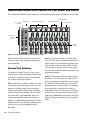
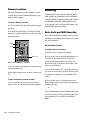
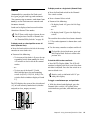
To display all inserts on a single track (Channel
View):
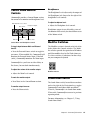
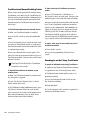
1 Press the Insert switch in the Channel View
switch section. Track names are shown in the
lower row of the LCD. The name of the most recently edited track flashes.
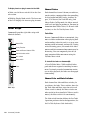
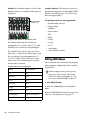
Insert
Opening Plug-ins
Plug-ins can be selected in Console or Channel
Views. Selecting a plug-in for editing makes it
the Command|8 target.
Console view lets you view, select, and bypass
from among the current plug-in assignments of
multiple tracks. Channel view lets you navigate
among all plug-ins and inserts on a single track.
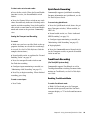
To display plug-ins on an Insert position (A–J)
across all tracks (Console view):
1 Press the Insert switch to the left of the rotary
encoders.
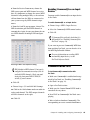
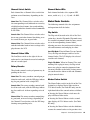
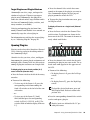
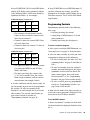
Insert switch in Channel View
2 Press the channel Select switch for the track
containing the plug-in you want to edit. The selected track name appears in the upper row of
the LCD.
3 Do one of the following:
• To display Inserts A–E, press the Left Page
switch.
– or –
2 Do one of the following:
• To view any of the Inserts A–E, press the
corresponding switch from among the
Send A–E switches at the far left of the control surface.
– or –
• To view any of the Inserts F–J, hold
Shift/Add and press the corresponding
switch (A=F, B=G, C=H, D=I, or E=J). The
switches flash to indicate display of Inserts
F–J.
• To display Inserts F-J, press the Right Page
switch.
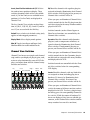
To check the selected track name, press and
hold Display Mode. Release to return to the
previous view.
4 Press the corresponding channel Select switch
to select and open a plug-in.
Inactive inserts are indicated with “@” preceding their name.
Chapter 4: Using Command|8 with Pro Tools
39