1
Navigation Screens
16
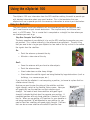
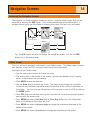
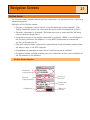
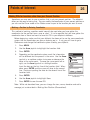
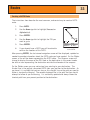
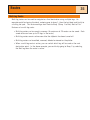
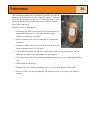
In the Cursor mode, you have a cursor icon displayed that you can use
to pan around the plotter. The information displayed at the bottom of
the screen provide you with the heading and distance the cursor is at
from your present position. In the Cursor mode you can:
Ranger
• scroll around the plotter, seeing available information for areas on
the plotter not displayed around your present position,
CA
Par
• create a POI for the position indicated by the cursor,
1.60mi
• create a GOTO route to the position indicated by the cursor
location, or
• get detailed information about POI’s you have saved found at the
cursor location.
Cursor
o
077 M 6.9
M
I
The Plotter screen in the
Cursor Mode
These options will be explained in the section of this manual on creating POI’s and GOTO
routes.
To enter the Cursor mode, use the Arrow joystick to move the cursor. As soon as the
joystick is moved, a crosshair cursor is displayed and the bottom of the screen changes to
provide information about the cursor position.
To exit the cursor mode, press the ESC button. When pressed, the Plotter screen is
returned to the Position mode, with your present position displayed in the center of the
screen.
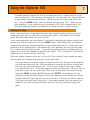
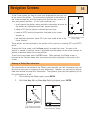
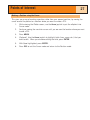
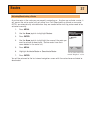
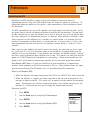
Showing or Hiding Map Information
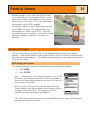
The information at the bottom of the Plotter screen provides you with information that can
be used to assist you in navigating to your destination. However, you may want to display
more area and do not need this information. The eXplorist gives you the capability to turn
this information on or off.
1.
2.
While viewing the Plotter screen, press MENU.
With Hide Map Info or Show Map Info highlighted, press ENTER.
QUAIL
QUAIL
OakTree
OakTree
1.60mi
Heading
351
o
M
Speed
3.9 H
M
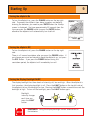
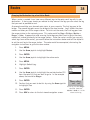
The Plotter screen with
map information shown.
MARKER
1.60mi
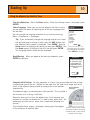
The Plotter screen with
map information hidden.