1
6
Programming Your Instruments
Using Agilent IO Libraries Suite Sample Code
The Automation-Ready CD with Agilent IO Libraries Suite provides
easy instructions for connecting, configuring, and verifying your
instruments with IO Libraries Suite. Go to Chapter 2, “Installing
Agilent I/O Libraries Suite”, for a more detailed discussion.
NOT E
To obtain the Agilent IO Libraries Suite, go to
www.agilent.com/find/iosuite. If you own any Agilent instrumentation
or software products, you can download the IO Libraries Suite free of
charge.
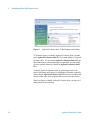
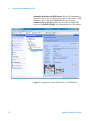
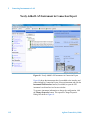
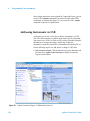
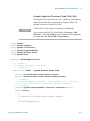
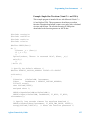
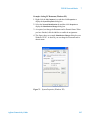
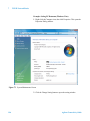
When you’re ready to start programming, IO Libraries Suite provides a
number of sample programs for a variety of instruments. To access these
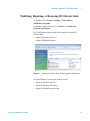
programs from the Windows Start menu, click Start > Programs >
Agilent IO Libraries Suite > Programming Samples. Sample
programs are provided in various languages, including Microsoft C, C#,
Excel, Visual Basic 6.0, and Visual Basic .NET.
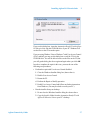
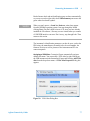
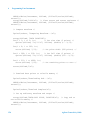
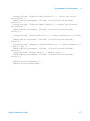
To use a sample program:
1 Select a program for your instrument or a similar instrument. Open
the program in your programming environment.
2 Replace the instrument addressing in the program with your
instrument's VISA address or VISA alias.
3 If necessary, replace the command strings in the program with
commands for your instrument.
4 Run the program and debug, if necessary.
Using VISA COM in Other Visual Basic Projects
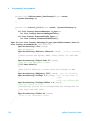
Some of the sample programs in this chapter use Agilent VISA COM.
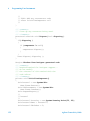
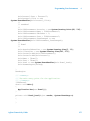
To use VISA COM in another Visual Basic project, perform these steps:
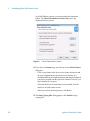
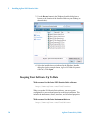
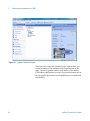
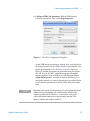
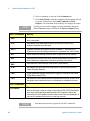
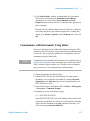
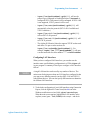
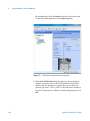
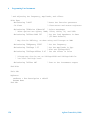
1 Set the Reference. Set the reference to include the libraries in the
Project > References menu:
• “VISA COM 3.0 Type Library” corresponds to GlobMgr.dll
136
Agilent Connectivity Guide