1
Chapter 13: Setting Up Logging and Notification
3
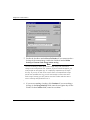
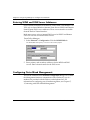
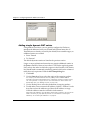
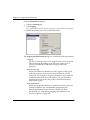
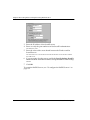
Enter the IP address to be used by the log host.
4
Enter the encryption key that secures the connection between the
Firebox and the log host.
When typing IP addresses, type the digits and periods in sequence. Do not use the
TAB or arrow key to jump past the periods. For more information on entering IP
addresses, see “Entering IP addresses” on page 38.
The default encryption key is the status passphrase set in the QuickSetup Wizard.
You must use the same log encryption key for both the Firebox and the
WatchGuard Security Event Processor.
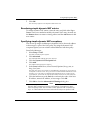
5
Click OK.
Repeat until all primary and backup log hosts appear in the WatchGuard Security
Event Processors list.
Enabling Syslog logging
Note that Syslog logging is not encrypted; therefore, do not set the Syslog
server to a host on the External interface. From Policy Manager:
1
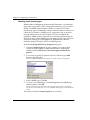
Select Setup => Logging.
2
Click the Syslog tab.
3
4
5
Enable the checkbox marked Enable Syslog Logging.
6
Click OK.
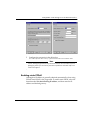
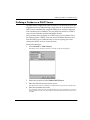
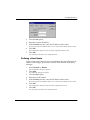
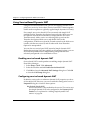
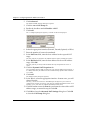
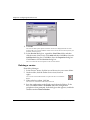
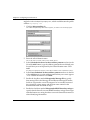
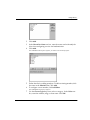
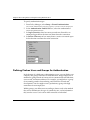
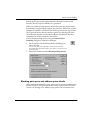
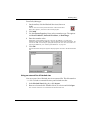
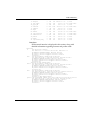
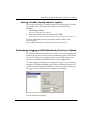
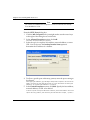
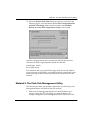
The Logging Setup dialog box appears.
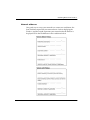
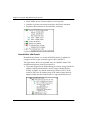
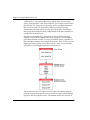
The Syslog tab information appears as shown in the following figure.
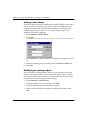
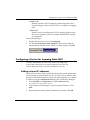
Enter the IP address of the Syslog server.
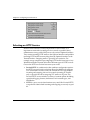
Select a Syslog facility from the drop list. You can select a facility from
LOG_LOCAL_0 through LOG_LOCAL_7.
For more information on Syslog logging, see the following FAQ:
https://support.watchguard.com/advancedfaqs/log_syslog.asp
176
WatchGuard Firebox System