1
Standby Power Down
Once the Computer enters standby,
hibernate / sleep or off mode, the
Embertec SmartSwitch™ PC will
detect this and begin the standby
power down mode. During this time,
the Embertec SmartSwitch™ PC will
monitor the power consumption to
ensure the computer is no longer
being used. After approximately 60
seconds of inactivity from the user,
the peripheral appliances connected
to the ‘Power Saver’ socket will be
switched off.
NOTE: When using Laptops
and Notebooks: the Embertec
SmartSwitch™ PC may need
additional time to detect battery
charging and condition status
in order to determine whether
peripherals should be on or off.
NOTE: It is not guaranteed to
work accurately for laptops
with old batteries.
Turning the Computer
And Components off
After Connecting
the Embertec
SmartSwitch™ PC
Simply turn your equipment
off in the normal way.
14
Once the computer has been
switched off, the Embertec
SmartSwitch™ PC will remove
power from the ‘Power
Saver’ socket after a delay of
approximately 60 seconds.
Reactivating the
Computer, Peripherals
and Equipment
To reactivate your computer,
peripherals and equipment,
simply press the spacebar, move
the mouse, or momentary
press the computer power
button on your computer. The
Embertec SmartSwitch™ PC
will switch on the peripherals
connected to the ‘Power Saver’
socket within 5 seconds.
This will apply power to all
components ready for use.
You can continue using your
computer and components in
the normal way.
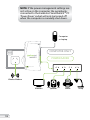
To maximise your energy saving,
please ensure your computer’s
power management settings are
active so the computer enters
sleep, standby or hibernate
modes. Normally this function
is found in a menu item called
‘Power Options’.