1
TABLE OF CONTENTS
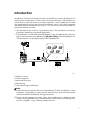
1. Overview of ScanRouter V2 Professional/Enterprise
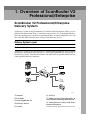
ScanRouter V2 Professional/Enterprise Delivery System...................... 1
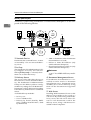
Delivery System Layout ................................................................................. 1
Features of the Delivery System .................................................................... 4
2. Using the Delivery System
Network Administrator Duties................................................................. 15
Before You Start........................................................................................... 15
Launching/Quitting the Delivery Server........................................................ 17
Daily Operations........................................................................................... 18
Other Operations.......................................................................................... 19
3. Using ScanRouter V2 Administration Utility
ScanRouter V2 Administration Utility..................................................... 23
ScanRouter V2 Administration Utility Features ............................................ 23
Launching ScanRouter V2 Administration Utility.......................................... 23
Using Help.................................................................................................... 24
Screen Layout .............................................................................................. 25
Suspending and Resuming Service ....................................................... 26
Server Settings ......................................................................................... 27
Select Server................................................................................................ 27
Set Administrator.......................................................................................... 27
Set Preferences ........................................................................................... 28
Set I/O Device .............................................................................................. 29
Set Delivery Feature Defaults ...................................................................... 29
Directory Server Settings (only with ScanRouter Enterprise) ...................... 30
Set Delivery Types ....................................................................................... 31
Delivery Table Settings ............................................................................ 32
Destinations ................................................................................................. 32
Destination List............................................................................................. 36
Destination Search ....................................................................................... 38
Administering TSI Codes ............................................................................. 38
Administering Mail Address Book ................................................................ 39
Undelivered Data Tray ................................................................................. 40
Log Administration................................................................................... 41
Scan Delivery Log Administration ................................................................ 41
Fax Delivery Log Administration .................................................................. 42
Document Delivery Log Administration ........................................................ 43
Error Log Administration .............................................................................. 43
i