1
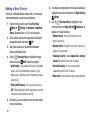
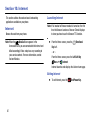
Adding a New Device
Search for a Bluetooth device and pair with it, to exchange
information between your phone and the device.
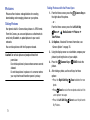
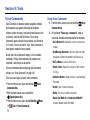
1. From the Home screen, press the Left Soft Key
Menu ➔
Settings ➔ Bluetooth ➔ Add New
Device. Bluetooth turns on, if it is not already on.
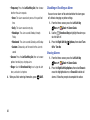
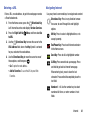
2. At the prompt, activate the target device’s Bluetooth
discoverable mode, then press
OK.
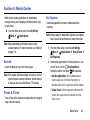
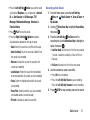
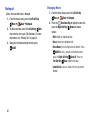
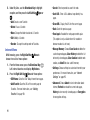
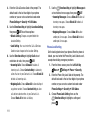
6. To configure pairing options for the new paired device,
highlight the new device and press the Right Soft Key
Options:
7. Use the
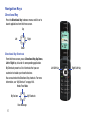
Directional Key to highlight the new
device and press the Right Soft Key Options to set
options for this paired device:
• Remove Device: Remove this device from your
phone’s pairing list.
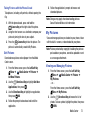
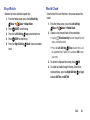
3. Your phone searches for discoverable Bluetooth
devices and displays them.
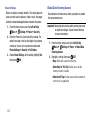
• Rename Device: Change the name of this device as it
appears in the pairing list.
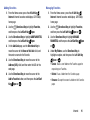
4. Use the
Directional Key to highlight the target
device and press
PAIR. Follow the prompts:
• Auto Pairing: If you enabled Auto Pairing in Bluetooth
Options, and the selected device supports it, your
phone sends a default passkey to the device and pairs
automatically.
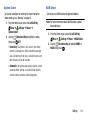
• Incoming Security: Choose Always Ask or Always
Connect for future pairings with this device.
• Pairing with Passkey: Enter a passkey, then press
SET. Follow the prompts on the target device to confirm
the passkey and complete the pairing.
5. After pairing, you can continue on to send information
to the paired device.
67
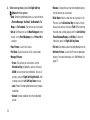
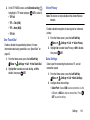
• Service Discovery: View the service profiles
supported for pairing with this device.
• Device Info: View information about the paired device.