1
4.
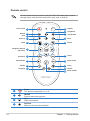
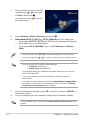
From the Home screen, press the
up/down keys
/
to navigate
to Setup, then press .
You may also press
the Setup menu.
5.
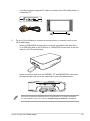
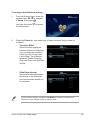
Select Network > Wired LAN Setup and press
to launch
.
6.��������������
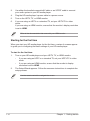
Select either DHCP IP (AUTO) or FIX IP (MANUAL) as your setup type:
•If you select DHCP IP (AUTO), the DHCP server automatically assigns
an IP address for your media player.
•If you select FIX IP (MANUAL), key in the IP address and Subnet
Mask.
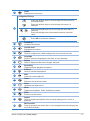
• Use the up/down keys
/
to increase/decrease a numerical value.
• Use the left/right keys
/
to move to other items on the System menu.
• You may use the Fix IP address default settings:
• IP Address: 192.168.0.2
• Subnet mask: 255.255.255.0
• You may also obtain the IP address and subnet mask from your Internet
Service Provider (ISP).
• If you cannot connect to your office network, contact your network
administratior.
• If you want to access shared network files, ���������������������������������
ensure that the computer’s files
are shared on the network. For more details, refer to the section Sharing
media files over the network in this chapter.
7.
On the confirmation message, select OK to save the setting or CANCEL to
discard the setting.
8.
On your computer, you may manually configure the IP address settings.
For more details, refer to the section Configuring the network clients in this
chapter.
2-2
Chapter 2: Getting connected