1
Dirac Theater Setup Guide
Version 1.01
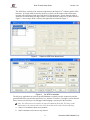
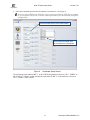
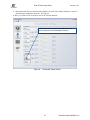
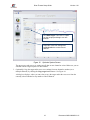
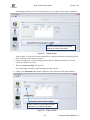
7. Press the Play button to start the test noise for that channel.
Pressing the Play button outputs test noise on that channel and displays the sound level. (Press
the Play button again to stop the test noise.)
8. Read the level in dB and make sure that each channel is measured at approximately -6 to -22 dB
(normal listening levels), which corresponds to the green indicator. If the indicator is red, you
need to adjust the recording level. Then press the Play button again to stop the playback on the
channel. Do this for all channels that are being measured. See Figure 10.
In a large venue it may not always be possible to use the same recording level on all speakers.
In that case, select a recording level which works for the first used channel. Then, if the level
is too low or too high during recording of other channels, the software will allow you to
change the recording level during measurements.
.
Press Play, then read the level in dB and make sure
that each channel can be measured at roughly -6 to -22
dB, indicated by green. Red color means you need to
adjust the recording level.
Figure 10.
Soundcard Setup Screen
2.3. Make Recordings
Note: Make sure the AP20 Proxy setup indicates Dirac is Bypassed and Disabled during the
Record Measurement steps.
1. Place the microphone in the first measurement position. Make sure the microphone is standing
still and has a direct line of sight to each loudspeaker. Also make sure the room is quiet.
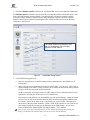
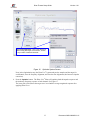
2. Click the Record icon (on the left side of the screen) to switch to the Make Recordings screen.
3. Press the Take new measurement button. See Figure 11.
12
Document # 9301H40300V1.01