1
Getting Started
7.
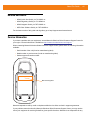
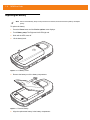
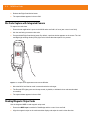
Lower the battery and press down until it snaps into place.
8.
Press down on the battery latch. If the battery is charged, the MC40 turns on automatically.
1-7
Battery Management
NOTE Prior to checking the battery charge level, remove the MC40 from any AC power source (cradle or cable).
To check the charge status of the main battery, touch
> Settings > About device > Status.
Battery status indicates that the battery is discharging and Battery level lists the battery charge (as a
percentage of fully charged).
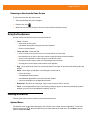
Monitor Battery Usage
The Battery Use screen lists which applications consume the most battery power. Also use it to turn off
applications that were downloaded if they are consuming too much power.
Touch
> Settings > About device > Battery use.
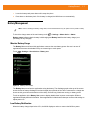
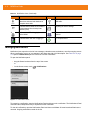
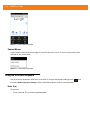
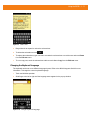
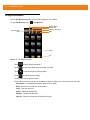
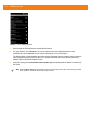
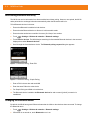
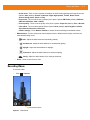
Figure 1-6 Battery Use Screen
The Battery Use screen lists the applications using the battery. The discharge graph at the top of the screen
shows the rate of battery discharge since last charged (short periods of time when connected to a charger are
shown as thin green lines at the bottom of the chart), and how long it has been running on battery power.
Touch an application in the Battery Use screen to display details about its power consumption. Different
applications display different information. Some applications include buttons that open screens with settings to
adjust power use.
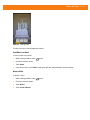
Low Battery Notification
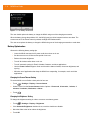
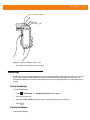
When the battery charge drops below 15%, the MC40 displays a notice to connect the MC40 to power.

















![MC45 User Guide [Italian] P/N# 72E-164159-01IT Rev. B](http://vs1.manualzilla.com/store/data/006159142_1-09ba44b15b8f4b34bd375cd37a9ecc8f-150x150.png)